How to Connect Toyota Corolla Bluetooth in 5 Easy Steps
Connecting Toyota Corolla Bluetooth is faster than you think. With just a few taps on your phone and your car’s infotainment screen, you can enjoy hands-free calling, music streaming, and GPS navigation without ever touching a cable. This guide walks you through every step clearly, so even if you are not tech-savvy, you will be connected in minutes.
There is nothing more frustrating than getting into your car and realizing you cannot connect your phone. You want to play your favorite playlist, take a call, or use GPS navigation, but the Toyota Corolla Bluetooth connection just will not work. Sound familiar? You are not alone. Many Toyota Corolla owners face Bluetooth pairing issues, especially if they are new to the car or have not connected their phone in a while.
The good news is that connecting Toyota Corolla Bluetooth does not have to be complicated. In fact, it can take less than five minutes once you know the right steps. This guide breaks the entire process down into simple, easy-to-follow instructions. Whether you drive a 2015 model or a brand-new 2024 Toyota Corolla, the process is very similar. By the end of this article, you will know exactly how to pair your phone, fix common problems, and get the most out of your Toyota Corolla Bluetooth experience.
So grab your phone, get comfortable, and let us walk through this together. No jargon, no confusing tech talk, just plain and simple instructions that actually work.
Key Takeaways
- Step-by-step pairing: Follow 5 simple steps to connect Toyota Corolla Bluetooth quickly and easily.
- No special tools needed: You only need your phone and your car’s infotainment system.
- Troubleshooting tips included: Learn how to fix common Bluetooth connection problems.
- Multiple devices supported: You can pair more than one phone with your Toyota Corolla.
- Works with Apple and Android: Both iPhone and Android users can follow the same basic steps.
- Bonus features: Discover hands-free calling, audio streaming, and more Toyota Corolla Bluetooth perks.
📑 Table of Contents
- What You Need Before Connecting Toyota Corolla Bluetooth
- Step-by-Step: How to Connect Toyota Corolla Bluetooth
- How to Pair Your Phone with Toyota Corolla Bluetooth
- Common Toyota Corolla Bluetooth Problems and Fixes
- Tips for Getting the Best Bluetooth Experience in Your Toyota Corolla
- Toyota Corolla Bluetooth Features You Should Know About
- How to Reset Toyota Corolla Bluetooth
- Toyota Corolla Bluetooth Across Different Model Years
- Conclusion
What You Need Before Connecting Toyota Corolla Bluetooth
Before you start the pairing process, make sure you have everything ready. This small prep step saves a lot of time and frustration later. Here is what you need:
- A smartphone: Either an iPhone or an Android phone will work perfectly with Toyota Corolla Bluetooth.
- A charged phone: Make sure your phone battery is at least 30 percent before you start.
- A working infotainment system: Your Toyota Corolla should have a functioning touchscreen or audio system.
- A quiet environment: Pairing works best when there are no other Bluetooth devices fighting for attention nearby.
One thing many people overlook is making sure Bluetooth is turned on their phone. It sounds obvious, but this is the number one reason Toyota Corolla Bluetooth pairing fails. Go to your phone settings and confirm that Bluetooth is switched on before you begin.
Also, if you have previously paired other devices with your car, it helps to clear old connections first. Too many saved devices can slow down the pairing process and cause confusion. Think of it like cleaning a whiteboard before writing something new.
Step-by-Step: How to Connect Toyota Corolla Bluetooth
Now let us get to the main event. These 5 steps will have your Toyota Corolla Bluetooth connected in no time. Follow them in order for the best results.
Step 1: Turn on Bluetooth on Your Phone
Open your phone settings and find the Bluetooth option. Tap it to turn it on. You should see the Bluetooth icon appear at the top of your screen. On iPhone, you can also swipe down from the top right corner and tap the Bluetooth symbol. On Android, swipe down from the top and look for the Bluetooth quick-action tile.
Once Bluetooth is on, your phone will start searching for nearby devices. This is exactly what we want. Your Toyota Corolla infotainment system will appear in the list of available devices shortly.
Step 2: Enable Bluetooth on Your Toyota Corolla
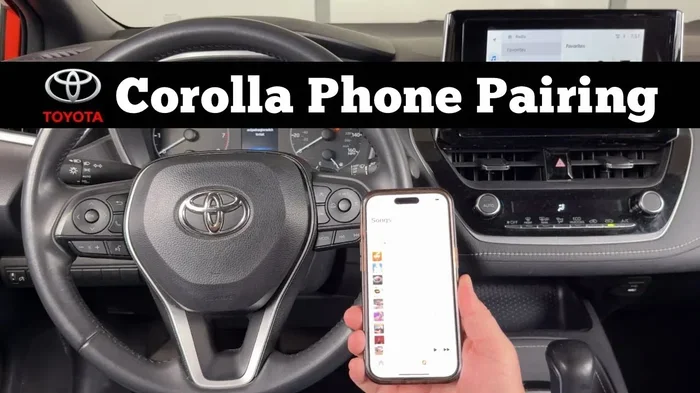
Start your Toyota Corolla and press the Bluetooth or Phone button on the steering wheel or infotainment screen. On most models, you will find this on the touchscreen display. Look for a Settings or Phone menu. Then select Bluetooth Settings and toggle it on.
Your car is now broadcasting its Bluetooth signal. This is how other devices find it. You should see your Toyota Corolla appear as a discoverable device. If it does not show up, try turning Bluetooth off and on again in the car settings. Sometimes a simple restart does the trick.
Step 3: Search for and Select Your Car
On your phone, look for your Toyota Corolla in the list of available Bluetooth devices. It might show as “Toyota Corolla,” “Bluetooth Audio,” or the car model name. Tap on it to start the pairing process.
Within a few seconds, your phone and car will exchange pairing information. You may see a confirmation code on both screens. Make sure the codes match, then tap Pair or Confirm on your phone. This step ensures a secure connection between your devices.
Step 4: Allow Permissions on Your Phone
Your phone will now ask you to grant permissions. This is important for Toyota Corolla Bluetooth to work fully. You will typically see prompts for:
- Phone calls: Allows hands-free calling through your car speakers.
- Contacts: Lets you access your phone contacts through the car system.
- Audio and music: Enables music streaming from apps like Spotify or Apple Music.
- Messages: Allows read-aloud notifications for texts.
Tap Allow on each permission. Do not skip this step, or you will miss out on key features. Once permissions are granted, your Toyota Corolla Bluetooth connection is officially established.
Step 5: Test the Connection
Play a song from your phone and check if it comes through your car speakers. Make a test call to confirm hands-free calling works. Try asking your phone a voice command if your car supports it. If everything works, congratulations. You are now connected.
If something does not work, do not worry. Move on to the troubleshooting section below. Most issues have simple fixes.
How to Pair Your Phone with Toyota Corolla Bluetooth
Pairing is the process of linking your phone to your car. Once paired, your Toyota Corolla Bluetooth will remember the device and connect automatically every time you get in the car. Here are some tips to make pairing smoother.
First, make sure no other phone is currently connected to the car. If a passenger’s phone is already paired, it might interfere with your connection. Ask them to disconnect temporarily while you pair your device.
Second, keep your phone close to the car during pairing. Place it on the center console or dashboard. Bluetooth has a limited range, and walls or distance can weaken the signal. Being close helps establish a strong initial connection.
Third, restart both devices if pairing fails. Turn off your phone Bluetooth, turn off your car infotainment system, wait 30 seconds, and then turn both back on. This clears temporary glitches and often solves the problem instantly.
For those who drive a Toyota Corolla that has been in the family for years, you might be surprised how much the Bluetooth system has improved over time. The Toyota Corolla has evolved a lot, and so has its technology. Even older models benefit from a fresh Bluetooth pairing.
Common Toyota Corolla Bluetooth Problems and Fixes
Even when you follow all the steps correctly, Bluetooth connections can act up. Here are the most common Toyota Corolla Bluetooth problems and how to fix them.
Toyota Corolla Bluetooth Not Showing Up on Phone
If your phone cannot find your car, the Bluetooth is probably not in discovery mode. Go to your car settings and make sure Bluetooth is turned on and set to visible or discoverable. On some Toyota models, you need to hold the Bluetooth button for a few seconds to activate discovery mode.
Also check if your phone has found other Bluetooth devices nearby. If it is finding devices but not your car, the car might not be broadcasting its name properly. Restarting the car infotainment system usually fixes this.
Toyota Corolla Bluetooth Connected but No Sound
This is a common issue. Your phone shows connected, but you cannot hear music or calls through the car speakers. The fix is usually simple. Check that the audio source on your car is set to Bluetooth. Press the Source or Media button on your infotainment screen and select Bluetooth Audio.
Also check your phone volume. Sometimes the phone is muted or at a very low volume, and the car speakers follow the phone volume level. Turn up your phone media volume and see if that solves the problem.
Toyota Corolla Bluetooth Keeps Disconnecting
If your connection drops frequently, another Bluetooth device might be interfering. Other phones, tablets, or even smartwatches can cause interference. Turn off Bluetooth on other devices nearby and see if the connection stabilizes.
Another cause is an outdated phone software. Check for phone updates in your settings. Manufacturers often release Bluetooth fixes through software updates. Keeping your phone updated helps maintain a stable Toyota Corolla Bluetooth connection.
Toyota Corolla Bluetooth Won’t Forget Old Devices
Over time, your car might have paired with many devices. Old connections can clutter the system and slow things down. Go to your car Bluetooth settings and delete devices you no longer use. This keeps the system clean and makes new pairing faster.
Tips for Getting the Best Bluetooth Experience in Your Toyota Corolla
Once your Toyota Corolla Bluetooth is connected, a few simple habits will keep the experience smooth and enjoyable.
- Keep your phone software updated: Updates often include Bluetooth improvements and bug fixes.
- Restart your car Bluetooth monthly: A quick restart clears memory and keeps things running fast.
- Use one primary phone: While the car can remember multiple devices, using one primary phone reduces confusion.
- Charge your phone while driving: Bluetooth uses battery power. A low battery can weaken the connection.
- Keep your phone clean: Dust and debris around the charging port can affect Bluetooth and charging at the same time.
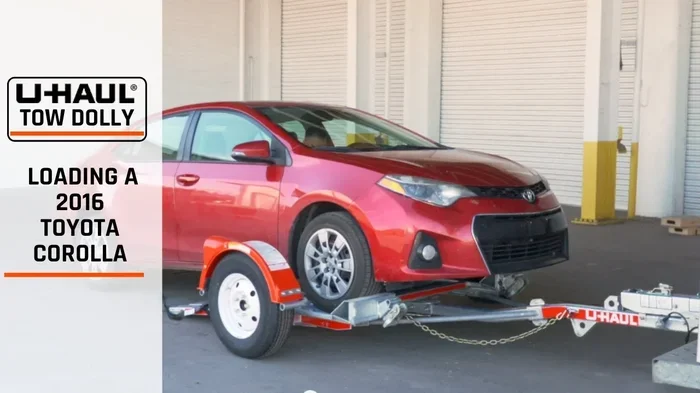
If you also use your Toyota Corolla for towing or hauling, keep in mind that the Toyota Corolla can handle light towing tasks, but Bluetooth connectivity remains stable regardless of what you are hauling. The Bluetooth system operates independently of the car’s towing capacity.
Another great tip is to name your phone something recognizable in the Bluetooth settings. Instead of “iPhone 15” or “Samsung Galaxy,” try naming it “My Car Phone.” This makes it much easier to identify in the car’s device list, especially when multiple phones are paired.
Toyota Corolla Bluetooth Features You Should Know About
Connecting Toyota Corolla Bluetooth opens up more than just music streaming. Here are features you might not know about.
Hands-Free Calling: Make and receive calls without touching your phone. The car speakers play the call audio, and the built-in microphone picks up your voice. This is not just convenient, it is also safer while driving.
Voice Commands: Many Toyota Corolla models support voice commands through the Bluetooth connection. You can ask your phone to call a contact, send a text, or play a specific song, all without taking your hands off the wheel.
Audio Streaming: Stream music from apps like Spotify, Apple Music, YouTube Music, or Pandora directly through your car speakers. The sound quality is usually better than phone speakers, making your daily commute more enjoyable.
Navigation Audio: If you use GPS apps like Google Maps or Waze, the navigation directions will play through your car speakers when Bluetooth is connected. You will hear turn-by-turn directions clearly without looking at your phone.
Multiple Device Switching: Some Toyota Corolla models allow you to switch between paired devices. If your passenger wants to play their own music, you can easily switch the Bluetooth source back and forth.
Regular car maintenance also plays a role in keeping your tech working well. Just like you would check your Toyota Corolla oil regularly, checking your Bluetooth settings occasionally ensures everything stays in top shape.
How to Reset Toyota Corolla Bluetooth
Sometimes the best fix is a fresh start. Resetting your Toyota Corolla Bluetooth clears all saved pairings and starts clean. Here is how to do it.
Go to your car infotainment Settings, then find Bluetooth Settings. Look for an option that says “Reset Bluetooth” or “Clear Pairing List.” Confirm the reset. Your car will forget all previously connected devices.
On your phone, go to Bluetooth settings and forget the Toyota Corolla connection. Then follow the 5 steps above to pair fresh. This solves most stubborn Bluetooth issues and is often faster than troubleshooting individual problems.
Remember, resetting does not delete anything from your phone. It only removes the car pairing information. All your contacts, music, and apps stay exactly where they are.
Toyota Corolla Bluetooth Across Different Model Years
The Toyota Corolla has been around for decades, and Bluetooth technology has improved significantly over the years. Here is a quick look at what to expect based on model year.
2010 and older: These models may have basic Bluetooth for hands-free calling only. Music streaming might not be supported, or it may require an auxiliary adapter.
2012 to 2018: These models typically support both hands-free calling and audio streaming. The infotainment screens are smaller but the Bluetooth pairing process is straightforward.
2019 and newer: Newer Toyota Corolla models come with advanced infotainment systems. These support wireless Bluetooth, voice assistants, and smartphone integration features like Apple CarPlay or Android Auto.
No matter which year you drive, the basic pairing process remains the same. The steps in this guide apply to all Toyota Corolla models with Bluetooth capability.
Just as the Toyota Corolla has proven its reliability over the years, its Bluetooth system is designed to be dependable and user-friendly. The Toyota Corolla continues to be one of the most popular cars on the road, and part of that popularity comes from features like easy Bluetooth connectivity.
Conclusion
Connecting Toyota Corolla Bluetooth is one of the simplest and most useful things you can do for your daily driving experience. In just five steps, you can go from no connection to hands-free calling, music streaming, and GPS navigation through your car speakers. The process works the same across most model years, and once paired, your phone connects automatically every time you get in the car.
If you run into trouble, remember the troubleshooting tips. Restarting both devices, clearing old pairings, and checking permissions usually solves the problem. And resetting the Bluetooth system is always a reliable last resort.
Take a few minutes today to connect your phone. You will wonder how you ever drove without it. Toyota Corolla Bluetooth makes every drive safer, more convenient, and more enjoyable. Happy connecting.
Frequently Asked Questions
Why won’t my Toyota Corolla Bluetooth connect to my phone?
Most connection issues are caused by Bluetooth being turned off on one of the devices, old pairings cluttering the system, or interference from other devices. Try turning Bluetooth off and on on both your phone and your car, then attempt pairing again. If that does not work, reset the car Bluetooth settings and start fresh.
Can I connect more than one phone to my Toyota Corolla Bluetooth?
Yes, most Toyota Corolla models can store multiple paired devices. However, only one device can stream audio at a time. When you get in the car, it usually connects to the last device that was paired or the one you use most frequently.
Why is there no sound after connecting Toyota Corolla Bluetooth?
Check that your car audio source is set to Bluetooth. Also make sure your phone media volume is turned up. Sometimes the phone is connected but the volume is muted or very low, so no sound comes through the car speakers.
Does Toyota Corolla Bluetooth work with Android Auto and Apple CarPlay?
Many newer Toyota Corolla models support Android Auto and Apple CarPlay through the Bluetooth connection. These features offer an even more integrated phone experience on your car screen. Check your specific model year to confirm compatibility.
How do I delete a paired device from my Toyota Corolla Bluetooth?
Go to your car infotainment Settings, then Bluetooth Settings. Find the device you want to remove and select Delete or Forget. This clears the pairing from your car memory and frees up a slot for a new device.
Can I use Toyota Corolla Bluetooth for navigation audio?
Yes, when your phone is connected via Bluetooth, navigation apps like Google Maps and Waze will play turn-by-turn directions through your car speakers. This makes it easier to follow directions without looking at your phone while driving.