How to Exit Carplay on Your Toyota Quickly and Easily
Exiting CarPlay on your Toyota is simple once you know the right steps. Whether you use a touchscreen, steering wheel controls, or the HomeLink button, there are multiple ways to disconnect Apple CarPlay. This guide covers every Toyota model and method so you can get back to your normal screen in seconds.
Have you ever been driving your Toyota and suddenly realized your screen is stuck on CarPlay? Maybe you want to switch to your regular audio, check your gauges, or just enjoy the Toyota display without the Apple interface. Whatever the reason, learning how to exit CarPlay on your Toyota is a skill every Toyota owner should have.
The good news is that exiting CarPlay is straightforward. You do not need to be a tech expert. In fact, most Toyota owners can disconnect CarPlay in under ten seconds once they know where to look. This guide walks you through every method, every Toyota model, and every tricky situation you might face.
We will also cover what to do when CarPlay freezes, how to prevent issues in the future, and answer the most common questions drivers ask about Toyota CarPlay disconnect problems. By the end, you will feel confident managing your Toyota screen anytime.
Key Takeaways
- Multiple Exit Methods: You can exit CarPlay using the touchscreen, steering wheel controls, or by disconnecting your phone via Bluetooth.
- Works on All Toyota Models: Whether you drive a Camry, RAV4, or Highlander, the steps are nearly identical across the Toyota lineup.
- Quick Troubleshooting: A frozen CarPlay screen can often be fixed with a simple restart or by toggling Bluetooth off and on.
- Prevent Future Issues: Updating your Toyota software and iPhone settings can stop CarPlay problems before they start.
- No Dealer Visit Needed: Most CarPlay exit issues can be resolved at home with basic steps.
- Wireless and Wired Options: The exit process works the same whether your CarPlay connects wirelessly or through a USB cable.
📑 Table of Contents
- What Is CarPlay and Why Does It Show Up on Your Toyota Screen?
- How to Exit CarPlay on Your Toyota Using the Touchscreen
- How to Exit CarPlay Using Steering Wheel Controls
- How to Exit CarPlay When the Screen Is Frozen
- How to Prevent CarPlay Issues on Your Toyota
- Toyota Model-Specific CarPlay Exit Tips
- When to Visit a Dealer for CarPlay Problems
- Final Thoughts
What Is CarPlay and Why Does It Show Up on Your Toyota Screen?
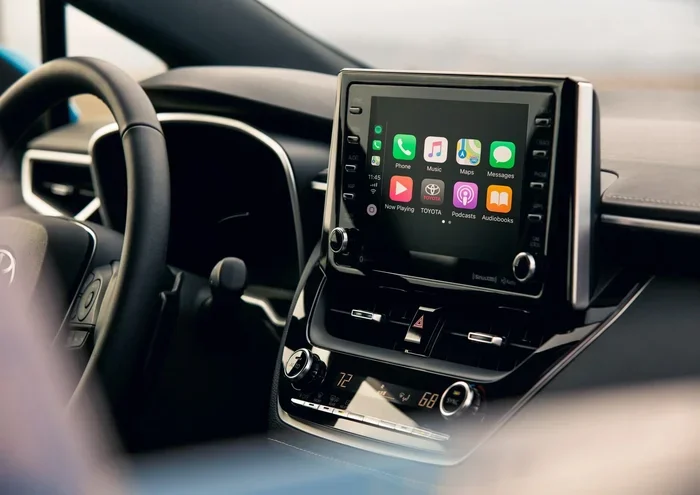
Apple CarPlay is a feature that mirrors your iPhone on your Toyota display. It lets you access maps, music, messages, and calls through your car’s screen. Toyota has supported CarPlay for many years now, and it comes standard or available on most models.
When you connect your phone, the Toyota screen switches to the CarPlay interface. This is great when you want directions or music. But sometimes you just want your regular Toyota display back. That is where knowing how to exit CarPlay becomes essential.
CarPlay can connect in two ways. You can plug in a USB cable, or you can use a wireless connection. Both methods work well, and both can be disconnected the same way. If you are curious about how Toyota handles phone connections in general, you might also enjoy learning how to add pictures to Uconnect from a phone since it covers similar phone-to-car connectivity topics.
How to Exit CarPlay on Your Toyota Using the Touchscreen
The most common way to exit CarPlay is through the Toyota touchscreen. This method works on nearly every Toyota model with a multimedia display. Here is exactly what to do.
Method 1: Use the Home Button
Most Toyota models have a physical Home button or a touchscreen Home icon. Look for it at the bottom left or bottom center of your display. Press it once, and the screen should return to the main Toyota menu. CarPlay will disappear, and you will see your regular audio and vehicle controls.
If you do not see the Home button, try swiping up from the bottom of the screen. This gesture works on newer Toyota models with larger displays. The screen should snap back to the normal Toyota interface.
Method 2: Go to Settings
Another reliable way is through the settings menu. Follow these steps:
- Tap the Settings icon on your Toyota screen. It usually looks like a gear.
- Look for the Audio or Phone section.
- Find the CarPlay or Connected Devices option.
- Toggle CarPlay off or select Disconnect.
This method works well if the Home button does not respond. It is also helpful when you want to disconnect CarPlay for a passenger who is not using it.
Method 3: Disconnect from Your iPhone
You can also exit CarPlay from your phone itself. Open the Control Center on your iPhone by swiping down from the top right corner. Tap the CarPlay icon to disconnect. The Toyota screen will return to normal almost instantly.
This is a handy trick when you are sitting in the driver’s seat and the screen is unresponsive. Your phone is always within reach, and a quick toggle solves the problem.
How to Exit CarPlay Using Steering Wheel Controls
Not everyone wants to touch the screen while driving. Toyota understands this, which is why most models let you control CarPlay from the steering wheel. Here is how to use those controls to exit CarPlay.
Find the Menu or Voice Command Button
Look at your steering wheel. You should see a Menu button, a Voice Command button, or a dedicated CarPlay button depending on your Toyota model. Press the Menu button and scroll to the CarPlay option. Select Disconnect or Exit.
If your Toyota has voice command, you can simply say “Disconnect CarPlay” or “Return to main screen.” The Toyota system will obey and bring you back to the home screen right away.
Use the Trackpad or Jog Dial
Some Toyota models use a trackpad or jog dial instead of a touchscreen. In this case, press the Home button on the jog dial. Scroll through the options until you see the CarPlay disconnect option. Select it, and you are back to the Toyota main screen.
This method takes a few extra seconds but keeps your hands on the wheel. Safety first, always.
How to Exit CarPlay When the Screen Is Frozen
A frozen CarPlay screen is frustrating. You tap everywhere, but nothing happens. Do not worry. This is a common issue, and there are proven fixes. Let us walk through them.
Restart the Toyota Infotainment System
The simplest fix is to restart the Toyota multimedia system. You can do this by holding down the power button on the screen for about ten seconds. The display will go black and then turn back on. When it restarts, CarPlay should be gone.
If holding the power button does not work, try turning off your car completely. Wait about thirty seconds. Then turn the car back on. The Toyota system will reboot, and CarPlay will disconnect automatically.
Toggle Bluetooth Off and On
Since CarPlay connects through Bluetooth or USB, toggling Bluetooth can break the connection. Go to your iPhone settings, turn Bluetooth off, wait five seconds, and turn it back on. The Toyota screen should return to normal.
This trick works because it forces your phone to drop the CarPlay connection. The Toyota screen then has no choice but to go back to the regular display.
Unplug and Replug the USB Cable
If you use a wired connection, simply unplug the USB cable from your phone or the car. Wait a few seconds, then plug it back in. The screen should switch back to the Toyota interface instead of loading CarPlay again.
For a permanent fix, you can also change your iPhone settings so CarPlay does not auto-connect. Go to Settings, then General, then CarPlay, and select your Toyota. Choose “Disable” or remove the connection. This stops CarPlay from loading every time you get in the car.
How to Prevent CarPlay Issues on Your Toyota
Prevention is always better than fixing a problem. Here are simple steps to keep your Toyota CarPlay running smoothly and avoid getting stuck on the CarPlay screen.
Keep Your Software Updated
Toyota releases software updates for the infotainment system. Apple also releases iOS updates that improve CarPlay compatibility. Make sure both your Toyota and your iPhone are up to date. An outdated system is the number one cause of CarPlay glitches.
Use a Quality USB Cable
If you connect via cable, the USB cable matters a lot. Cheap or damaged cables cause connection drops and frozen screens. Use an Apple-certified cable that is short and sturdy. A good cable ensures a stable connection and clean disconnections.
Restart Your Phone Regularly
Your iPhone accumulates background processes that can interfere with CarPlay. A simple restart once a week keeps things running smoothly. This also helps your phone reconnect to your Toyota faster and more reliably.
Clear Old CarPlay Connections
If you have connected multiple phones to your Toyota, old connections can cause conflicts. Go to your Toyota settings and clear all paired devices. Then reconnect only the phone you currently use. This keeps the system clean and fast.
Toyota Model-Specific CarPlay Exit Tips
While the general steps work for all Toyotas, some models have unique quirks. Here are a few model-specific tips to help you exit CarPlay faster.
Toyota Camry CarPlay Exit Tips
The Toyota Camry uses a clean and intuitive touchscreen. On most Camry models, pressing the Home button at the bottom left of the screen exits CarPlay instantly. If your Camry has the JBL audio system, the audio controls may overlay CarPlay. Tap the audio icon to switch back to regular radio or Bluetooth audio.
Toyota RAV4 CarPlay Exit Tips
The Toyota RAV4 has a slightly different layout depending on the year. Newer RAV4 models with the 10.5-inch screen have a dedicated CarPlay home screen. To exit, swipe up from the bottom or press the Home button on the left side of the screen. If your RAV4 has a smaller 8-inch screen, the process is the same but the icons may be slightly larger and easier to tap.
Toyota Highlander CarPlay Exit Tips
The Toyota Highlander, especially the 2020 and newer models, comes with a premium audio system that can sometimes overlay the CarPlay interface. If you cannot see the Home button, try pressing the voice command button on the steering wheel and saying “Return to home.” This works reliably on the Highlander and saves you from fumbling with the screen while driving.
For owners interested in other Toyota tech features, you might also want to check out whether you can switch to sport mode while driving a Toyota since it covers another popular Toyota feature question.
When to Visit a Dealer for CarPlay Problems
Most CarPlay issues resolve with the steps above. But sometimes the problem is deeper. Here are signs that you should visit a Toyota dealer.
- CarPlay will not connect at all: If your phone never connects to CarPlay, the USB port or Bluetooth module may be faulty.
- The screen stays frozen after a restart: A persistent freeze could indicate a software corruption that needs a dealer-level reset.
- CarPlay keeps reconnecting on its own: If you disconnect CarPlay and it immediately comes back, there may be a settings conflict.
- You see error messages: Messages like “CarPlay not available” or “Connection failed” that do not go away deserve professional attention.
Before visiting a dealer, try the simplest fix first: disconnect your phone, turn off the car, wait one minute, and restart. This clears most temporary glitches. If the problem persists, a dealer can run diagnostics on your Toyota infotainment system.
If you are wondering about taking your Toyota to a dealer for service in general, you might find helpful information in our guide on whether you can take your Toyota to any dealer for service.
Final Thoughts
Knowing how to exit CarPlay on your Toyota quickly and easily is one of those small skills that makes driving more enjoyable. Whether you use the touchscreen, steering wheel controls, or your iPhone settings, you now have multiple ways to get back to your normal Toyota display.
Remember the key steps: press Home, go to settings, disconnect from your phone, or restart the system if it freezes. These methods work across all Toyota models and years. Keep your software updated, use quality cables, and clear old connections to prevent most issues.
The next time CarPlay takes over your Toyota screen unexpectedly, you will know exactly what to do. No stress, no frustration, just a quick tap or voice command and you are back to driving. Stay safe, stay connected, and enjoy your Toyota.
Frequently Asked Questions
Can I exit CarPlay without touching the screen?
Yes. You can use the steering wheel voice command button and say “Disconnect CarPlay” or “Return to home.” You can also use the jog dial or trackpad on models that have one. Pressing the Home button on the steering wheel works on most Toyota models too.
Why does CarKeep keep coming back after I exit it?
This usually happens because your iPhone is set to automatically connect to CarPlay. Go to your iPhone Settings, tap General, then CarPlay, and choose your Toyota. Select “Disable” to stop the automatic connection. You can always reconnect it manually when you want to use it.
Does exiting CarPlay delete anything from my phone?
No. Exiting CarPlay simply disconnects the display connection. None of your apps, music, or data are deleted. Everything stays exactly as it was on your phone.
Can I use regular radio after exiting CarPlay?
Absolutely. Once you exit CarPlay, your Toyota screen returns to the regular audio interface. You can switch to FM radio, Bluetooth audio, or any other audio source just like you normally would.
Is there a difference between exiting CarPlay and turning off Bluetooth?
Yes. Exiting CarPlay only disconnects the CarPlay display. Your Bluetooth connection for audio or calls may stay active. Turning off Bluetooth disconnects all wireless connections between your phone and your Toyota. You can exit CarPlay while keeping Bluetooth on for music streaming.
What Toyota models support CarPlay?
Most Toyota models from 2019 onward support Apple CarPlay, and many older models also have it. This includes the Camry, RAV4, Highlander, Corolla, Tacoma, and more. Check your specific model year to confirm. If you are shopping for a used Toyota, CarPlay availability depends on the trim level and year.