How to Connect Bluetooth to Your Nissan Altima Fast
Connecting Bluetooth to your Nissan Altima is simple once you know the right steps. This guide walks you through pairing your phone, streaming music, and making hands-free calls with ease. We also share expert troubleshooting tips to fix common Bluetooth problems fast.
Have you just gotten into your Nissan Altima and wanted to play your favorite playlist through the car speakers? Or maybe you need to take a call while keeping your hands on the wheel? Connecting Bluetooth to your Nissan Altima solves both problems in seconds. It is one of the easiest ways to make your daily drive safer and more enjoyable.
Many drivers skip the setup process because they think it will be complicated. That is not true at all. Whether you drive a 2013 model or the latest 2024 Nissan Altima, the Bluetooth pairing process follows a similar pattern. You will be up and running in under five minutes once you know the steps.
In this guide, we break down every step clearly. We also cover common issues like Bluetooth not connecting, audio quality problems, and how to pair multiple devices. By the end, you will feel confident managing your car’s wireless connection every single time.
Key Takeaways
- Easy Pairing Process: Connecting Bluetooth to your Nissan Altima takes just a few minutes using the infotainment system.
- Hands-Free Convenience: Once paired, you can make calls and stream music without touching your phone.
- Multiple Devices Supported: The Altima allows you to pair more than one phone at a time for shared use.
- Troubleshooting Is Simple: Most Bluetooth issues can be fixed by resetting the connection or updating your phone settings.
- Works Across Model Years: The process is similar for most Nissan Altima generations from 2013 onward.
- Best Practices Matter: Keeping your devices updated and within range ensures a stable wireless connection every time.
📑 Table of Contents
- Why Bluetooth Connectivity Matters in the Nissan Altima
- Step-by-Step Guide to Connect Bluetooth to Your Nissan Altima
- How to Stream Music and Make Hands-Free Calls
- Pairing Multiple Devices to Your Nissan Altima
- Common Bluetooth Problems and How to Fix Them
- Expert Tips for the Best Bluetooth Experience
- How the Nissan Altima Bluetooth System Compares
- Key Takeaways
- Frequently Asked Questions
Why Bluetooth Connectivity Matters in the Nissan Altima
The Nissan Altima comes equipped with a modern infotainment system that supports wireless audio streaming and hands-free calling. This means you do not need cables or extra adapters. You just tap a few buttons on the dashboard and your phone connects instantly.
Here is why this feature matters so much:
- Safety first: Hands-free calling keeps your eyes on the road and hands on the wheel.
- Convenience: Stream music, podcasts, and navigation audio through your car speakers.
- No cables needed: Say goodbye to tangled wires and lost aux cables.
- Multiple users: Different family members can pair their own phones easily.
- Seamless integration: The system remembers paired devices and reconnects automatically.
If you have ever wondered whether your Altima supports this feature, the answer is almost certainly yes. All Nissan Altima models from the 2013 model year onward come with standard Bluetooth capability. Some older models may need a simple module upgrade, but that is rare. If you want to learn more about your specific Altima trim and features, check out Can a Nissan Altima Use Unleaded 88 Gas for general Altima model insights.
Step-by-Step Guide to Connect Bluetooth to Your Nissan Altima
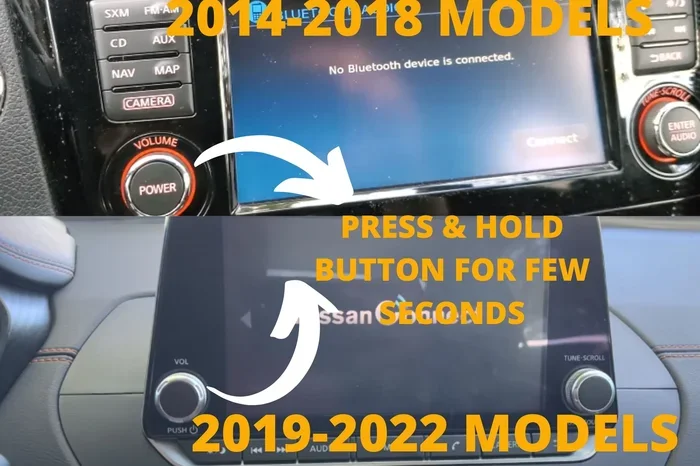
The pairing process is straightforward. Follow these steps carefully and you will have your phone connected in no time. The exact button names may vary slightly depending on your model year, but the overall process stays the same.
Step 1: Turn On Your Car’s Infotainment System
Press the power button on your Nissan Altima’s infotainment screen. You do not need to start the engine fully. Just turning the ignition to accessory mode works fine. The screen will light up and display the main menu.
Make sure your car is parked safely before you begin. This keeps your attention focused on the setup process.
Step 2: Navigate to the Bluetooth Settings Menu
Use the touchscreen or the selector knob on the center console to find the Settings menu. Look for the Bluetooth icon, which usually looks like a letter “B” with curved lines. Tap on it to enter the Bluetooth settings panel.
On older Altima models without a touchscreen, press the “Settings” button on the audio head unit. Use the arrow keys to scroll to the Bluetooth option and press “Enter.”
Step 3: Set Your Car to Discoverable Mode
This is the step many people skip, and it causes most pairing failures. You need to make your car visible to nearby phones. In the Bluetooth settings menu, select the option that says “Add Device” or “Search for Devices.”
Your Altima will now broadcast its presence. You should see a message on the screen confirming that the system is ready to pair. This mode usually stays active for a few minutes, so work quickly.
Step 4: Turn On Bluetooth on Your Phone
Go to your phone’s settings and enable Bluetooth. On iPhone, swipe down from the top right corner and tap the Bluetooth icon. On Android, swipe down from the top and look for the Bluetooth quick toggle.
Once Bluetooth is on, your phone will start scanning for available devices. Wait a few seconds and your Nissan Altima should appear in the list. It may show as “Nissan” or “Altima BT” depending on your model.
Step 5: Pair Your Phone with the Car
Tap on your car’s name in the phone’s Bluetooth list. A pairing request will appear on both screens. You will see a numeric code on the car’s display. Confirm that the code matches on your phone, then tap “Pair” or “Connect.”
Within a few seconds, the connection will be established. You will hear a confirmation chime from the car’s speakers. Your phone screen will also show a “Connected” status under the Bluetooth device name.
Step 6: Test the Connection
Now for the fun part. Play some music on your phone and check if it streams through the car speakers. Try making a test call to verify that the microphone works. Adjust the volume using the car’s audio controls to make sure everything responds properly.
If both audio and calls work, you are all set. If not, do not worry. We cover troubleshooting in the next section.
How to Stream Music and Make Hands-Free Calls
Once your phone is paired, the Nissan Altima’s infotainment system gives you full control. You can switch between different audio sources using the “Media” or “Source” button on the dashboard.
For music streaming, select the Bluetooth Audio option. Your phone’s music app will now send audio directly to the car’s speakers. You can control playback from either the car screen or your phone.
For hands-free calling, the system uses the car’s built-in microphone. When you receive a call, the audio automatically switches to the car speakers. Press the voice command button on the steering wheel to answer or dial a number using your voice.
This is where the real convenience shines. You can focus on driving while staying connected. The Bluetooth range in the Altima works reliably up to about 30 feet, so your phone can stay in your pocket or on the console without any issues.
Pairing Multiple Devices to Your Nissan Altima
The Altima’s Bluetooth system supports multiple paired devices. This is great for families or anyone who shares the car. You can connect up to five devices at once, though only one streams audio at a time.
To add a second phone, simply repeat the pairing steps above while the first device remains connected. The car will detect the new phone and prompt you to pair it. Each device will appear in the Bluetooth settings list with its own name.
When you get into the car with a different paired phone, the system often connects automatically to the nearest device. If it does not, go to the Bluetooth menu and select the other device from the list. The switch takes just a few seconds.
One helpful tip: give each paired device a unique name on your phone. This makes it easier to identify which phone is connected when you look at the car screen. For example, name one device “My iPhone” and the other “Spouse’s Galaxy.”
Common Bluetooth Problems and How to Fix Them
Even with a straightforward setup, Bluetooth connections can sometimes act up. Here are the most common issues Altima owners face and simple fixes for each.
Bluetooth Will Not Connect
If your phone does not find the car in the device list, try these steps:
- Make sure Bluetooth is turned on in your phone settings.
- Turn the car’s infotainment system off and back on.
- Delete the old pairing from both the phone and the car, then start fresh.
- Move your phone closer to the car’s center console.
- Restart your phone completely and try again.
Sometimes the simplest fix works best. A full restart of both devices clears temporary glitches that block the connection.
Poor Audio Quality or Static
If your music sounds crackly or distorted, the issue is usually interference. Other wireless devices nearby, like Wi-Fi routers or baby monitors, can disrupt the Bluetooth signal. Move away from these sources and the quality should improve.
Also check that your phone’s software is up to date. Outdated phone software can cause compatibility issues with the car’s system. Similarly, if your car has a firmware update available, install it through the infotainment settings or visit a Nissan dealer.
Phone Connects but Audio Does Not Stream
This happens when the phone connects for calls but not for music. Go to your phone’s Bluetooth settings and look for the profile options. Make sure both “Phone Audio” and “Media Audio” are enabled for the Altima connection.
On some Android phones, you need to tap the gear icon next to the car’s Bluetooth name and toggle on “Media Audio.” On iPhones, the same setting appears under the device details in the Bluetooth menu.
Bluetooth Keeps Disconnecting
If the connection drops frequently, your phone may be going to sleep or switching networks. Disable any battery-saving features that limit Bluetooth activity. Also make sure your phone is not in a metal phone mount that blocks the signal.
For persistent disconnection issues, try removing the car’s Bluetooth memory and re-pairing the device from scratch. This refreshes the connection and often resolves stubborn problems.
Expert Tips for the Best Bluetooth Experience
Here are some insider tips that make a big difference in daily use. These small habits keep your car Bluetooth running smoothly for years.
- Keep your phone close: Place your phone in the center console or on the passenger seat for the strongest signal.
- Update regularly: Both your phone and car infotainment system benefit from the latest software updates.
- Limit connected devices: Only pair devices you actually use. Too many paired devices can slow down the system.
- Use voice commands: The Altima’s steering wheel buttons let you control calls and music without taking your eyes off the road.
- Charge your phone: A low battery can cause Bluetooth to behave unpredictably. Keep your phone charged before long drives.
- Read the owner manual: Your Altima’s manual has model-specific details. You can also download the product manual online if you do not have the physical copy.
These tips come from real-world experience. They apply whether you are using an iPhone or an Android device. The Altima’s system works well with both platforms, so you can pick whichever phone you prefer without worrying about compatibility.
How the Nissan Altima Bluetooth System Compares
The Altima’s Bluetooth system holds up well against other sedans in its class. Here is a quick comparison of key features:
- Standard Bluetooth: Available on all Altima trims, unlike some competitors who reserve it for higher packages.
- Audio Streaming: Supports A2DP protocol for high-quality music streaming through the car speakers.
- Hands-Free Profile: Uses the HFP standard for clear call quality with minimal background noise.
- Multi-Device Pairing: Supports up to five paired phones, which is generous for the segment.
- Steering Wheel Controls: Voice command and call buttons are standard on the steering wheel across all trims.
Overall, the Nissan Altima delivers a reliable and user-friendly Bluetooth experience. It may not have the flashiest touchscreen, but the core wireless features work exactly as they should. For drivers who value simplicity and dependability, the Altima’s Bluetooth setup is hard to beat.
Key Takeaways
- Simple Pairing Process: Connecting Bluetooth to your Nissan Altima takes just a few minutes using the infotainment system.
- Hands-Free Convenience: Once paired, you can make calls and stream music without touching your phone.
- Multiple Devices Supported: The Altima allows you to pair more than one phone at a time for shared use.
- Troubleshooting Is Simple: Most Bluetooth issues can be fixed by resetting the connection or updating your phone settings.
- Works Across Model Years: The process is similar for most Nissan Altima generations from 2013 onward.
- Best Practices Matter: Keeping your devices updated and within range ensures a stable wireless connection every time.
Frequently Asked Questions
How do I connect my iPhone to my Nissan Altima via Bluetooth?
Turn on your car’s infotainment system and go to the Bluetooth settings menu. Make sure Bluetooth is enabled on your iPhone. Your Altima should appear in the iPhone’s device list. Tap on it, confirm the pairing code on both screens, and your connection is established. The process takes less than two minutes.
Why won’t my phone find the Nissan Altima Bluetooth?
This usually happens when the car is not in discoverable mode. Go to the car’s Bluetooth settings and select “Add Device” or “Search for Devices.” Also make sure your phone’s Bluetooth is turned on and you are within 30 feet of the car. Restarting both devices often fixes the issue.
Can I connect two phones to my Nissan Altima at the same time?
Yes, the Altima supports multiple paired devices. However, only one phone can stream audio at a time. When you start the car, it usually connects to the last device that was paired. You can switch to a different phone manually through the Bluetooth settings menu.
How do I improve Bluetooth audio quality in my Nissan Altima?
Keep your phone close to the car’s center console for the strongest signal. Avoid placing your phone near Wi-Fi routers or other wireless devices that cause interference. Also make sure both your phone and car software are up to date. Disabling other active Bluetooth devices can help too.
How do I delete a paired Bluetooth device from my Nissan Altima?
Go to the Bluetooth settings menu on the car’s infotainment screen. Find the device you want to remove and select “Delete” or “Forget Device.” On your phone, go to Bluetooth settings and forget the car as well. This clears the old pairing so you can start fresh.
Does the Nissan Altima support Bluetooth calling with the steering wheel controls?
Yes, all Nissan Altima models with Bluetooth also support steering wheel voice command buttons. You can answer calls, end calls, and activate voice dialing without touching your phone. The built-in microphone picks up your voice clearly even at highway speeds.