How to Put a Tesla in Service Mode A Complete Guide
Putting your Tesla in service mode is simple once you know the steps. This guide walks you through every method, from touchscreen menus to the Tesla app. You will learn what service mode does, how to access it, and when to contact a Tesla service center.
Have you ever wondered how to put a Tesla in service mode? Maybe your car is showing a warning light, or you need to run Tesla diagnostic tools before a visit to the shop. Either way, you are in the right place.
Tesla vehicles come packed with hidden menus and advanced features. Service mode is one of the most useful ones. It lets you access deep vehicle settings, run tests, and view data that normal driving screens hide. Whether you own a Model 3, Model Y, Model S, or Model X, the process is similar across Tesla electric vehicle models.
This guide covers everything you need to know. We will walk you through each method step by step. You will also learn what service mode can do, when to use it, and how to stay safe while exploring your Tesla vehicle settings. Let us get started.
Key Takeaways
- Multiple Access Methods: You can enter Tesla service mode through the touchscreen, the Tesla app, or physical vehicle controls.
- Diagnostic Power: Service mode gives you access to onboard diagnostics, error codes, and vehicle data that normal settings hide.
- Safe to Use: Service mode is designed for owners and technicians. It does not harm your Tesla when used correctly.
- Know When to Call Pros: Some issues found in service mode require a visit to a Tesla service center for proper repair.
- Software Updates Matter: Keeping your Tesla software current ensures service mode features work as expected.
- Quick Exit Available: You can leave service mode anytime by following simple steps on the dashboard controls.
📑 Table of Contents
What Is Tesla Service Mode?
Tesla service mode is a hidden menu built into every Tesla car. It is not shown on the main screen during normal driving. Instead, it stays hidden until you unlock it. Think of it as a backstage pass for your vehicle.
When you enter service mode, you gain access to tools that Tesla technicians use. These include diagnostic readouts, error code viewers, and system test options. The Tesla onboard diagnostics system feeds data into this menu, giving you real-time insight into your car’s health.
Why Service Mode Matters
Service mode matters for several reasons. First, it helps you understand what is going on inside your car. Modern Teslas generate tons of data every second. Normal driving screens only show a small portion of that data. Service mode opens the full picture.
Second, it saves you time. If you notice a strange sound or a dashboard warning, you can run a quick check before heading to the shop. This means you arrive at the Tesla service center already knowing what might be wrong. That leads to faster repairs and better conversations with technicians.
Third, it empowers you as an owner. Tesla vehicles are software-heavy cars. Understanding service mode helps you stay in control of your Tesla maintenance schedule. You are not just waiting for the car to tell you what to do.
When You Need Service Mode
There are several situations where Tesla service mode comes in handy:
- You see a warning light on the dashboard and want to know what it means
- You are preparing your car for a Tesla service appointment and want to gather diagnostic info first
- You are a DIY enthusiast who wants to run basic Tesla vehicle inspection checks at home
- You need to clear minor error codes without visiting a service center
- You want to understand your car’s battery health and Tesla battery diagnostics
- You are troubleshooting software glitches after a Tesla software update
How to Put a Tesla in Service Mode
Now for the main part. There are a few different ways to enter service mode. The method you choose depends on your Tesla model and what you are trying to do. Let us go through each one.
Method 1: Using the Touchscreen
The most common way to access Tesla service mode is through the central touchscreen. Here is how to do it:
- Make sure your Tesla is parked and the screen is awake
- Tap the Tesla logo at the top left corner of the screen ten times quickly
- A code or message should appear on the screen
- You may need to enter a specific code depending on your model
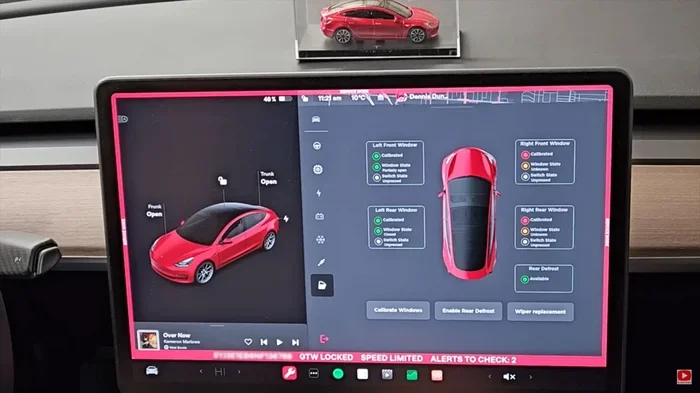
- Once you do, service mode will open with a list of diagnostic options
This method works on most Tesla models. The Tesla touchscreen menu gives you quick access to all the hidden tools. If you own a Model 3 or Model Y, this is usually the fastest route. For older models like the Model S or Model X, the process is nearly identical.
Quick Tip: Make sure your car is in park and the parking brake is engaged before entering service mode. This keeps your vehicle safe while you explore the menus.
Method 2: Using the Tesla App
Some Tesla owners can access service-related features through the mobile app. While the app does not offer full service mode access, it does let you:
- View current vehicle alerts and notifications
- Schedule a Tesla service appointment directly from your phone
- Check software version and update status
- View basic diagnostic summaries
The app is a great companion tool. Use it alongside the touchscreen method for the best results. If you are away from your car and notice a warning, the app lets you stay informed before you even get in.
Keep in mind that the Tesla infotainment system on the touchscreen gives you deeper access than the app. For full diagnostic tools, you will want to use the car’s screen directly.
Method 3: Using Physical Controls
On certain Tesla models, you can also use physical controls to access hidden menus. This method involves holding specific button combinations on the steering wheel or center console. The exact steps vary by model year, so check your Tesla owner manual for the precise sequence.
This method is less common but can be useful if your touchscreen is unresponsive. It is also helpful for technicians who prefer physical input during Tesla repair procedures.
Expert Insight: Tesla occasionally changes how service mode is accessed between model years and software versions. Always refer to the latest Tesla owner manual or the official Tesla website for the most current instructions. What worked on a 2021 Model 3 may differ slightly from a 2024 model.
What You Can Do in Tesla Service Mode
Once you are inside service mode, you will see a range of options. Let us break down what you can actually do with these tools.
Running Diagnostic Tests
The primary use of Tesla service mode is running diagnostics. Your Tesla constantly monitors every major system. When something goes wrong, it stores an error code. Service mode lets you view these codes directly.
You can check systems like:
- Tesla battery diagnostics and state of health
- Motor performance and temperature readings
- Brake system status and pad wear estimates
- Suspension and alignment sensor data
- Autopilot and full self-driving sensor status
- Climate control system performance
- Charging port and onboard charger status
Running these tests takes only a few minutes. The results appear right on the screen. If you see a red or yellow warning, write down the code. You can then search for what it means or share it with a technician at your Tesla service center.
Viewing Vehicle Data and Logs
Service mode also gives you access to detailed vehicle logs. These logs record every event your car experiences. They are incredibly useful when tracking down intermittent issues.
For example, if your car makes a strange noise only at highway speeds, the logs might capture the exact moment it happened. You can then share that timestamp with a Tesla technician who can pinpoint the problem faster.
You can also view real-time data streams during a test drive or while the car is parked. This includes speed, acceleration, power draw, and regen braking metrics. It is a great way to understand how your Tesla electric vehicle performs under different conditions.
Performing System Resets
Some issues in your Tesla can be fixed with a simple system reset. Service mode gives you the option to reset specific modules. This is especially helpful after a Tesla software update if something behaves unexpectedly.
Common resets you can perform include:
- Infotainment system restart
- Touchscreen recalibration
- Sensor recalibration for Autopilot cameras
- Battery management system reset
Always try a reset before assuming something is seriously wrong. Many issues that seem alarming turn out to be simple software glitches that a reset fixes.
Common Issues Service Mode Can Help Identify
Tesla service mode is particularly useful for identifying common problems. Here are some of the most frequent issues you might encounter:
Battery Range Drops
If you notice your Tesla is not going as far on a full charge, service mode can help. The Tesla battery diagnostics tools show you the actual state of health. Sometimes the range drop is due to cold weather, and sometimes it points to a battery cell imbalance. Knowing the difference saves you time and worry.
Dashboard Warning Lights
Dashboard lights can be confusing. A yellow wrench icon does not always mean something is broken. Service mode shows you the exact error code behind the warning. This helps you decide whether to drive carefully to a service center or pull over immediately.
Charging Problems
Having trouble charging at a Supercharger or home charger? Service mode can reveal whether the issue is with the onboard charger, the charging port, or the software. This saves you from unnecessary trips to the shop.
Unusual Noises or Vibrations
Strange sounds from your car can have many causes. Service mode lets you check motor temperatures, suspension sensor data, and brake system status. Often, the data points you toward the real cause instead of leaving you guessing.
Tips and Best Practices for Using Service Mode
Here are some practical tips to get the most out of Tesla service mode while keeping your car safe:
- Always park your Tesla completely before accessing service mode. Do not try to enter it while driving or on a moving trailer.
- Write down error codes immediately. The screen can sometimes cycle through codes quickly. Having a notepad or your phone ready helps.
- Do not change settings you do not understand. Service mode has options that can affect your warranty or safety systems. Only adjust what you are confident about.
- Update your software before running diagnostics. A recent Tesla software update can fix many issues without you needing to do anything else.
- Take screenshots of important data. If you need to share diagnostic results with a technician, screenshots are faster and clearer than reading codes aloud.
- Exit service mode when you are done. Leaving it open can sometimes cause minor display glitches. A quick exit keeps everything running smoothly.
Common Mistake: Many owners accidentally change a setting in service mode and then wonder why their car behaves differently. Stick to viewing data and running tests. Avoid changing configuration options unless you know exactly what they do.
Quick Tip: The average man hours to build a car are significant, and Tesla’s efficient factory process reflects that same precision. When you use service mode, you are tapping into that same level of detailed engineering data that goes into every vehicle. Treat it with the same care and attention.
When to Contact a Tesla Service Center
Service mode is a powerful tool, but it has limits. Some issues require professional attention. Here is when you should book a Tesla service appointment:
- You see a red warning code related to safety systems like brakes or steering
- Your battery health shows significant degradation that needs professional assessment
- You have tried resets and basic diagnostics but the problem persists
- Your car is under warranty and you want to avoid voiding it with DIY repairs
- You need specialized tools that are not available in service mode
Just like you would not try to fix a complex engine issue yourself, some Tesla problems need factory-level tools. The good news is that Tesla service centers have technicians who specialize in exactly these situations. They can read the same codes you see in service mode and take the next steps to fix them.
It is also worth noting that Tesla maintenance is generally simpler than traditional car maintenance. Fewer moving parts means fewer things to go wrong. But when something does go wrong, having the diagnostic data from service mode makes the repair process much smoother.
Compared to traditional automakers where you might wait days for factory-built vehicles or deal with complex service networks, Tesla’s direct service model is designed to be more straightforward. The same applies to understanding your car’s needs through service mode.
Think of it this way. When you take your car to any dealer for service, you want to walk in prepared. Service mode gives Tesla owners that same advantage. You arrive informed, you ask better questions, and you get faster resolutions.
Conclusion
Learning how to put a Tesla in service mode is a valuable skill for any owner. It gives you direct access to your car’s inner workings, diagnostic tools, and real-time data. Whether you are troubleshooting a warning light, checking battery health, or just curious about what your Tesla electric vehicle is doing under the hood, service mode has you covered.
Start with the touchscreen method, as it is the most straightforward. Use the tips in this guide to stay safe and make the most of your experience. And remember, service mode is a tool to empower you, not replace professional care when it is needed.
Next time your Tesla shows something unusual, do not panic. Open service mode, check the diagnostics, and you will often find the answer right there. Your car is smarter than you think, and now you know how to talk to it.
Frequently Asked Questions
Can I damage my Tesla by using service mode?
No, using service mode to view diagnostics and data is completely safe. However, avoid changing settings you do not understand, as some options can affect your vehicle’s behavior or warranty. Stick to viewing and running tests unless you are confident about what a setting does.
Do I need to be a Tesla technician to use service mode?
No, any Tesla owner can access service mode. Tesla designed these hidden menus for owners who want to understand their vehicle better. You do not need special training or tools to run basic diagnostics and view vehicle data.
Will service mode void my Tesla warranty?
Simply accessing service mode and viewing diagnostics does not void your warranty. However, making unauthorized changes to vehicle settings or attempting repairs yourself could affect coverage. Always check with Tesla if you are unsure about a specific action.
Can I clear error codes in Tesla service mode?
Some minor error codes can be cleared through service mode resets. However, persistent codes usually indicate a real issue that needs professional attention. Clearing a code without fixing the underlying problem will just cause it to return.
How often should I check Tesla service mode?
You do not need to check service mode regularly. Use it when you notice a warning light, experience unusual behavior, or want to run a battery health check. Think of it as a tool you reach for when something seems off, not a daily routine.
Is service mode available on all Tesla models?
Yes, all modern Tesla models including the Model 3, Model Y, Model S, and Model X have access to service mode. The exact steps and available options may vary slightly between models and software versions, but the core functionality is the same across the lineup.