How to Reset Uconnect on Your Dodge Charger Quickly
Resetting your Uconnect system on a Dodge Charger is simpler than you think. Whether your touchscreen is frozen, lagging, or just acting up, a quick reset can solve most problems in minutes. This guide walks you through every method, from a simple soft reboot to a full factory reset, so you can get back on the road with a fully responsive infotainment system.
Your Dodge Charger is more than just a powerful machine on wheels. It is a tech-packed ride, and the Uconnect system sits right at the heart of that experience. This infotainment platform controls your audio, navigation, phone pairing, and even your climate settings. When it starts acting up, the whole driving experience takes a hit.
Maybe your screen freezes mid-trip. Perhaps the Bluetooth connection drops every few minutes. Or the system simply refuses to respond when you tap the Dodge Charger touchscreen. Whatever the issue, a reset often fixes it fast. You do not need to be a tech expert. You do not even need to leave your driveway.
In this guide, we will walk you through every way to reset Uconnect on your Dodge Charger. We cover soft resets, hard resets, and full factory resets. Each method is explained in plain, simple steps. By the end, you will know exactly which reset to try and how to do it safely. Let us get your system running smoothly again.
Key Takeaways
- A soft reset is the fastest way to fix minor Uconnect glitches and frozen screens.
- A hard reset works when the system is completely unresponsive and won’t reboot normally.
- A factory reset erases all custom settings and should be your last resort.
- Knowing your model year matters because reset steps differ across Dodge Charger generations.
- Regular software updates can prevent many Uconnect issues before they start.
- Resetting is free and takes just a few minutes, so there is no need to visit a dealership.
- Back up your paired devices before performing a factory reset to save time re-pairing them later.
📑 Table of Contents
- What Is Uconnect and Why Does It Need Resetting?
- Signs Your Uconnect System Needs a Reset
- How to Soft Reset Uconnect on a Dodge Charger
- How to Perform a Hard Reset on Uconnect
- How to Factory Reset Uconnect on a Dodge Charger
- Tips to Keep Your Uconnect System Running Smoothly
- Common Mistakes to Avoid When Resetting Uconnect
- Expert Insights: When to Seek Professional Help
- Final Thoughts
What Is Uconnect and Why Does It Need Resetting?
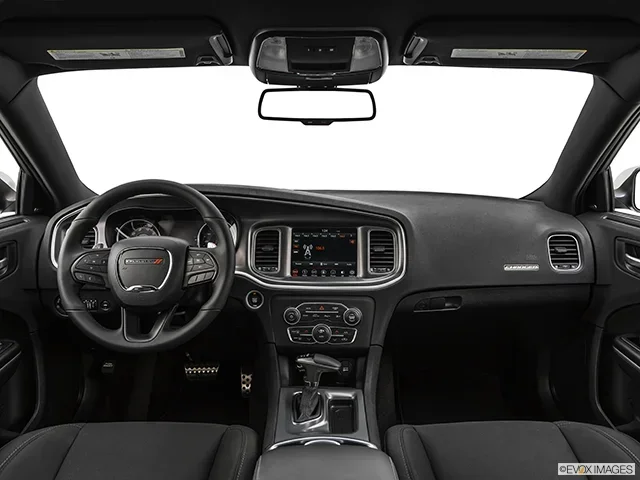
Uconnect is the name for the Dodge Charger infotainment system. It is the big touchscreen in the center of your dashboard. Think of it as the brain behind your audio, maps, phone connections, and vehicle settings. It runs on software, just like a smartphone or tablet.
Like any software, Uconnect can develop glitches. A frozen screen is one of the most common problems. Sometimes the system just needs a fresh start. Other times, deeper issues require a more thorough reset. Understanding why resets work helps you pick the right one for your situation.
When software runs for a long time without a restart, it can build up temporary errors. These errors slow things down or cause the system to crash. A reset clears those errors and gives the system a clean slate. It is the same idea as restarting your phone when it starts running slow.
How Uconnect Works in the Dodge Charger
The Uconnect system connects to several parts of your Charger. It talks to the radio, the backup camera, the navigation module, and your phone. It also links to the vehicle’s computer network. When one part of that network gets stuck, the whole system can feel the impact.
Different model years use different versions of Uconnect. Older Chargers may have the Uconnect 3 or 3C system. Newer models often run Uconnect 4 or Uconnect 4C. Each version has slightly different reset steps, which we will cover below. Knowing your version helps you follow the right instructions.
Signs Your Uconnect System Needs a Reset
How do you know it is time to reset Uconnect? Your car usually gives you clear signs. Catching these early can save you from bigger headaches down the road.
Here are the most common signs that your Uconnect system needs attention:
- Frozen or unresponsive touchscreen — You tap the screen, but nothing happens. The system is stuck and will not register your inputs.
- Slow loading times — Menus take forever to open. Maps load slowly or fail to load at all.
- Bluetooth pairing issues — Your phone connects and disconnects randomly. Audio streams cut out during calls or music playback.
- Audio glitches — The sound crackles, cuts out, or plays through the wrong speakers.
- Navigation errors — The map shows the wrong location or routes you strangely.
- System reboots on its own — The screen turns off and back on without you touching anything.
- Warning messages that won’t go away — A wrench light or system alert stays on even after you address the issue.
If you notice any of these signs, try a reset before you book a service appointment. Most of the time, a simple reset solves the problem completely. If the issue persists after a reset, there may be a deeper hardware or software problem that needs professional attention.
How to Soft Reset Uconnect on a Dodge Charger
A soft reset is the easiest and fastest method. It works just like restarting a computer. The system shuts down and turns back on, clearing temporary errors without erasing any of your settings. This is the first thing you should try whenever Uconnect not responding becomes an issue.
Here is how to do a soft reset on most Dodge Charger models:
- Park your Charger and put the transmission in Park. Make sure the engine is running or in accessory mode.
- Press and hold the volume knob on the Uconnect system. This knob is usually in the center of the touchscreen or on the left side of the radio panel.
- Hold it for about 10 to 20 seconds. You will see the screen go dark or the Uconnect logo appear.
- Release the knob and wait for the system to restart. This usually takes 30 to 60 seconds.
- Check if the problem is gone. Try using the touchscreen, Bluetooth, or navigation to confirm everything works again.
That is it. A soft reset takes less than a minute. It does not delete any of your radio presets, paired phones, or saved addresses. If the soft reset fixes your issue, you are all set. If not, move on to the next method.
Soft Reset for Different Model Years
The basic process is the same across most years, but there are a few small differences to keep in mind:
- 2011-2014 Charger: Hold the volume knob for about 15 seconds. The screen may flicker before restarting.
- 2015-2020 Charger: Hold the knob for 10 to 20 seconds. Some models also let you hold the power button instead.
- 2021 and newer Charger: The latest Uconnect versions may respond to a simple power cycle. Turn the system off using the power button, wait 30 seconds, and turn it back on.
If holding the volume knob does not work on your model, try the power button method. Sometimes the system responds better to one approach than the other. You can also try both in sequence for the best results.
How to Perform a Hard Reset on Uconnect
A hard reset is the next step up. You use this when a soft reset does not work and the system is completely frozen or unresponsive. A hard reset cuts power to the Uconnect unit and forces it to restart from scratch.
Here is how to perform a hard reset on your Dodge Charger:
- Turn off the engine and shift the vehicle into Park.
- Open the driver’s door or turn off the ignition completely. Some models require the key to be removed from the ignition.
- Disconnect the negative battery terminal. Use a wrench to loosen the cable on the negative (-) battery post. Pull the cable off gently and tuck it away so it cannot touch the terminal.
- Wait at least 10 to 15 minutes. This gives the Uconnect system time to fully discharge. It also clears any stored temporary data that might be causing the issue.
- Reconnect the negative battery terminal. Place the cable back on the post and tighten it securely with your wrench.
- Start the engine. The Uconnect system will boot back up. This may take a minute or two longer than a normal startup.
- Test the system. Check the touchscreen, audio, Bluetooth, and navigation to see if the problem is resolved.
A hard reset is more involved than a soft reset, but it is still something you can do at home with just a basic wrench. The entire process takes about 20 to 30 minutes. Just like with a soft reset, a hard reset does not erase your saved settings or paired devices.
What to Do If the Hard Reset Does Not Work
If you have tried both a soft reset and a hard reset and the Uconnect system still has issues, do not panic. There are a few more things you can try before moving on to a factory reset:
- Check for a software update. Some Uconnect issues are caused by outdated software. Visit the Stellantis website or check with your dealer to see if an update is available for your model.
- Inspect the fuse box. A blown fuse related to the infotainment system can cause Uconnect problems. Check your owner’s manual for the fuse location and replace it if needed.
- Remove any recently added devices. USB drives, aftermarket adapters, or phone chargers can sometimes interfere with the Uconnect system. Disconnect them and see if the issue clears up.
Sometimes the issue is as simple as a loose USB connection or a faulty accessory. It is always worth checking these basics before moving to the most drastic reset option.
How to Factory Reset Uconnect on a Dodge Charger
A factory reset is the most thorough option. It wipes the Uconnect system back to its original settings, just like it was when you first drove the car off the lot. This erases all your customizations, paired devices, saved navigation addresses, and personal preferences. Use this method only when the other resets have not worked.
Before you start, make sure you have your phone pairing information handy. You will need to re-pair your devices after the reset. Also, note any custom settings you want to restore, such as your preferred radio stations or navigation home address.
Here is how to factory reset Uconnect on a Dodge Charger:
- Press the Home button on the Uconnect touchscreen to go to the main menu.
- Navigate to Settings. This is usually represented by a gear icon on the top or side of the screen.
- Look for System or System Information. The exact name varies by model year and Uconnect version.
- Find the Reset or Factory Reset option. It may be listed as “Restore Defaults” or “Factory Reset.”
- Confirm the reset. The system will ask you to verify that you want to erase all data. Select Yes or Confirm.
- Wait for the process to complete. The screen may go dark and then restart. This can take several minutes.
- Re-pair your devices and restore your settings. Once the system is back, go through the setup process again.
Keep in mind that the exact menu path can vary depending on your Charger’s model year. Some older Uconnect systems may require you to hold a combination of buttons on the radio face instead of using the touchscreen. Check your owner’s manual for the specific factory reset procedure for your model.
When Should You Factory Reset Uconnect?
A factory reset is not something you need to do regularly. Here are the situations where it makes sense:
- The system is severely glitching and both soft and hard resets have failed.
- You are selling or trading in your Charger and want to wipe all personal data.
- You have done a major software update and the system is still acting strangely.
- You want a clean slate because the system has become cluttered with old paired devices and unused settings.
For most owners, a soft reset or hard reset will handle 90% of Uconnect issues. Reserve the factory reset for stubborn problems that nothing else can fix.
Tips to Keep Your Uconnect System Running Smoothly
Prevention is always better than cure. A few simple habits can keep your Dodge Charger infotainment system running well for years. Here are some practical tips to reduce the need for resets in the first place.
1. Keep your software up to date. Stellantis regularly releases Uconnect updates that fix bugs and improve performance. Check for updates at least once a year. You can often do this yourself through the system settings or by visiting a dealer.
2. Do not overload the system with apps. Each app you install takes up memory and processing power. Keep only the apps you actually use. Remove any that you no longer need.
3. Use quality USB cables and devices. Cheap or damaged cables can cause connection drops and system errors. Invest in good-quality cables from trusted brands. This also applies to phone chargers and accessories plugged into the USB ports.
4. Restart the system occasionally. Just like your phone, giving Uconnect a regular restart can prevent buildup of temporary errors. A quick soft reset once a month keeps things running smoothly.
5. Protect the system from overheating. The Uconnect unit generates heat, especially during long drives or hot weather. Park in the shade when possible. If your car has a sunshade, use it. Excessive heat can cause the system to slow down or malfunction.
6. Address warning lights promptly. If a wrench light or any system warning stays on, do not ignore it. Early attention to warning signals can prevent bigger problems with the Uconnect system and other vehicle electronics. Much like how you have to reset the light after an oil change, many car warning indicators need a reset after the underlying issue is resolved.
7. Keep your battery healthy. A weak or failing battery can cause all sorts of electrical gremlins, including Uconnect issues. Have your battery tested regularly, especially if your Charger is more than three years old. In some cases, electrical problems that look like software bugs are actually caused by a bad battery causing the wrench light to come on or creating intermittent system failures.
These tips are easy to follow and take very little time. They can extend the life of your Uconnect system and reduce the frequency of resets you need to perform.
Common Mistakes to Avoid When Resetting Uconnect
Even though resetting Uconnect is straightforward, a few common mistakes can cause problems. Here is what to watch out for:
- Disconnecting the battery while the engine is running. This can damage the electrical system. Always turn off the engine and remove the key before disconnecting the battery.
- Interrupting a factory reset mid-process. If the system is in the middle of a reset, let it finish. Powering off during a reset can corrupt the software and cause bigger problems.
- Forgetting to back up paired devices. A factory reset erases all Bluetooth pairings. Write down your phone passkeys or take a photo of your paired device list before resetting.
- Using the wrong reset method for your model year. Not all Chargers use the same reset procedure. Always check your owner’s manual for the exact steps for your specific model year.
- Ignoring the root cause. If you find yourself resetting Uconnect frequently, there may be an underlying issue. A recurring problem is not normal and deserves a closer look from a professional.
Avoiding these mistakes saves you time and protects your system from unnecessary damage. A careful, methodical approach always beats rushing through the process.
Expert Insights: When to Seek Professional Help
Most Uconnect issues respond well to a reset. But there are times when professional help is the right call. If you have tried every reset method in this guide and the problem persists, it is time to see a mechanic or visit your Dodge dealer.
Here are signs that your issue goes beyond a simple reset:
- The screen is physically damaged. Cracks, dead pixels, or areas that do not respond to touch usually indicate hardware failure, not a software glitch.
- You notice a burning smell or smoke. This is a serious electrical issue. Stop driving and have the vehicle towed to a service center immediately.
- Other electronic systems are also malfunctioning. If your lights, gauges, or power windows are acting up alongside Uconnect, the problem may be with the vehicle’s main computer module.
- The system repeatedly crashes even after a factory reset. This could indicate a deeper software corruption or a faulty component that needs replacement.
A professional technician can run diagnostic tests that go beyond what a simple reset can fix. They have access to specialized tools that can read error codes and identify failing hardware. Do not hesitate to seek help if you suspect a serious issue.
Final Thoughts
Resetting your Uconnect system on a Dodge Charger is one of those skills that every owner should know. It saves time, money, and the hassle of visiting a dealership for what is often a simple fix. Whether you opt for a quick soft reset, a more thorough hard reset, or a full factory reset, the process is manageable for anyone willing to follow a few simple steps.
Start with the soft reset. It is fast and does not affect your settings. Move to a hard reset if the system is completely frozen. Reserve the factory reset for the most stubborn problems. And remember, regular maintenance and software updates go a long way in keeping your Uconnect system running at its best.
Your Dodge Charger is a great vehicle, and its technology should make your drives better, not worse. With the knowledge in this guide, you now have the power to troubleshoot and fix most Uconnect issues on your own. The next time your touchscreen freezes or your Bluetooth cuts out, you will know exactly what to do. Happy driving.
Frequently Asked Questions
How long does it take to reset Uconnect on a Dodge Charger?
A soft reset takes less than one minute. A hard reset takes about 20 to 30 minutes, including the wait time for the system to discharge. A factory reset can take several minutes for the process itself, plus additional time to re-pair your devices and restore settings.
Will resetting Uconnect delete my saved music and playlists?
A soft reset and a hard reset do not delete your saved music or playlists. A factory reset, however, erases all custom data, including saved playlists, radio presets, and paired devices. Always back up important data before performing a factory reset.
How often should I reset my Uconnect system?
You should not need to reset Uconnect regularly. A soft reset once a month as a preventative measure is plenty for most drivers. If you find yourself resetting the system frequently, there may be an underlying issue that needs professional diagnosis.
Can a dead car battery cause Uconnect problems?
Yes, a weak or dead battery can cause all sorts of electrical issues, including Uconnect malfunctions. If your system is acting up, it is worth checking your battery health. A bad battery can also cause warning lights like the wrench light to stay on, and sometimes you need to reset the light after an oil change or other service to clear these indicators.
Do I need any special tools to reset Uconnect?
For a soft reset, you need nothing but your hands. For a hard reset, you need a basic wrench to disconnect the battery terminal. A factory reset requires no tools at all, just the touchscreen. No special equipment is necessary for any of the reset methods described in this guide.
Is it safe to reset Uconnect while driving?
No, you should always reset Uconnect while the vehicle is parked and the engine is off. A reset can cause the screen to go dark or the system to restart unexpectedly. Performing a reset while driving takes your attention away from the road and can be dangerous. Always pull over safely before attempting any reset.
=== CONCLUSION ===
Resetting Uconnect on your Dodge Charger does not have to be complicated. With the right approach, you can fix most infotainment issues in just a few minutes from your own driveway. Start with a soft reset for quick glitches, move to a hard reset for stubborn freezes, and save the factory reset for the most serious problems.
Keep your system updated, protect your battery, and give your Uconnect an occasional restart. These simple habits go a long way. And if the problem ever goes beyond what a reset can fix, do not hesitate to seek professional help. Your Dodge Charger deserves a system that works as smoothly as the engine under the hood.