How to Sync Messages in a Tesla Quickly and Easily
Syncing messages in a Tesla is simple once you know the right steps. This guide walks you through connecting your phone, enabling message notifications, and fixing common sync issues on your Tesla Model 3, Model Y, or other Tesla vehicles. You will learn how to get text messages, notifications, and replies working seamlessly on your Tesla touchscreen.
Staying connected while driving is important for most people. If you own a Tesla, you might wonder how to get your text messages showing up on the big center screen. The good news is that syncing messages in a Tesla is straightforward and works with most modern phones. Whether you drive a Model 3, Model Y, Model S, or Model X, the process is very similar. In this guide, we will walk you through every step so you can read and reply to texts without taking your eyes off the road for too long.
Many Tesla owners do not realize how powerful the messaging system really is. Once you set it up, you can see incoming texts right on the touchscreen. You can even reply using voice commands or the on-screen keyboard. This feature makes long drives more comfortable and keeps you connected without reaching for your phone. Let us dive into everything you need to know about how to sync messages in a Tesla quickly and easily.
Key Takeaways
- Easy Setup: Syncing messages in a Tesla takes just a few minutes using Bluetooth or the Tesla mobile app.
- Multiple Methods: You can sync messages through your phone connection, the Tesla infotainment system, or the Tesla mobile app.
- Common Issues Have Simple Fixes: Most message sync problems are solved by updating software, restarting the system, or reconnecting Bluetooth.
- Enhanced Features Available: Tesla offers read receipts, reply options, and notification controls for a full messaging experience.
- Regular Updates Help: Keeping your Tesla software current ensures the best message syncing performance.
- Works Across Models: The process is similar for Model 3, Model Y, Model S, and Model X.
📑 Table of Contents
- What Is Message Syncing in a Tesla?
- How to Set Up Message Sync on Your Tesla
- How to Sync Messages in a Tesla Using the Mobile App
- Troubleshooting Common Message Sync Issues
- Tesla Messaging Features You Should Know About
- Tips for Getting the Best Message Sync Experience
- How Tesla Messaging Compares to Other Car Systems
- Final Thoughts
What Is Message Syncing in a Tesla?
Message syncing means connecting your phone to your Tesla so that text messages appear on the car’s display. When you sync messages, your Tesla receives notifications whenever someone sends you a text. You can preview the message, read it aloud, or reply using voice or the touchscreen keyboard.
The Tesla infotainment system handles all of this through a Bluetooth connection or a phone key setup. Once paired, your phone and Tesla talk to each other automatically. This means new messages show up in real time. You do not need to plug in a cable or open any apps manually. The system works in the background as long as Bluetooth is active.
Tesla also supports notifications from messaging apps like iMessage and standard SMS. Android Auto and Apple CarPlay are not needed for basic message sync. Tesla has its own built-in system that handles everything natively. This is one of the reasons Tesla stands out from other electric vehicles on the market.
How to Set Up Message Sync on Your Tesla
Setting up message sync is the first step to using this feature. The process is quick and does not require any technical skills. Follow these steps carefully and you will be up and running in minutes.
Step 1: Make Sure Bluetooth Is Enabled
First, check that Bluetooth is turned on in your Tesla. Go to the main touchscreen and tap the Bluetooth icon. If Bluetooth is off, toggle it on. Your Tesla will start scanning for nearby devices. Make sure your phone is also in pairing mode.
On your phone, go to Settings and select Bluetooth. Find your Tesla in the list of available devices. Tap on it to pair. You may need to confirm a code on both screens. Once paired, your phone will connect automatically every time you get in the car.
Step 2: Enable Notifications in Tesla Settings
After pairing, go to Settings on the Tesla touchscreen. Scroll down to the Phone section. Look for Notifications and make sure they are turned on. This allows your Tesla to receive message alerts from your phone.
You can also choose which types of notifications you want. For example, you might want message previews to show on screen but not phone call alerts. Tesla lets you customize these settings to fit your preferences. Take a moment to explore the options and set them up the way you like.
Step 3: Test the Connection
Have someone send you a text message. Watch the Tesla screen to see if the notification appears. If it does, congratulations, your message sync is working. If not, do not worry. We will cover troubleshooting steps below.
Some Tesla owners also like to use the Tesla mobile app for messaging. The app lets you send and receive texts from your phone even when you are away from the car. This is a great backup option and adds extra flexibility to your Tesla experience.
How to Sync Messages in a Tesla Using the Mobile App
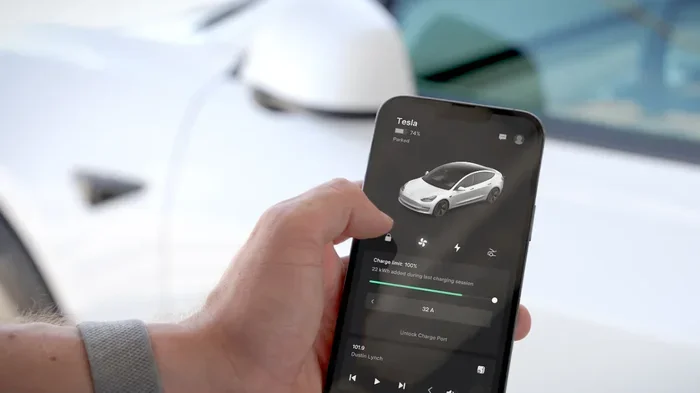
The Tesla mobile app is another powerful way to stay connected. You can use the app to sync messages between your phone and your car. This is especially useful if you want to read or reply to texts before you even get in the vehicle.
To use the app for messaging, first make sure it is installed on your phone. Log in with your Tesla account. The app connects to your car through the internet, not Bluetooth. This means you can access messages from anywhere, as long as you have a data connection.
Inside the app, go to the Controls section. Look for the Phone or Messaging option. From there, you can manage how messages are handled. You can set up notification preferences, choose which apps to sync, and even control read receipts.
One great thing about using the mobile app is that it works even when your phone is not near the car. So if you leave your phone at home, you can still check messages through the Tesla system. This is a feature that many people do not know about, and it really adds convenience to daily driving.
Troubleshooting Common Message Sync Issues
Sometimes things do not work perfectly the first time. Message sync issues are common and usually easy to fix. Here are the most frequent problems and how to solve them.
Messages Not Showing Up on the Screen
If your messages are not appearing, the first thing to check is your Bluetooth connection. Go to Settings and make sure your phone is still paired. Sometimes Bluetooth disconnects after a car restart. Reconnecting usually fixes the problem right away.
Another common cause is notification permissions. On your phone, go to Settings and find your Tesla Bluetooth connection. Make sure notifications are allowed. Without permission, your phone will not send message alerts to the car.
You should also check that Do Not Disturb mode is not active on either your phone or your Tesla. When Do Not Disturb is on, notifications are silenced. Turn it off and try again. This simple step solves the problem for many Tesla owners.
Delayed or Missing Notifications
If messages arrive late or not at all, your software might need updating. Tesla releases updates regularly that fix bugs and improve performance. Go to Settings and check for available updates. Install any pending updates and restart the car.
Restarting the Tesla system can also help. Hold down the two scroll wheels on the steering wheel until the screen goes dark. Wait about 30 seconds and the system will reboot. This clears temporary glitches that can interfere with message syncing.
Bluetooth Connection Keeps Dropping
A weak or unstable Bluetooth connection can cause sync problems. Try removing your phone from the paired devices list and adding it again. This refreshes the connection and often fixes dropouts.
Also check that your phone is not in battery saver mode. Some battery saver settings limit background data and Bluetooth performance. Turning this off can restore a stable connection. If the problem continues, resetting the Tesla Bluetooth module through the settings menu can help too.
Tesla Messaging Features You Should Know About
Tesla has built several useful features into its messaging system. These features make it easy to stay connected while keeping your focus on the road.
Voice Reply Feature
One of the best features is voice reply. When a message comes in, you can tap the microphone icon on the screen and speak your reply. Tesla converts your voice to text and sends it back. This is much safer than typing while driving. It also works well when you are using the car’s built-in voice commands.
Voice reply works with most messaging apps. Whether someone texts you through SMS or a third-party app, you can usually reply using your voice. The system supports multiple languages, so it works well for people who speak different languages at home.
Message Preview Settings
Tesla lets you control whether message previews appear on the screen. If you prefer privacy, you can turn off previews so only the sender name shows. This is especially useful if you often have passengers in the car and do not want everyone to see your messages.
To adjust preview settings, go to Settings and then Notifications. Look for the Message Preview option. You can choose to show previews always, only when parked, or never. Pick the option that feels right for you and your family.
Read Receipts and Delivery Confirmation
Tesla also supports read receipts for certain messaging platforms. When you read a message on the car screen, the sender can see that you have read it. This is helpful for letting people know you saw their message even if you cannot reply right away.
Delivery confirmation works similarly. You can see whether your reply was successfully sent from the Tesla system. These small features add a lot of convenience and help you stay on top of your conversations while driving.
Tips for Getting the Best Message Sync Experience
A few simple tips can make your Tesla messaging experience much better. Here are some practical suggestions from experienced Tesla drivers.
- Keep Your Software Updated: Tesla regularly releases updates that improve Bluetooth performance and fix messaging bugs. Check for updates at least once a month.
- Use a Clean Bluetooth Connection: Remove old or unused paired devices from your Tesla. Too many saved connections can slow down the system and cause sync issues.
- Restart Your Phone Regularly: A simple phone restart can fix many connectivity problems. It clears temporary glitches and refreshes the Bluetooth module.
- Turn Off Unnecessary Notifications: If you get a lot of app alerts, turn off the ones you do not need. Too many notifications can slow down message syncing and make the screen cluttered.
- Check Your Phone’s Data Connection: If you use the Tesla mobile app for messaging, make sure your phone has a good data connection. Weak data means delayed or missing messages.
- Explore Car Settings for Connectivity: Just like you can switch to sport mode while driving a Toyota to change the driving experience, Tesla also has connectivity settings that let you fine-tune how your phone interacts with the car. Exploring these options can help you optimize your setup.
Taking a few minutes to set up your preferences makes a big difference. Once your messaging system is tuned to your liking, it works smoothly every time you get behind the wheel.
How Tesla Messaging Compares to Other Car Systems
Tesla’s messaging system is built right into the car’s operating system. Unlike some other brands, you do not need a third-party app or a separate device. The system works natively with both iPhone and Android phones. This makes setup much simpler compared to cars that require additional hardware or software.
Some car brands rely on Apple CarPlay or Android Auto for messaging. While these systems work well, they add another layer of complexity. Tesla keeps everything inside its own interface. This means fewer compatibility issues and a more streamlined experience.
That said, some drivers prefer the familiarity of CarPlay or Android Auto. Tesla’s system works well on its own, but it does not support these third-party platforms. If you are used to a specific phone interface, it may take a few days to adjust to Tesla’s native messaging system.
When compared to other electric vehicles, Tesla’s messaging features are among the best. The integration is tight, the response is fast, and the voice commands are accurate. Most owners find that after a short adjustment period, Tesla’s messaging system becomes their preferred way to stay connected on the road.
Final Thoughts
Learning how to sync messages in a Tesla is a quick process that pays off every time you drive. With just a few minutes of setup, you can read texts, reply with your voice, and stay connected without distraction. The system works reliably across all Tesla models and pairs seamlessly with both iPhone and Android devices.
If you run into any issues, remember that most problems have simple solutions. Check your Bluetooth connection, update your software, and adjust your notification settings. The Tesla community is also very active, and you can find help and tips from other owners online.
Message syncing is just one of the many smart features that make Tesla a great choice for modern drivers. Once you get it set up, you will wonder how you ever drove without it. Enjoy the convenience and stay safe on the road.
Frequently Asked Questions
Can I sync messages from WhatsApp or other apps on my Tesla?
Yes, Tesla supports message syncing from many apps including WhatsApp, but the setup may vary. You need to make sure notifications are enabled for the specific app on your phone. Once enabled, messages from those apps will appear on your Tesla screen just like regular text messages.
Do I need an internet connection to sync messages in my Tesla?
For Bluetooth-based message syncing, you do not need internet. The messages transfer through the Bluetooth connection between your phone and the car. However, if you use the Tesla mobile app for messaging, you will need a data connection on your phone.
Why are my Tesla messages not showing up on the touchscreen?
This is usually caused by a disconnected Bluetooth link or turned-off notifications. Check that your phone is paired and that notification permissions are enabled for your Tesla in your phone settings. Restarting both your phone and the Tesla system often fixes this issue quickly.
Can I reply to messages while driving my Tesla?
Yes, you can reply using the voice reply feature or the on-screen keyboard. Voice reply is the safest option since it keeps your hands on the wheel and eyes on the road. Tesla also supports quick reply templates for common responses.
Does message syncing work when the Tesla is parked?
Yes, message syncing works whether the car is driving or parked. As long as Bluetooth is active and the system is on, you will receive message notifications. You can even set up the car to show message previews only when parked for added privacy.
How do I remove someone from my Tesla message notifications?
You can manage notification preferences in the Tesla settings menu. Go to Settings, then Phone, and then Notifications. From there, you can control which apps and contacts send alerts to your Tesla screen. This helps reduce distractions while driving.
=== CONCLUSION ===
Syncing messages in a Tesla is a simple yet powerful feature that keeps you connected on every drive. By following the steps in this guide, you can set up message notifications, reply with your voice, and enjoy a seamless texting experience right from your Tesla touchscreen. Remember to keep your software updated, check your Bluetooth connection, and explore the settings to find what works best for you.
Once you have your messages synced, you will wonder how you ever drove without it. The combination of Bluetooth connectivity, voice commands, and smart notifications makes Tesla one of the best cars for staying connected. Take a few minutes today to set up your messaging system and enjoy the convenience every time you get behind the wheel.