Why Does My CarPlay Keep Disconnecting On Every Trip
CarPlay keeps disconnecting because of cable issues, software glitches, or Bluetooth interference. Why does my CarPlay keep disconnecting on every trip? The most common culprits are a damaged USB cable, outdated iOS, or incorrect car settings. This guide walks you through proven fixes, expert tips, and practical solutions to stop your CarPlay connection issues for good.
There is nothing more frustrating than CarPlay keeps disconnecting right in the middle of a road trip. You are cruising down the highway, your playlist is flowing, and then suddenly — silence. The screen goes black. Maps stop navigating. And you are left fumbling with your phone while trying to keep your eyes on the road.
If you have ever asked yourself, “Why does my CarPlay keep disconnecting on every trip?” — you are not alone. Thousands of drivers face this exact problem every single day. The good news is that the fix is usually simpler than you think. In this article, we will walk you through every reason your CarPlay connection keeps dropping and show you exactly how to fix it.
Whether you use a wired setup or rely on wireless CarPlay disconnecting, we have got you covered. Let us dive in and get your CarPlay not working issue solved once and for all.
Key Takeaways
- Faulty cables cause most disconnections: A worn or low-quality lightning cable is the #1 reason your CarPlay keeps disconnecting.
- Software updates fix hidden bugs: Outdated iOS or car firmware often triggers CarPlay not working problems.
- Bluetooth interference is real: Other paired devices can disrupt your wireless CarPlay connection.
- Resetting CarPlay settings is a quick fix: A simple reset often solves the problem without any technical skill.
- Not all cars support CarPlay equally: Compatibility gaps between your iPhone and car head unit cause frequent drops.
- Temperature matters: Extreme heat or cold can destabilize your iPhone CarPlay connection.
- Proactive maintenance prevents future issues: Regular cable checks and software updates keep CarPlay stable on every trip.
📑 Table of Contents
- Understanding Why CarPlay Keeps Disconnecting
- Why Your USB Cable Is the Biggest Culprit
- Software Issues That Cause CarPlay Disconnections
- Bluetooth and Wireless Interference Problems
- Car Settings and Compatibility Fixes
- Expert Tips to Prevent Future Disconnections
- When to Seek Professional Help
- Comparison: Wired vs. Wireless CarPlay Stability
- Common Mistakes That Make CarPlay Worse
- Final Thoughts on Fixing CarPlay Disconnects
Understanding Why CarPlay Keeps Disconnecting
Before we jump into fixes, let us understand what is actually happening. Why does my CarPlay keep disconnecting so frequently? The answer usually comes down to three main areas: hardware, software, or settings. Each of these areas has multiple triggers that can cause your CarPlay connection issues to flare up at the worst possible moment.
Think of your CarPlay setup like a chain. The weakest link determines how strong the whole thing is. A damaged cable, an outdated phone, or a misconfigured car system can each break that chain. Once you identify which link is weak, the fix becomes much clearer.
How CarPlay Connects to Your Car
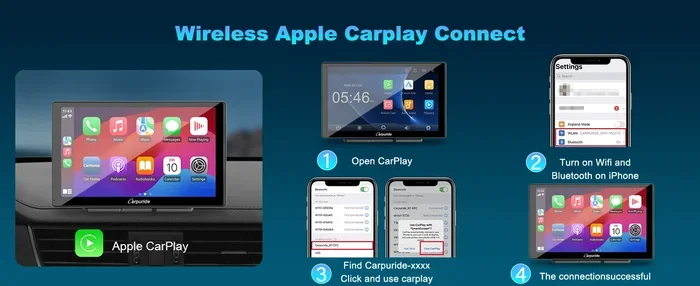
CarPlay connects to your car in two ways: through a USB cable or over Bluetooth and Wi-Fi for wireless setups. With a wired connection, your iPhone sends audio, maps, and controls directly to your car’s infotainment system. With wireless CarPlay, the phone communicates through Bluetooth first, then switches to Wi-Fi for data-heavy tasks like streaming maps.
Both methods have their strengths. Wired connections tend to be more stable. Wireless connections offer more convenience. But both can suffer from CarPlay keeps dropping if something is not right. Understanding this basic setup helps you troubleshoot more effectively.
Common Reasons Your CarPlay Disconnects
Here are the most frequent reasons drivers experience CarPlay not connecting to car problems:
- Damaged or low-quality USB cable: This is the single biggest cause of wired CarPlay failures.
- Outdated iOS software: Older iPhone software often has bugs that affect CarPlay Bluetooth issues.
- Dirty or clogged charging port: Lint and dust block the connection between your phone and cable.
- Incompatible car firmware: Older car infotainment systems may not support newer CarPlay features.
- Too many Bluetooth devices paired: This creates signal congestion and causes wireless CarPlay disconnecting.
- Low battery or power-saving mode: Your iPhone may throttle CarPlay to save energy.
- Wi-Fi interference: Other wireless signals can disrupt wireless CarPlay’s Wi-Fi connection.
Why Your USB Cable Is the Biggest Culprit
If your CarPlay keeps disconnecting only when using a cable, the USB cable is almost always to blame. Many people do not realize that not all lightning cables are created equal. CarPlay demands a consistent data transfer rate, and cheap cables simply cannot deliver that reliably.
What Makes a CarPlay-Ready Cable?
A good lightning cable CarPlay connection needs to meet Apple’s MFi certification standards. MFi stands for “Made for iPhone.” These cables are tested to handle the data and power requirements of CarPlay without dropping the connection.
Here is what to look for in a reliable cable:
- MFi certification: This guarantees the cable works with iPhone data transfer.
- Braided nylon exterior: These cables last longer and resist fraying.
- Short cable length: Keep it under 6 feet to reduce signal loss.
- Gold-plated connectors: These resist corrosion and maintain a clean connection.
A damaged cable with frayed edges or bent connectors will cause your iPhone CarPlay connection to drop repeatedly. Even a tiny break inside the cable can interrupt data flow just enough to trigger a disconnect.
Quick Cable Test
Want to know if your cable is the problem? Try this simple test. Swap your current cable with a known working MFi-certified cable. If CarPlay not working stops happening, you found your culprit. It costs almost nothing and takes less than a minute.
Software Issues That Cause CarPlay Disconnections
Software problems are the second most common reason your CarPlay connection keeps dropping. Both your iPhone and your car’s infotainment system run on software, and outdated versions can create compatibility gaps. These gaps show up as random disconnects, frozen screens, or complete failure to connect.
Update Your iPhone Software
Apple regularly releases iOS updates that fix known CarPlay connection issues. If you have not updated your iPhone in a while, this could be the reason your CarPlay keeps disconnecting. Here is how to check:
- Open the Settings app on your iPhone.
- Tap General, then tap Software Update.
- If an update is available, tap Download and Install.
- Restart your iPhone after the update completes.
After updating, test your CarPlay not responding issue again. Most users report a significant improvement after simply updating their iOS.
Update Your Car’s Infotainment System
Your car also needs software updates. Many newer vehicles support over-the-air updates through the manufacturer’s app. Older cars may require a visit to the dealership. Check your car’s manual or the manufacturer’s website for update instructions.
An outdated car firmware version is a hidden cause of wireless CarPlay disconnecting. The car’s system may not recognize your iPhone properly, leading to frequent drops.
Reset All Settings on Your iPhone
If updates do not fix the problem, try resetting your iPhone’s network settings. This clears all Bluetooth pairings, Wi-Fi passwords, and cellular settings without deleting your personal data.
Go to Settings, tap General, scroll down to Transfer or Reset iPhone, tap Reset, and select Reset All Settings. Your CarPlay settings fix may be just a reset away.
Bluetooth and Wireless Interference Problems
If you use wireless CarPlay, Bluetooth interference is a major suspect. Your car’s Bluetooth system shares the same radio frequency band as many other devices. When too many signals compete for space, your CarPlay Bluetooth issues start to surface.
What Causes Wireless Interference?
Several everyday items can disrupt your wireless CarPlay connection:
- Other Bluetooth devices: Smartwatches, earbuds, and speakers all compete for the same band.
- USB 3.0 ports: These generate electromagnetic interference that affects wireless CarPlay.
- Nearby Wi-Fi networks: Especially on the 2.4 GHz frequency.
- Physical obstructions: Metal objects between your phone and car antenna weaken the signal.
How to Reduce Interference
Try these steps to stabilize your wireless CarPlay disconnecting problem:
- Turn off Bluetooth on devices you are not actively using.
- Move your phone away from USB 3.0 ports or metal surfaces.
- Restart both your iPhone and car infotainment system before driving.
- Forget old Bluetooth devices from your car’s memory that you no longer use.
These small changes can make a surprisingly big difference in connection stability.
Car Settings and Compatibility Fixes
Sometimes the problem lives inside your car’s settings rather than your phone. Many drivers overlook the car-side configuration, which leads to endless frustration with CarPlay keeps dropping.
Check Your Car’s CarPlay Settings
Every car handles CarPlay a little differently. But most systems have a dedicated CarPlay or Smartphone setting in the infotainment menu. Make sure CarPlay is enabled and set to the correct input source.
Also check whether your car is set to use wireless or wired CarPlay. If your car expects a wired connection but you are trying wireless (or vice versa), the result is a persistent CarPlay not working situation.
Delete and Re-Pair Your Device
Sometimes the pairing between your iPhone and car becomes corrupted. Deleting the connection and pairing fresh often fixes this.
On your iPhone, go to Settings, tap Bluetooth, find your car, and tap the “i” icon next to it. Select Forget This Device. Then restart your car’s infotainment system and re-pair your phone. This simple step resolves many CarPlay connection issues.
Try a Different USB Port
Not all USB ports in your car are created equal. Many vehicles have multiple ports, but only one or two support data transfer for CarPlay. The others may only provide charging power.
Try plugging your cable into a different port. If you are unsure which port supports CarPlay, consult your car’s manual. Using the wrong port is a surprisingly common reason your CarPlay keeps disconnecting.
Expert Tips to Prevent Future Disconnections
Once you have fixed your CarPlay connection issues, you want to keep them fixed. Prevention is always easier than troubleshooting. Here are expert-backed tips to maintain a rock-solid CarPlay connection on every trip.
Keep Your Cable Clean and Dry
Moisture and dirt are enemies of any electronic connection. Wipe your cable connectors with a dry cloth before each use. If you live in a humid area, consider storing your cable in a small pouch when not in use.
Avoid Cheap Aftermarket Accessories
It is tempting to buy the cheapest cable or adapter online, but this is where most problems start. Invest in quality accessories from reputable brands. Your lightning cable CarPlay setup is only as good as its weakest component.
Restart Before Long Trips
Make it a habit to restart both your iPhone and car infotainment system before a long drive. This clears temporary glitches and refreshes all connections. A 30-second restart can save you hours of frustration.
Monitor Your iPhone Battery
Low battery can cause your iPhone to throttle background processes, including CarPlay. Keep your phone charged above 20% during drives. If your battery is old and degrading quickly, consider replacing it.
Use Airplane Mode as a Quick Fix
If your CarPlay keeps disconnecting mid-drive, toggling Airplane Mode on and off can reset your wireless connections. This is a quick and easy trick that works surprisingly well for temporary fixes.
When to Seek Professional Help
Most CarPlay troubleshooting steps can be done at home. But some situations call for professional help. If you have tried every fix in this guide and your CarPlay not connecting to car problem persists, it is time to dig deeper.
Visit an Apple Store or authorized service provider if you suspect a hardware issue with your iPhone. Similarly, take your car to a qualified mechanic or dealership if the infotainment system itself appears faulty. In rare cases, a hardware defect in either the car’s USB port or your iPhone’s lightning connector is the root cause.
Do not ignore persistent issues. A failing connector can worsen over time and eventually stop working entirely.
Comparison: Wired vs. Wireless CarPlay Stability
Wondering which connection method gives you fewer headaches? Here is a quick comparison:
| Feature | Wired CarPlay | Wireless CarPlay |
|---|---|---|
| Connection Stability | Very High | Moderate |
| Ease of Use | Requires cable each time | Connects automatically |
| Common Disconnect Cause | Cable damage or wrong port | Bluetooth interference |
| Data Speed | Faster and more consistent | Depends on Wi-Fi quality |
| Setup Complexity | Plug and play | Initial pairing required |
| Best For | Long road trips | Daily short commutes |
If your CarPlay keeps disconnecting on wireless, switching to a wired connection often solves the problem immediately. Wired setups simply have fewer points of failure.
Common Mistakes That Make CarPlay Worse
Avoid these common mistakes that drivers make when dealing with CarPlay connection issues:
- Using a non-Apple cable: Many third-party cables do not support CarPlay data transfer.
- Ignoring software updates: Skipping iOS updates leaves known bugs unresolved.
- Leaving your phone in a hot car: Heat degrades both battery and connection quality.
- Overloading your car’s Bluetooth list: Too many paired devices create signal conflicts.
- Not restarting the car system: A simple restart fixes more problems than people realize.
Steering clear of these mistakes keeps your CarPlay stable and your driving experience smooth.
Final Thoughts on Fixing CarPlay Disconnects
Why does my CarPlay keep disconnecting on every trip? The answer is almost always one of a handful of fixable causes. Whether it is a worn-out cable, outdated software, Bluetooth interference, or a simple settings glitch — you now have the tools to diagnose and fix the problem yourself.
Start with the simplest fix: check your cable. Move on to software updates if the cable is fine. Then tackle Bluetooth settings and car configuration. By following this order, you save time and avoid unnecessary frustration.
Remember that a stable CarPlay connection makes every drive safer and more enjoyable. You stay connected to your music, navigation, and calls without constant interruptions. Take the time to apply the fixes in this guide, and you will notice a dramatic improvement on your next trip.
Do not let a annoying CarPlay keeps dropping problem ruin your drives. Take action today and enjoy a seamless CarPlay experience every time you hit the road.
Frequently Asked Questions
Why does my CarPlay keep disconnecting when I start the car?
This usually happens because of a loose cable connection or a dirty charging port. When you start the car, the electrical system briefly draws more power, which can cause a weak connection to drop. Try cleaning your iPhone’s lightning port with a soft brush and using a high-quality MFi-certified cable to fix this.
Can a low iPhone battery cause CarPlay to disconnect?
Yes, absolutely. When your iPhone battery drops below 20%, the system may throttle background processes to save power. This includes CarPlay, which can result in frequent disconnects. Keep your phone charged above 20% during drives to maintain a stable connection.
How do I fix wireless CarPlay disconnecting on my iPhone 15?
Start by forgetting the car in your Bluetooth settings and re-pairing the connection. Also make sure your iPhone is updated to the latest iOS version. If the issue persists, toggle Airplane Mode on and off to reset your wireless connections. Reducing nearby Bluetooth interference can also help significantly.
Does using a USB hub cause CarPlay to keep disconnecting?
Yes, USB hubs can cause power and data issues that lead to CarPlay not working properly. CarPlay requires a direct and stable connection to the car’s infotainment system. Always plug your cable directly into the car’s USB port without any adapters or hubs in between.
How often should I replace my CarPlay cable?
You should replace your cable as soon as you notice any fraying, bending, or inconsistent connections. On average, a well-maintained MFi-certified cable lasts about 12 to 18 months with daily use. If you drive frequently, inspect your cable monthly and replace it at the first sign of wear.
Is it normal for CarPlay to disconnect after a software update?
It can happen temporarily. After an iOS update, your iPhone may need to re-establish connections with your car’s system. Restart both your iPhone and your car’s infotainment system after updating. If disconnects continue for more than a day or two, reset your network settings and re-pair your device.
=== CONCLUSION ===
Why does my CarPlay keep disconnecting on every trip? Now you know the answer. It comes down to cables, software, Bluetooth interference, and car settings. Each of these areas has clear, actionable fixes that you can do today without spending a fortune.
Start with the basics: check your cable, update your software, and re-pair your device. These three steps solve the majority of CarPlay connection issues. If the problem continues, dive into the more advanced tips we covered, from reducing interference to updating your car’s firmware.
Your CarPlay keeps disconnecting days do not have to continue. Apply the fixes in this guide, and you will enjoy a smooth, reliable connection on every drive. Share this article with a friend who is struggling with the same problem, and happy driving.