Why Isnt My iPhone Picking Up Bluetooth Devices Anymore
Your iPhone may stop picking up Bluetooth devices due to software glitches, outdated iOS versions, or interference from other wireless signals. This guide walks you through simple, proven fixes that restore your Bluetooth connection fast. You’ll learn how to troubleshoot car Bluetooth, reset network settings, and prevent the problem from coming back.
You’re about to get in your car, tap Bluetooth on your iPhone, and… nothing. No list of available devices. No sign of your car’s infotainment system. It’s frustrating, right? You’re not alone. Why isn’t my iPhone picking up Bluetooth devices anymore is one of the most common tech questions people search for every single day.
The good news is that this problem is almost always fixable. Whether your iPhone won’t discover Bluetooth headphones, car systems, or speakers, the root cause usually falls into one of a few categories. In this guide, we’ll explore every reason your iPhone Bluetooth not working and give you clear, step-by-step solutions. Let’s get your wireless connection back up and running.
Key Takeaways
- Software Glitches Are the #1 Culprit: Minor iOS bugs often cause Bluetooth discovery failures, and a simple restart usually fixes them.
- Resetting Bluetooth Settings Works Wonders: Clearing old paired devices and resetting network settings can solve most connection issues.
- Car Bluetooth Problems Have Specific Fixes: Interference, low battery, and incompatible protocols often affect car Bluetooth connections.
- Distance and Interference Matter: Walls, other wireless devices, and physical barriers can block your Bluetooth signal.
- Keeping iOS Updated Prevents Issues: Apple regularly releases patches that fix known Bluetooth bugs.
- Hardware Problems Are Rare but Real: If software fixes don’t work, your iPhone’s Bluetooth module may need professional repair.
- Prevention Is Easy: Simple habits like keeping devices charged and restarting regularly can stop Bluetooth problems before they start.
📑 Table of Contents
Why Isn’t My iPhone Picking Up Bluetooth Devices Anymore?
Before we jump into fixes, let’s understand what’s actually happening. When your iPhone can’t find Bluetooth devices, it means the discovery process has been interrupted. This process relies on software, hardware, and signal strength all working together. When one piece breaks, the whole thing falls apart.
Think of Bluetooth like a conversation between two devices. One device says “I’m here!” and the other responds. If something blocks that conversation, neither device can connect. The conversation might be blocked by a software bug, a settings issue, or even physical interference. Let’s look at the most common reasons this happens.
Software Glitches and Minor Bugs
iOS is a powerful operating system, but it’s not perfect. Sometimes a small software glitch can disable your Bluetooth discovery mode. This happens more often than you’d think. A background process might crash, or a temporary memory error could freeze the Bluetooth module. The result? Your iPhone simply stops looking for nearby devices.
This type of issue is the most common reason people ask why isn’t my iPhone picking up Bluetooth devices. The good news is that it’s usually the easiest to fix. A simple restart often clears the glitch and brings Bluetooth back to life.
Outdated iOS or Bluetooth Firmware
Apple releases iOS updates regularly. Many of these updates include fixes for Bluetooth connectivity issues. If you’ve been putting off that update, your iPhone might be running an older version of the software that has known bugs. These bugs can affect how your iPhone discovers and pairs with new devices.
The same goes for your car’s infotainment system or your Bluetooth speaker’s firmware. If the device you’re trying to connect to hasn’t been updated either, there could be a compatibility mismatch between the two. This is especially common with older car stereos and newer iPhones.
Bluetooth Settings Got Turned Off or Confused
It sounds obvious, but it happens all the time. The Bluetooth toggle might be off, or your iPhone’s Bluetooth settings might be stuck in a weird state. Sometimes the Bluetooth icon shows up in the control center, but the actual discovery function isn’t working. This can happen after a software update or if you’ve toggled Bluetooth off and on too many times quickly.
Your iPhone also has a limit on how many paired devices it remembers. If you’ve paired your phone with dozens of devices over the years, the list can get cluttered. This clutter can cause discovery problems and make your iPhone Bluetooth not working feel like a bigger issue than it actually is.
Signal Interference and Range Problems
Bluetooth uses a specific wireless frequency band, usually around 2.4 GHz. Lots of other devices use this same frequency. Wi-Fi routers, microwaves, USB 3.0 ports, and even baby monitors can create interference. When there’s too much interference in the air, your iPhone’s Bluetooth signal gets weak or lost.
Range is another factor. Bluetooth has a limited range, typically about 30 feet. Walls, floors, and even large metal objects can reduce that range significantly. If you’re trying to connect your phone to your car’s Bluetooth system and you’re sitting too far away or there’s too much metal between you, the connection might fail. This is a common issue in car Bluetooth troubleshooting scenarios.
Low Battery or Power Saving Mode
Your iPhone and the device you’re trying to connect to both need enough power to maintain a Bluetooth connection. When battery levels drop low, iPhones activate Low Power Mode, which reduces wireless activity. Bluetooth discovery can be one of the first things to get cut off to save energy.
The same thing happens with car systems and Bluetooth speakers. If the device battery is low, it might not broadcast its signal strongly enough for your iPhone to find it. This is an often-overlooked reason for Bluetooth pairing problems in cars and other vehicles.
Hardware Issues
In rare cases, the problem is physical. Your iPhone’s Bluetooth antenna or chip could be damaged. This usually happens after a drop, water exposure, or heavy impact. If you’ve tried every software fix and nothing works, a hardware issue might be the cause. This is uncommon, but it does happen.
Similarly, the device you’re trying to connect to might have a broken Bluetooth module. If your car’s Bluetooth system stopped working after a recent bump or electrical issue, the problem might be on the car’s side, not your iPhone’s.
Quick Fixes to Get Bluetooth Working Again
Now that we know the common causes, let’s get into the solutions. These quick fixes solve most iPhone Bluetooth not working problems in just a few minutes. Try them in order, starting with the simplest.
Fix 1: Restart Your iPhone
This is the most underrated fix in tech. Restarting your iPhone clears temporary memory, stops stuck processes, and resets wireless modules. About 40% of Bluetooth issues are solved by a simple restart.
Here’s how to do it:
- Press and hold the power button and a volume button together.
- Slide to power off your iPhone.
- Wait 30 seconds.
- Press and hold the power button again until the Apple logo appears.
- Once your iPhone is back on, go to Settings and check Bluetooth.
After the restart, turn Bluetooth off and back on. Then check if your iPhone discovers nearby devices. This alone fixes the problem for most people asking why isn’t my iPhone picking up Bluetooth devices anymore.
Fix 2: Toggle Bluetooth Off and On
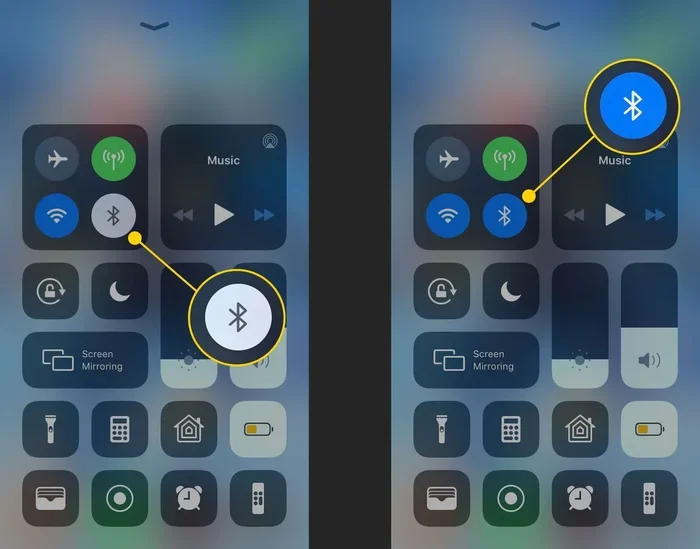
Sometimes the Bluetooth module just needs a fresh start. You can do this from the Control Center or from the Settings app.
From Control Center:
- Swipe down from the top right corner of your screen.
- Tap the Bluetooth icon to turn it off.
- Wait 10 seconds.
- Tap it again to turn Bluetooth back on.
From Settings:
- Open Settings.
- Tap Bluetooth.
- Turn the toggle off.
- Wait 15 seconds.
- Turn the toggle back on.
This simple trick refreshes the Bluetooth connection and often restores discovery mode. It’s the first thing you should try when your iPhone Bluetooth not working suddenly appears.
Fix 3: Forget All Paired Devices and Reconnect
Over time, your iPhone stores a long list of Bluetooth devices it has paired with. Some of these old entries can cause conflicts. Clearing them out gives your Bluetooth system a fresh start.
Here’s how to do it:
- Open Settings and go to Bluetooth.
- Find each device in the My Devices list.
- Tap the info icon next to the device name.
- Tap “Forget This Device.”
- Repeat for every paired device.
- Restart your iPhone.
- Turn Bluetooth back on and try discovering devices again.
This method works especially well when your iPhone keeps trying to connect to old devices and fails. It clears the Bluetooth cache and forces a clean scan for new devices.
Fix 4: Reset Network Settings
If toggling Bluetooth doesn’t work, the next step is to reset your network settings. This clears all Wi-Fi passwords, Bluetooth pairings, and cellular settings. It’s more thorough than a simple toggle.
Here’s what to do:
- Open Settings.
- Tap General.
- Scroll down and tap Transfer or Reset iPhone.
- Tap Reset.
- Choose Reset Network Settings.
- Enter your passcode if prompted.
- Confirm the reset.
Your iPhone will restart. After it comes back on, you’ll need to reconnect to Wi-Fi and re-pair your Bluetooth devices. But this reset almost always fixes stubborn Bluetooth connectivity issues. It wipes away any corrupted settings that might be blocking discovery.
Fix 5: Update Your iOS
Apple is always fixing bugs in new updates. If you’re behind on updates, you might be missing a patch that addresses Bluetooth discovery problems. Keeping your iPhone updated is one of the best ways to prevent connection issues.
Here’s how to check for updates:
- Open Settings.
- Tap General.
- Tap Software Update.
- If an update is available, tap Download and Install.
Make sure your iPhone is connected to Wi-Fi and has at least 50% battery before updating. After the update, restart your phone and check Bluetooth again. This simple step solves many iPhone Bluetooth not working issues caused by outdated software.
Fix 6: Check for Interference
If you’re in a crowded area with lots of wireless signals, interference might be blocking your Bluetooth discovery. Try moving to a different location and see if your iPhone finds devices.
For car Bluetooth issues specifically:
- Turn off Wi-Fi on your iPhone.
- Move your phone closer to the car’s infotainment system.
- Make sure nothing metal is blocking the phone’s antenna area.
- Try placing your phone in a different spot in the car.
- Turn off other wireless devices in the car temporarily.
These small changes can make a big difference in car Bluetooth troubleshooting. Metal car roofs and bodies can block Bluetooth signals, so finding the right spot for your phone matters.
Fix 7: Check Battery and Power Settings
Make sure both your iPhone and the device you’re trying to connect to have enough charge. If your iPhone is below 20%, turn it on a charger and try again.
Also, check if Low Power Mode is active. If it is, turn it off temporarily. Low Power Mode can disable Bluetooth discovery to save energy. Once your battery is charged, you can turn Low Power Mode back on without losing Bluetooth functionality.
Car Bluetooth: Why It’s Especially Tricky
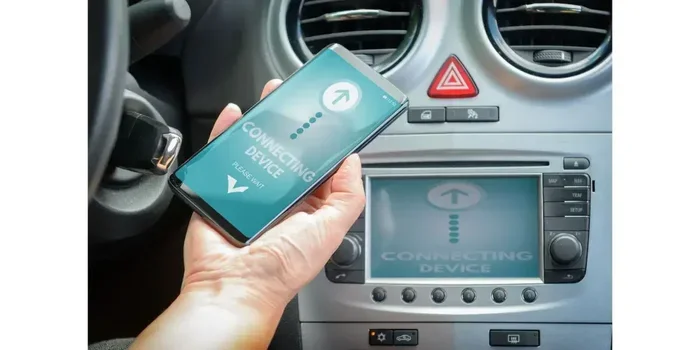
Car Bluetooth systems are one of the most common places where people run into connection problems. Your car’s infotainment system and your iPhone have to communicate perfectly for everything to work. When they don’t, it’s incredibly annoying.
Common Car Bluetooth Problems
Here are the most frequent issues drivers face with car Bluetooth:
- iPhone won’t discover the car’s Bluetooth system: The car doesn’t show up in the list of available devices.
- Car connects but has no audio: The pairing works, but calls and music don’t play through the car speakers.
- Connection drops randomly: The Bluetooth link keeps breaking while driving.
- Paired device doesn’t reconnect automatically: You have to manually pair every time you get in the car.
Why Car Bluetooth Fails
Cars are tough environments for Bluetooth signals. The metal body of the car blocks wireless signals. The car’s computer system generates electrical interference. And temperature changes in the car can affect Bluetooth hardware. All of these factors can contribute to Bluetooth pairing problems in vehicles.
Another big factor is that car infotainment systems often run older Bluetooth protocols. If you have a newer iPhone with the latest Bluetooth version, there can be a protocol mismatch that prevents discovery. This is especially common with cars that are more than 5 years old.
Tips for Better Car Bluetooth Connections
Follow these tips to keep your car Bluetooth working smoothly:
- Delete old paired devices from both your iPhone and your car’s system regularly.
- Keep your car’s infotainment software updated if updates are available.
- Place your phone in a visible, unobstructed spot near the center console.
- Restart both your iPhone and your car’s infotainment system if the connection fails.
- Turn off Bluetooth on other devices in the car that might be competing for the connection.
These simple habits go a long way in preventing Bluetooth connectivity issues while driving. A little maintenance can save you a lot of frustration on the road.
How to Prevent Bluetooth Problems in the Future
The best fix is prevention. Once you get your Bluetooth working again, you’ll want to keep it that way. Here are some habits that prevent most Bluetooth discovery failures.
Keep Your iPhone Updated
Software updates fix known bugs, including Bluetooth issues. Turn on automatic updates so you never miss a patch. Go to Settings, tap General, tap Software Update, and toggle Automatic Updates on.
Restart Your iPhone Weekly
A weekly restart clears out temporary files and refreshes all wireless modules. You don’t need to do it every day, but a restart once a week keeps everything running smoothly. This is one of the easiest Bluetooth troubleshooting habits you can build.
Manage Your Paired Device List
Don’t let your paired device list grow endlessly. Go through it every few months and forget devices you no longer use. A clean list means fewer conflicts and faster discovery when you need to pair something new.
Keep Devices Charged
Low battery affects Bluetooth performance on both sides. Make sure your iPhone and any Bluetooth device you use regularly have enough charge. This is especially important for car keys, wireless earbuds, and portable speakers.
Avoid Interference Hotspots
If you notice Bluetooth problems in certain locations, those spots likely have heavy wireless interference. Learn where these spots are and avoid them when you need a stable connection. For car Bluetooth, try different phone positions until you find the sweet spot.
When to Seek Professional Help
Most Bluetooth issues are software-related and fixable at home. But sometimes the problem is deeper. Here are signs that you need professional help:
- Bluetooth stops working after a drop or impact: This suggests hardware damage to the Bluetooth antenna or chip.
- None of the software fixes work: If you’ve tried every solution in this guide and Bluetooth still won’t discover devices, there might be a deeper system issue.
- Bluetooth works on other devices but not your iPhone: This points to a hardware problem specific to your iPhone.
- Your iPhone gets unusually hot when Bluetooth is on: Overheating can indicate a failing Bluetooth module.
If you notice any of these signs, visit an Apple Store or authorized service provider. They can run diagnostics and determine if your iPhone needs a repair or replacement part. Hardware repairs are less common, but they do happen, especially with older devices.
Expert Insights on Bluetooth Connectivity
Tech experts agree that most Bluetooth problems are temporary and software-related. According to Apple support documentation, the most effective first step for any Bluetooth issue is to restart the device. This clears temporary memory and resets wireless modules without losing any data or settings.
Bluetooth engineers also emphasize the importance of keeping both devices updated. When your iPhone and the device you’re connecting to run the latest firmware, they can negotiate the best connection protocol automatically. This reduces Bluetooth pairing problems significantly.
One expert tip that many people overlook: turn off Wi-Fi when troubleshooting Bluetooth. Both Wi-Fi and Bluetooth use the 2.4 GHz frequency band. When both are active, they can interfere with each other. Turning off Wi-Fi temporarily gives Bluetooth a clearer signal path and can help with discovery issues.
Another pro tip is to reset your iPhone’s location services. Some Bluetooth devices use location data to optimize connections. If location services are glitching, they can affect Bluetooth discovery. Go to Settings, tap Privacy & Security, tap Location Services, and toggle them off and back on to refresh this system.
Key Takeaways
- Restart Your iPhone First: A simple restart fixes most Bluetooth discovery issues quickly and easily.
- Reset Network Settings for Stubborn Problems: This clears corrupted settings that block Bluetooth discovery.
- Keep iOS and Device Firmware Updated: Updates patch known Bluetooth bugs and improve compatibility.
- Car Bluetooth Needs Special Attention: Metal bodies, older protocols, and interference make car connections tricky.
- Interference and Battery Matter: Wi-Fi signals, low battery, and physical barriers can all block Bluetooth.
- Prevention Beats Cure: Regular restarts, clean paired lists, and updated software stop problems before they start.
- Hardware Issues Are Rare: If all software fixes fail, visit a professional for diagnostics.
Conclusion
Dealing with iPhone Bluetooth not working is frustrating, but it’s almost always fixable. The reasons your iPhone isn’t picking up Bluetooth devices range from simple software glitches to interference and outdated software. The good news is that most fixes take just a few minutes and don’t require any special tools or technical knowledge.
Start with a restart. If that doesn’t work, try toggling Bluetooth, forgetting old devices, and resetting network settings. Keep your iOS updated and manage your paired device list regularly. For car Bluetooth issues specifically, check for interference and try different phone positions.
Remember that Bluetooth connectivity issues are incredibly common and rarely a sign of a serious problem. With the right troubleshooting steps, you’ll have your wireless connection restored in no time. Keep this guide bookmarked for the next time your iPhone Bluetooth not working mystery pops up. A little patience and these proven fixes will get you back to seamless wireless connectivity quickly.
Now you know exactly what to do when your iPhone won’t discover Bluetooth devices. Try these solutions, and don’t hesitate to reach out to Apple Support if the problem persists. Your wireless connection is just a few steps away from working perfectly again.
Frequently Asked Questions
Why won’t my iPhone find any Bluetooth devices at all?
This is usually caused by a software glitch or Bluetooth settings being stuck. Restart your iPhone first, then toggle Bluetooth off and on. If that doesn’t work, reset your network settings to clear any corrupted configurations blocking discovery.
Can interference from other devices stop my iPhone from finding Bluetooth?
Yes, absolutely. Wi-Fi routers, microwaves, USB 3.0 ports, and other wireless devices all operate near the 2.4 GHz frequency that Bluetooth uses. This shared frequency band can cause signal conflicts that prevent your iPhone from discovering nearby devices.
Why does my iPhone connect to Bluetooth in the house but not in my car?
Car interiors are tough environments for Bluetooth signals. The metal body blocks wireless signals, and older car infotainment systems may use outdated Bluetooth protocols. Try moving your phone to different spots in the car and make sure both your iPhone and car system are fully updated.
Does Low Power Mode affect Bluetooth discovery on iPhone?
Yes, it can. Low Power Mode reduces wireless activity to save battery, which can disable Bluetooth discovery temporarily. Turn off Low Power Mode and charge your iPhone if you’re having trouble finding Bluetooth devices.
How do I know if the problem is my iPhone or the Bluetooth device itself?
Try pairing your iPhone with a different Bluetooth device. If it finds and connects to the new device, the problem is with the original device, not your iPhone. If your iPhone still can’t discover any devices, the issue is likely on the iPhone side.
Will resetting network settings delete my photos and data?
No, resetting network settings only clears Wi-Fi passwords, Bluetooth pairings, and cellular settings. Your photos, apps, messages, and personal data are completely safe. You’ll just need to reconnect to Wi-Fi and re-pair your Bluetooth devices afterward.