Quickly Delete a Bluetooth Device From My Toyota Yaris
Deleting a Bluetooth device from your Toyota Yaris is simple when you follow the right steps. Whether you are removing an old phone or clearing a glitchy pairing, this guide walks you through every method. You will learn how to access your Bluetooth settings, delete paired devices, and troubleshoot common connection problems in just a few minutes.
Have you ever tried to connect your phone to your Toyota Yaris and it just would not work? Maybe you sold an old phone or switched to a new one and the old Bluetooth device is still sitting there in your car’s memory. Whatever the reason, knowing how to delete a Bluetooth device from your Toyota Yaris is a handy skill. It keeps your connection list clean and your audio system running without hiccups.
In this guide, we will walk you through every step of the process. You do not need to be a tech expert. We will keep things simple and easy to follow. By the end of this article, you will know exactly how to remove any paired Bluetooth device from your Toyota Yaris. We will also cover troubleshooting tips and answer common questions that car owners like you often ask.
The Toyota Yaris is a popular compact car known for its reliability and smart features. One of those features is Bluetooth connectivity, which lets you make hands-free calls and stream music wirelessly. But over time, your list of paired devices can get cluttered. Old phones, tablets, and even friends’ devices might still show up. Deleting them regularly helps keep things fast and organized. Let us dive right in.
Key Takeaways
- Easy Access: You can delete Bluetooth devices through the Toyota Yaris infotainment screen in just a few taps.
- Multiple Methods: There are several ways to remove a Bluetooth device, including the settings menu and a factory reset.
- Troubleshooting Helps: If deletion fails, a simple reset of the system often solves the problem.
- Prevents Pairing Issues: Regularly cleaning up old Bluetooth connections keeps your Toyota Yaris running smoothly.
- Works Across Models: The process is similar across most Toyota Yaris model years from 2012 to 2024.
- Quick Process: Most deletions take less than two minutes once you know where to look.
📑 Table of Contents
- Why You Should Delete Old Bluetooth Devices From Your Toyota Yaris
- How to Delete a Bluetooth Device From Your Toyota Yaris
- Troubleshooting: What to Do If Deletion Does Not Work
- How to Re-Pair Your Phone After Deleting a Bluetooth Device
- Tips to Keep Your Toyota Yaris Bluetooth Running Smoothly
- Toyota Yaris Bluetooth: Model Year Differences
- Common Mistakes People Make When Deleting Bluetooth Devices
- When to Seek Professional Help
- Final Thoughts
Why You Should Delete Old Bluetooth Devices From Your Toyota Yaris
You might wonder why it matters if you leave old devices paired. The truth is, a crowded Bluetooth list can cause real problems. Here are some reasons you should clean it up regularly.
It Frees Up Memory
Your Toyota Yaris has limited memory for storing Bluetooth pairings. When too many devices are saved, the system can slow down. Deleting unused ones gives your car’s computer more room to breathe.
It Prevents Connection Conflicts
Sometimes, an old paired device will try to connect automatically when you start the car. This can cause audio glitches or interrupt your current call. Removing old devices stops these annoying interruptions.
It Improves Security
An old Bluetooth connection is a potential security risk. If someone ever got access to your car, a paired device could be a backdoor. Deleting devices you no longer use keeps your Toyota Yaris safer.
It Makes New Pairings Faster
When you delete old pairings, adding a new device becomes much quicker. The system does not have to sort through a long list of saved devices. You get a clean slate every time.
How to Delete a Bluetooth Device From Your Toyota Yaris
Now let us get into the actual steps. The process is straightforward, but it does depend slightly on your model year. We will cover the most common method first, which works for most Toyota Yaris models from 2012 onward.
Step 1: Start Your Toyota Yaris
Turn on the ignition and press the power button for the infotainment system. You do not need to start the engine. Just make sure the screen is on and ready. Wait a few seconds for the system to fully boot up.
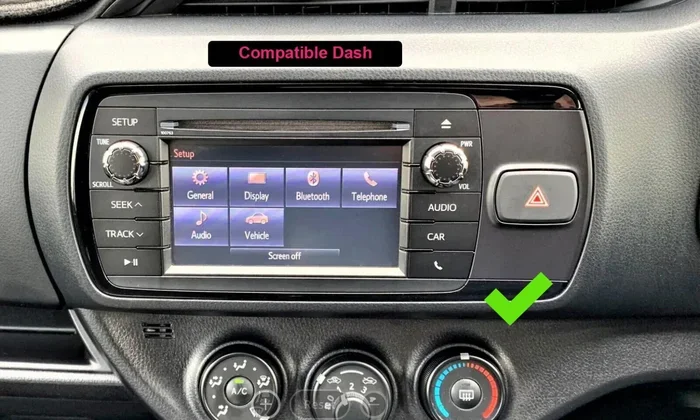
If your Toyota Yaris has a touchscreen, you will see the main menu. If it has physical buttons, look for the “Setup” or “Settings” button on the audio panel. The layout is slightly different depending on your trim level, but the basic steps remain the same.
Step 2: Navigate to the Bluetooth Settings
On the touchscreen, tap the “Setup” icon. It usually looks like a gear or wrench. From the menu that appears, select “Bluetooth.” This will open your Bluetooth settings page. Here you will see a list of all paired devices.
If your Yaris uses physical buttons, press the “Setup” button and then scroll to “Bluetooth” using the tune knob or arrow buttons. Press “Enter” or “OK” to select it.
Step 3: Find the Device You Want to Delete
You will now see a list of all the Bluetooth devices that are currently paired with your Toyota Yaris. Look for the device you want to remove. The name will usually be the phone model or a custom name you gave it.
Take your time here. Make sure you pick the right device. If you are not sure, check the name against your phone. You can also look at the connection status. Most systems show whether a device is currently connected or just stored.
Step 4: Select and Delete the Device
Once you find the device, tap on it to open its options menu. Look for an option that says “Delete,” “Remove,” or “Unpair.” Tap that option. The system will ask you to confirm. Press “Yes” or “Confirm” to complete the deletion.
The device should now disappear from your list. If it does not go away right away, try restarting the infotainment system. Simply turn the screen off and back on. The deleted device should no longer appear.
Step 5: Repeat for Other Devices
If you need to delete more than one device, just repeat steps 3 and 4. Go through the list and remove each one you no longer need. It only takes a minute or two per device.
Troubleshooting: What to Do If Deletion Does Not Work
Sometimes things do not go as planned. Maybe the delete button is grayed out, or the device keeps coming back. Do not worry. There are several things you can try to fix the problem.
Restart the Infotainment System
The first and easiest fix is to restart your Toyota Yaris infotainment system. Turn the screen off and wait about 30 seconds. Then turn it back on. This clears temporary glitches and often solves deletion problems. It is like restarting a phone when it acts up.
Reset the Bluetooth Module
If restarting does not work, try resetting the Bluetooth module. Go to the Bluetooth settings menu and look for an option called “Reset Bluetooth” or “Clear All Pairings.” This removes every paired device at once. You will need to re-pair your current phone after this, but it often fixes stubborn issues.
Check for System Updates
Older Toyota Yaris models sometimes have software bugs that affect Bluetooth. Check if there is a system update available. You can visit a Toyota dealer or check the Toyota website for the latest firmware. Updating the system can fix many Bluetooth problems.
Disconnect Before Deleting
Make sure the device you want to delete is not currently connected. If it is actively connected, the system may not let you remove it. Go to the Bluetooth settings, disconnect the device first, and then try deleting it again.
Try a Factory Reset
If nothing else works, you can try a factory reset of the entire infotainment system. This is a more drastic step, but it solves most persistent problems. Be aware that a factory reset will erase all your settings, including radio presets and phone pairings. You will need to set everything up again from scratch.
Before doing a factory reset, you might want to download your Toyota Yaris product manual so you can easily restore your settings afterward.
How to Re-Pair Your Phone After Deleting a Bluetooth Device
Once you have deleted the old device, you will probably want to pair your current phone. Here is how to do it quickly.
Step 1: Turn on Bluetooth on Your Phone
Go to your phone’s settings and turn on Bluetooth. Make sure your phone is discoverable. Most phones stay discoverable for a few minutes after you turn Bluetooth on.
Step 2: Search for Available Devices
On your Toyota Yaris infotainment screen, go to the Bluetooth settings and select “Search for Devices” or “Add New Device.” Your phone should appear in the list on the car’s screen.
Step 3: Confirm the Pairing
Tap on your phone’s name when it appears. Both the car and your phone will show a pairing code. Make sure the codes match, then confirm on both devices. The connection should be established within a few seconds.
Step 4: Test the Connection
Play some music or make a test call to make sure everything works. If the audio sounds clear and the call connects without issues, you are all set.
Tips to Keep Your Toyota Yaris Bluetooth Running Smoothly
A little maintenance goes a long way. Here are some tips to keep your Bluetooth connection in great shape.
- Delete old devices regularly. Every few months, go through your paired device list and remove anything you no longer use.
- Keep your phone software updated. Phone updates often include Bluetooth improvements that help with car connections.
- Restart your phone and car infotainment system occasionally. A simple restart clears minor glitches that can affect Bluetooth performance.
- Keep your phone close to the car when pairing. Place it on the center console or dashboard during the pairing process for the best signal.
- Avoid connecting too many devices at once. Stick to one or two primary devices for the best performance.
- Check your battery health. A weak car battery can cause Bluetooth problems. If you notice issues, it might be worth checking your battery.
Toyota Yaris Bluetooth: Model Year Differences
The process for deleting a Bluetooth device is similar across most Toyota Yaris model years. However, there are a few differences you should know about.
| Model Year Range | Screen Type | Deletion Method |
|---|---|---|
| 2012 – 2014 | Basic touchscreen or button controls | Setup > Bluetooth > Select Device > Delete |
| 2015 – 2017 | Touchscreen with enhanced interface | Setup > Bluetooth > Device List > Remove |
| 2018 – 2020 | Color touchscreen with Toyota Entune | Setup > Bluetooth > Manage Devices > Delete |
| 2021 – 2024 | Updated touchscreen with wireless features | Setup > Bluetooth > Paired Devices > Unpair |
If you have an older model and are unsure about the exact steps, the basic process is the same. Look for the Bluetooth section in your setup menu and find the option to delete or remove a device.
For owners of newer Toyota models who are curious about similar processes, you might also want to check out how to unlock your car with the Toyota App or how to remote start your Toyota with the key fob. These features work hand in hand with your Bluetooth system to give you a seamless driving experience.
Common Mistakes People Make When Deleting Bluetooth Devices
Even though the process is simple, people sometimes make mistakes. Here are a few to watch out for.
Deleting the Wrong Device
Always double-check the device name before you confirm deletion. It is easy to tap the wrong device, especially if you have many paired devices with similar names. Rename your devices with recognizable names to avoid this mistake.
Not Restarting After Deletion
If a deleted device still shows up, do not panic. Simply restart the infotainment system. A restart almost always clears the ghost device from the list.
Skipping the Confirmation Step
Some systems ask you to confirm the deletion twice. Make sure you complete both confirmation steps. If you skip the second one, the device may not actually be deleted.
Forgetting to Re-Pair
After deleting a device, remember to pair your current phone again. It is easy to forget this step, especially if you are in a hurry. Take the extra minute to re-pair so you do not lose connectivity.
When to Seek Professional Help
Most Bluetooth deletion issues can be solved at home. But sometimes, the problem is deeper. If you have tried all the steps above and your Toyota Yaris Bluetooth still will not work properly, it may be time to see a professional.
A Toyota dealer can run diagnostics on your Bluetooth module and infotainment system. They have specialized tools that can identify hardware issues. If your car is still under warranty, this service may be covered. You can also take your Toyota to any dealer for service, which gives you more flexibility in choosing a service center.
Signs that you need professional help include:
- The Bluetooth system completely stops working
- You cannot pair any new devices
- The screen freezes when you try to delete a device
- You hear static or distortion during calls even after removing old devices
- The Bluetooth light on your dashboard stays on even when no devices are connected
Final Thoughts
Deleting a Bluetooth device from your Toyota Yaris does not have to be complicated. With the steps outlined in this guide, you can clean up your paired device list in just a few minutes. Whether you are removing an old phone, clearing a glitchy connection, or preparing the car for a new owner, the process is straightforward and easy to follow.
Remember to restart your system if things do not go smoothly the first time. Keep your paired device list clean and updated for the best performance. And do not hesitate to reach out to a Toyota dealer if you run into persistent problems.
Your Toyota Yaris is designed to make your driving experience better. A well-maintained Bluetooth system is a big part of that. Take a few minutes today to delete any old devices and enjoy a cleaner, faster, and more secure connection every time you get behind the wheel.
For more helpful Toyota Yaris tips and guides, explore our other articles on Toyota maintenance and technology. We are here to help you get the most out of your car.
Frequently Asked Questions
Can I delete multiple Bluetooth devices at once from my Toyota Yaris?
Most Toyota Yaris models do not allow you to delete multiple devices at once. You will need to go through the list and remove each device individually. However, some newer models with the updated infotainment system may offer a “Clear All” option in the Bluetooth settings menu.
Will deleting a Bluetooth device also remove it from my phone?
No, deleting a Bluetooth device from your Toyota Yaris only removes it from the car’s memory. The device will still be paired with your phone. If you want to remove it from your phone as well, you need to go into your phone’s Bluetooth settings and unpair it there too.
How many Bluetooth devices can my Toyota Yaris store?
Most Toyota Yaris models can store between 5 and 10 paired Bluetooth devices at a time. The exact number depends on your model year and trim level. If you have reached the limit, you will need to delete an old device before you can pair a new one.
Why does my deleted Bluetooth device keep showing up on my Toyota Yaris?
This usually happens when the infotainment system has not fully refreshed after the deletion. Try restarting the system by turning it off and back on. If the device still appears, try resetting the Bluetooth module or performing a factory reset of the infotainment system.
Can I delete a Bluetooth device from my Toyota Yaris while driving?
It is not recommended. While the system will let you access Bluetooth settings while the car is moving, it is safer to pull over or park before making changes. Taking your attention away from the road, even for a few seconds, can be dangerous.
Do I need any special tools to delete a Bluetooth device from my Toyota Yaris?
No, you do not need any special tools. You only need access to your Toyota Yaris infotainment system and the paired device you want to remove. Everything you need is built right into the car’s system. Just follow the steps in this guide and you will be done in minutes.