How Do I Get Google Maps on My Toyota Car Screen Easy
Getting Google Maps on your Toyota car screen is easier than you think. You can use Apple CarPlay, Android Auto, or your Toyota’s built-in navigation system to access Google Maps while driving. This guide walks you through every simple method, so you can start navigating with confidence today.
Have you ever hopped into your Toyota and wished you had Google Maps right on your screen? Maybe you are heading to a new place and do not want to pull out your phone. Or maybe you just want a bigger, clearer view of the road ahead. Either way, you are in the right place.
Getting Google Maps on your Toyota car screen is simpler than most people think. You have a few different options, and none of them require a trip to the mechanic. Whether you drive a Toyota Camry, a Toyota RAV4, or a Toyota Highlander, this guide will help you get Google Maps up and running fast.
In this article, we will walk you through every method step by step. We will cover phone connections, built-in systems, and even some handy tips to make your experience better. By the end, you will know exactly how to get Google Maps on your Toyota car screen with ease.
Key Takeaways
- Multiple Methods Available: You can use Apple CarPlay, Android Auto, or your Toyota’s native navigation to access Google Maps.
- Phone Connection Is Key: Most methods require a smartphone connection via USB or wirelessly through Bluetooth.
- Toyota Entune Matters: Upgrading your Toyota Entune system can unlock better map features and smoother performance.
- Offline Maps Help: You can download offline maps to use Google Maps even without a strong signal.
- Safety First: Always set up your map before driving and use voice commands to stay safe on the road.
- Free Updates Exist: You can update your Toyota maps for free through your dealer or online tools.
- Works Across Models: Most Toyota models from recent years support Google Maps through smart features.
📑 Table of Contents
What You Need Before Getting Google Maps on Your Toyota
Before you dive in, let us talk about what you need. The setup is different depending on your Toyota model and year. But here are the basics you will want to have ready.
Check Your Toyota Model and Year
Most Toyota models from 2018 and newer support smart phone features. If you have an older model, you might still be able to use Google Maps. But the setup process could be a little different. Check your owner’s manual or look up your specific model online to see what features your Toyota supports.
Here is a quick list of what you will typically need:
- A smartphone (iPhone or Android)
- A compatible Toyota infotainment system
- A USB cable or Bluetooth connection
- A stable Wi-Fi connection for downloads
- Your Toyota key or key fob
Understand Your Toyota Infotainment System
Toyota uses a system called Entune for its infotainment features. Can I upgrade my Toyota Entune? Yes, in many cases you can. Newer versions of Entune offer better app support and smoother performance. If your Toyota has an older version, you might want to consider an upgrade.
Your Toyota display screen is the window to all of these features. It controls your music, navigation, phone calls, and more. Understanding how it works will make the Google Maps setup much easier.
How to Connect Your Phone to Your Toyota Screen
Now let us get into the actual setup. The first step is connecting your phone to your Toyota screen. This is the foundation for everything else.
Method 1: Use a USB Cable
The simplest way to connect is with a USB cable. Plug one end into your phone and the other into your Toyota’s USB port. Most Toyotas have the port on the center console or the armrest area.
Once connected, your Toyota screen should recognize your phone. You may see a prompt asking if you want to allow access. Tap “Allow” or “Yes.” This gives your Toyota screen permission to display your phone’s apps, including Google Maps.
Here are a few tips for a smooth USB connection:
- Use a high-quality USB cable that supports data transfer
- Avoid cheap or damaged cables
- Make sure your phone is unlocked
- Restart both your phone and Toyota system if nothing happens
Method 2: Connect Wirelessly Through Bluetooth
Many newer Toyota models support wireless connections. This means you do not need to plug in a cable at all. Go to your Toyota’s settings menu and select Bluetooth. Then pair it with your phone the same way you would pair any Bluetooth device.
Wireless connections are convenient, but they can sometimes be slower than USB. If you notice any lag when opening Google Maps, try using a USB cable instead.
Method 3: Use Toyota’s Built-In Navigation
Some Toyota models come with a built-in navigation system. This system may already include map features similar to Google Maps. You can access it directly from your Toyota screen without connecting your phone at all.
If you want to update your maps, you might wonder, can you update Toyota maps for free? The answer is yes, in many cases. Toyota offers free map updates through their website or at your local dealer.
Using Google Maps Through Apple CarPlay and Android Auto
This is the most popular way to use Google Maps on your Toyota screen. Both Apple CarPlay and Android Auto let you mirror your phone’s apps on your car’s display. It is like having your phone screen right on your Toyota dashboard.
Setting Up Apple CarPlay
If you drive an iPhone, Apple CarPlay is your best friend. Here is how to set it up:
- Connect your iPhone to your Toyota using a USB cable
- Your Toyota screen will show a CarPlay prompt
- Tap “Allow” to enable the connection
- Open the CarPlay app on your Toyota screen
- Select Google Maps from the list of apps
Once connected, Google Maps will open right on your Toyota screen. You can use voice commands to search for destinations, which keeps your hands on the wheel and your eyes on the road.
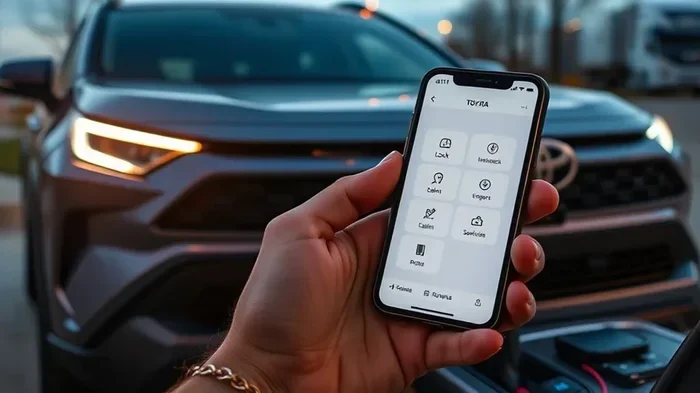
Did you know you can also start my Highlander with my phone and have Google Maps ready before you even sit down? That is the power of smart integration.
Setting Up Android Auto
If you have an Android phone, Android Auto works in a similar way. Here is the setup process:
- Download the Android Auto app from the Google Play Store
- Connect your Android phone to your Toyota using a USB cable
- Follow the on-screen prompts on both your phone and Toyota screen
- Grant permission for Android Auto to access your apps
- Open Google Maps from the Android Auto home screen
Android Auto gives you a clean, simple interface on your Toyota screen. It is designed to be safe and easy to use while driving. Google Maps works perfectly with Android Auto, and you can use voice commands to search for places.
Which Is Better: Apple CarPlay or Android Auto?
Both systems work great with Google Maps. Here is a quick comparison:
| Feature | Apple CarPlay | Android Auto |
|---|---|---|
| Compatible Phone | iPhone | Android |
| Wireless Support | Yes (newer models) | Yes (newer models) |
| Google Maps Support | Full support | Full support |
| Voice Commands | Siri | Google Assistant |
| Setup Difficulty | Very easy | Very easy |
Neither system is better than the other. It all depends on what type of phone you use. Both give you full access to Google Maps on your Toyota screen.
Using Google Maps Without a Phone Connection
Some Toyota models have a built-in Google Maps feature that does not require a phone. This is great if you do not want to connect your phone every time you drive. Let us look at how this works.
Built-In Google Maps on Newer Toyotas
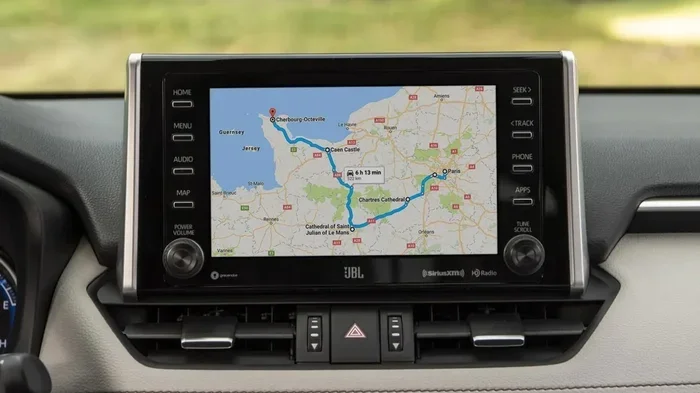
Newer Toyota models, especially those with the latest Entune system, may have Google Maps built right into the car. This means the maps live on your Toyota’s system, not on your phone. You can search for destinations, get directions, and view traffic all without touching your phone.
This feature is especially helpful for road trips. You do not need to worry about your phone battery dying or losing your GPS signal. The Toyota system handles everything.
Downloading Offline Maps
Even if you are using Google Maps through your phone, you can download offline maps. This means Google Maps will work even if you lose your signal in a tunnel or a remote area.
Here is how to download offline maps on your phone before you drive:
- Open Google Maps on your phone
- Search for the area you want to save
- Tap the area name at the bottom
- Select “Download” or “Save offline map”
- Wait for the download to finish
Once downloaded, the map will be available on your Toyota screen too. This is a game changer for long drives through areas with poor cell coverage.
Tips for Using Google Maps Safely While Driving
Using Google Maps in your Toyota is convenient, but safety always comes first. Here are some tips to help you use it the right way.
Set Up Your Route Before You Drive
Always enter your destination before you start the car. Fiddling with your phone or screen while driving is dangerous. Take a few extra seconds to set everything up before you put the car in drive.
If you are wondering, can I drive my Toyota without a key fob while setting up navigation, the answer depends on your model. But the point remains: set up your route first, then focus on the road.
Use Voice Commands
Both Apple CarPlay and Android Auto support voice commands. You can say “Hey Siri” or “Hey Google” to search for destinations, reroute, or adjust settings. This keeps your eyes on the road and your hands on the wheel.
Mount Your Phone Properly
If you are using your phone as a GPS, make sure it is mounted securely. A loose phone can slide around and become a distraction. Use a dashboard mount or a vent mount that fits your phone snugly.
Keep Your Maps Updated
Google Maps updates frequently with new roads, businesses, and traffic data. Make sure your app is always up to date. Open the Google Play Store or Apple App Store and check for updates regularly.
Also, keep your Toyota maps updated. You can check if you can update Toyota maps for free through Toyota’s official website or by visiting your local dealer.
Troubleshooting Common Issues
Sometimes things do not work as expected. Here are some common problems and how to fix them.
Google Maps Not Showing on My Toyota Screen
If Google Maps is not appearing on your Toyota screen, try these steps:
- Check that your phone is properly connected
- Restart both your phone and your Toyota system
- Make sure Google Maps is updated on your phone
- Try a different USB cable or port
- Unpair and re-pair your Bluetooth connection
Slow or Laggy Performance
If Google Maps is slow on your Toyota screen, it could be a connection issue. Wireless connections can sometimes lag. Try switching to a USB cable for a faster, more stable connection.
You can also close other apps on your phone to free up memory. The less your phone is doing, the smoother Google Maps will run on your Toyota screen.
GPS Signal Lost
If your GPS signal drops frequently, check that your phone has a clear view of the sky. Obstacles like tall buildings or thick tree cover can block the signal. You can also try toggling your phone’s GPS setting off and back on.
Final Thoughts
Getting Google Maps on your Toyota car screen opens up a world of convenience. You can navigate to new places, avoid traffic, and find gas stations or restaurants with just a few taps. Whether you use Apple CarPlay, Android Auto, or your Toyota’s built-in system, the process is straightforward and rewarding.
Remember to always prioritize safety. Set up your route before driving, use voice commands, and keep your maps updated. With the right setup, Google Maps becomes a powerful tool that makes every drive smoother and more enjoyable.
So go ahead and give it a try. Connect your phone, open Google Maps, and enjoy the ride. Your Toyota was built to be smart, and with Google Maps on the screen, it is even smarter.
Frequently Asked Questions
Can I Use Google Maps on My Toyota Without a Phone?
Yes, on newer Toyota models with built-in navigation, you can use Google Maps directly on the car screen without connecting a phone. However, most Toyota models require a phone connection through Apple CarPlay or Android Auto to access Google Maps fully.
Does Every Toyota Model Support Google Maps?
Most Toyota models from 2018 and newer support Google Maps through Apple CarPlay or Android Auto. Older models may have limited or no support. Check your specific model’s features to confirm compatibility.
Is Google Maps Free to Use in My Toyota?
Yes, Google Maps is completely free to use. You just need a smartphone and a compatible Toyota infotainment system. You will also need a data connection or downloaded offline maps for navigation.
How Do I Update Google Maps on My Toyota?
Update Google Maps through your phone’s app store. For Toyota’s built-in maps, you can update Toyota maps for free through Toyota’s website or at your local dealer. Keeping both your phone maps and Toyota maps updated ensures the best navigation experience.
Can I Use Google Maps Offline on My Toyota?
Yes, you can download offline maps on your phone through the Google Maps app. Once downloaded, these maps will be available on your Toyota screen when connected. This is very useful for driving in areas with weak or no cell signal.
Is It Safe to Use Google Maps While Driving My Toyota?
It is safest to set up your route before you start driving. Use voice commands to interact with Google Maps while on the road. Avoid tapping on the screen or typing while the car is in motion. Your Toyota’s CarPlay or Android Auto interface is designed to make this process safer and simpler.
=== CONCLUSION ===
Getting Google Maps on your Toyota car screen is one of the best upgrades you can make. It transforms your Toyota into a smart, connected vehicle that guides you wherever you need to go. Whether you use a USB cable, Bluetooth, Apple CarPlay, or Android Auto, the process is simple and works across most Toyota models.
Keep your maps updated, use voice commands for safety, and enjoy the convenience of having Google Maps right on your dashboard. With this guide, you have everything you need to get started. Safe travels and happy navigating.