How Do I Get to Settings on My Toyota Highlander Guide
Finding the settings menu on your Toyota Highlander is easier than you think. Whether you want to adjust the display, change audio preferences, or tweak vehicle features, the process is straightforward once you know where to look. This guide walks you through every method to access settings on your Toyota Highlander quickly and confidently.
Have you ever sat in your Toyota Highlander and thought, “Where do I even find the settings?” You are not alone. Many drivers struggle to locate the settings menu on their Highlander, especially if they are new to the model or just upgraded to a newer year. The good news is that getting to settings on your Toyota Highlander is much simpler than it looks. Once you know the steps, you will be adjusting your display, audio, and vehicle preferences in no time.
The Toyota Highlander settings menu gives you control over a lot of features. You can change the screen brightness, adjust climate control preferences, set up Bluetooth connections, and even customize warning alerts. Understanding how to navigate this menu is a game changer. It saves you time and makes your daily drive more comfortable. In this guide, we will show you every way to get to settings on your Toyota Highlander, no matter what year you drive.
We will also cover common problems people face when trying to find the settings menu. Sometimes the touchscreen freezes, or the options look different from what the manual describes. We will help you troubleshoot those issues too. By the end of this article, you will feel confident navigating your Highlander infotainment system like a pro. Let us dive right in.
Key Takeaways
- Multiple Ways to Access Settings: You can reach the settings menu through the touchscreen home screen, the steering wheel controls, or the physical buttons on the center console.
- Touchscreen Is the Primary Method: Most Toyota Highlander models use the touchscreen display as the main gateway to all settings and customization options.
- You Can Customize Many Features: From display brightness to Bluetooth pairing, the settings menu lets you personalize your driving experience.
- Troubleshooting Is Simple: If you cannot find settings, a quick reset or software update usually fixes the problem.
- Settings Differ by Model Year: Newer Highlander models have more advanced menus and features compared to older versions.
- Voice Commands Can Help: Some Toyota Highlander models support voice-activated commands to open settings hands-free.
📑 Table of Contents
- How to Access Settings on Your Toyota Highlander
- Understanding the Toyota Highlander Infotainment System
- Common Settings You Can Adjust on Your Toyota Highlander
- Troubleshooting Settings Issues on Your Toyota Highlander
- Tips for Customizing Your Toyota Highlander Experience
- Final Thoughts on Finding Settings on Your Toyota Highlander
How to Access Settings on Your Toyota Highlander
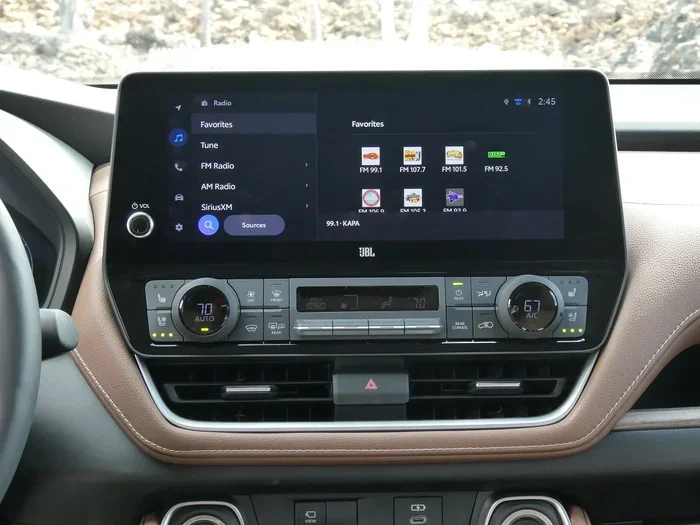
The most common way to reach the Toyota Highlander settings is through the touchscreen display. Almost every modern Highlander model comes with a central touchscreen that controls the infotainment system. This screen is your main hub for adjusting almost every feature in the vehicle. Let us walk through the steps.
Method 1: Using the Touchscreen Home Screen
Start by pressing the Home button on your touchscreen. This button is usually at the bottom left corner of the display. It looks like a small house icon. Once you press it, you will see the main home screen appear.
From the home screen, look for the Settings icon. It typically looks like a gear or a cogwheel. On most Toyota Highlander models, this icon sits at the top right corner of the screen or along the bottom menu bar. Tap it once, and the settings menu will open up.
Inside the settings menu, you will see different categories. These may include Display, Audio, Phone, Navigation, and Vehicle Settings. Each category opens up to more specific options. For example, under Display, you can change the screen brightness or adjust the theme. Under Audio, you can control the equalizer and speaker balance.
If you have a newer Toyota Highlander with the latest infotainment system, the layout might look slightly different. Toyota updates the interface from year to year. But the gear icon for settings has stayed pretty consistent across most models.
Method 2: Using the Steering Wheel Controls
Some drivers prefer not to reach for the touchscreen while driving. That is completely understandable. The good news is that you can use the steering wheel controls to access settings on your Toyota Highlander in some models.
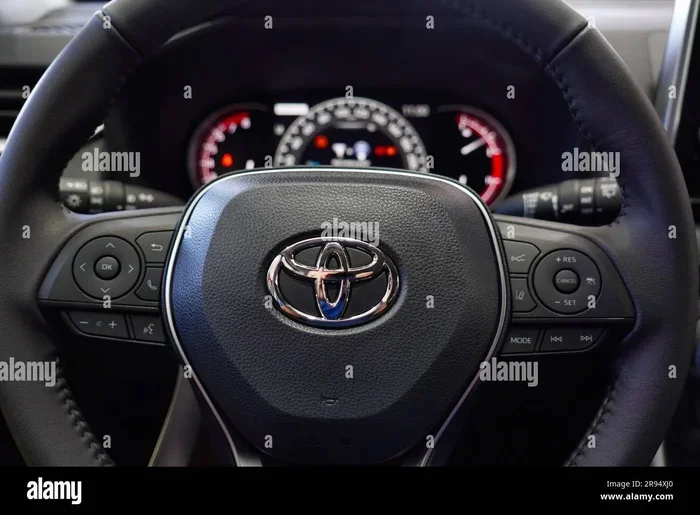
Look for the Menu button on your steering wheel. It is usually located on the left side of the wheel. Press it once, and a menu should appear on the screen. Use the up and down arrow buttons on the steering wheel to scroll to the Settings option. Then press the Enter or OK button to select it.
This method works well when you are parked or at a stoplight. It keeps your eyes on the road and your hands on the wheel. If your Highlander does not have a Menu button on the steering wheel, the touchscreen method will work just fine.
Method 3: Using Physical Buttons on the Center Console
Older model years of the Toyota Highlander may have physical buttons near the gear shifter or on the center console. These buttons can also give you access to the settings menu. Look for a button labeled Setup or Menu. Press it, and scroll through the options using the knob or arrows nearby.
This method is especially helpful if your touchscreen is unresponsive. Physical buttons serve as a backup way to reach Toyota Highlander settings. Not all models have these buttons, so check your specific model to see if this option is available.
Understanding the Toyota Highlander Infotainment System
The infotainment system in your Toyota Highlander is the brain behind the touchscreen. It controls everything from your audio system to your navigation maps. Understanding how this system works makes it much easier to find and use the settings menu.
What Is the Infotainment System?
The infotainment system is the combination of your audio, navigation, phone connectivity, and display all in one. Think of it as the control center for your vehicle’s technology. On the Toyota Highlander, this system is built into the central touchscreen display.
Toyota uses different names for their infotainment systems depending on the model year. Newer models may have the Toyota Audio Multimedia system, while older ones might use the Entune system. Regardless of the name, the way you access settings is generally the same.
How the Home Screen Works
The home screen is where everything begins. When you start your Toyota Highlander, the home screen usually appears automatically. It shows your active apps, shortcuts, and quick settings. From here, you can jump straight into the settings menu or open other features like navigation or media.
The home screen layout can be customized on some models. You can move shortcuts around or add your favorite apps for quick access. This customization is done through the settings menu itself, which makes it a bit of a loop. You access settings to customize the home screen, and the home screen gives you access to settings.
Touchscreen Responsiveness and Calibration
Sometimes the touchscreen on your Toyota Highlander may not respond properly. This can make it hard to tap the settings icon. If this happens, try cleaning the screen with a soft microfiber cloth. Dirt and grease can interfere with touchscreen sensitivity.
If cleaning does not help, you may need to recalibrate the touchscreen. Go to the Display section inside the settings menu and look for a calibration option. Follow the on-screen instructions to recalibrate. This usually fixes most touchscreen issues.
Common Settings You Can Adjust on Your Toyota Highlander
Once you know how to get to settings on your Toyota Highlander, you will find a wide range of options you can customize. Let us look at the most popular settings that drivers adjust.
Display Settings
The display settings let you control how your screen looks. You can adjust the brightness level so the screen is easy to see in both daylight and at night. You can also change the theme or color scheme on some models.
Another useful display setting is the screen timeout. This controls how long the screen stays on when you are not using it. Setting a shorter timeout can save battery power. If you find the screen going dark too quickly, you can increase the timeout duration in the display settings.
Audio and Sound Settings
The audio settings give you control over your sound system. You can adjust the volume, balance, and fade between the front and rear speakers. There is also an equalizer where you can choose presets like Rock, Jazz, or Classical, or create your own custom sound profile.
If you use Bluetooth to stream music, the audio settings let you manage your paired devices. You can set which phone connects automatically and adjust the call volume separately from the media volume. These small tweaks make a big difference in your daily driving experience.
Phone and Connectivity Settings
The phone settings section is where you pair your smartphone with the Toyota Highlander. You can connect via Bluetooth or, on newer models, through Apple CarPlay or Android Auto. Once paired, you can manage contacts, access call history, and control which apps send notifications to the screen.
If you have trouble connecting your phone, try deleting the old pairing and setting it up again. This simple fix resolves most connectivity issues. You can also check for software updates in the settings menu that might improve Bluetooth performance.
Vehicle Settings and Safety Features
The vehicle settings section is where you can adjust features related to how your Highlander drives. This includes things like traction control, stability control, and drive mode settings. You can also set warning preferences, such as how loud the seatbelt reminder chime is or how far in advance the navigation gives turn-by-turn directions.
Some drivers like to adjust the power liftgate settings here too. You can set it to open fully or only partway. You can also choose whether it opens automatically when you wave your foot under the bumper. These small details make your Toyota Highlander feel truly personalized.
Troubleshooting Settings Issues on Your Toyota Highlander
Sometimes you might run into problems when trying to access settings on your Toyota Highlander. Do not worry. Most issues have simple fixes. Let us go through the most common problems and how to solve them.
Settings Menu Will Not Open
If you tap the gear icon and nothing happens, the screen might be frozen. Try restarting the infotainment system. You can usually do this by holding down the power button on the screen for about 10 seconds. The system will reboot, and the settings menu should work again.
Another option is to turn off the vehicle completely, wait 30 seconds, and then restart it. This gives the system a full reset. If the problem keeps happening, there might be a software issue that needs updating.
Settings Look Different From What You Expect
Toyota updates the interface between model years. If you recently got a used Toyota Highlander, the settings menu might look different from what you are used to. This is normal. Take some time to explore the menu and familiarize yourself with the new layout.
You can also check the owner’s manual for your specific model year. The manual will show you exactly what each setting does and where to find it. Many manuals are also available online on Toyota’s website.
Touchscreen Is Unresponsive
A frozen or unresponsive touchscreen is one of the most frustrating issues. Start by checking if the screen is dirty. Clean it gently with a microfiber cloth. If the screen is still unresponsive, try the restart method mentioned above.
In rare cases, a hardware issue might be causing the problem. If restarting does not help and the screen remains frozen, it is a good idea to visit a Toyota dealer. They can run diagnostics and check if the touchscreen needs to be replaced. Before you go, you might want to check if Can I Start My Highlander With My Phone to see if other features are working normally.
Tips for Customizing Your Toyota Highlander Experience
Now that you know how to find and use the settings menu, let us talk about how to get the most out of it. Customizing your Toyota Highlander settings can make every drive more enjoyable.
Save Your Preferences
Once you adjust your display, audio, and seat settings, save them as a profile if your model supports it. This way, you do not have to redo everything every time you start the car. Some Highlander models allow multiple profiles, so each driver can have their own setup.
Keep Your Software Updated
Toyota releases software updates that improve the infotainment system and fix bugs. Check for updates regularly in the settings menu. Keeping your system updated ensures that the settings menu works smoothly and that you have access to the latest features.
Explore Voice Commands
Some Toyota Highlander models support voice commands. You can say something like “Open Settings” or “Turn up the brightness” to control features hands-free. This is especially useful when you are driving and do not want to take your eyes off the road. If you are curious about what else you can control with voice commands, check out Can I Drive My Toyota Without A Key Fob to learn more about hands-free features on your Toyota.
Use the Toyota App for Remote Settings
The Toyota app lets you control certain features remotely. You can lock your doors, check your fuel level, and even start the engine from your phone. While you cannot access the full settings menu through the app, it is a helpful companion to your Toyota Highlander. If you want to learn more about what the app can do, check out Can I Unlock My Car With The Toyota App for details on remote connectivity.
Factory Reset as a Last Resort
If nothing else works and your settings menu is still giving you trouble, you can try a factory reset. This restores all settings to their original defaults. Be careful, though, because a factory reset will erase any customizations you have made. Always back up any important paired devices or saved preferences before doing a reset.
To perform a factory reset, go to the settings menu, look for System or Reset options, and follow the prompts. If you cannot access the settings menu at all, you may need to hold down specific buttons on the center console to trigger a reset. Your owner’s manual will have instructions for this.
Final Thoughts on Finding Settings on Your Toyota Highlander
Getting to settings on your Toyota Highlander does not have to be confusing. Whether you use the touchscreen, the steering wheel controls, or physical buttons, the process is straightforward once you know the steps. The Toyota Highlander settings menu gives you powerful control over your driving experience, from display brightness to safety features and everything in between.
Take some time to explore the different categories in the settings menu. Try adjusting a few things and see what works best for you. The more you use the system, the more comfortable you will become with it. And if you ever run into issues, the troubleshooting tips in this guide should help you get back on track.
Remember, every Toyota Highlander is a bit different depending on the model year and trim level. What works on one model might look slightly different on another. But the basic principles remain the same. You now have the knowledge to navigate your settings with confidence. Enjoy customizing your Highlander to make it truly yours.
Frequently Asked Questions
Can I access settings on my Toyota Highlander without using the touchscreen?
Yes, you can use the steering wheel Menu button or physical buttons on the center console to access settings on some models. The steering wheel method works well when you want to keep your hands on the wheel and eyes on the road.
Why can I not find the Settings icon on my Toyota Highlander screen?
The Settings icon might be hidden in a submenu or the screen might be frozen. Try pressing the Home button first, then look for the gear icon. If the screen is unresponsive, restart the system by holding the power button for 10 seconds.
Does the Toyota Highlander settings menu differ by model year?
Yes, newer model years may have updated interfaces and additional settings options. Toyota has refined the infotainment system over the years, so the layout and features can vary between older and newer Highlanders.
Can I adjust the screen brightness from the settings menu?
Absolutely. The Display section inside the settings menu lets you adjust screen brightness, timeout duration, and themes. This is one of the most commonly adjusted settings on the Toyota Highlander.
Will a factory reset erase my paired Bluetooth devices?
Yes, a factory reset will erase all customizations, including paired Bluetooth devices and saved preferences. Make sure to back up any important data before performing a reset.
How do I update the software on my Toyota Highlander?
You can check for software updates in the settings menu under the System or About section. If an update is available, follow the on-screen prompts to download and install it. Keeping your software updated ensures the best performance.