How Do I Connect My Phone to My Toyota Corolla Navigation
Connecting your phone to your Toyota Corolla navigation is easier than you think. Whether you use Bluetooth, a USB cable, Apple CarPlay, or Android Auto, this guide walks you through every method step by step. You will learn how to pair your device, stream music, make hands-free calls, and use your favorite apps safely on the road.
Have you ever jumped into your Toyota Corolla and wished you could access your phone without taking your hands off the wheel? You are not alone. Connecting your phone to your Toyota Corolla navigation is one of the most useful things you can do for daily driving. It lets you stream music, get directions, make calls, and even reply to texts — all without touching your device.
The good news is that the Toyota Corolla makes this process simple. Whether you prefer a wireless Bluetooth link or a wired USB connection, there is a method that fits your needs. In this guide, we will walk you through every option so you can get your smartphone paired and ready to go in no time.
We will also cover how to use Apple CarPlay and Android Auto, which bring your favorite phone apps right to the Toyota Entune infotainment system. By the end of this article, you will know exactly how to set up and manage your car phone integration like a pro. Let us dive in.
Key Takeaways
- Bluetooth pairing is the most common and wireless way to link your phone to the Toyota Corolla navigation system.
- USB connection offers a stable link for charging your phone and accessing media through the Toyota Corolla screen.
- Apple CarPlay and Android Auto bring your phone apps directly to the Toyota Entune infotainment system.
- Hands-free calling and voice commands keep you safe and focused while driving.
- Troubleshooting steps can fix most common connection issues quickly.
- Regular updates to your Toyota Entune system improve performance and add new features.
📑 Table of Contents
- Why Connecting Your Phone to Toyota Corolla Navigation Matters
- Method 1: Bluetooth Pairing for Wireless Connection
- Method 2: USB Cable Connection for Stability
- Method 3: Apple CarPlay and Android Auto Integration
- Hands-Free Calling and Voice Commands
- Troubleshooting Common Connection Issues
- Tips to Get the Most Out of Your Toyota Corolla Phone Connection
- Conclusion
Why Connecting Your Phone to Toyota Corolla Navigation Matters
Modern driving is about more than just getting from point A to point B. Your phone holds your music, your contacts, your calendar, and your maps. When you pair your phone with the Toyota Corolla navigation system, you unlock all of that information on the road.
Here is why this matters so much:
- Safety: Hands-free calling and voice commands reduce distractions while driving.
- Convenience: You can access navigation, music, and messages without digging through your pocket.
- Entertainment: Stream your favorite playlists and podcasts through the car speakers.
- Productivity: Stay connected with calls and texts while keeping your eyes on the road.
When you set up phone mirroring on your Toyota Corolla, you create a seamless bridge between your digital life and your driving experience. It is one of those small upgrades that makes a big difference every single day.
Method 1: Bluetooth Pairing for Wireless Connection
Bluetooth is the most popular way to connect my phone to my Toyota Corolla navigation wirelessly. It works with both Apple and Android devices and requires no cables. Once paired, your phone connects automatically every time you get in the car.
Step-by-Step Bluetooth Setup
Follow these simple steps to pair your phone via Bluetooth:
- Turn on your Toyota Corolla. Make sure the engine is running or the car is in accessory mode.
- Press the Bluetooth button on the steering wheel or go to the Settings menu on the Toyota Entune display.
- Select “Add Device” or “Pair New Device” on the screen.
- On your phone, go to Settings and turn on Bluetooth. Make sure it is set to be discoverable.
- Select your Toyota Corolla from the list of available devices on your phone.
- Enter the PIN if prompted. The default PIN is usually 0000 or 1234. Check your owner’s manual if it does not work.
- Confirm the pairing on both your phone and the car display.
Once paired, your Toyota Corolla screen will show your phone name and connection status. You can now make calls, play music, and use navigation apps through the car system.
Managing Bluetooth Connections
After pairing, you can manage your connection from the Toyota Entune settings. Here are some useful tips:
- Set your phone as the priority device if you have multiple paired phones.
- Delete old pairings you no longer use to keep your connection list clean.
- Turn off automatic connection for a specific phone if you want to use a different device.
- Check audio settings to make sure calls and music route through the car speakers.
Bluetooth pairing is quick and easy, but sometimes you may run into issues. We will cover troubleshooting in a later section.
Method 2: USB Cable Connection for Stability
If you want a more stable and reliable connection, a USB cable is the way to go. A USB connection not only links your phone to the Toyota Corolla navigation but also charges your device while you drive. This is especially helpful on long trips when your phone battery is draining fast.
How to Connect via USB
Here is how you set up a USB connection:
- Locate the USB port in your Toyota Corolla. Most models have at least one USB port in the center console or armrest.
- Plug one end of your USB cable into your phone and the other end into the car’s USB port.
- Select USB as the audio source on the Toyota Entune display.
- Allow access when your phone prompts you to trust the connected device.
- Navigate to the Media or Phone menu on the car display to start using your phone through the system.
The USB method works well for music streaming and audio playback. It also supports hands-free calling if your car has a built-in microphone. Some Toyota Corolla models support Apple CarPlay and Android Auto through a USB connection, which is a huge bonus.
USB vs Bluetooth: Which Is Better?
Both methods have their strengths. Here is a quick comparison:
| Feature | Bluetooth | USB |
|---|---|---|
| Wireless | Yes | No |
| Charges Phone | No | Yes |
| Stability | Good | Excellent |
| CarPlay / Android Auto | Sometimes | Yes |
| Setup Speed | Fast | Fast |
| Cable Needed | No | Yes |
For most people, Bluetooth is the go-to choice for everyday driving. But if you need a rock-solid connection or want to use Apple CarPlay or Android Auto, a USB cable is the better option.
Method 3: Apple CarPlay and Android Auto Integration
If you have an iPhone or an Android phone, Apple CarPlay and Android Auto are game changers. These systems mirror your phone screen onto the Toyota Entune display, giving you access to your favorite apps right from the dashboard.
Setting Up Apple CarPlay
Apple CarPlay works with iPhones and brings a simplified, driver-friendly version of your phone to the Toyota Corolla screen. Here is how to set it up:
- Use a Lightning or USB-C cable to connect your iPhone to the car’s USB port.
- Unlock your iPhone and tap “Trust” when prompted.
- CarPlay should appear automatically on the Toyota Entune display.
- Navigate using the CarPlay interface to access Maps, Phone, Messages, Music, and more.
Some newer Toyota Corolla models support wireless Apple CarPlay, which means no cable is needed at all. Check your specific model year to see if this feature is available.
Setting Up Android Auto
Android Auto works similarly but is designed for Android phones. Here is the setup process:
- Download the Android Auto app from the Google Play Store if it is not already installed.
- Connect your phone via USB cable to the car’s USB port.
- Unlock your phone and follow the on-screen prompts to enable Android Auto.
- Use the Android Auto interface on the Toyota Corolla screen to access Google Maps, Spotify, WhatsApp, and other apps.
Android Auto also supports wireless connection on select Toyota Corolla models. Phone mirroring through these systems gives you a familiar interface while keeping your eyes on the road.
What Apps Work with CarPlay and Android Auto?
Both systems support a wide range of apps. Here are some of the most popular ones:
- Navigation: Google Maps, Apple Maps, Waze, and GPS apps.
- Music: Spotify, Apple Music, YouTube Music, and Pandora.
- Messaging: WhatsApp, iMessage, and SMS through voice-to-text.
- Podcasts: Spotify, Apple Podcasts, and Pocket Casts.
- Audiobooks: Audible and Google Play Books.
The Toyota Entune infotainment system makes it easy to switch between these apps using the car’s touch screen or voice commands. You can also use steering wheel controls to navigate without taking your hands off the wheel.
Hands-Free Calling and Voice Commands
One of the biggest benefits of connecting your phone to your Toyota Corolla navigation is the ability to make and receive calls hands-free. This feature keeps you safe and compliant with distracted driving laws in most states.
How Hands-Free Calling Works
Once your phone is paired via Bluetooth or connected through USB, you can:
- Answer incoming calls by pressing the phone button on the steering wheel.
- Make calls by using the steering wheel controls or the Toyota Entune display.
- Use voice dialing to call contacts by speaking their name aloud.
- Access your phonebook directly through the car display.
The car’s built-in microphone picks up your voice clearly, and the audio routes through the car speakers. Call quality is usually excellent, especially in newer Toyota Corolla models with advanced noise cancellation.
Using Voice Commands
Voice commands are a powerful tool for staying focused while driving. You can use them to:
- Search for destinations in your navigation app.
- Play specific songs or artists from your music library.
- Send and read text messages without typing.
- Make phone calls to contacts in your list.
- Control media playback like play, pause, and skip.
To activate voice commands, press the voice button on the steering wheel or say “Hey Toyota” if your model supports the Toyota voice assistant. This feature works best when your phone is connected and your Toyota Corolla screen is active.
Troubleshooting Common Connection Issues
Even though the Toyota Corolla makes connecting easy, you may run into problems from time to time. Here are the most common issues and how to fix them.
Phone Will Not Pair via Bluetooth
If your phone refuses to connect, try these steps:
- Turn Bluetooth off and on on both your phone and the car display.
- Delete the old pairing from both devices and start fresh.
- Restart your phone and try again.
- Check the car’s Bluetooth settings to make sure it is set to discoverable mode.
- Move your phone closer to the car’s infotainment system to ensure a strong signal.
Audio Cuts Out or Sounds Scratchy
If your audio quality is poor, the issue is usually one of these:
- Interference from other devices — move phones and electronics away from the car’s antenna.
- Low phone battery — some phones reduce Bluetooth performance when battery is low.
- Outdated phone software — update your phone to the latest version.
- Distance from the car — stay within Bluetooth range (about 30 feet).
CarPlay or Android Auto Not Working
If your phone mirroring system is not launching, try this:
- Use a high-quality USB cable — cheap cables often cause connection problems.
- Try a different USB port in your Toyota Corolla.
- Restart both your phone and the car display.
- Update the CarPlay or Android Auto app on your phone.
- Check for Toyota Entune updates at your dealer or through the Toyota app.
If you are still having trouble, you might want to check how to care for your auto tint or other maintenance tips that keep your Toyota running smoothly. Sometimes a quick system reset solves most issues.
For more help with your Toyota, you can also learn how to check if a vehicle is stolen for free or explore how to read ABS codes without a scanner to handle other common car issues on your own.
Tips to Get the Most Out of Your Toyota Corolla Phone Connection
Now that you know how to connect your phone, here are some expert tips to enhance your experience:
- Keep your Toyota Entune system updated. Updates often add new features and fix bugs. Visit your dealer or check the Toyota app for the latest version.
- Use a cable management solution. A USB cable that stretches from the center console to your phone holder keeps things tidy.
- Set up your favorite apps before driving. Pre-load your navigation and music apps so you are not fumbling with the screen on the road.
- Enable automatic connection. Most phones and cars can remember paired devices and connect automatically when you get in.
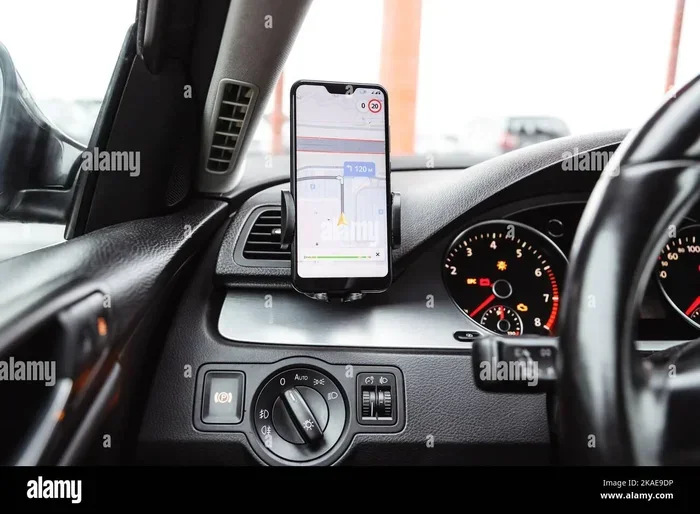
- Use a phone mount for GPS. If you use navigation apps outside the car system, a mount keeps your phone visible and safe.
- Charge your phone while driving. A USB connection keeps your battery topped up, especially useful for long commutes.
These small habits add up over time and make your daily drive smoother and safer. A well-connected phone in your Toyota Corolla turns the car into a smart, responsive extension of your digital life.
You may also want to explore how to add pictures to Uconnect from a phone if you are interested in customizing your car’s display, or learn about how to unlock your car with the Toyota app for even more convenience with your Toyota vehicle.
Conclusion
Connecting your phone to your Toyota Corolla navigation is one of the best upgrades you can make for your daily driving routine. Whether you choose Bluetooth for wireless convenience, USB for a stable wired link, or Apple CarPlay and Android Auto for full phone integration, the Toyota Corolla has you covered.
The process is straightforward, and once your phone is paired, it connects automatically every time you get in the car. You get hands-free calling, music streaming, navigation, and voice commands — all without taking your eyes off the road or your hands off the wheel.
Remember to keep your Toyota Entune system updated, troubleshoot any issues quickly, and follow the tips we shared to get the most out of your connection. With your phone linked to your Toyota Corolla navigation, every drive becomes smarter, safer, and more enjoyable.
Take a few minutes today to set up your connection. You will wonder how you ever drove without it. And if you ever need help with other Toyota features, check out how to start your Highlander with your phone or how to use your Toyota warranty anywhere for more useful guides.
Frequently Asked Questions
Can I connect multiple phones to my Toyota Corolla navigation system?
Yes, the Toyota Corolla can store multiple paired Bluetooth devices. You can switch between them in the infotainment settings. The car will remember each phone and connect automatically when in range.
Does my Toyota Corolla support wireless Apple CarPlay or Android Auto?
Some newer Toyota Corolla models support wireless Apple CarPlay and Android Auto. Check your specific model year and trim level to confirm. If wireless is not available, a USB cable works just as well.
Why won’t my phone connect to the Toyota Corolla via Bluetooth?
This is usually caused by an old pairing that needs to be deleted. Turn off Bluetooth on both devices, remove the old connection, and try pairing again. Restarting both your phone and the car display often fixes the issue too.
Can I use navigation apps on the Toyota Corolla screen while using Apple CarPlay?
Absolutely. Apple CarPlay and Android Auto give you access to navigation apps like Google Maps, Apple Maps, and Waze directly on the Toyota Entune display. The interface is designed to be simple and safe to use while driving.
How do I update my Toyota Entune system?
You can update your Toyota Entune system at your local Toyota dealer or through the Toyota app if your car supports connected services. Regular updates improve performance and add new features to your infotainment system.
Is it safe to use my phone while driving with Toyota Corolla connectivity?
Yes, the Toyota Corolla’s phone connection features are designed to keep you safe. Hands-free calling, voice commands, and simplified app interfaces let you stay connected without taking your eyes off the road or your hands off the wheel.