How Do I Turn Off Apple CarPlay on My Toyota Step by Step
Turning off Apple CarPlay on your Toyota is simple and takes just a few taps. Whether you want to use your radio instead or just need a break from the screen, this guide walks you through every step. You will learn how to disable CarPlay on touchscreen and non-touchscreen Toyota models, what happens when you turn it off, and how to troubleshoot common issues.
Apple CarPlay is a great feature. It lets you see your phone screen on your Toyota’s display. You can make calls, send texts, and listen to music without taking your eyes off the road. But sometimes, you just want to turn it off. Maybe it keeps popping up when you do not need it. Maybe you prefer using your Toyota radio instead. Or maybe your screen is acting up and you need a fresh start. Whatever the reason is, this guide will show you exactly how to do it.
In this article, we cover everything you need to know. We walk you through the steps for different Toyota models. We explain what happens when you turn CarPlay off. We also share tips for fixing common problems. By the end, you will feel confident managing your Toyota’s Apple CarPlay Toyota settings like a pro. Let us get started.
Key Takeaways
- Easy Process: Turning off Apple CarPlay on a Toyota only takes a few simple steps.
- Multiple Methods: The steps differ slightly depending on your Toyota model and screen type.
- No Harm Done: Disabling CarPlay will not damage your Toyota or your iPhone.
- Reversible: You can turn CarPlay back on anytime whenever you want it again.
- Troubleshooting Available: If CarPlay still shows up after turning it off, there are fixes you can try.
- Related Toyota Tech: Your Toyota’s infotainment system, like Toyota Entune, works hand in hand with Apple CarPlay settings.
📑 Table of Contents
- Why Would You Want to Turn Off Apple CarPlay on Your Toyota?
- How to Turn Off Apple CarPlay on Toyota Step by Step
- What Happens When You Turn Off Apple CarPlay?
- Can You Set Apple CarPlay to Turn Off Automatically?
- Troubleshooting Common Apple CarPlay Issues on Toyota
- Toyota CarPlay vs. Other Smartphone Integration Options
- Final Thoughts
Why Would You Want to Turn Off Apple CarPlay on Your Toyota?
There are many reasons to disable CarPlay on your Toyota. Some drivers find it distracting. Others simply prefer the classic radio experience. Here are the most common reasons people ask about turning off Apple CarPlay.
You Prefer Using Your Toyota Radio
Not everyone loves streaming music through their phone. Some drivers love their local radio stations. They enjoy the surprise of discovering new songs. Turning off CarPlay lets your Toyota’s Toyota multimedia system take center stage. You get full control over your audio without any phone interference.
Your Screen Is Acting Up
Sometimes the CarPlay interface freezes or lags. This can be frustrating when you are trying to navigate or change a song. Turning off CarPlay gives your Toyota’s display a break. It can also help if your screen is unresponsive. Many drivers find that a simple restart after disabling CarPlay fixes the problem.
You Want to Reduce Distractions
Safe driving matters. If your phone keeps lighting up with notifications through CarPlay, it can pull your attention away from the road. Turning off Apple CarPlay helps you stay focused. You get a cleaner dashboard and fewer distractions. This is especially helpful during long drives or in bad weather.
You Are Not Using an iPhone
Apple CarPlay only works with iPhones. If you switched to a different phone, CarPlay becomes useless. It is better to turn it off and free up your Toyota’s display. This way, your screen is not stuck on a blank or glitchy CarPlay interface. You can use your Toyota’s built-in features instead.
How to Turn Off Apple CarPlay on Toyota Step by Step
The exact steps depend on your Toyota model and year. Most newer Toyotas have touchscreen displays. Older models may use a different setup. Below, we cover the most common methods. Follow the one that matches your vehicle.
For Toyota Models With a Touchscreen Display
Most Toyota models from 2018 and newer come with a touchscreen. These include the Camry, RAV4, Highlander, and Tacoma. Here is how to turn off Apple CarPlay on these models:
- Start your Toyota. Press the power button on the dashboard. Make sure the engine is running.
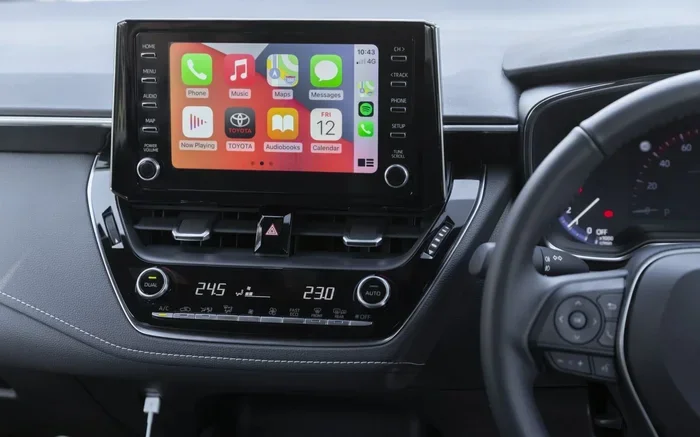
- Go to the home screen. Tap the Home button on your Toyota display. This looks like a house icon.
- Open the Settings menu. Look for the gear icon on your screen. Tap it to enter the settings panel.
- Find the Apple CarPlay option. Scroll through the menu. You should see a section labeled “Apple CarPlay” or “Connected Devices.”
- Toggle CarPlay off. Tap the switch next to Apple CarPlay. It should turn from green to gray.
- Confirm the change. Your screen may ask you to confirm. Tap “Yes” or “Disable” to finish.
That is it. Your Toyota display should now show your regular radio or media screen. The Toyota touchscreen will no longer connect to your iPhone automatically.
For Toyota Models With a Non-Touchscreen Display
Some older Toyota models use buttons and knobs instead of a touchscreen. These include certain trims of the Corolla, Yaris, and older Camry models. Here is what to do:
- Press the Menu button. Use your steering wheel controls or the knob on the console. Navigate to the Menu option on your screen.
- Scroll to Settings. Use the arrow keys to find the Settings or Preferences section.
- Select Connected Devices. Look for a menu item about Bluetooth or connected devices.
- Find Apple CarPlay. Select it from the list of connected devices.
- Choose Disconnect or Turn Off. Press the OK or Enter button to disable CarPlay.
If your Toyota does not show an Apple CarPlay option at all, it may not support CarPlay. In that case, you do not need to do anything. Your Toyota simply does not have this feature built in.
What Happens When You Turn Off Apple CarPlay?
Many drivers worry that turning off CarPlay will cause problems. It does not. Here is what you can expect after you disable CarPlay on your Toyota.
- Your screen goes back to normal. You will see your Toyota radio, media player, or home screen. Everything works just like before CarPlay was connected.
- Your phone will not show up on the display. Your iPhone will no longer mirror to your Toyota screen. You will need to use your phone directly for calls and music.
- Bluetooth still works. Turning off CarPlay does not turn off Bluetooth. You can still connect your phone for hands-free calls and audio streaming.
- No data is lost. All your settings, playlists, and phone data stay safe. Nothing gets deleted when you turn off CarPlay.
- You can turn it back on anytime. Just follow the same steps in reverse. Reconnect your iPhone and CarPlay will come back.
One thing to note: if you turn off CarPlay, your Toyota will not automatically connect to your iPhone the next time you get in the car. You will need to manually reconnect if you change your mind later.
Can You Set Apple CarPlay to Turn Off Automatically?
Some drivers want CarPlay to turn off by itself after a certain time. Unfortunately, most Toyota models do not have an auto-off feature for CarPlay. You need to disable it manually each time. However, there are a few workarounds that can help.
One option is to simply disconnect your iPhone from your Toyota. If you do not plug in your phone or connect via Bluetooth, CarPlay will not activate. Another option is to turn off Bluetooth on your iPhone before you get in the car. This stops the connection before it starts. You can also put your phone in airplane mode. This is a quick way to block all connections including CarPlay.
Some drivers also ask about their Toyota connectivity features. If you use the Toyota app on your phone, that is separate from CarPlay. You can manage Toyota app settings without affecting CarPlay. For more on Toyota app features, check out our guide on unlocking your car with the Toyota app.
Troubleshooting Common Apple CarPlay Issues on Toyota
Sometimes CarPlay does not behave the way you expect. Maybe it keeps turning back on. Maybe the screen freezes. Here are the most common problems and how to fix them.
CarPlay Keeps Turning Back On
This is the most common complaint. You turn off CarPlay, but it comes back the next time you start your car. This happens because your iPhone is set to connect automatically. To fix this, go to your iPhone settings. Tap General, then CarPlay. Choose your Toyota and select “Disconnect.” This should stop the auto-connection. You can also turn off Bluetooth on your phone to prevent the link entirely.
CarPlay Screen Is Frozen or Unresponsive
A frozen screen is annoying but easy to fix. First, try restarting your Toyota. Turn the engine off and wait 30 seconds. Then turn it back on. If that does not work, try restarting your iPhone. A simple reboot often clears up the problem. You can also try disconnecting and reconnecting your USB cable if you use a wired connection.
CarPlay Will Not Turn Off Through the Screen
If your Toyota display does not respond to your CarPlay settings, try a soft reset. Press and hold the power button on your Toyota display for 10 seconds. The screen should turn off and then back on. Once it restarts, try turning off CarPlay again. If the problem persists, you may need to update your Toyota software. Visit your local dealer or check your owner’s manual for update instructions.
CarPlay Not Showing Up After Update
Sometimes a software update breaks CarPlay. If CarPlay stops working after a Toyota update, try deleting the CarPlay connection on your iPhone. Go to Settings, General, CarPlay, and remove your Toyota. Then reconnect it fresh. This often fixes compatibility issues after updates.
Toyota CarPlay vs. Other Smartphone Integration Options
Apple CarPlay is not the only way to connect your phone to your Toyota. Here is how it compares to other options.
| Feature | Apple CarPlay | Android Auto | Bluetooth Only |
|---|---|---|---|
| Works with iPhone | Yes | No | Yes |
| Works with Android | No | Yes | Yes |
| Screen Mirroring | Yes | Yes | No |
| Voice Control | Yes (Siri) | Yes (Google Assistant) | Limited |
| Navigation Apps | Yes | Yes | No |
| Turns Off Easily | Yes | Yes | N/A |
Each option has its strengths. CarPlay is great for iPhone users. Android Auto works well for Android phones. Bluetooth is the simplest option and does not require a screen mirror. If you want to learn more about your Toyota’s tech features, you might enjoy our article on starting your Highlander with your phone.
Final Thoughts
Turning off Apple CarPlay on your Toyota is straightforward. Whether you have a touchscreen or a button-based system, the steps are simple. You can disable CarPlay in just a few minutes. Remember that it is completely reversible. You can turn it back on whenever you are ready.
Take your time with the process. Follow each step carefully. If you run into any issues, the troubleshooting tips above should help. Your Toyota’s display is designed to work the way you want it to. You are in control.
Do not let a technology feature control your driving experience. If CarPlay is not serving you, turn it off and enjoy your Toyota the way you like it. Safe travels and happy driving!
Frequently Asked Questions
Can I turn off Apple CarPlay without disconnecting my iPhone?
Yes, you can. You do not need to disconnect your iPhone from your Toyota. Simply go into your Toyota’s settings menu and toggle Apple CarPlay off. Your phone will still be connected via Bluetooth for calls and audio, but the CarPlay screen will not appear on your Toyota display.
Will turning off Apple CarPlay delete anything from my iPhone?
No, absolutely nothing. Turning off CarPlay on your Toyota does not delete any data from your iPhone. Your contacts, messages, photos, and apps all stay exactly where they are. It only stops the screen mirroring feature between your phone and your Toyota.
Can I use my Toyota radio while Apple CarPlay is off?
Yes, you can. In fact, turning off CarPlay gives you full access to your Toyota radio and audio system. You can listen to FM stations, AM stations, or any connected audio device. Your Toyota audio system works independently of CarPlay at all times.
Why does Apple CarKeep turning back on after I turn it off?
This happens because your iPhone is set to automatically connect to CarPlay. To stop this, go to your iPhone Settings, tap General, then CarPlay, and disconnect your Toyota. You can also turn off Bluetooth temporarily. This prevents the automatic reconnection when you get in your car.
Do all Toyota models support Apple CarPlay?
Not all Toyota models support CarPlay. Most models from 2018 and newer do, but some older or base trims may not. Check your Toyota owner’s manual or look for the CarPlay option in your display settings. If you do not see it, your model may not have this feature available.
How do I know if Apple CarPlay is turned off on my Toyota?
When CarPlay is off, your Toyota display will show your regular home screen or radio interface. You will not see the Apple CarPlay wallpaper or app icons. If you plugged in your iPhone, the phone icon may still appear, but the full CarPlay interface will not load.