How to Connect iPhone to Audi Q5 for Seamless Streaming
Connecting your iPhone to an Audi Q5 is straightforward and opens up a world of seamless streaming, hands-free calling, and navigation. Whether you prefer wireless Apple CarPlay or a reliable USB cable connection, this guide walks you through every step with clear instructions and practical tips. You will learn how to pair your phone, stream music, make calls, and troubleshoot common issues like a pro.
There is something incredibly satisfying about stepping into your Audi Q5 and having your entire digital life flow seamlessly into the car’s infotainment system. Your playlists, contacts, navigation routes, and podcasts are all right there on the screen. If you have been wondering how to connect iPhone to Audi Q5, you are in the right place. This guide covers every method, every tip, and every troubleshooting trick you need.
The Audi Q5 comes packed with modern technology that makes iPhone integration smooth and intuitive. Whether you are a new Q5 owner or have been driving one for years, mastering this connection unlocks a whole new driving experience. Let us dive in and get your phone connected the right way.
Key Takeaways
- Apple CarPlay is the best way to connect your iPhone to the Audi Q5 for a seamless experience.
- Both wireless and USB connections are supported, giving you flexibility based on your preference.
- Setting up Bluetooth pairing takes only a few minutes and enables hands-free calling and audio streaming.
- Common connection issues like disconnections or lag can be fixed with simple resets and software updates.
- Keeping your iPhone and Audi MMI software updated ensures the smoothest performance and compatibility.
- Streaming music, using Siri, and accessing maps all work beautifully once your iPhone is connected.
📑 Table of Contents
- Understanding iPhone Connectivity Options in the Audi Q5
- Setting Up Apple CarPlay Wirelessly on Your Audi Q5
- Connecting iPhone to Audi Q5 via USB Cable
- Streaming Music and Making Hands-Free Calls
- Troubleshooting Common iPhone-Audi Q5 Connection Issues
- Tips for the Best iPhone-Audi Q5 Experience
- How to Disconnect and Reconnect Your iPhone
- FAQ
- Conclusion
Understanding iPhone Connectivity Options in the Audi Q5
The Audi Q5 offers multiple ways to connect your iPhone. Each method has its own strengths, and knowing what is available helps you choose the best option for your needs. The three main connection types are Apple CarPlay, Bluetooth, and USB cable.
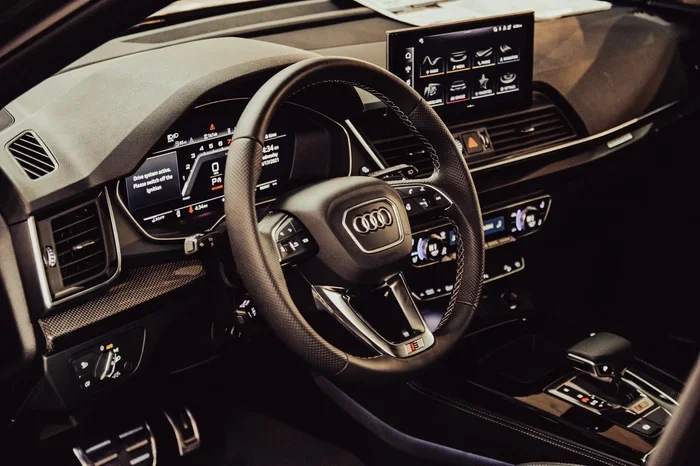
Apple CarPlay is the crown jewel of iPhone-car integration. It mirrors your iPhone’s interface onto the Audi MMI screen, giving you access to apps, music, maps, and messages in a safe, driver-friendly layout. The Audi Q5 supports both wireless CarPlay and wired CarPlay through a USB cable.
Bluetooth is the older but still reliable method. It handles hands-free calling and basic audio streaming. While it does not offer the full CarPlay experience, it works well for quick phone calls and casual music listening. USB connections provide a stable wired link that charges your phone while delivering high-quality audio and full CarPlay functionality.
Which Connection Method Should You Choose?
Your choice depends on what you value most. Wireless CarPlay offers convenience and a clean dashboard without cables. USB provides a more stable connection and is ideal if you experience frequent wireless dropouts. Bluetooth is your fallback option for basic connectivity. Many Audi Q5 owners use a combination of all three depending on the situation.
For the best overall experience, wireless Apple CarPlay is the way to go. It gives you the full iPhone interface on your Q5’s screen without any messy cables. If you want to learn more about enhancing your vehicle’s tech features, you might find it helpful to explore how to add panoramic view to a Tacoma, as similar principles of car tech upgrades apply across brands.
Setting Up Apple CarPlay Wirelessly on Your Audi Q5
Wireless Apple CarPlay is the most popular way to connect iPhone to Audi Q5. It eliminates the need for cables and provides a clean, clutter-free dashboard. Here is exactly how to set it up step by step.
First, make sure your iPhone is running iOS 13 or later. Older versions do not support wireless CarPlay. Next, ensure that Bluetooth and Wi-Fi are turned on your iPhone. These two connections work together to establish the wireless CarPlay link.
- Start your Audi Q5 and press the Home button on the MMI controller.
- Navigate to Settings, then select Phone or Media.
- Choose Apple CarPlay from the list of available devices.
- Select Wireless CarPlay when prompted.
- On your iPhone, a CarPlay connection request will appear. Tap Allow.
- Your iPhone screen will now mirror onto the Audi MMI display.
Once connected, you will see your CarPlay home screen on the Audi Q5’s display. You can access Apple Maps, Spotify, Messages, Phone, and any compatible apps. The setup takes less than two minutes, and your iPhone will automatically reconnect every time you get in the car.
Enabling Wireless CarPlay in Your iPhone Settings
To make sure wireless CarPlay works smoothly, go to Settings on your iPhone, then General, then CarPlay. Your Audi Q5 should appear in the list of available vehicles. Tap on it and select your preferred settings. You can choose which apps appear on the CarPlay home screen and customize the layout to suit your driving style.
One common mistake people make is leaving Wi-Fi turned off. Wireless CarPlay uses Wi-Fi for data transfer, so it must be enabled. This is different from regular Bluetooth, which does not need Wi-Fi. Keeping both Bluetooth and Wi-Fi active ensures a stable and fast connection every time you get behind the wheel.
Connecting iPhone to Audi Q5 via USB Cable
Sometimes a wired connection is the better choice. USB connections are more stable than wireless CarPlay and do not suffer from occasional dropouts. They also charge your iPhone while you drive, which is a huge plus on long road trips.
To connect your iPhone via USB, you need a Lightning cable or a USB-C cable depending on your iPhone model. The Audi Q5 has USB ports in the center console and sometimes in the glove box. Plug one end of the cable into your iPhone and the other into the USB port.
The MMI screen should detect your iPhone automatically. If CarPlay does not launch, go to the MMI home screen and select the CarPlay icon. You can also set CarPlay to launch automatically when a cable is connected. This saves you the trouble of navigating through menus every time you start the car.
Which USB Cable and Port Should You Use?
Not all USB ports on the Audi Q5 support CarPlay. The port labeled with the CarPlay icon is the one you want to use. Using the correct cable matters too. Cheap or damaged cables can cause connection problems, slow charging, or audio glitches. Invest in a high-quality, MFi-certified Lightning or USB-C cable for the best results.
If you are switching between different cars frequently, you might wonder whether you can use the same accessories across brands. For instance, if you have an Acura, you might ask can I take my Acura to a Honda dealership, and the same logic applies to Audi parts and accessories. Using genuine or certified cables and adapters ensures compatibility and prevents damage to your iPhone or the car’s USB port.
Streaming Music and Making Hands-Free Calls
Once your iPhone is connected to the Audi Q5, the real fun begins. Streaming music, making calls, and using voice commands all become safer and more convenient while driving. The Audi MMI system puts everything at your fingertips or voice command away.
With Apple CarPlay active, you can use Apple Music, Spotify, Pandora, and other streaming apps directly on the car’s screen. The audio quality through the Audi’s sound system is excellent, and you can control playback using the MMI controller, steering wheel buttons, or Siri voice commands.
Using Siri While Driving
Siri is your best friend when connected to the Audi Q5. Press and hold the voice command button on the steering wheel to activate Siri. You can ask Siri to play a specific playlist, call a contact, send a text message, or navigate to a restaurant. All of this happens without you taking your hands off the wheel or your eyes off the road.
For hands-free calling, your iPhone connects through the Audi Q5’s Bluetooth or CarPlay system. Incoming calls appear on the MMI screen, and you can answer them using the on-screen button or a steering wheel control. The car’s microphone picks up your voice clearly, and the audio plays through the car’s speakers. It is a clean, safe way to stay connected while driving.
Switching between different driving modes can also enhance your experience. Much like switching to sport mode on a Toyota, the Audi Q5 offers drive select modes that change the car’s response. While this does not directly affect your iPhone connection, it does change the overall driving feel, and some Audi owners like to pair their connectivity setup with their preferred driving mode for the complete experience.
Troubleshooting Common iPhone-Audi Q5 Connection Issues
Even with the best technology, connection issues can happen. The good news is that most problems are easy to fix. Here are the most common issues and how to solve them.
CarPlay Won’t Connect
If CarPlay does not launch when you connect your iPhone, try these steps. First, disconnect the USB cable or turn off Bluetooth and turn it back on. Restart your iPhone and your Audi Q5’s infotainment system. On the MMI screen, go to Settings and select Reset, then choose the infotainment system reset option. This clears temporary glitches and often fixes connection problems.
Frequent Disconnections
Wireless CarPlay disconnecting frequently is a common complaint. The most frequent cause is a weak Wi-Fi signal. Make sure nothing is blocking the car’s antenna, and try parking in a different spot to test the connection. If the problem persists, delete the Audi Q5 from your iPhone’s CarPlay settings and pair it again from scratch. This fresh pairing often resolves persistent disconnection issues.
Audio Lag or Poor Sound Quality
If your music sounds choppy or there is a delay, the USB cable might be the culprit. Replace it with a high-quality cable and try a different USB port. For wireless connections, interference from other Bluetooth devices can cause audio issues. Turn off unnecessary Bluetooth devices in the car and see if the audio quality improves.
iPhone Not Charging While Connected
Some USB ports on the Audi Q5 are data-only and do not charge your iPhone. Look for the port marked with the charging or CarPlay icon. If you are using a wireless CarPlay connection, your iPhone will not charge through the infotainment system. Consider using a wireless charging pad that fits in the center console if charging is important to you.
If you are dealing with persistent system issues, it is worth noting that regular maintenance keeps everything running smoothly. Just like you would not ignore a warning light on your dashboard, keeping your car’s systems updated prevents many connectivity problems. This is similar to how you should not ignore the need to reset the light after an oil change, as small maintenance steps prevent bigger headaches down the road.
Tips for the Best iPhone-Audi Q5 Experience
Getting the connection right is only half the battle. A few extra tips can elevate your experience and make every drive more enjoyable.
- Keep your iPhone and Audi MMI software updated. Updates fix bugs and improve compatibility. Check for iOS updates on your iPhone and MMI software updates through the Audi connect services.
- Organize your CarPlay apps. Only keep the apps you actually use on the CarPlay home screen. This keeps the interface clean and reduces clutter on the MMI display.
- Use a wireless charging pad. If you use wireless CarPlay, your iPhone will not charge through the connection. A Qi-compatible wireless charging pad keeps your phone powered up during long drives.
- Set up Siri shortcuts. Create custom Siri shortcuts for your most common actions, like calling your partner, playing your workout playlist, or navigating home.
- Enable Do Not Disturb While Driving. This iPhone feature silences notifications and auto-replies to texts, keeping you focused on the road while still allowing CarPlay to function normally.
- Clean your USB port regularly. Dust and debris in the USB port can cause intermittent connection problems. A quick check and clean every few weeks keeps things running smoothly.
- Explore Audi connect services. Audi offers connected services that integrate with your iPhone, including remote start, vehicle tracking, and live traffic updates through the MMI system.
Adding new features to your car can sometimes feel overwhelming, but it does not have to be. Much like adding a panoramic view system to a Tacoma, enhancing your Audi Q5’s tech setup is all about choosing the right accessories and following clear instructions. The payoff is a more connected, more enjoyable driving experience every single day.
How to Disconnect and Reconnect Your iPhone
Knowing how to properly disconnect your iPhone from the Audi Q5 is just as important as the setup process. If you share your car with someone else or switch phones frequently, clean disconnection prevents pairing conflicts.
To disconnect wirelessly, go to your iPhone’s Settings, tap General, then CarPlay, and select your Audi Q5. Tap Disconnect. To reconnect, simply get in the car and the iPhone will automatically pair if wireless CarPlay is enabled. For USB disconnections, simply unplug the cable from your iPhone or the car’s port.
If you are selling your Audi Q5 or giving someone else access, you should reset the infotainment system to remove all paired devices. Go to the MMI Settings, select System, then Factory Reset. This clears all paired phones, saved Wi-Fi networks, and personal settings, giving the next owner a clean slate.
FAQ
Can I connect my iPhone to the Audi Q5 without Apple CarPlay?
Yes, you can use Bluetooth to connect your iPhone for hands-free calling and basic audio streaming without CarPlay. However, you will not have access to the full CarPlay interface, apps, or navigation. CarPlay is the recommended connection method for the best experience.
Why does my wireless CarPlay disconnect while driving?
Wireless CarPlay disconnections are usually caused by weak Wi-Fi signals or interference from other Bluetooth devices. Try parking in a different area to test the signal strength. Deleting and re-pairing the connection often fixes persistent disconnection issues.
Does connecting my iPhone drain the Audi Q5 battery?
Using CarPlay or Bluetooth does consume some battery power from the car’s system. However, the impact is minimal during normal driving. If you park your car for extended periods, it is a good idea to disconnect your iPhone to prevent unnecessary battery drain.
Can I use CarPlay with an Android phone in the Audi Q5?
No, Apple CarPlay is exclusively for iPhones. The Audi Q5 does support Android Auto for Android phone users, but you cannot use CarPlay with an Android device. Choose the connection method that matches your phone’s operating system.
How do I update the Audi MMI software for better iPhone compatibility?
You can update the MMI software through the Audi connect services or by visiting an Audi dealership. Keeping the infotainment system updated ensures the best compatibility with the latest iPhone models and iOS versions.
Is it safe to use Siri while driving with CarPlay?
Yes, Siri is designed to be safe for use while driving. You can activate Siri using the steering wheel voice command button, and it reads messages aloud and lets you respond without touching your phone. This keeps your hands on the wheel and your eyes on the road.
Conclusion
Connecting your iPhone to the Audi Q5 is one of the simplest yet most impactful upgrades you can make to your daily driving routine. With Apple CarPlay, Bluetooth, and USB options available, you have the flexibility to choose the connection method that works best for your lifestyle. Wireless CarPlay offers the convenience of a cable-free experience, while USB provides rock-solid stability and charging capability.
The key to a seamless connection is keeping your iPhone and Audi MMI software updated, using quality cables, and knowing how to troubleshoot common issues. Once your iPhone is connected, streaming music, making calls, using Siri, and navigating with Apple Maps all become effortless and safer while driving.
Take a few minutes today to set up your connection properly. Follow the steps in this guide, explore the settings, and customize CarPlay to your preferences. The result is a smarter, more connected driving experience that makes every trip in your Audi Q5 more enjoyable and more convenient. Your iPhone and your Q5 were made to work together, and now you know exactly how to make that partnership seamless.