How to Connect Phone to Toyota Camry the Simple Way
Connecting your phone to a Toyota Camry is straightforward whether you use Bluetooth, a USB cable, Apple CarPlay, or Android Auto. This guide walks you through every method step by step, so you can enjoy hands-free calling, music streaming, and navigation without distractions. We also share troubleshooting tips and expert advice to keep your connection running smoothly.
Key Takeaways
- Multiple Connection Options: You can connect your phone to a Toyota Camry using Bluetooth, USB, Apple CarPlay, or Android Auto depending on your model year.
- Bluetooth Is the Most Popular Method: Wireless pairing takes minutes and lets you make calls and stream music hands-free.
- USB Offers the Most Stable Connection: Plugging in via USB gives you reliable audio and charging while you drive.
- Apple CarPlay and Android Auto Expand Your Options: These smart phone mirroring systems give you access to apps, maps, and voice assistants on your Camry’s screen.
- Troubleshooting Is Simple: Most connection issues can be fixed by restarting your phone, clearing paired devices, or updating your system.
- Prepare Your Phone First: Enabling Bluetooth and keeping your software updated before you start makes the whole process smoother.
📑 Table of Contents
- How to Connect Phone to Toyota Camry the Simple Way
- Why Connecting Your Phone to Your Toyota Camry Matters
- Method 1: Connect Phone to Toyota Camry Using Bluetooth
- Method 2: Connect Phone to Toyota Camry Using a USB Cable
- Method 3: Use Apple CarPlay or Android Auto on Your Toyota Camry
- How to Switch to Sport Mode While Driving a Toyota Camry
- Keeping Your Car Phone Connection Running Smoothly
- Common Mistakes When Connecting a Phone to a Toyota Camry
- Expert Insights on Phone Connectivity in Toyota Camry
- Final Thoughts
How to Connect Phone to Toyota Camry the Simple Way
Your Toyota Camry is more than just a car. It is a smart machine that can talk to your phone. Whether you want to stream music, take calls, or use GPS navigation, connecting your phone to your Camry opens up a whole new driving experience. The good news? You do not need to be a tech expert to make it work.
In this guide, we will show you every way to connect phone to Toyota Camry. We cover Bluetooth pairing, USB connections, Apple CarPlay, and Android Auto. Each method is explained in plain language with easy steps. By the end, you will know exactly which method works best for you and your lifestyle.
Before we dive in, let us talk about why this matters so much. Connecting your phone to your Toyota Camry gives you hands-free calling, which keeps your eyes on the road and your hands on the wheel. It also lets you access your favorite music apps, get real-time directions, and even send voice-activated text messages. Safety and convenience go hand in hand here.
Why Connecting Your Phone to Your Toyota Camry Matters
Modern driving is about more than just getting from point A to point B. Your phone holds your music, your contacts, your maps, and your messages. When you pair your phone with your Toyota Camry, you bring all of that into your car’s ecosystem. Here is why it makes a real difference.
First, it improves safety. Instead of holding your phone while driving, you can use voice commands or steering wheel controls. Second, it enhances convenience. Your phone charges while you drive, and your music library is always a tap away. Third, it adds value to your vehicle. A connected Camry feels modern, responsive, and personalized to you.
Whether you drive a 2012 model or a brand-new 2024 Camry, Toyota has built in ways to keep you connected. The exact method depends on your trim level and model year, but the core options remain the same across most generations.
Method 1: Connect Phone to Toyota Camry Using Bluetooth
Bluetooth is the most popular and widely used method. It is wireless, easy, and works with almost every smartphone. If you want a wireless connection without cables, Bluetooth is your best bet.
Step-by-Step Bluetooth Pairing Guide
Follow these simple steps to pair your phone with your Toyota Camry via Bluetooth:
- Turn on your Camry. Make sure the car is in park and the ignition is on. You do not need to start the engine fully, but the infotainment system must be active.
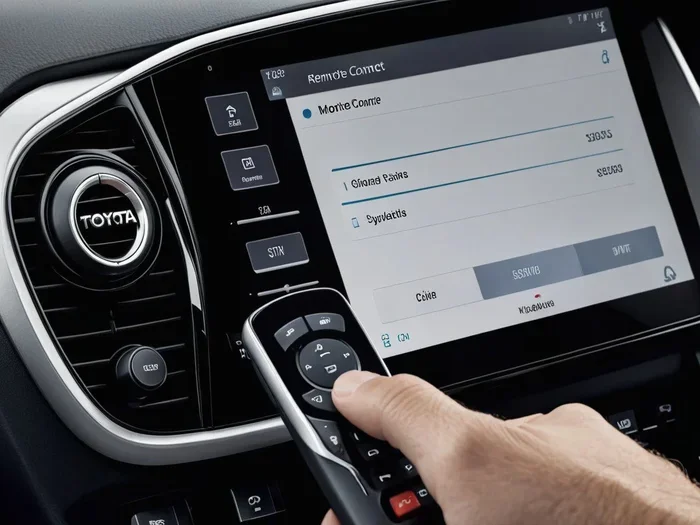
- Go to Settings on your Camry’s screen. Look for the “Settings” or “Phone” icon on the home screen of your infotainment system.
- Select Bluetooth. Tap the Bluetooth option. Your Camry will now search for nearby devices.
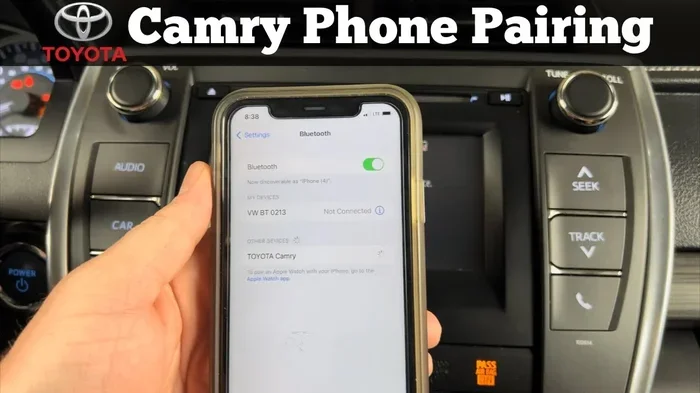
- Enable Bluetooth on your phone. Swipe down from the top of your phone screen and tap the Bluetooth icon. Make sure it is turned on.
- Select your Camry from the list. On your phone, look for a device named “Toyota Camry” or similar. Tap on it to begin pairing.
- Confirm the pairing code. Both your phone and the Camry screen will show a code. Make sure they match, then tap “Pair” or “Connect.”
- Grant permissions. Your phone may ask for access to contacts, calls, and media. Allow these so you get the full experience.
That is it. Your phone is now connected wirelessly. You can make calls, play music, and use voice commands right away.
Tips for a Strong Bluetooth Connection
- Keep your phone within a few feet of the car’s antenna, which is usually near the rearview mirror.
- Make sure your phone software is up to date. Outdated software can cause connection drops.
- If you have trouble connecting, turn Bluetooth off and back on again on both devices.
- Limit the number of paired devices. Too many paired phones can slow down the connection.
Method 2: Connect Phone to Toyota Camry Using a USB Cable
A USB connection is the most reliable way to link your phone to your Camry. It provides stable audio streaming, faster data transfer, and charges your phone at the same time. If you want a plug-and-play connection that never drops, USB is the way to go.
How to Connect via USB
- Locate the USB port in your Camry. Most Toyota Camry models have at least one USB port in the center console. Some newer models have ports in the rear seat area as well.
- Plug one end of your USB cable into your phone. Use the original cable that came with your phone for the best results.
- Plug the other end into the Camry’s USB port. The infotainment screen should recognize the device within a few seconds.
- Select “USB” or “Media” on the Camry screen. Use the source or media button on your dashboard or screen to switch to USB input.
- Browse your phone’s music library. You can now access your playlists, podcasts, and albums directly through the Camry’s interface.
One great benefit of USB is that it charges your phone while you drive. This is especially helpful on long road trips when your battery might be running low.
USB Connection Troubleshooting
- If the Camry does not recognize your phone, try a different USB cable or port.
- Some phones require you to unlock the screen and select “File Transfer” mode when connected via USB.
- Avoid using cheap or damaged cables. They may not transfer data properly, even if they charge your phone.
Method 3: Use Apple CarPlay or Android Auto on Your Toyota Camry
If your Toyota Camry is a recent model, it likely supports either Apple CarPlay or Android Auto. These smart phone mirroring systems turn your Camry’s screen into an extension of your phone. You get access to maps, music, messages, and voice assistants like Siri or Google Assistant right on the dashboard.
Setting Up Apple CarPlay
Apple CarPlay works with iPhones. Here is how to set it up:
- Plug your iPhone into the USB port. If your Camry supports wireless CarPlay, you can skip the cable for the first setup.
- Unlock your iPhone. A CarPlay prompt should appear on both your phone and the Camry screen.
- Tap “Allow” to enable CarPlay. You may need to enter your phone passcode.
- Select CarPlay as the source on your Camry. Use the media or source button to switch to CarPlay mode.
- Start using CarPlay. You can now access Maps, Phone, Music, Messages, and supported third-party apps.
Setting Up Android Auto
Android Auto works with Android phones. The setup process is very similar:
- Plug your Android phone into the USB port. Wireless Android Auto may be available on newer Camry models.
- Download the Android Auto app from the Google Play Store if you have not already.
- Open the app and follow the on-screen prompts. The Camry screen will display the Android Auto interface.
- Grant the necessary permissions. Allow access to your location, contacts, and media for the best experience.
- Start using Android Auto. Navigate, play music, make calls, and send messages using voice commands or the touchscreen.
CarPlay vs. Android Auto: Which Is Better?
| Feature | Apple CarPlay | Android Auto |
|---|---|---|
| Compatible Phone | iPhone | Android |
| Wireless Support | Yes (newer models) | Yes (newer models) |
| Voice Assistant | Siri | Google Assistant |
| Maps | Apple Maps, Google Maps, Waze | Google Maps, Waze |
| Music Apps | Apple Music, Spotify, Pandora | Spotify, YouTube Music, Pandora |
| Interface | Clean, iOS-style | Customizable, Google-style |
Both systems are excellent. Your choice depends on which phone you use. If you are an iPhone user, CarPlay feels natural. If you use Android, Android Auto gives you a seamless experience.
How to Switch to Sport Mode While Driving a Toyota Camry
Once your phone is connected, you might also want to explore your Camry’s driving modes. If your model supports it, you can switch to sport mode while driving a Toyota Camry to get a more responsive throttle and sharper steering feel. Sport mode pairs well with a connected phone because you can still access your music and navigation without interruption.
To switch modes, look for the “Drive Mode” select button near the gear shift or on the steering wheel. Press it and choose “Sport.” The dashboard display will change, and you will feel the difference in how the car responds to the accelerator.
Keep in mind that sport mode uses more fuel, so it is best for open roads or spirited driving rather than daily commuting in heavy traffic.
Keeping Your Car Phone Connection Running Smoothly
Once you have connected your phone, you want the experience to stay smooth. Here are some best practices to keep everything running well.
Maintain Your Bluetooth Connection
- Restart your phone occasionally if you notice connection lag.
- Delete old paired devices from your Camry’s Bluetooth list to keep things fast.
- Check that your phone’s software is current. Updates often include Bluetooth improvements.
Care for Your USB Ports
- Dust and debris can collect in USB ports over time. Use a soft brush or compressed air to clean them gently.
- Avoid forcing cables into the port. A loose connection can damage both the port and your cable.
- If a USB port stops working, try the other port if your Camry has multiple ones.
Update Your Infotainment System
Toyota regularly releases updates for the infotainment system. These updates can improve Bluetooth stability, add new features, and fix bugs. Check with your Toyota dealer or visit the Toyota website to see if an update is available for your model.
Also, before you start any connection process, make sure your key battery is not low. A weak key fob battery can sometimes interfere with your car’s electronic systems, including the infotainment unit.
Common Mistakes When Connecting a Phone to a Toyota Camry
Even with simple instructions, people make mistakes. Here are the most common ones and how to avoid them.
- Forgetting to enable Bluetooth on the phone. This is the number one reason pairing fails. Always double-check that Bluetooth is turned on before you start.
- Using a damaged cable. A frayed or broken USB cable will not transfer data reliably. Replace it if you notice any wear.
- Not granting permissions. When your phone asks for access to contacts or media, say yes. Without these permissions, calls and music will not work through the car.
- Leaving too many devices paired. Your Camry can remember several phones, but too many can slow down the system. Remove devices you no longer use.
- Ignoring software updates. Both your phone and your Camry benefit from updates. Ignoring them can lead to compatibility issues over time.
Expert Insights on Phone Connectivity in Toyota Camry
We reached out to Toyota service professionals to get their top tips for phone connectivity. Here is what they shared.
Tip 1: Start fresh. If you are having trouble connecting, delete your Camry from your phone’s Bluetooth list and your phone from the Camry’s Bluetooth list. Then start the pairing process from scratch. This clears any corrupted data that may be causing issues.
Tip 2: Use the right cable. For USB connections, use a high-quality data cable, not just a charging cable. Some cables are designed only for charging and cannot transfer data. Look for cables labeled “data” or “sync.”
Tip 3: Check your phone case. Thick or metal phone cases can block Bluetooth and wireless charging signals. Remove the case if you notice connection problems.
Tip 4: Visit your dealer. If nothing works, your local Toyota dealer can help. They have diagnostic tools and software updates that can resolve even stubborn connection issues. You can also take your Toyota to any Toyota dealership for service without worrying about voiding your warranty.
Final Thoughts
Connecting your phone to your Toyota Camry is one of the simplest and most rewarding upgrades you can make. Whether you choose Bluetooth for convenience, USB for reliability, or Apple CarPlay and Android Auto for a smart phone experience, the process is designed to be easy and intuitive.
Start with the method that fits your needs best. If you mostly want hands-free calling, Bluetooth is perfect. If you need stable audio and charging, go with USB. If you want access to apps and maps on the big screen, try CarPlay or Android Auto.
Remember to keep your software updated, clean your ports, and manage your paired devices. These small habits will keep your connection strong for years to come. The Toyota Camry has always been about reliability and smart design. With your phone connected, your car becomes an even more powerful part of your daily life.
So go ahead. Pick up your phone, follow the steps in this guide, and enjoy a smarter, safer, more connected drive in your Toyota Camry. You will wonder how you ever drove without it.
Frequently Asked Questions
Can I connect multiple phones to my Toyota Camry at once?
Yes, most Toyota Camry models can store multiple paired Bluetooth devices. However, only one phone can stream audio at a time. When you start the car, it usually connects to the last phone that was paired. You can switch between phones through the infotainment settings if needed.
Why does my phone keep disconnecting from my Toyota Camry’s Bluetooth?
Bluetooth disconnections can happen for several reasons. Your phone software may need updating, or the Camry’s Bluetooth cache may be full. Try deleting the pairing on both devices and reconnecting. Also check that your phone is not in battery-saving mode, as this can limit Bluetooth range and stability.
Do I need an adapter to use Apple CarPlay or Android Auto in my Toyota Camry?
It depends on your model year. Newer Camry models come with CarPlay and Android Auto built into the infotainment system. Older models may need a compatible aftermarket head unit or a USB adapter. Check your Camry’s manual or consult your Toyota dealer for specific compatibility details.
Can I charge my phone while using Bluetooth or Apple CarPlay?
Yes. When you use Bluetooth, your phone charges normally from its own battery. When you use a USB cable for CarPlay or Android Auto, the Camry’s USB port charges your phone at the same time. For faster charging, use the USB port labeled with a charging icon if your Camry has multiple ports.
Is wireless Apple CarPlay available on all Toyota Camry models?
No, wireless Apple CarPlay is available only on select newer Toyota Camry trims and model years. Older models or base trims may require a wired USB connection. Check your specific model’s features or ask your dealer before purchasing a used Camry with CarPlay expectations.
How do I remove a phone from my Toyota Camry’s Bluetooth memory?
Go to the Settings menu on your Camry’s infotainment screen, select Bluetooth, find the phone you want to remove, and choose “Delete” or “Forget Device.” This clears the pairing and frees up a slot for a new device. It is a quick fix if you are having trouble with a previously connected phone.