How Do I Pair My Samsung Phone to My Car Step by Step
Pairing your Samsung phone to your car is easier than you think. Whether you use Bluetooth, a USB cable, or Android Auto, our step-by-step guide walks you through every method. You will learn how to connect hands-free calling, stream music, and sync contacts safely while driving.
You just got into your car, and you want to play your favorite playlist from your Samsung phone. Or maybe you need to take a hands-free call on your way to work. Either way, the first step is figuring out how do I pair my Samsung phone to my car. The good news is that it is not as hard as it sounds. With a few simple steps, you can be connected and cruising in no time.
This guide covers every method you can use. From Bluetooth to USB cables to Android Auto, we have got you covered. You will also find tips for fixing common problems and making your connection even better. Let us get started.
Key Takeaways
- Bluetooth pairing is the most common and wireless way to link your Samsung phone to your car.
- USB connection offers a more stable link and faster charging while driving.
- Android Auto unlocks a smarter interface for navigation, music, and messaging on the road.
- Common pairing issues like interference or outdated software are easy to fix with simple steps.
- Keeping your phone and car software updated ensures a smooth and reliable connection every time.
- Hands-free calling and audio streaming are key benefits of a successful phone-car pairing.
- Multiple Samsung devices can be paired, but only one active connection at a time is typical.
📑 Table of Contents
- What You Need Before You Start Pairing
- How to Pair Samsung Phone to Car via Bluetooth
- How to Pair Using a USB Cable Connection
- Setting Up Android Auto for a Smarter Experience
- Troubleshooting Common Pairing Problems
- Pro Tips for a Better Car Phone Connection
- Which Pairing Method Is Right for You?
- Conclusion
What You Need Before You Start Pairing
Before you dive into the pairing process, it helps to know what you need. Having everything ready saves time and avoids frustration. Here is a quick checklist of items and info you should have on hand.
Check Your Car’s Bluetooth Capability
Most modern cars come with Bluetooth built in. If your car was made after 2012, there is a very good chance it supports wireless connection. You can check your car’s user manual or look for a Bluetooth or Phone button on your infotainment screen. Some older models may only support a USB cable connection, and that is perfectly fine too.
Make Sure Your Samsung Phone Is Ready
Your Samsung phone needs to be charged or at least have enough battery to stay on during setup. Also, make sure Bluetooth is turned on. You can do this by swiping down from the top of your screen and tapping the Bluetooth icon. If your phone is running an older version of One UI, consider updating it first for the best experience.
Gather Any Cables You May Need
If you plan to use a USB connection, grab the right cable. Most Samsung phones use a USB-C cable. Some older models still use Micro-USB. Having a cable handy is a smart move, even if you plan to go wireless. It gives you a backup option if Bluetooth gives you any trouble.
How to Pair Samsung Phone to Car via Bluetooth
Bluetooth is the most popular way to connect a Samsung phone to a car. It is wireless, convenient, and works with most vehicles. Here is exactly how to do it, step by step.
Step 1: Turn on Bluetooth on Your Samsung Phone
Open your phone’s Settings app. Tap on Connections, and then tap Bluetooth. Make sure the toggle switch is turned on. Your phone will start scanning for nearby devices. You should see a list of available devices appear on your screen.
Step 2: Put Your Car in Pairing Mode
Every car is a little different, but the general process is the same. Go to your car’s infotainment system and find the Bluetooth or Phone settings. Look for an option that says Add New Device or Search for Devices. Your car will start broadcasting its name so your phone can find it.
Quick Tip: If your car does not show up, try turning Bluetooth off and back on again. Sometimes a simple restart is all it takes to refresh the connection.
Step 3: Select Your Car from the List
On your Samsung phone, look for your car’s name in the list of available devices. It might show the car brand name, like Ford Sync, Honda Link, or Toyota Entune. Tap on the name to start pairing.
Your car may show a passkey or PIN on its screen. You will need to enter that same number on your phone to confirm the connection. Once you do, the pairing is complete.
Step 4: Allow Permissions and Test the Connection
After pairing, your phone will ask for permissions. You will see options for Contacts, Messages, and Audio. Allow all of these so you can make full use of the connection. Now try playing some music or making a call to test that everything works.
Expert Insight: Always allow contacts and message access when pairing. This lets your car’s system read incoming messages aloud and lets you use voice commands to make calls safely.
How to Pair Using a USB Cable Connection
Not every car supports Bluetooth, and sometimes Bluetooth just does not work right. That is where a USB cable comes in. A wired connection is often more stable and can charge your phone at the same time.
Step 1: Plug In Your USB Cable
Find the USB port in your car. Many cars have USB ports in the center console, armrest, or even the dashboard. Plug one end of your USB-C cable into your Samsung phone and the other end into the car port.
Step 2: Select the Right Connection Mode
Once plugged in, your Samsung phone may show a notification asking what you want to do. Choose File Transfer or MTP mode. Some cars will automatically recognize your phone and display it on the infotainment screen.
Step 3: Navigate Your Phone Through the Car Screen
With a USB connection, you can often control your phone’s apps directly from your car’s display. You can play music, access playlists, and even use navigation apps. The connection is fast and reliable, which makes it a great option for longer drives.
Common Mistakes: Using a damaged or low-quality USB cable is one of the biggest reasons wired connections fail. Always use the cable that came with your phone or a high-quality certified cable. A cheap cable can cause disconnections and slow charging.
Setting Up Android Auto for a Smarter Experience
If you want to take your Samsung phone-car connection to the next level, Android Auto is the way to go. It is a free app from Google that creates a simplified, driver-friendly version of your phone on your car’s screen.
What Is Android Auto and Why Use It?
Android Auto puts your favorite apps front and center. You get easy access to Google Maps, Spotify, WhatsApp, and more, all displayed in a clean, safe layout designed for driving. It works with both wireless and USB connections, depending on your car and phone model.
How to Set Up Android Auto
First, download Android Auto from the Google Play Store on your Samsung phone. Open the app and follow the on-screen setup steps. You will need to grant permissions for location, contacts, and media. Once set up, plug in your phone or connect wirelessly if your car supports it.
Your car’s display should switch to Android Auto mode. You will see large buttons for Navigation, Music, and Calls. Everything is designed to be simple and safe to use while driving.
Wireless vs. Wired Android Auto
Wireless Android Auto lets you connect without plugging in a cable. It uses Bluetooth and Wi-Fi to link your phone to the car. Wired Android Auto uses a USB cable and tends to be more stable. Both options work great, but wireless is more convenient for daily use.
| Feature | Wireless Android Auto | Wired Android Auto |
|---|---|---|
| Connection Type | Bluetooth + Wi-Fi | USB Cable |
| Setup Speed | Fast, no cable needed | Quick, plug and play |
| Stability | Good, but can vary | Very stable |
| Charging | No charging during use | Phone charges while driving |
| Compatibility | Newer cars and phones | Works with most vehicles |
Quick Tip: If wireless Android Auto does not work right away, try restarting both your phone and your car’s infotainment system. This simple fix solves the issue most of the time.
Troubleshooting Common Pairing Problems
Sometimes things do not go smoothly. Your phone might not find your car, or the connection might drop unexpectedly. Here are the most common problems and how to fix them.
Phone Does Not Find the Car
This is the number one issue people face when trying to connect. The first thing to do is make sure both Bluetooth and location services are turned on. On your Samsung phone, go to Settings, then Location, and make sure it is enabled. Bluetooth scanning works better when location is on.
If that does not work, try deleting the old pairing from both your phone and your car. On your phone, go to Bluetooth settings, find your car, and tap Forget. On your car, go to the Bluetooth menu and remove the device. Then start the pairing process fresh.
Connection Drops Frequently
A connection that keeps dropping is annoying but usually easy to fix. The most common cause is distance. Keep your phone close to the car’s antenna, which is usually near the windshield or rearview mirror. Also, make sure your phone is not in battery saver mode, as this can limit Bluetooth performance.
Audio Quality Is Poor
If your music sounds scratchy or calls are hard to hear, the problem is often with the Bluetooth codec. Samsung phones support several codecs, including AAC and aptX. Check your car’s manual to see which codecs it supports. Matching the right codec can make a big difference in sound quality.
Expert Insight: If you have tried everything and still cannot connect, reset your car’s infotainment system. Most cars have a reset option in the settings menu. This clears any glitches and often solves stubborn connection problems.
Phone Connects but Does Not Sync Contacts
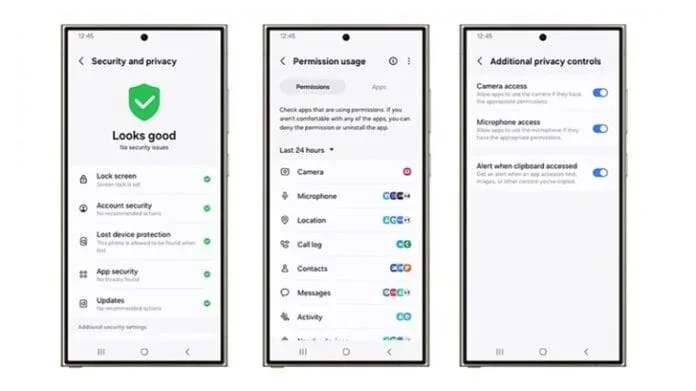
If your phone connects but you cannot see your contacts on the car screen, go to your phone’s Bluetooth settings. Find your car, tap the gear icon, and make sure Contacts access is turned on. You may also need to grant permission in your phone’s Privacy settings under Contacts.
Pro Tips for a Better Car Phone Connection
Once you have your Samsung phone paired to your car, there are a few things you can do to make the experience even better. These small changes add up to a much more enjoyable driving experience.
Keep Your Phone and Car Software Updated
Software updates often include bug fixes for Bluetooth and connection issues. On your Samsung phone, go to Settings, then Software Update, and tap Download and Install. For your car, check the manufacturer’s website or visit a dealership for firmware updates.
Use a Phone Mount for Safer Access
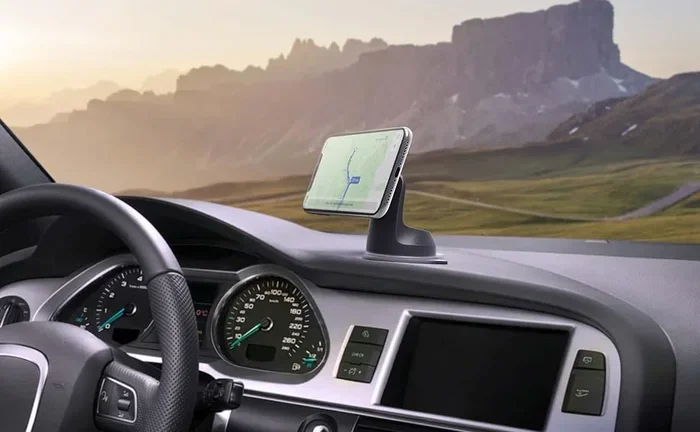
While you should not touch your phone while driving, having it mounted in a visible spot makes it easier to use voice commands or quickly check navigation. A phone mount also keeps your phone close to the car’s antenna for a stronger Bluetooth signal.
Enable Voice Commands for Hands-Free Use
Samsung phones work with Bixby, Google Assistant, and even Siri. You can use voice commands to make calls, send messages, and change music without taking your hands off the wheel. Say Hey Google or Hi Bixby to wake up your assistant and give it a command.
Manage Multiple Devices Smartly
If you have more than one Samsung phone or other Bluetooth devices, your car might remember all of them. Go to your car’s Bluetooth settings and remove devices you no longer use. This keeps your connection list clean and prevents accidental connections.
Quick Tip: If you share your car with someone who has a different phone, you can pair their device too. Just repeat the pairing process with their phone. Most cars can store multiple paired devices and let you switch between them easily.
Understand What You Can Do While Connected
Once your Samsung phone is paired, you unlock a lot of useful features. Here are some of the things you can do with a connected phone:
- Hands-free calling so you keep your eyes on the road
- Audio streaming for music, podcasts, and audiobooks
- Contact syncing so you can call anyone from your car screen
- Message reading so your car reads texts aloud to you
- Navigation using Google Maps or Waze on the car display
- Media control to play, pause, and skip tracks from the steering wheel
All of these features make driving safer and more enjoyable. They are the main reasons people pair their phones to their cars in the first place.
Which Pairing Method Is Right for You?
Now that you know all the options, you might be wondering which one is best. The answer depends on your car, your phone, and what you want to do while driving.
Choose Bluetooth if you want a wireless, cable-free experience. It is perfect for hands-free calls and casual music streaming. Most people use Bluetooth as their default connection method.
Choose USB if you want a rock-solid connection and need to charge your phone at the same time. USB is also better for using Android Auto with a wired setup. It is ideal for long road trips where reliability matters most.
Choose Android Auto if you want the smartest and most integrated experience. It gives you a dedicated interface with easy access to all your favorite apps. Wireless Android Auto is especially convenient if your car and phone both support it.
Common Mistakes to Avoid: Do not rush through the pairing process. Take your time, read each screen carefully, and grant the right permissions. Also, do not ignore software updates. Outdated software on either your phone or your car is the leading cause of pairing problems.
Conclusion
Knowing how do I pair my Samsung phone to my car opens up a world of convenience and safety. Whether you use Bluetooth, a USB cable, or Android Auto, the process is straightforward and well worth the effort. You get hands-free calling, music streaming, contact syncing, and navigation all right from your car’s display.
Start with Bluetooth if you want the easiest wireless setup. Switch to USB if you need a more stable connection. Try Android Auto if you want the full smart experience. And remember, if something goes wrong, the troubleshooting steps in this guide will help you get back on track quickly.
Take a few minutes today to pair your Samsung phone to your car. Once you do, you will wonder how you ever drove without it. Happy connecting.