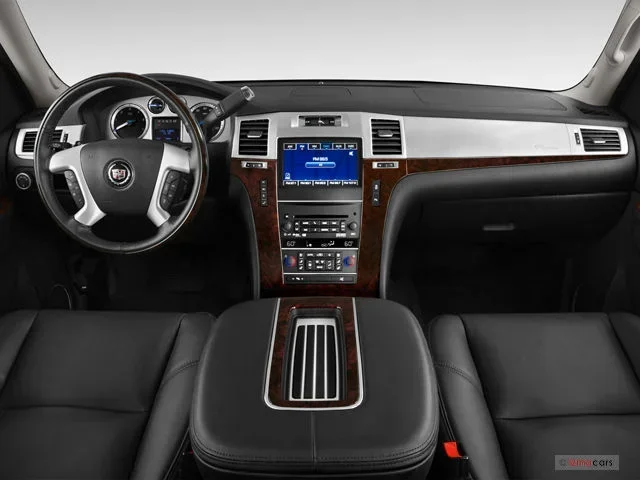
How to Play Music Through Bluetooth in Cadillac Escalade
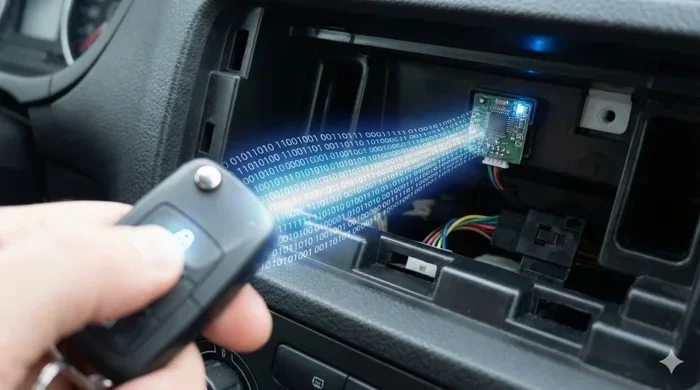
Playing music through Bluetooth in a Cadillac Escalade is simple and fast once you know the steps. This guide walks you through pairing your phone, streaming music wirelessly, and troubleshooting common connection issues. You will also learn how to manage multiple devices and get the best audio quality from your Escalade’s infotainment system.
Key Takeaways
- Easy Pairing Process: You can connect your phone to the Escalade Bluetooth system in just a few simple steps.
- Multiple Device Support: The Escalade lets you pair more than one device, so passengers can take turns streaming music.
- Hands-Free Calling: Bluetooth does more than play music. It also lets you make and receive calls safely.
- Troubleshooting Tips Available: If your connection drops, there are quick fixes you can try at home.
- Audio Quality Matters: You can adjust settings to get the best sound out of your wireless connection.
- Familiarize Yourself with Controls: Knowing where the Bluetooth buttons are on the steering wheel and screen saves time.
📑 Table of Contents
- How to Play Music Through Bluetooth in Cadillac Escalade
- Getting Ready to Pair Your Device
- Step-by-Step Bluetooth Pairing Process
- Streaming Music Wirelessly
- Managing Multiple Bluetooth Devices
- Troubleshooting Common Bluetooth Issues
- Tips for the Best Bluetooth Audio Experience
- Conclusion
- Frequently Asked Questions
How to Play Music Through Bluetooth in Cadillac Escalade
There is nothing quite like cruising in a Cadillac Escalade with your favorite playlist flowing through the speakers. The Bluetooth music streaming feature makes this experience effortless. Whether you are heading to the grocery store or taking a long road trip, wireless audio keeps the vibe going.
If you have never connected your phone to the Escalade before, do not worry. The process is straightforward and takes less than a minute. This guide covers everything you need to know. From the first pairing to managing multiple devices, we have you covered. You will also learn how to troubleshoot common problems and get the best sound quality possible.
The Cadillac Escalade comes loaded with a modern infotainment system that supports Bluetooth connectivity right out of the box. This means you do not need any extra cables or expensive accessories. Just bring your smartphone, follow a few simple steps, and you are good to go. The system also supports hands-free calling, which adds another layer of convenience and safety while driving.
Many Escalade owners want to know the quickest way to get music playing wirelessly. The answer lies in understanding your vehicle’s infotainment system and its Bluetooth settings. Once you see how easy it is, you will wonder why you ever bothered with aux cords. Let us dive into the full process step by step.
Getting Ready to Pair Your Device
Before you start the pairing process, there are a couple of things you should do. Preparation makes the connection smoother and faster. Think of it like warming up before a workout. A few small steps save you time and frustration later.
Check That Bluetooth Is Enabled on Your Phone
The first step is simple. Go to your phone’s settings and make sure Bluetooth is turned on. On most phones, you can swipe down from the top of the screen and tap the Bluetooth icon. If you do not see it, head to Settings and look for the Bluetooth option. Make sure the toggle is switched to on.
It is also a good idea to check that your phone is discoverable. This means other devices can see it when searching for a connection. Most phones stay discoverable only for a short time after you turn Bluetooth on. So do this right before you start pairing.
Start the Escalade Infotainment System
Next, turn on your Cadillac Escalade. Press the start button or turn the key, depending on your model year. The infotainment screen should light up. Wait for the system to fully boot up before you proceed. This usually takes just a few seconds.
Once the screen is ready, look for the Bluetooth or Settings icon on the home screen. The exact location depends on your Escalade model and year. Newer models have a more intuitive layout, but the basic steps remain the same across most versions.
Step-by-Step Bluetooth Pairing Process
Now that you are ready, let us walk through the actual pairing process. Follow these steps carefully and you will be listening to music in no time.
- Tap the Bluetooth icon on the Escalade infotainment screen.
- Select “Add New Device” or “Pair New Device.” The system will start searching for available phones.
- Look for your phone’s name on the list that appears on the screen. Tap on it when you see it.
- Check your phone for a confirmation prompt. It may ask you to verify a passkey or PIN. Make sure the numbers match on both screens.
- Tap “Pair” or “Connect” on your phone. The Escalade screen should confirm the connection.
That is it. Your phone is now connected to the Escalade via Bluetooth wireless audio. You should see a Bluetooth icon in the status bar of the infotainment screen. This confirms the connection is active and ready to go.
If this is your first time pairing, the Escalade may ask if you want to share contacts and call history. You can choose yes or no based on your preference. Sharing contacts enables the hands-free calling feature, which reads incoming callers through the car speakers.
Streaming Music Wirelessly
Once paired, streaming music is incredibly easy. Open your favorite music app on your phone. Whether it is Spotify, Apple Music, YouTube Music, or Amazon Music, it will all work through the Escalade’s speakers.
You do not need to touch your phone once the connection is established. Use the steering wheel controls to play, pause, or skip tracks. The volume buttons on the steering wheel work perfectly with Bluetooth audio. This keeps your hands on the wheel and your eyes on the road.
Some Escalade models also support voice commands for music control. You can say “Hey Cadillac” followed by a command like “play my workout playlist.” This feature works best when your phone is connected and the voice recognition system is activated. It is a great way to keep things hands-free.
Managing Audio Sources
The Escalade infotainment system lets you switch between different audio sources easily. You can go from Bluetooth music to the radio to a USB connection without missing a beat. Look for the “Media” or “Audio Source” button on the screen or the steering wheel.
When Bluetooth is connected, it usually appears as a source option. Tap it to switch to wireless music streaming. The system remembers your last used source, so it often defaults to Bluetooth automatically when you start the car.
If you also use a USB cable for music, you can switch back and forth between the two. This is useful when you want to charge your phone while listening. The Escalade handles both methods smoothly without any audio lag or interruption.
Managing Multiple Bluetooth Devices
The Cadillac Escalade can store multiple paired devices. This is great for families or anyone who shares the vehicle. Each person can connect their own phone and access their playlists and call history.
Adding a Second or Third Device
To add another device, go back to the Bluetooth settings on the infotainment screen. Select “Add New Device” again and follow the same pairing steps. The system will store each device’s information for future use.
When you start the car, the Escalade will try to connect to the last device that was paired and active. If you want to switch to a different phone, go into the Bluetooth menu and select the other device manually. The switch usually happens within a few seconds.
Keep in mind that only one device can stream music at a time. However, the system can maintain connections with multiple devices in the background. This means you can quickly switch between phones without having to unpair and re-pair each time.
Removing Old Devices
Over time, you may accumulate a long list of paired devices. It is a good idea to clean this list up every once in a while. Go to the Bluetooth settings, find the device you want to remove, and select “Delete” or “Forget Device.” This keeps your connection list organized and your system running smoothly.
Removing old devices also helps with privacy. If you have let someone else use your Escalade, you can remove their phone from the list afterward. This ensures your personal music library and call history stay private.
Troubleshooting Common Bluetooth Issues
Bluetooth connections are generally reliable, but sometimes things go wrong. If your music keeps cutting out or the connection will not form, do not panic. Most issues have simple fixes. Here are the most common problems and how to solve them.
Bluetooth Will Not Connect
If the Escalade does not see your phone, try turning Bluetooth off and back on again. On your phone, disable Bluetooth, wait five seconds, and then turn it back on. On the Escalade, go to the Bluetooth settings and refresh the device list. This often resolves the issue right away.
Another common fix is to restart both devices. Turn off the Escalade completely, wait a minute, and start it again. Do the same with your phone. Fresh starts clear out temporary glitches that can block connections.
Make sure your phone is not too far from the vehicle. Bluetooth range is typically around 30 feet. If your phone is in your pocket or on the passenger seat, it should be well within range. But if it is in the trunk or in a bag under the seat, the signal may be weak.
Music Keeps Cutting Out
If your music streams fine for a while and then drops, interference might be the cause. Other electronic devices, Wi-Fi signals, and even nearby vehicles can cause Bluetooth interference. Try moving your phone to a different location in the car and see if the problem improves.
Also check if your phone has a low battery. Some phones reduce Bluetooth power to save energy when the battery is low. Keep your phone charged, especially on long drives. This helps maintain a stable wireless music streaming connection throughout your trip.
Poor Audio Quality
If the sound through Bluetooth sounds muffled or tinny, there are a few things you can try. First, make sure the Escalade’s audio settings are optimized. Go to the sound or audio settings on the infotainment screen and adjust the equalizer. Boosting the bass and midrange can improve Bluetooth audio quality significantly.
Another option is to check for software updates. Both your phone and the Escalade infotainment system may have updates available. These updates often include improvements to Bluetooth connectivity and audio performance. Keeping both devices updated ensures you get the best possible sound.
Tips for the Best Bluetooth Audio Experience
Want to get the most out of your Escalade’s Bluetooth music feature? A few simple tips can make a big difference in sound quality and convenience.
- Keep your phone close to the infotainment system. The center console area is ideal. This ensures the strongest signal and the most stable connection.
- Use the steering wheel controls. They let you manage music without taking your eyes off the road. This is both safer and more convenient.
- Update your phone and car software regularly. Updates often include Bluetooth improvements and bug fixes.
- Clear old paired devices. A clean Bluetooth list helps the system perform better and connect faster.
- Adjust the equalizer settings. Tailoring the sound profile to your preferences makes a noticeable difference in audio quality.
It is also worth noting that the Escalade’s car entertainment system does more than just play music. You can use Bluetooth to access phone directories, send and receive text messages through voice commands, and even navigate with certain apps. The Bluetooth connection serves as the backbone for many of the vehicle’s smart features.
If you are curious about other features of the Escalade or want to learn more about your vehicle’s capabilities, there are many resources available. Understanding your car’s full range of features helps you get the most value out of your purchase. For instance, knowing how long your Escalade can idle safely or how much fuel its tank holds helps with daily driving decisions.
The Cadillac Escalade Bluetooth system is designed to be user-friendly and reliable. Once you set it up, it works seamlessly in the background. You barely have to think about it. Just hop in, start driving, and let your music flow through the premium speakers. It is one of those features that makes the Escalade such a compelling choice for families and luxury car enthusiasts alike.
Remember, the key to a great Bluetooth experience is keeping your devices updated, maintaining a clean paired device list, and understanding the basic controls. With these habits in place, you will enjoy wireless music streaming every time you get behind the wheel. The Escalade was built to deliver a premium driving experience, and its Bluetooth audio system is a big part of that.
Conclusion
Playing music through Bluetooth in a Cadillac Escalade is a straightforward process that anyone can master. From the initial pairing to daily use, the system is designed with simplicity and convenience in mind. You can stream your favorite playlists, take hands-free calls, and enjoy high-quality wireless audio with ease.
By following the steps in this guide, you will be able to connect your phone quickly and troubleshoot any issues that come up. The Escalade’s infotainment system makes the entire experience smooth and enjoyable. Whether you are a new Escalade owner or have been driving one for years, these tips will help you get the most from your Bluetooth connection.
Take a few minutes to explore the settings, adjust the audio preferences, and familiarize yourself with the controls. A little effort upfront pays off with a seamless and enjoyable driving experience every time you hit the road. Enjoy the music and drive safely.
Frequently Asked Questions
Can I connect more than one phone to my Cadillac Escalade at the same time?
The Escalade can store multiple paired devices, but only one device can stream music at a time. You can switch between phones easily through the Bluetooth settings on the infotainment screen. This makes sharing the vehicle with family members or friends quick and convenient.
Why does my Bluetooth connection keep disconnecting in the Escalade?
Interference from other electronic devices or a low phone battery can cause disconnections. Try moving your phone closer to the center console and restarting both devices. Also check that your phone and the Escalade software are up to date, as updates often fix connection issues.
Can I use Bluetooth to make phone calls in the Cadillac Escalade?
Yes, the Escalade supports hands-free calling through Bluetooth. When your phone is connected, you can make and receive calls using the car’s speakers and microphone. This feature keeps your hands on the wheel and your eyes on the road for safer driving.
Does playing music through Bluetooth drain my phone battery faster?
Bluetooth does use some battery power, but the impact is usually minimal during normal driving. To conserve battery, you can lower the volume or disconnect Bluetooth when you are not using it. Keeping your phone plugged in via USB while streaming is another good option.
How do I know if my Escalade’s Bluetooth is connected to my phone?
Look for the Bluetooth icon on the infotainment screen and in your phone’s status bar. The Escalade may also announce a connected device through its audio system. You can also go to the Bluetooth settings menu to see which devices are currently paired and active.
Can I play music from apps like Spotify and Apple Music through the Escalade Bluetooth?
Absolutely. Any music app on your phone works through the Escalade’s Bluetooth connection. Simply open the app on your phone and start playing music. The audio will stream wirelessly through the car’s speakers. The Escalade’s infotainment system handles all popular streaming apps without any issues.