Why Does My Car Say the Connected Device Cannot Be Recognized
Your car displays “Connected Device Cannot Be Recognized” when the infotainment system fails to detect your phone, USB drive, or accessory. This common issue stems from Bluetooth glitches, outdated software, incompatible devices, or faulty cables. In this guide, you will discover the exact reasons behind the error and step-by-step solutions to fix it fast.
You turn the key. The engine roars to life. Then you see it — that frustrating message on your dashboard screen. Why does my car say the connected device cannot be recognized? It happens to almost every driver at some point. Whether you are trying to play music, take a call, or use navigation, this error stops you in your tracks. The good news is that you can usually fix it yourself. This guide walks you through every possible cause and solution. You will learn what triggers the error, how to troubleshoot it, and how to prevent it from happening again.
Modern cars are essentially rolling computers. They connect to our phones, tablets, and smartwires through Bluetooth, USB, and Wi-Fi. When something goes wrong in that connection chain, the system throws up a warning. The “connected device cannot be recognized” message is the car’s way of saying it cannot establish a handshake with your gadget. Let us break down exactly why this happens and what you can do about it.
Key Takeaways
- Bluetooth conflicts: Old paired devices or interference often cause recognition failures.
- Software matters: Outdated car firmware or phone OS can block device detection.
- Cable quality: Cheap or damaged USB cables are a leading cause of connection errors.
- Device compatibility: Not all phones and accessories work seamlessly with every car system.
- Simple resets fix most issues: Restarting both devices resolves the problem in many cases.
- Privacy settings interfere: Phone permissions and privacy features can block car connectivity.
- Deleting old pairings helps: Clearing cached connections frees up space and fixes bugs.
📑 Table of Contents
- What Triggers the “Connected Device Cannot Be Recognized” Error
- Step-by-Step Fixes for the Recognition Error
- Device Compatibility: What You Need to Know
- Preventing the Error From Happening Again
- When to Seek Professional Help
- Common Mistakes That Cause Connection Errors
- Expert Insights on Car Connectivity
- Key Takeaways
- Frequently Asked Questions
- Conclusion
What Triggers the “Connected Device Cannot Be Recognized” Error
The error message appears when your car’s infotainment system cannot identify or communicate with a paired device. Several factors can lead to this breakdown. Understanding the root cause is the first step toward a fix.
Bluetooth Pairing Failures
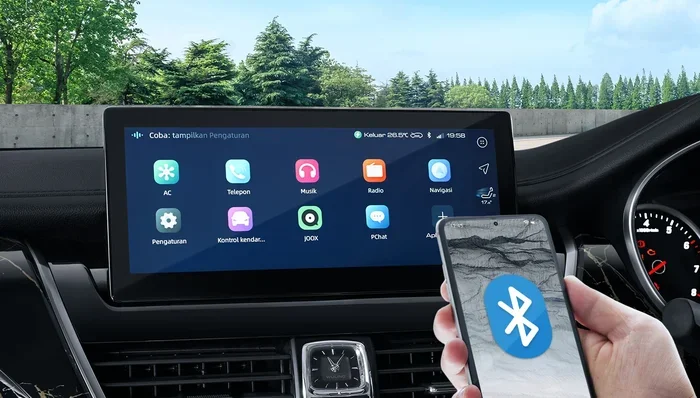
Bluetooth is the most common connection method in modern vehicles. When you try to pair your phone, the car and the phone exchange signals. If something interrupts that exchange, the system gives up and shows the error. Old paired devices stored in memory often cause this. The car tries to connect to a previous device that is no longer nearby, and the connection fails. Sometimes the Bluetooth module itself becomes overloaded with too many saved pairings.
Interference from other electronic devices can also disrupt Bluetooth signals. Microwave ovens, wireless chargers, and even other phones in the vicinity can create noise. In rare cases, the car’s Bluetooth antenna may be physically damaged. This usually happens after a collision or water damage.
USB Connection Problems
Many drivers plug their phones into the USB port to charge or play music. A loose connection or a dirty port can trigger the recognition error. Dust, lint, and debris build up inside USB ports over time. They block the metal contacts from making proper connection. A damaged cable is another frequent culprit. Not all USB cables are created equal. Cheap cables may only charge your phone but fail to transfer data. This is a key distinction many people miss.
Some cars require specific USB cable types for data transfer. Check your owner’s manual to confirm which cables are compatible. Using a non-standard cable might seem to work at first but fail later.
Software and Firmware Conflicts
Your car’s infotainment system runs on software, just like your phone. When that software becomes outdated, it may not recognize newer devices. Phone operating system updates can also cause compatibility issues. Apple releases iOS updates regularly, and Android does the same. Sometimes these updates change how devices communicate. The car system has not caught up yet.
Firmware updates for the car itself are equally important. Manufacturers release these updates to fix bugs and add support for new devices. If you skip these updates, your car may struggle with devices it used to handle fine.
Step-by-Step Fixes for the Recognition Error
Now that you know the common causes, let us get into the solutions. Try these fixes in order. Most drivers find that one of the first few steps resolves the issue.
Step 1: Restart Both Devices
This sounds too simple, but it works more often than you think. Turn off your car completely. Wait at least 30 seconds. Then restart the engine. Do the same with your phone. Power it off and back on. This clears temporary glitches in both the car’s system and your phone’s Bluetooth module. Many temporary connection errors disappear after a fresh restart of both devices.
For a deeper reset, some cars allow you to reboot the infotainment system without turning off the engine. Check your owner’s manual for the specific method. Common approaches include holding the power button for 10 seconds or pressing a specific button combination on the touchscreen.
Step 2: Delete Old Pairings and Reconnect
Over time, your car’s Bluetooth memory fills up with old device names. Each stored pairing takes up space and processing power. Delete the old connections and start fresh. On most car systems, go to the Bluetooth settings menu. Find the list of paired devices. Remove the ones you no longer use. Then pair your current phone as if it were the first time.
On your phone, forget the car’s Bluetooth connection as well. Go to your phone’s Bluetooth settings, find the car, and select “Forget This Device.” Then pair again from scratch. This fresh pairing process ensures both devices share the latest connection data.
Step 3: Check for Software Updates
Both your phone and your car need to be running current software. On your phone, go to Settings and check for system updates. Install any pending updates. For your car, check the manufacturer’s website or use the dealer’s update tool. Some newer cars support over-the-air updates. Others require a visit to the dealership.
Updating your car’s firmware can be a game-changer. Manufacturers regularly add support for new phone models and fix known bugs through firmware patches. If you have been putting off that update, now is the time.
Step 4: Inspect Your Cables and Ports
If you are using a USB connection, examine your cable closely. Look for frayed ends, bent pins, or visible damage. Try a different cable. Use the one that came with your phone or a high-quality certified cable. Avoid cheap, unbranded cables from gas stations or discount stores.
Next, look at the USB port in your car. Shine a flashlight inside it. Do you see dust or debris? Use a toothpick or compressed air to clean it out gently. Be careful not to damage the pins inside. A clean port makes a huge difference in connection reliability.
Step 5: Reset Network Settings on Your Phone
If Bluetooth fixes alone do not work, try resetting your phone’s network settings. This clears all saved Wi-Fi passwords, Bluetooth pairings, and cellular settings. It does not delete your personal data, but you will need to reconnect to Wi-Fi networks afterward.
On iPhone, go to Settings, then General, then Transfer or Reset iPhone, then Reset, then Reset Network Settings. On Android, go to Settings, then System, then Reset Options, then Reset Wi-Fi, Mobile and Bluetooth. After the reset, try pairing your phone with the car again.
Step 6: Disable VPNs and Security Apps
This is a surprising one, but VPN apps and aggressive security software can block your car from recognizing your phone. These apps create encrypted tunnels that interfere with device discovery. Temporarily disable your VPN and any security apps that monitor network traffic. Try connecting again. If it works, you have found the culprit.
You do not need to permanently turn off your VPN. Simply disable it while pairing, then re-enable it once the connection is established. Some VPN apps now include a “trusted device” feature that excludes your car from the VPN tunnel.
Step 7: Factory Reset the Car Infotainment System
If nothing else works, a factory reset of the car’s infotainment system may be necessary. This wipes all settings, pairings, and custom configurations back to their original state. You will need to reconfigure your radio stations, Bluetooth connections, and preferences afterward.
Check your owner’s manual for the exact reset procedure. On some systems, it is in the Settings menu under System. On others, you may need to hold a combination of buttons on the dashboard. Always consult the manual before performing a factory reset. A wrong sequence of buttons can sometimes trigger other issues.
Device Compatibility: What You Need to Know
Not every phone works perfectly with every car. Compatibility matters more than most people realize. Older car models may not support newer phone features. Likewise, brand-new phones may not work well with aging infotainment systems.
Apple CarPlay and Android Auto Limitations
If your car supports Apple CarPlay or Android Auto, you may still run into recognition issues. These systems have specific requirements. Your phone must be running a compatible operating system version. Your cable must support data transfer. And the car’s software must be up to date.
Some older car models only support wired CarPlay or Android Auto. Wireless versions require additional hardware or newer car models. If your phone keeps saying the connected device cannot be recognized, check whether your car supports wireless projection or only wired connections.
Phone Cases and Accessories
Believe it or not, thick phone cases can interfere with wireless charging and Bluetooth signals. Metal cases are especially problematic. They block radio frequencies and prevent the car from detecting your phone. Remove the case temporarily and try connecting again. If it works, the case is the problem.
Magnetic phone mounts can also cause issues. The magnets in these mounts can interfere with Bluetooth and wireless charging coils. If you use a magnetic mount, try removing your phone from it and placing it on the dashboard or center console during connection.
Preventing the Error From Happening Again
Once you fix the recognition error, you want to keep it from coming back. A few simple habits can save you a lot of frustration down the road.
Keep Your Software Updated
Regular updates are your best defense against connectivity problems. Set your phone to install updates automatically. Check your car’s software version every few months. Many car manufacturers now send update notifications through their mobile apps. Sign up for these alerts.
Limit the Number of Paired Devices
Your car’s Bluetooth memory is not infinite. Most systems can handle between 10 and 20 paired devices. If you have more than that stored, the system may start acting up. Periodically review your paired device list and delete the ones you no longer use. This keeps the system running smoothly and reduces the chance of recognition errors.
Use Quality Cables and Accessories
Invest in good-quality USB cables from reputable brands. Look for cables that are MFi certified for Apple devices or USB-IF certified for Android. These cables meet strict quality standards and are far less likely to cause connection problems. Avoid leaving cables in hot cars where heat can damage the internal wiring.
Restart Your System Regularly
Just like your phone, your car’s infotainment system benefits from regular restarts. Once a week, turn the car off completely and restart it. This clears temporary memory and refreshes the system. It is a small habit that pays big dividends in reliability.
When to Seek Professional Help
Most recognition errors are fixable at home. But some problems require professional attention. If you have tried every step in this guide and the error persists, it is time to see an expert.
A dealership technician can run diagnostic tests on your car’s infotainment system. They have specialized tools that can identify hardware failures. A faulty Bluetooth module, a damaged USB port, or a failing touchscreen may need physical repair. These are not DIY fixes.
Also consider professional help if your car is still under warranty. Attempting certain repairs yourself could void the warranty. Let the authorized service center handle it. They have access to manufacturer-specific tools and software updates that independent shops may not have.
Common Mistakes That Cause Connection Errors
Drivers often make simple mistakes that lead to the recognition error. Avoid these common pitfalls to keep your connections running smoothly.
- Ignoring the error message: Dismissing the warning without addressing it can lead to worsening problems over time.
- Using damaged cables: A frayed cable may charge your phone but fail at data transfer. Replace it immediately.
- Pairing too many devices: Clogging the Bluetooth memory with old pairings causes conflicts and recognition failures.
- Skipping software updates: Outdated firmware is the number one cause of compatibility issues in modern cars.
- Leaving Bluetooth on for unknown devices: Keeping your phone’s Bluetooth discoverable at all times can cause it to connect to random devices and create conflicts.
- Overloading the USB port: Using a USB hub or connecting multiple devices to one port can confuse the car’s system.
Expert Insights on Car Connectivity
Automotive tech experts agree that the “connected device cannot be recognized” error is one of the most common infotainment complaints. According to industry professionals, the vast majority of cases are software-related rather than hardware-related. This means most fixes are simple and free.
Experts recommend treating your car’s infotainment system like you treat your phone. Keep it updated. Clear its cache regularly. Do not overload it with unnecessary pairings. A little maintenance goes a long way in preventing connection headaches.
One senior automotive technician shared that the most overlooked fix is simply restarting the car’s infotainment system. Many drivers never turn the system off completely. Letting it run continuously for months can cause memory leaks and connection drops. A regular restart clears these issues and keeps the system responsive.
Another expert pointed out that phone privacy settings are increasingly causing recognition problems. Modern phones have stricter privacy controls that can block car apps from accessing certain features. Check your phone’s app permissions for your car’s companion app. Make sure it has permission to access Bluetooth, location, contacts, and media. These permissions are essential for seamless connectivity.
Key Takeaways
- Bluetooth conflicts: Old paired devices or interference often cause recognition failures.
- Software matters: Outdated car firmware or phone OS can block device detection.
- Cable quality: Cheap or damaged USB cables are a leading cause of connection errors.
- Device compatibility: Not all phones and accessories work seamlessly with every car system.
- Simple resets fix most issues: Restarting both devices resolves the problem in many cases.
- Privacy settings interfere: Phone permissions and privacy features can block car connectivity.
- Deleting old pairings helps: Clearing cached connections frees up space and fixes bugs.
Frequently Asked Questions
Why does my car keep saying the connected device cannot be recognized even after I delete the pairing?
This usually happens because old connection data is still cached in the car’s system. A factory reset of the infotainment system clears this cached data completely. After the reset, pair your device as a new connection. This ensures no leftover data interferes with the fresh pairing.
Can a phone case really prevent my car from recognizing my device?
Yes, it can. Thick cases and especially metal cases block Bluetooth and wireless charging signals. Remove the case and try connecting again. If the car recognizes your phone without the case, the case is the problem. Switch to a thinner or non-metal case for better connectivity.
How do I know if my car’s USB port is damaged?
Try connecting a different device to the same USB port. If that device also fails to connect, the port may be damaged. Look for physical signs like bent pins or corrosion inside the port. A dealership technician can inspect it more thoroughly and replace the port if needed.
Does updating my car’s software really fix Bluetooth problems?
Absolutely. Manufacturers release firmware updates specifically to fix known bugs and improve device compatibility. If your car has not received updates in a while, check with your dealer or the manufacturer’s app. Installing the latest firmware can resolve recognition errors that have nothing to do with your phone.
Why does my car recognize my friend’s phone but not mine?
This points to a device-specific issue rather than a car problem. Your phone may have outdated software, conflicting privacy settings, or a corrupted Bluetooth module. Try resetting your phone’s network settings and re-pairing. If the problem persists, check for phone updates or contact your phone manufacturer for support.
Is there a way to prevent this error from happening in the future?
Yes. Keep both your phone and car software updated. Limit the number of paired Bluetooth devices. Use high-quality cables for USB connections. Restart your car’s infotainment system weekly. These simple habits dramatically reduce the chances of running into the recognition error again.
Conclusion
The “connected device cannot be recognized” error is frustrating, but it is almost always fixable. You do not need to be a tech expert to solve it. Start with the simplest fixes like restarting both devices and deleting old pairings. Move on to software updates and cable checks if those do not work. A factory reset is your last line of defense before seeking professional help.
Understanding why your car says the connected device cannot be recognized puts you in control. You can prevent this issue from disrupting your daily drive. Keep your system updated, use quality accessories, and treat your car’s infotainment with the same care you give your phone. With the right approach, seamless connectivity becomes the norm, not the exception.
Take action today. Try the fixes in this guide and get back to enjoying hands-free calling, music streaming, and navigation without interruption. Your next drive should be smooth, connected, and hassle-free.