How Do I Program My Remote Without Codes for Beginners
Wondering how do I program my remote without codes? You can do it using auto-search, learning features, or HDMI-CEC. This guide shows you how to set up any universal remote or smart home hub in minutes, no brand codes needed.
If you’ve ever asked yourself how do I program my remote without codes, you’re not alone. Many people assume they need a long list of brand codes to get their remote working. The truth is, modern remotes offer several clever methods that skip the codes entirely. You can use auto-search, learning features, or even HDMI-CEC to pair your devices in minutes. This guide walks you through every option, so you can take control of your entertainment setup without any fuss.
Programming a remote without codes means using built-in search or signal copying instead of entering numeric codes. It’s simpler, faster, and often more reliable. Whether you have a universal remote, a learning remote, or a smart home hub, you’ll find a method that fits. Let’s dive into the details and get your devices talking to each other.
Key Takeaways
- Auto-Search Works Instantly: Most remotes can find codes by scanning signals automatically.
- No Internet Required: You can program your remote without codes using infrared learning or HDMI-CEC.
- Universal Remotes Simplify Everything: One remote can control your TV, soundbar, and streaming device.
- HDMI-CEC Eliminates Remotes Entirely: Use your TV remote to control connected devices.
- Learning Remotes Copy Signals: They mimic your original remote’s infrared pulses.
- Common Mistakes Slow You Down: Avoid pointing errors and stale batteries.
- Expert Insight: Reset your remote first for a clean setup.
📑 Table of Contents
- How Do I Program My Remote Without Codes?
- Why Skipping Codes Saves Time and Frustration
- The Auto-Search Method: Step-by-Step
- Universal Remotes and Learning Remotes: Two Powerful Alternatives
- HDMI-CEC and Smart Home Hubs: The Modern Alternative
- Common Mistakes That Trip Up Beginners
- Final Thoughts and Next Steps
How Do I Program My Remote Without Codes?
The process depends on your remote type and the devices you want to control. Most remotes today support at least one code-free method. You’ll often find a setup wizard built into the remote or its companion app. This wizard guides you through pairing step by step. You don’t need to hunt for a code book or visit the manufacturer’s website.
Here are the three main approaches you can use:
- Auto-Search: The remote scans through signals until it finds the right one.
- Learning Mode: The remote copies the signal from your original remote.
- HDMI-CEC: Devices communicate over the HDMI cable, so no remote programming is needed.
Each method has its strengths. Auto-search is the most common and works with most universal remotes. Learning mode is perfect when you want exact signal replication. HDMI-CEC is ideal for a clean, cable-only setup. Let’s explore each one in depth.
The Two Main Approaches
When you program a remote without codes, you’re essentially letting the remote figure out the right signal on its own. Auto-search sends out a burst of signals and waits for the device to respond. Learning mode listens to the infrared pulses from your original remote and stores them. Both methods avoid the hassle of manual code entry.
Before you start, make sure you have these items ready:
- Your device (TV, soundbar, or streaming box)
- The remote you want to program
- Fresh batteries
- A clear line of sight between the remote and the device
Why Skipping Codes Saves Time and Frustration
Manual code entry can feel like a chore. You flip through a booklet, try a four-digit number, and nothing happens. Then you try the next code, and the next. It’s tedious and often ends in failure. Code-free programming removes this frustration entirely.
Here’s why skipping codes is a better choice:
- Speed: Auto-search takes just a few minutes.
- Accuracy: The remote finds the exact signal your device uses.
- No Lost Manuals: You don’t need to dig up a code list.
- Future-Proof: When you add a new device, you repeat the same process.
Many people don’t realize that brand codes can become outdated. Manufacturers update firmware, and old codes may stop working. Code-free methods always use the current signal, so you never run into that problem.
The Problem with Manual Code Entry
Entering a brand code manually requires precision. One wrong digit and the remote won’t respond. Some remotes ask you to enter a code, then press a power button to test it. If it fails, you go back and try another code. This loop can drain your patience.
Even worse, some older remotes have a limited brand database. They may not have codes for newer TV models or soundbars. Auto-search solves this by testing every possible signal in its range until it finds a match.
When Brand Codes Are Outdated
TV brands release new models every year. A code search list that worked for a 2018 model might not work for a 2024 model. Code-free methods don’t rely on static lists. They listen to the live signal, so they always stay current.
The Auto-Search Method: Step-by-Step
Auto-search is the most popular way to program a remote without codes. Nearly every universal remote includes this feature. The process is simple: you put the remote in search mode, point it at the device, and let it do the work.
How Auto-Search Finds the Right Signal
The remote sends a series of infrared signals to your TV or soundbar. It starts with the first code in its memory and moves forward. When the device responds—usually by turning off or changing volume—the remote stops and saves that code. It’s like a digital detective finding the right key.
Here’s a typical auto-search sequence:
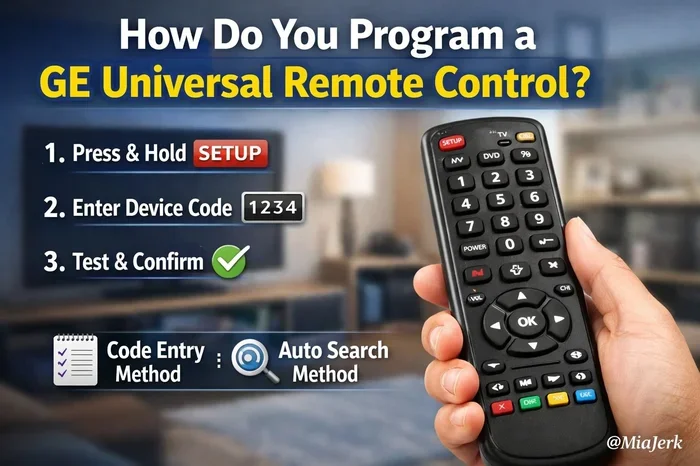
- Press and hold the Setup button until the indicator light stays on.
- Select the device type (TV, DVD, Cable).
- The remote begins scanning automatically.
- Point the remote at the device and wait.
- When the device turns off, press Save to lock in the code.
Quick Tips for Auto-Search Success
- Keep the remote pointed directly at the device’s sensor.
- Stay within 3 to 6 feet during the search.
- Don’t press any buttons while the remote is scanning.
- Replace batteries if the remote feels weak.
Common Mistakes During Auto-Search
One frequent mistake is moving the remote too far away. The infrared signal needs a clear path. Another mistake is pressing buttons during the scan, which can interrupt the process. If the remote doesn’t find a match, try again from the beginning. Sometimes a remote reset helps clear old data before a new search.
Universal Remotes and Learning Remotes: Two Powerful Alternatives
Universal remotes and learning remotes both offer code-free programming, but they work differently. A universal remote uses a built-in database to find signals. A learning remote copies the exact infrared pulses from your original remote. Both methods are excellent, and choosing between them depends on your needs.
Setting Up a Universal Remote from Scratch
To set up a universal remote without codes, you’ll use the auto-search or setup wizard method. Most universal remotes have a device button for TV, Aux, or Cable. Press and hold that button, then follow the auto-search steps. The remote will test signals until it finds the right one.
Universal remotes often support multiple devices. You can program them to control your TV, soundbar, and streaming box all at once. This reduces clutter and makes your living room simpler.
Comparison of Popular Universal Remotes
Not all universal remotes are the same. Here’s a quick comparison of popular models that support code-free setup:
| Remote Model | Code-Free Features | Price Range | Best For |
|---|---|---|---|
| Logitech Harmony Elite | Auto-search, touchscreen setup wizard | $200–$300 | Home theater enthusiasts |
| RCA RCR450 | Auto-search, manual entry backup | $15–$25 | Budget-friendly simplicity |
| GE 3-Device Universal Remote | Auto-search, easy setup menu | $10–$20 | Basic TV and soundbar control |
| Sony RM-VL600 | Learning mode, signal copying | $30–$50 | Exact signal replication |
Expert Insight: Choosing the Right Remote
If you want one remote to rule them all, the Logitech Harmony series is hard to beat. It uses a cloud-based brand database that updates automatically. For a simple, affordable option, the RCA RCR450 works well. Learning remotes like the Sony RM-VL600 are perfect when you need to copy signals from a rare or older device.
How Infrared Learning Works
A learning remote has a special mode that lets it copy the infrared signal from your original remote. You point the original remote at the learning remote, press the button you want to copy, and the learning remote stores the signal. This method is called infrared signal transmission copying.
Learning remotes are especially useful for devices that use uncommon codes. For example, some older audio receivers or streaming devices don’t appear in universal remote databases. A learning remote can handle them with ease.
Step-by-Step Signal Copying
- Put the learning remote into learning mode (usually by holding a specific button).
- The indicator light will blink, showing it’s ready to learn.
- Point your original remote at the learning remote, about 2 inches apart.
- Press the button on the original remote you want to copy.
- The learning remote’s light will blink twice to confirm it stored the signal.
- Repeat for each button you need.
When a Learning Remote Is Your Best Friend
If you have a home theater system with multiple components, a learning remote can simplify everything. You can copy signals from your TV remote, soundbar remote, and cable box remote into one device. This eliminates the need to juggle multiple remotes. Just make sure your original remotes have fresh batteries before copying.
HDMI-CEC and Smart Home Hubs: The Modern Alternative
HDMI-CEC (Consumer Electronics Control) is a feature built into most modern TVs and devices. It lets devices communicate over the HDMI cable. When you turn on your TV, your soundbar and streaming box can turn on automatically. You don’t need to program any remote at all.
What Is HDMI-CEC and How Does It Help?
HDMI-CEC uses the HDMI cable to send control signals between devices. It’s a form of device pairing that happens over the wire. Different brands call it by different names: Anynet+ (Samsung), Bravia Sync (Sony), SimpLink (LG), and Viera Link (Panasonic). Despite the names, they all do the same thing.
With HDMI-CEC, your TV remote can control volume on your soundbar. You can also turn on your streaming box by simply turning on the TV. This eliminates the need for a separate remote in many cases.
Using a Smart Home Hub as Your Remote
A smart home hub like Amazon Echo, Google Home, or Apple HomeKit can replace your physical remote entirely. You use voice commands to turn on the TV, adjust volume, or switch inputs. These hubs connect to your devices over Wi-Fi or Bluetooth, and they often support infrared blaster add-ons for older devices.
Setting up a smart home hub is straightforward. You download the app, follow the device pairing steps, and link your entertainment devices. Once connected, you can control everything with your voice or a phone app.
Device Pairing Made Simple
Most smart home hubs use a simple setup wizard for pairing. You select the device type, follow the on-screen prompts, and the hub searches for compatible devices. This is a true code-free programming experience. No numbers, no manuals, no hassle.
Common Mistakes That Trip Up Beginners
Even with the best method, mistakes can happen. Knowing what to avoid saves you time and frustration. Here are the most common pitfalls when you program a remote without codes.
Battery and Power Issues
Weak batteries are the number one cause of remote failure. Before you start any programming method, replace the batteries with fresh ones. A weak infrared signal may not reach your device, and auto-search will fail. Keep spare batteries on hand for your universal remote.
Forgetting to Reset the Remote
If you’ve tried programming before and it didn’t work, old data might be stuck in the remote. A remote reset clears this memory. Check your remote’s manual for the reset procedure. Usually, it involves holding a combination of buttons for a few seconds. After resetting, start the programming process fresh.
Wrong Remote Mode or Input
Many remotes have separate modes for TV, Aux, and Cable. If you’re in the wrong mode, the remote won’t send the right signal. Make sure you select the correct device type before starting auto-search. Also, check that your TV is on the right input if you’re using HDMI-CEC.
Final Thoughts and Next Steps
How do I program my remote without codes? You now have three powerful methods to choose from: auto-search, learning mode, and HDMI-CEC. Each method is simple, effective, and doesn’t require hunting for brand codes. Start with auto-search if you’re using a universal remote. Try learning mode for exact signal copying. Use HDMI-CEC for a clean, cable-only setup.
Take a few minutes to test each method with your devices. You’ll be surprised how quickly you can get everything working. Once your remote is programmed, you’ll enjoy a clutter-free entertainment area. Share this guide with friends who are still stuck entering codes manually. With the right approach, programming a remote without codes is easy and rewarding.
Frequently Asked Questions
Can I program a remote without codes for any device?
Most modern devices support code-free programming through auto-search or HDMI-CEC. If your device has an infrared receiver or an HDMI port, you can likely pair it without codes. Some very old or specialty devices might require manual entry, but those are rare.
What if auto-search doesn’t find the right code?
Try resetting the remote and running auto-search again. Make sure the remote is pointed directly at the device and that batteries are fresh. If it still fails, consider using a learning remote to copy the signal from your original remote.
Is HDMI-CEC the same as programming a remote?
HDMI-CEC is different but achieves a similar goal. It lets devices control each other over the HDMI cable without any remote programming. You can use your TV remote to adjust the volume on your soundbar or turn on your streaming box, all through the HDMI connection.
Do learning remotes work with all brands?
Learning remotes copy infrared signals, so they work with any device that uses infrared. They don’t rely on brand databases, making them highly versatile. However, they can’t copy radio frequency (RF) signals, which some devices use.
How do I reset a remote before programming?
Check your remote’s manual for the reset procedure. Most remotes require you to hold a combination of buttons, such as Setup and Power, for a few seconds. This clears old codes and gives you a fresh start for programming.
Can I use a smartphone app instead of a remote?
Yes, many smart home hubs and universal remotes have companion apps. These apps guide you through code-free setup using your phone’s infrared emitter or Wi-Fi connection. They’re a great alternative if you don’t have a physical universal remote.