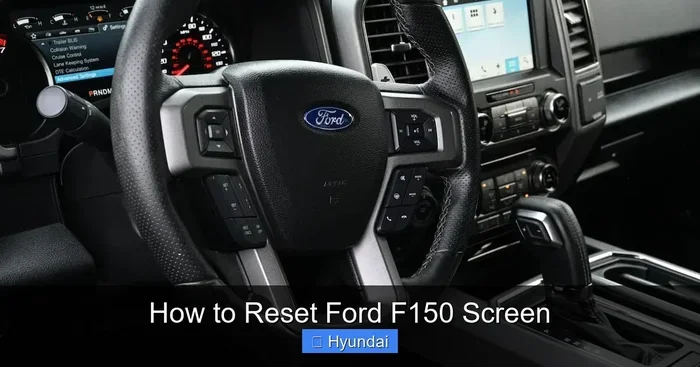
How to Reset Your Ford F150 Screen the Easy Way Today
Resetting your Ford F150 screen is simpler than most truck owners think. Whether your infotainment display is frozen, black, or acting glitchy, this guide walks you through soft resets, hard resets, and troubleshooting tips that actually work. You will learn how to fix common screen problems at home without visiting a dealer.
There is nothing more frustrating than tapping your Ford F150 touchscreen and watching it freeze mid-tap. You are trying to change the radio station, pull up navigation, or adjust the climate control, and suddenly nothing responds. A stuck or unresponsive screen can turn a simple drive into a real headache.
The good news is that resetting your Ford F150 screen is something you can do at home in just a few minutes. You do not need to be a tech expert or spend hundreds of dollars at a dealership. This guide covers every method you need to get your display working again, whether it is a quick soft reset or a more thorough hard reset.
We will walk you through each step in plain language so anyone can follow along. By the end of this article, you will know exactly how to reset Ford F150 screen problems and keep them from coming back. Let us dive in.
Key Takeaways
- Soft Reset: A simple restart that fixes most minor screen glitches on your Ford F150.
- Hard Reset: A full system reboot that clears deeper software issues and frozen displays.
- Battery Disconnect Method: A reliable trick to reset Ford F150 codes and refresh the entire electrical system.
- Prevention Tips: Simple habits that keep your Ford F150 touchscreen running smoothly for years.
- Know When to Call a Pro: Recognizing signs that your screen problem needs professional diagnosis.
📑 Table of Contents
- Why Your Ford F150 Screen Might Need a Reset
- How to Perform a Soft Reset on Your Ford F150
- How to Do a Hard Reset on Your Ford F150 Screen
- Common Ford F150 Screen Problems and How to Fix Them
- Tips to Keep Your Ford F150 Screen Running Smoothly
- When to Seek Professional Help for Ford F150 Screen Issues
- Final Thoughts on Resetting Your Ford F150 Screen
Why Your Ford F150 Screen Might Need a Reset
Before we get into the how-to, it helps to understand why your Ford F150 screen acts up in the first place. Just like your phone or laptop, the infotainment system in your truck runs on software. Over time, that software can develop small glitches that cause the display to freeze, flicker, or go completely black.
Here are some of the most common reasons your Ford F150 screen might stop working properly:
- Software bugs: Ford releases updates for the SYNC and infotainment systems, but sometimes bugs slip through and cause display issues.
- Memory overload: Too many apps, Bluetooth connections, or stored navigation points can slow down the system and make the screen unresponsive.
- Loose connections: Vibrations from driving can occasionally loosen internal wiring connections to the display unit.
- Power surges: Jump-starting your truck or a weak battery can send irregular power to the screen and cause it to malfunction.
- Overheating: On hot days, the infotainment unit can overheat, causing the screen to dim, flicker, or shut off entirely.
Most of these issues are temporary and can be fixed with a simple reset. You do not need to panic the first time your screen freezes. Understanding the root cause helps you choose the right reset method, which we will cover next.
How to Perform a Soft Reset on Your Ford F150
A soft reset is the first thing you should try whenever your Ford F150 screen acts up. Think of it like restarting your phone. It clears temporary glitches without deleting any of your settings, paired devices, or saved data. Most minor screen problems respond well to a soft reset.
Method 1: The Screen Restart Button
Many newer Ford F150 models have a dedicated reset or power button on the infotainment unit itself. Here is how to use it:
- Press and hold the power button on the screen for about 10 to 15 seconds.
- The screen will go dark for a moment.
- Release the button and wait a few seconds for the Ford logo to appear.
- The system will reboot and your screen should be back to normal.
This method works great for minor freezes or when the touchscreen becomes temporarily unresponsive. It takes less than a minute and does not affect any of your personal settings.
Method 2: The Ignition Cycle
If your Ford F150 does not have a dedicated reset button, you can use the ignition cycle method instead:
- Turn the ignition off and remove the key or press the push-button start to shut down the truck.
- Wait at least 30 seconds.
- Turn the ignition back on without starting the engine.
- Wait another 30 seconds, then start the engine normally.
This method powers down the entire infotainment system and refreshes the connection between the screen and the truck’s computer. It is one of the easiest ways to fix a Ford F150 touchscreen reset issue without touching any wires.
When a Soft Reset Is Not Enough
A soft reset handles about 70% of Ford F150 screen problems. If your screen is still frozen, black, or glitchy after trying both methods above, it is time to move on to a hard reset. Do not worry, a hard reset is still simple and does not require any special tools.
How to Do a Hard Reset on Your Ford F150 Screen
A hard reset goes deeper than a soft reset. It clears the system cache, resets the infotainment software to its default state, and can fix problems that a soft restart simply cannot touch. Think of it as a full system refresh for your Ford F150 display.
Method 1: The Battery Disconnect Trick
This is one of the most effective ways to perform a Ford F150 screen reset when nothing else works. It also helps reset Ford F150 codes that may be affecting the display. Here is what you need to do:
- Make sure your truck is turned off and the keys are removed from the ignition.
- Open the hood and locate the negative battery terminal (it will have a minus sign).
- Use a wrench to loosen the nut on the negative cable.
- Carefully pull the cable off the battery terminal and move it away from the battery.
- Wait at least 5 minutes. This gives the system time to fully discharge and clear all temporary data.
- Reconnect the negative cable and tighten the nut securely.
- Start your truck and wait for the infotainment system to boot up.
Some owners worry that disconnecting the battery will erase their radio presets or navigation favorites. In most cases, these settings come back automatically once the system reconnects. If they do not, you can easily re-pair your Bluetooth devices and re-enter your favorite stations.
For a deeper look at how battery disconnects affect your truck’s systems, you can check out our guide on does disconnecting battery reset codes to understand what happens under the hood.
Method 2: The Fuse Pull Method
Another way to hard reset your Ford F150 screen is by pulling the infotainment fuse. This method cuts power directly to the display unit:
- Turn off your truck and remove the keys.
- Open the driver-side door and locate the fuse box under the dashboard.
- Use the fuse puller (or a pair of needle-nose pliers) to remove the infotainment fuse.
- Wait 2 to 3 minutes.
- Reinsert the fuse firmly.
- Start the truck and let the system reboot.
You can find the exact fuse location for your specific Ford F150 model year in the owner’s manual. This method is especially useful if the screen is completely dead and will not respond to any button presses.
What Happens After a Hard Reset
After a hard reset, your Ford F150 infotainment system will start fresh. You may notice the following:
- The clock will reset to the default time.
- Bluetooth paired devices will need to be reconnected.
- Radio presets may need to be reprogrammed.
- The system language and display settings may return to factory defaults.
None of these changes are permanent problems. They just take a couple of minutes to set up again. The benefit of a clean slate far outweighs the small inconvenience of re-entering your preferences.
Common Ford F150 Screen Problems and How to Fix Them
Not all Ford F150 screen issues are the same. Different symptoms point to different problems. Here is a quick breakdown of the most common screen issues and the best way to fix each one.
| Problem | Likely Cause | Best Fix |
|---|---|---|
| Screen is frozen or unresponsive | Software glitch or memory overload | Soft reset or hard reset |
| Screen is completely black | Power loss or loose connection | Battery disconnect method |
| Screen flickers or flashes | Overheating or weak power supply | Check battery voltage, soft reset |
| Touchscreen is not responding to taps | Calibration issue or software bug | Hard reset, then recalibrate |
| Screen turns on but shows no image | Display cable loose or damaged | Check connections, seek professional help |
| Screen works but audio does not | Audio module disconnect | Soft reset, check audio settings |
If you are dealing with a check engine light that keeps coming on along with screen issues, you might want to learn how to reset the check engine light without disconnecting the battery as part of your broader troubleshooting steps.
For sensor-related display problems, understanding how to reset your own TPMS sensor can also help, since TPMS warnings sometimes appear on the main infotainment screen and can cause display confusion.
Tips to Keep Your Ford F150 Screen Running Smoothly
Prevention is always better than cure. Once you have your Ford F150 screen working again, you want to keep it that way. Here are some simple habits that go a long way in protecting your infotainment system.
Keep Your Software Updated
Ford regularly releases software updates for the SYNC and infotainment systems. These updates fix known bugs, improve performance, and add new features. You can check for updates through the truck’s settings menu or visit your local Ford dealer. Keeping your system up to date is one of the best ways to prevent screen glitches.
Do Not Overload the System
Your Ford F150 infotainment system has limited memory. If you load it up with too many apps, excessive navigation history, or dozens of Bluetooth pairings, it can slow down and become unresponsive. Periodically go through your settings and delete anything you no longer need.
Protect the Screen From Heat
Excessive heat is one of the biggest enemies of electronic displays. On hot days, consider using a windshield sun shade to keep the interior temperature down. This simple step can prevent overheating-related screen issues and extend the life of your display.
Use a Surge Protector for Jump-Starts
If you ever need to jump-start your Ford F150, use a quality jump starter box with surge protection. This prevents power spikes from reaching the infotainment system and causing screen problems. A small investment that can save you big headaches down the road.
Clean the Screen Gently
Use a microfiber cloth to clean your Ford F150 touchscreen. Avoid harsh chemical cleaners or abrasive materials that can damage the screen coating. A clean screen also responds better to touch, which improves your overall user experience.
When to Seek Professional Help for Ford F150 Screen Issues
Most Ford F150 screen problems can be solved with the reset methods described above. However, there are times when professional help is the right call. You should consider taking your truck to a Ford dealer or qualified mechanic if:
- The screen remains completely black even after a full battery disconnect reset.
- You notice visible damage to the screen, such as cracks or bleeding pixels.
- The screen problems come back repeatedly within a short period of time.
- You hear unusual clicking or buzzing sounds coming from the infotainment unit.
- The screen works intermittently and you cannot identify a pattern.
- Your truck is still under warranty and you want to avoid voiding it with DIY repairs.
A professional technician has access to diagnostic tools that can read error codes from the infotainment system. They can pinpoint hardware failures, software conflicts, and wiring issues that are not visible to the naked eye. When in doubt, it is always better to get a professional opinion than to risk making the problem worse.
Final Thoughts on Resetting Your Ford F150 Screen
Dealing with a frozen or unresponsive Ford F150 screen does not have to be a stressful experience. With the right knowledge, you can handle most screen problems yourself in just a few minutes. Start with a soft reset, move to a hard reset if needed, and always consider the battery disconnect method for stubborn issues.
Remember, a Ford F150 screen reset is one of the simplest and most effective fixes you can do at home. It saves you time, money, and the hassle of booking a service appointment. Keep these steps handy, and the next time your screen acts up, you will know exactly what to do.
Take care of your infotainment system with regular software updates and good habits, and your Ford F150 screen will keep working smoothly for years to come. Safe travels, and happy driving!
Frequently Asked Questions
How long does it take to reset a Ford F150 screen?
A soft reset usually takes less than one minute. A hard reset using the battery disconnect method takes about 10 to 15 minutes, including the waiting time. The fuse pull method is the fastest hard reset option and takes only about 5 minutes.
Will resetting my Ford F150 screen delete my saved data?
A soft reset will not delete any of your saved data, Bluetooth pairings, or radio presets. A hard reset may clear some settings like the clock, radio presets, and Bluetooth connections, but your navigation history and saved contacts usually remain intact.
How often should I reset my Ford F150 screen?
You should only reset your Ford F150 screen when you experience problems like freezing, flickering, or unresponsiveness. There is no need to reset it on a regular schedule. Frequent resets can actually wear down the system over time.
Can a software update fix my Ford F150 screen issues?
Yes, software updates often address known bugs that cause screen problems. Before trying a reset, check if Ford has released any updates for your model year. Updating the software can resolve many display issues without any effort on your part.
Is it safe to disconnect the battery to reset my Ford F150 screen?
Yes, disconnecting the battery is a safe and widely used method to reset the Ford F150 infotainment system. Just make sure your truck is turned off, wait at least 5 minutes, and reconnect the negative terminal securely. This method does not cause any permanent damage to the vehicle.
What should I do if the Ford F150 screen reset does not work?
If a reset does not fix the problem, the issue may be hardware-related. Check for loose connections behind the infotainment unit, and consider visiting a Ford dealer for professional diagnostics. Repeated screen failures could indicate a failing display unit or wiring problem that needs expert attention.
=== CONCLUSION ===
Resetting your Ford F150 screen is a skill every truck owner should have in their toolkit. Whether you are dealing with a frozen touchscreen, a black display, or a glitchy infotainment system, the methods in this guide give you everything you need to fix the problem quickly and confidently. Start with a simple soft reset, try a hard reset if needed, and use the battery disconnect method as your ultimate fallback option.
The key takeaway is that most Ford F150 screen problems are temporary and fixable without expensive repairs. A few minutes of your time and a basic understanding of the reset process can save you hours of frustration. Keep this guide bookmarked, share it with fellow Ford F150 owners, and never let a stubborn screen slow you down again.