How Do I Fix My Startup Screen And Get Back To Work
A stuck or frozen startup screen can halt your day fast. Whether your startup screen shows a black display, an error message, or just won’t load, this guide walks you through every fix you need. We cover simple resets, software updates, and when to seek professional help so you can get back to work without the hassle.
There’s nothing more frustrating than pressing the power button and staring at a frozen or blank startup screen. You need to get back to work, and every second of waiting feels like an eternity. Whether you’re dealing with a black screen, a loading loop, or an error message that won’t go away, this guide has you covered.
Fixing your startup screen doesn’t always require a technician. Many common problems have simple solutions you can try right now. We’ll walk you through each step in plain language, so you don’t need to be a tech expert to get things working again. Let’s dive in and get you back on track.
Key Takeaways
- Restart First: A simple reboot resolves most startup screen issues in seconds.
- Check for Updates: Outdated software is one of the top causes of startup screen freezes.
- Reset Display Settings: Incorrect brightness or resolution can make your screen appear blank at startup.
- Clear Cache and Temp Files: Built-up junk data often causes your screen to hang during boot.
- Know When to Call a Pro: Hardware failures need expert diagnosis, not DIY fixes.
- Prevent Future Issues: Regular maintenance keeps your startup screen running smoothly every time.
📑 Table of Contents
Understanding Your Startup Screen
Your startup screen is the first thing you see when you power on your device. It’s like a welcome mat for your system. When everything works, you barely notice it. But when something goes wrong, it becomes the only thing you see.
A startup screen can freeze for many reasons. Sometimes it’s a simple software glitch. Other times, it signals a deeper problem. Understanding what your screen is trying to tell you makes fixing it much easier.
Common Startup Screen Problems
Not all startup screen issues look the same. Here are the most common problems people face:
- Black Screen: The screen stays completely dark after pressing the power button.
- Loading Loop: The startup screen keeps spinning or cycling without ever fully loading.
- Error Message: A text warning appears, such as a system failure or boot error.
- Frozen Logo: The brand logo or loading icon stays stuck in one place.
- Flickering Display: The screen flashes or shows random lines during startup.
Each problem points to a different cause. A black screen often means the display isn’t receiving a signal. A loading loop usually points to a software conflict. Error messages give you clues about what went wrong. Once you identify the problem type, you can move to the right fix.
Quick Fixes You Can Try Right Now
Before you panic, try these simple steps. Most people fix their startup screen in under ten minutes with these methods.
Restart Your Device
The oldest trick in the book still works. A full restart clears temporary glitches that cause your startup screen to hang. Hold down the power button for ten seconds until the device shuts off completely. Wait a few seconds, then press the button again to turn it back on.
If a simple restart doesn’t work, try a forced restart. This method cuts power more aggressively and clears deeper system errors. The process varies by device, but it usually involves holding a combination of buttons simultaneously.
Check Your Connections
Loose cables are a sneaky cause of startup screen problems. If you’re using an external display, unplug the cable and plug it back in firmly. Try a different cable or port if possible. Sometimes the issue is as simple as a slightly loose connection.
For devices with removable batteries, take the battery out, wait thirty seconds, and put it back in. This resets the power circuit and often fixes a frozen startup screen.
Boot Into Safe Mode
Safe mode loads only the essential software on your device. If a third-party app is causing the problem, safe mode bypasses it and lets your startup screen load normally. To enter safe mode, hold specific buttons during the boot process. The exact steps depend on your device model.
Once in safe mode, you can uninstall recently added apps or updates that might be triggering the issue. This is a great way to narrow down the cause without guessing.
Software Solutions for Startup Screen Fixes
When quick fixes don’t do the trick, it’s time to dig into the software side. Many startup screen problems come from corrupted files, outdated drivers, or conflicting programs.
Update Your Operating System
Outdated software is one of the biggest reasons your startup screen gets stuck. Manufacturers release updates that fix bugs and improve compatibility. If your device hasn’t updated in a while, the startup process may conflict with newer hardware or apps.
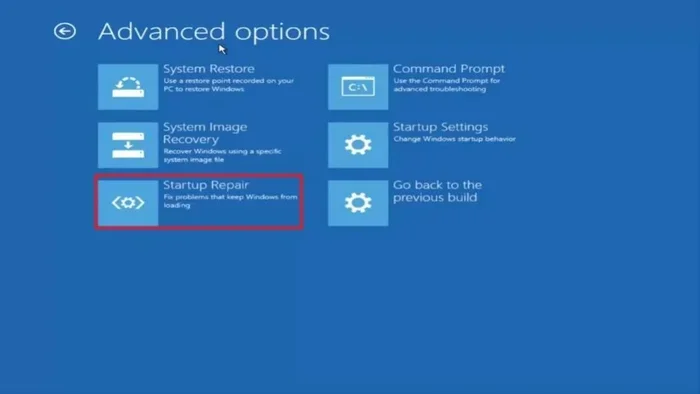
Try booting into recovery mode and checking for system updates. This lets you install patches even when your normal startup fails. The recovery menu usually appears when you press a specific button combination during boot.
Roll Back Recent Updates
Sometimes a brand-new update causes the problem. If your startup screen started acting up right after an update, rolling back can help. Recovery mode also lets you uninstall recent updates and return to a previous version.
This fix works especially well when you notice the problem started immediately after a system update. The new software might not be fully compatible with your device yet, or it could contain a bug that affects the boot process.
Clear Cache and Temporary Files
Over time, your device builds up temporary files that slow things down. A full cache can cause your startup screen to freeze during the boot sequence. Clearing the cache removes these junk files without deleting your personal data.
You can clear the cache through recovery mode on most devices. This process wipes temporary system files but keeps your photos, documents, and apps safe. It’s one of the most effective ways to speed up a sluggish startup process.
Hardware Checks That Make a Difference
Software fixes solve most problems, but sometimes the issue is physical. Hardware problems need a different approach, and catching them early prevents further damage.
Inspect Your Display and Cables
A damaged screen or faulty cable can make your startup screen appear completely black even when the device is running. Shine a flashlight on the screen and look closely. If you can faintly see an image, the display is working but the backlight is failing.
Replace the cable first, as it’s cheaper and easier. If a new cable doesn’t help, the screen itself might need replacement. Check for visible cracks, water damage, or loose connections at the hinge or port.
Test Your RAM and Storage
Faulty memory or a failing hard drive can cause your startup screen to hang or display errors. Most devices have built-in diagnostic tools you can access from recovery mode. These tests check your RAM and storage for errors without needing extra software.
If the diagnostics find problems, you may need to replace the faulty component. Running diagnostics regularly helps you catch hardware issues before they cause a complete startup failure.
Check for Overheating
Devices that overheat often freeze at the startup screen. Heat builds up inside the device when vents are blocked or fans stop working. If your device feels hot to the touch before it even boots, overheating is likely the culprit.
Let the device cool down completely before trying to start it again. Clean any dust from the vents and fans. Using your device on a hard, flat surface improves airflow and prevents future overheating issues.
When Your Car’s Startup Display Freezes
Modern vehicles have complex digital displays that show startup screens, warnings, and system info. When your car’s display freezes at startup, it can feel just as frustrating as a computer screen going black. Car infotainment systems run on software, and they experience the same kinds of glitches that affect phones and laptops.
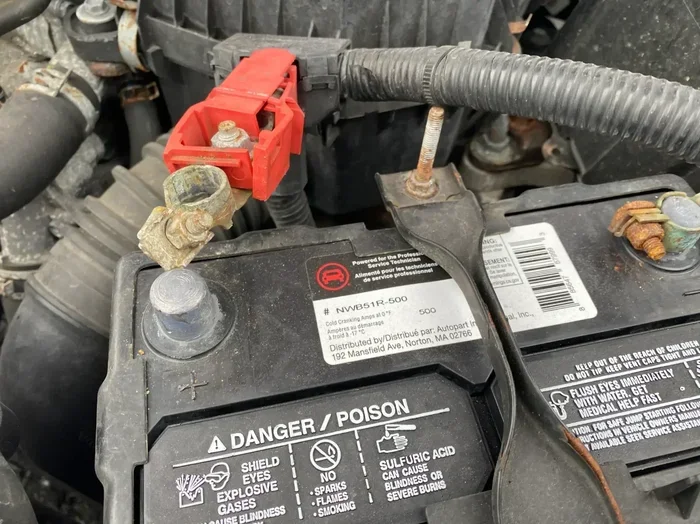
If your vehicle’s startup screen won’t load, try turning the ignition off and back on. Some cars require a full battery disconnect to reset the infotainment system. Check your owner’s manual for the specific reset steps for your model.
For Toyota owners, issues with the infotainment system can sometimes relate to broader connectivity or software features. For example, if you’ve been trying to start your Highlander with your phone and the system is now freezing, a software reset might fix both problems. Similarly, if your startup screen issues appeared after trying to unlock your car with the Toyota app, the app update might be conflicting with the display software.
Common Car Display Startup Issues
- Frozen Toyota Logo Screen: The system gets stuck on the Toyota emblem during boot.
- Black Infotainment Display: The screen stays dark even when the car is running.
- Error Messages at Startup: Warning text appears and won’t dismiss.
- Touchscreen Unresponsive: The display loads but won’t respond to taps.
Many car display startup issues resolve with a simple system reset. You can often do this by holding the power button on the display for fifteen to thirty seconds. This forces the system to reboot and clears temporary software glitches.
If resets don’t work, the problem might be deeper. A corrupted software update, a failing display module, or a wiring issue could all be to blame. In these cases, visiting a dealer or qualified technician is the best move. They have the tools and diagnostic software to pinpoint the exact cause.
Preventing Startup Screen Problems in the Future
Once you fix your startup screen, you want to keep it working. Prevention is always easier than repair, and a few simple habits go a long way.
Keep Your Software Updated
Regular updates fix bugs and patch security holes that could affect your startup process. Set your device to update automatically whenever possible. For car systems, check for infotainment updates during routine service visits.
Avoid Overloading Your System
Installing too many apps or files slows down your device and increases the chance of startup conflicts. Keep your storage at least 20 percent free. Delete apps you no longer use and clear temporary files on a regular basis.
Use Quality Accessories
Cheap cables and chargers can cause power fluctuations that lead to startup screen problems. Invest in certified accessories from reputable brands. For car owners, use OEM or manufacturer-approved parts whenever possible.
Restart Your Device Regularly
Just like any machine, your device benefits from regular restarts. A weekly reboot clears memory and refreshes system processes. This simple habit prevents many startup screen issues before they start.
When to Call a Professional
Most startup screen problems have straightforward fixes. But some situations need expert help. Don’t hesitate to contact a professional if you notice any of these signs.
- The screen stays completely blank even after multiple restart attempts.
- You see physical damage like cracks or water spots on the display.
- Error codes appear that you can’t resolve with basic troubleshooting.
- The device overheats frequently, even during normal use.
- Startup problems happen repeatedly despite trying all the fixes above.
A professional can run advanced diagnostics that aren’t available to regular users. They can test individual components, check wiring, and access hidden recovery tools. Spending a little money on expert help now can save you from buying a whole new device later.
For car owners dealing with persistent display issues, a dealership visit is often the fastest path to a solution. Technicians there specialize in your specific vehicle model and have access to manufacturer support. If you’ve been wondering whether you can remote start your Toyota with the key fob and the display won’t cooperate, a service appointment can address both the startup screen and the remote features at once.
Final Thoughts
Fixing your startup screen is often simpler than you think. Start with the basics: restart your device, check connections, and try safe mode. Move to software solutions like updates and cache clearing if the simple steps don’t work. Check hardware components like cables, memory, and cooling when those fail too.
Prevention keeps your startup screen healthy long-term. Regular updates, clean storage, quality accessories, and routine restarts make a big difference. And when all else fails, don’t be afraid to call a professional. The right expert can diagnose problems you can’t see and fix them quickly.
Your startup screen is the gateway to everything you do on your device. Taking care of it means taking care of your productivity. Use the tips in this guide, and you’ll be back to work in no time.
Frequently Asked Questions
Why does my startup screen keep freezing?
A freezing startup screen usually results from corrupted software, outdated drivers, or too many background apps. Try restarting your device and clearing the cache first. If the problem continues, boot into safe mode to identify which app or update is causing the conflict.
How long should a startup screen take to load?
Most devices fully load their startup screen within 30 to 60 seconds. If your screen takes longer than two minutes or gets stuck, something is wrong. Software conflicts, low storage, or failing hardware can all cause slow startup times.
Can a black startup screen mean my device is broken?
Not necessarily. A black startup screen often means the display isn’t receiving a signal, which can be caused by loose cables, a dead backlight, or a simple software glitch. Try checking connections and performing a forced restart before assuming the device is broken.
Is it safe to clear the cache on my device?
Yes, clearing the cache is completely safe. It removes temporary files that your system no longer needs but keeps all your personal data, apps, and settings intact. This is one of the most recommended fixes for a frozen or slow startup screen.
What should I do if my car’s startup display won’t turn on?
Start by turning the ignition off and back on. If that doesn’t work, try holding the display power button for fifteen seconds to force a reboot. For persistent issues, a battery disconnect or a visit to your dealer can reset the infotainment system and restore normal function.
How can I prevent startup screen problems from happening again?
Keep your software updated, restart your device weekly, avoid overloading storage, and use quality accessories. These simple habits prevent most startup screen issues. Regular maintenance catches small problems before they turn into big ones.