How Do I Connect Google Maps to My Toyota Navigation
Connecting Google Maps to your Toyota navigation system is easier than you might think. Whether you drive a newer Toyota with Entune or an older model, you can access Google Maps right from your dashboard. This guide walks you through every step, from initial setup to troubleshooting common issues.
Have you ever wanted to use Google Maps on your Toyota but weren’t sure how to get it working? You are not alone. Many Toyota owners want to use the familiar Google Maps interface instead of the built-in navigation system. The good news is that connecting Google Maps to your Toyota navigation is a straightforward process once you know the steps.
In this guide, we will walk you through everything you need to know. We will cover different Toyota models, connection methods, and tips to make your experience smooth. Whether you drive a Toyota Camry, RAV4, or Highlander, this guide has you covered. Let us get started.
Key Takeaways
- Google Maps works with most Toyota models through the Entune infotainment system or via Android Auto projection.
- You can connect using Bluetooth, USB, or wireless methods depending on your Toyota model year.
- Keeping your Toyota maps updated ensures you get accurate directions and live traffic data.
- Voice commands let you control Google Maps hands-free while driving, improving safety.
- Common connection issues are usually easy to fix with simple resets or software updates.
📑 Table of Contents
Understanding Toyota Navigation Systems
Before we dive into the connection process, it helps to understand what Toyota navigation systems look like today. Toyota has used different systems over the years, and knowing which one you have makes a big difference.
What Is Toyota Entune?
Toyota Entune is the brand name for Toyota’s infotainment system. It has been around since 2011 and has gone through several versions. The system lets you access music, phone calls, and navigation from your car’s touchscreen. Newer versions of Entune support app connectivity, which is how Google Maps comes into play.
If your Toyota was made after 2016, there is a good chance it has Entune 3.0 or later. These versions offer better connectivity and more app support. Older models may need a different approach, which we will cover below.
Which Toyota Models Support Google Maps?
Most Toyota models from 2016 onward support Google Maps integration. Here are some of the most popular ones:
- Toyota Camry – Works with Entune 3.0 and newer
- Toyota RAV4 – Full Google Maps support on 2019 models and newer
- Toyota Highlander – Compatible with the latest Entune versions
- Toyota Corolla – Supports Google Maps through the touchscreen
- Toyota Tacoma – Works with Entune on higher trim levels
If you are not sure which version of Entune your Toyota has, you can check the user manual or visit your local dealer. They can tell you exactly what your system supports.
How to Connect Google Maps to Toyota Navigation
Now let us get to the main part. Connecting Google Maps to your Toyota depends on a few factors. These include your model year, your Entune version, and whether you have a smartphone with Android or Apple.
Step-by-Step Connection Guide
Follow these steps to get Google Maps running on your Toyota screen:
- Turn on your Toyota’s infotainment system by pressing the power button on the touchscreen or the audio unit.
- Go to Settings on the main screen. Look for the gear icon or the word “Settings.”
- Select Bluetooth or Phone Connection depending on your system version.
- Make sure Bluetooth is turned on in your Toyota settings and on your phone.
- Pair your phone with the Toyota system by selecting your car from the list of available devices on your phone.
- Accept the connection request on both your phone and the Toyota screen.
- Open Google Maps on your phone and start navigating. The directions should now appear on your Toyota screen.
That is the basic process. It works for most Toyota models made after 2016. If your car is older, you may need to use a different method, which we will explain next.
Setting Up a Wireless Connection
Some newer Toyota models support wireless connection to Google Maps. This means you do not need a cable at all. Here is how to set it up:
- Make sure your Toyota supports wireless Android Auto or Entune app connectivity.
- Go to your Toyota settings and look for “Wireless Connection” or “Wi-Fi.”
- Follow the on-screen prompts to connect your phone.
- Once connected, Google Maps will launch automatically when you start driving.
A wireless connection is much more convenient. You do not have to plug and unplug cables every time you get in the car. It also means your phone charges while connected.
Using Google Maps with Toyota Entune
Toyota Entune is the bridge between your phone and your car’s display. Understanding how it works with Google Maps makes the whole process much easier.
Navigating with Google Maps on Your Toyota Screen
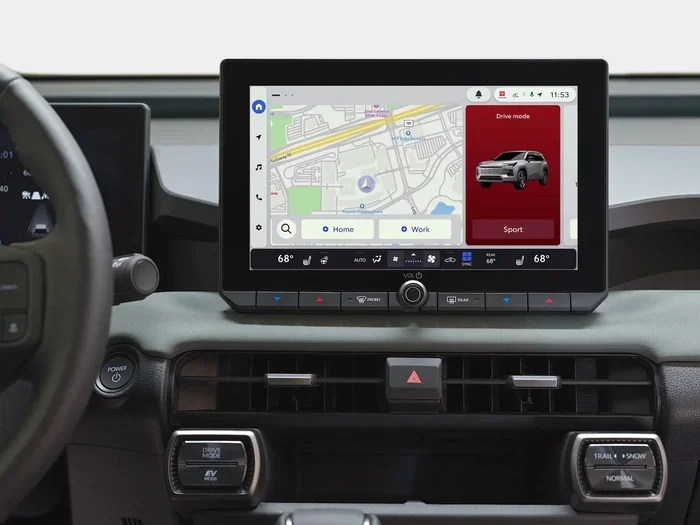
Once Google Maps is connected, you can use your Toyota screen to see directions. The map display fills part of your dashboard screen. You can zoom in and out using the touchscreen controls. Turn-by-turn directions appear just like they do on your phone.
One great feature is that you can search for destinations using your voice. Just press the voice command button on your steering wheel and say where you want to go. Google Maps will find the best route for you.
You can also use Google Maps to find gas stations, restaurants, and other points of interest along your route. This is especially helpful on long road trips where you might not know the area well.
Voice Commands and Hands-Free Controls
Safety comes first when driving. Toyota’s voice command system lets you control Google Maps without taking your hands off the wheel. Here are some useful voice commands:
- “Navigate to…” – Tell Google Maps where you want to go
- “Show traffic” – Display current traffic conditions on the map
- “Find gas stations” – Locate nearby fuel stations
- “Mute audio” – Turn down Google Maps voice directions
These commands work through Toyota’s built-in voice recognition system. They are very accurate and make driving safer. You can always refer to your Toyota manual for a full list of supported voice commands.
Troubleshooting Common Connection Issues
Sometimes things do not go as planned. Maybe Google Maps will not connect, or the screen freezes. Do not worry. Most issues have simple fixes.
Bluetooth Connection Problems
If your phone will not pair with your Toyota, try these steps:
- Turn Bluetooth off on both your phone and your Toyota, then turn it back on.
- Delete the old pairing from both devices and create a fresh connection.
- Make sure your phone’s software is up to date.
- Restart both your phone and your Toyota’s infotainment system.
Bluetooth issues are the most common problem people face. Usually, a simple restart fixes everything. If the problem keeps happening, your phone or car may need a software update.
Screen Freezing or Lagging
If your Toyota screen freezes when Google Maps is open, here is what to do:
- Close Google Maps on your phone and reopen it.
- Restart the Toyota infotainment system by holding the power button for 10 seconds.
- Check if your phone has too many apps running in the background.
- Make sure your phone has enough storage space for Google Maps to run smoothly.
Screen lag usually happens when the system is running low on memory. Closing other apps and restarting the system almost always solves the problem.
Keeping Your Toyota Maps Updated
One important part of using Google Maps with your Toyota is keeping everything up to date. Updated maps give you the best driving experience with accurate routes and live traffic data.
Why Map Updates Matter
Old maps can lead you down roads that have changed or streets that no longer exist. Updated maps include new roads, changed speed limits, and real-time traffic information. They also fix bugs that might cause the navigation app to crash or behave strangely.
If you want to update Toyota maps for free, you can often do so through the Entune system itself. Toyota sometimes offers free map updates for a limited time after purchase. Check with your dealer to see if your car qualifies.
How to Update Toyota Maps
Here is how you can update your Toyota navigation maps:
- Connect your Toyota to Wi-Fi or use a USB cable.
- Go to Settings on the infotainment screen.
- Select “Map Updates” or “System Updates.”
- Follow the on-screen instructions to download and install the latest maps.
- Restart the system once the update is complete.
Keeping your maps current is one of the best things you can do for your Toyota navigation experience. It takes just a few minutes and saves you from getting lost.
Tips for Getting the Most Out of Google Maps on Your Toyota
Now that you have Google Maps connected, here are some tips to make the most of it.
Use Offline Maps for Toyota Owners
One great feature of Google Maps is offline navigation. You can download map areas to your phone before you leave home. This means you can still navigate even if you lose cell signal on a remote road.
To download offline maps, open Google Maps on your phone, search for the area you want, and tap “Download.” This is especially useful for road trips through areas with poor cell coverage.
Safety Tips While Navigating
Using Google Maps while driving is convenient, but safety should always come first:
- Set your destination before you start driving.
- Use voice commands instead of touching the screen while on the road.
- Mount your phone in a safe position where it does not block your view.
- Pull over if you need to change your route or search for a new destination.
These simple habits keep you safe and make your driving experience better. Remember, no destination is worth risking your safety for.
Final Thoughts
Connecting Google Maps to your Toyota navigation system opens up a world of convenience. You get to use a familiar interface, accurate directions, and live traffic updates right from your dashboard. The process is simple, and most Toyota owners can set it up in just a few minutes.
If you run into issues, the troubleshooting tips above should help you get back on track. And keeping your maps updated ensures you always have the best experience possible. Toyota owners who take advantage of Google Maps navigation enjoy smoother, more confident drives every day.
So go ahead and connect Google Maps to your Toyota today. You will wonder how you ever drove without it. Safe travels!
Frequently Asked Questions
Can I use Google Maps on any Toyota model?
Most Toyota models from 2016 and newer support Google Maps through the Entune system. Older models may need a different connection method or may not support it at all. Check your Toyota manual or ask your dealer to confirm compatibility.
Do I need an internet connection to use Google Maps in my Toyota?
Yes, Google Maps needs an internet connection to provide live traffic updates and real-time directions. You can use Wi-Fi or your phone’s mobile data. However, you can download offline maps in advance if you expect to lose signal in certain areas.
Can I use Google Maps through Apple CarPlay or Android Auto in my Toyota?
Many newer Toyota models support both Apple CarPlay and Android Auto, which allow you to project Google Maps from your phone directly onto the Toyota screen. Check if your specific Toyota model supports these features.
How often should I update my Toyota navigation maps?
You should update your Toyota maps at least once every few months or whenever Toyota releases an update. Updated maps ensure accurate directions and include new roads and changed routes. You can also upgrade Toyota Entune to get the latest features and improvements.
Why does Google Maps disconnect from my Toyota while driving?
Google Maps may disconnect due to Bluetooth interference, low phone battery, or a software glitch. Try restarting both your phone and your Toyota’s infotainment system. Make sure your phone is fully charged and that Bluetooth is set to connect automatically.
Can I control Google Maps volume separately from my radio in my Toyota?
Yes, most Toyota infotainment systems let you adjust the navigation voice volume separately from your radio or music. Look for the audio settings on your Toyota screen and find the navigation volume slider.
=== CONCLUSION ===
Connecting Google Maps to your Toyota navigation system is a simple process that transforms your driving experience. Whether you use Bluetooth, USB, or a wireless connection, Google Maps brings familiar navigation right to your Toyota dashboard. Keep your maps updated, use voice commands for safety, and enjoy every trip with confidence. Start connecting today and make Google Maps your go-to navigation tool in your Toyota.