How Do I Connect My iPhone to My Toyota Navigation System
Connecting your iPhone to your Toyota navigation system opens up a world of convenience on every drive. With Apple CarPlay, Bluetooth, and USB options, you can access maps, music, and calls without ever touching your phone. This guide walks you through every method so you can get connected in minutes.
Your Toyota comes packed with smart technology, and connecting your iPhone is one of the best ways to use it. Whether you want turn-by-turn directions, hands-free calling, or your favorite playlists, the right setup makes all the difference. How do I connect my iPhone to my Toyota navigation system? It is simpler than most people think.
Most Toyota models from the past several years support Apple CarPlay, Bluetooth, and USB connections. Each method has its own benefits. USB offers the steadiest connection, while wireless Apple CarPlay keeps your dashboard clutter-free. Bluetooth handles calls and audio streaming when you do not want to plug in at all. This guide covers every option so you can pick what works best for you.
Before we dive in, it helps to know a little about what your Toyota’s infotainment system can do. The Toyota multimedia system varies by model and year. Newer cars come with larger touch screens and more features. Older models may have simpler setups. But the basic connection steps stay the same across most Toyota vehicles. Let us walk through everything you need to know.
Key Takeaways
- USB Connection: The most reliable way to link your iPhone with Toyota navigation
- Apple CarPlay: Gives you direct access to maps, messages, and music on your Toyota screen
- Wireless Option: Many newer Toyota models support wireless Apple CarPlay for a cable-free experience
- Bluetooth Pairing: Lets you make hands-free calls and stream audio without a cable
- Troubleshooting: Simple fixes can resolve most connection issues quickly
- Toyota App Integration: Extend connectivity beyond the car with the Toyota mobile app
📑 Table of Contents
- How Do I Connect My iPhone to My Toyota Navigation System?
- Connecting via USB Cable: Step by Step
- Going Wireless: Apple CarPlay Setup
- Bluetooth Pairing for Hands-Free Calling
- Troubleshooting Common Connection Problems
- Getting the Most Out of iPhone-Toyota Integration
- Which Connection Method Is Right for You?
How Do I Connect My iPhone to My Toyota Navigation System?
The answer depends on what your Toyota model supports and what you want to do. Do you want full navigation on the big screen? Use Apple CarPlay. Just need to take calls? Bluetooth will do the job. Want the most stable connection for music and maps? Go with a USB cable. Below, we break down each method in detail.
Understanding Your Toyota Infotainment System
Toyota uses different names for its tech across model years. You may see Toyota Entune on older models or the newer Toyota multimedia system on recent builds. The Toyota touch screen is the hub for everything. It controls your audio, navigation, phone connections, and more.
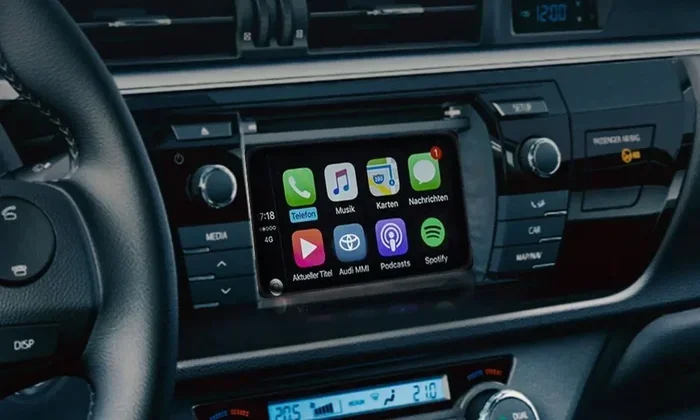
The Toyota navigation system can do a lot when your iPhone is connected. You get access to navigation apps like Google Maps and Apple Maps. You can send and receive text messages through voice commands. You can stream music from Spotify, Apple Music, or Podcasts. All of this shows up right on the car’s display.
One thing to keep in mind is Toyota model compatibility. Not every Toyota has the same tech. A 2023 RAV4 will have very different features from a 2015 Corolla. Check your owner’s manual or look up your specific model year to see what connections are available. This saves you time and frustration later.
What You Need Before You Start
Gather a few things before you try to connect. Having everything ready makes the process smooth and fast.
- A compatible iPhone: Most iPhones from the iPhone 5 onward support Apple CarPlay. The latest iPhones work best with wireless CarPlay.
- A Lightning or USB-C cable: This depends on your iPhone model. Newer iPhones use USB-C. Older ones use Lightning. Make sure your cable is in good condition.
- A clean USB port in your Toyota: Dust or debris can cause connection problems. Give the port a quick check before plugging in.
- An updated iPhone: Go to Settings and make sure your iPhone runs the latest iOS version. Updates fix bugs and improve compatibility.
- An active Bluetooth connection: For wireless options, make sure Bluetooth is turned on in both your iPhone and Toyota settings.
Also, consider downloading the Toyota app on your iPhone before you get in the car. The Toyota app lets you manage certain features remotely, including locking doors and checking fuel levels. While it does not replace the car’s navigation, it adds another layer of iPhone integration with your Toyota. You can learn more about what the Toyota app can do by exploring its features before you head out.
Connecting via USB Cable: Step by Step
The USB connection is the most dependable way to link your iPhone to your Toyota navigation system. It provides power, data transfer, and the best stability for maps and audio. Here is exactly how to do it.
Step 1: Locate the USB Port
Open the center console or the armrest area. Look for a USB port. Some Toyota models have the port inside the center armrest. Others place it in the dashboard area near the gear shift. Check your owner’s manual if you are not sure where yours is.
Step 2: Plug In Your iPhone
Connect your iPhone to the USB port using the appropriate cable. Wait a few seconds. Your Toyota screen should recognize the device. You may see a prompt asking if you trust the connected device. Tap Trust on your iPhone screen and enter your passcode if asked.
Step 3: Select Apple CarPlay
Once your iPhone is recognized, the Toyota screen should display the Apple CarPlay interface. If it does not appear automatically, look for the CarPlay icon on the Toyota touch screen and tap it. You should now see your iPhone apps on the car display.
Step 4: Set Up Navigation
Open your preferred navigation app. Apple Maps works right out of the box. You can also use Google Maps, Waze, or any other CarPlay-compatible app. The directions will display on the Toyota screen, and you can hear turn-by-turn directions through the car speakers.
This USB cable connection works well for long drives because it does not drop like some wireless connections can. It also charges your iPhone while you drive, which is a nice bonus.
Going Wireless: Apple CarPlay Setup
Wireless Apple CarPlay is a game changer. It lets you connect your iPhone to the Toyota navigation system without any cables. The setup is slightly different depending on your Toyota model year, but the process is straightforward.
Check if Your Toyota Supports Wireless CarPlay
Not every Toyota model has wireless CarPlay. Newer models from 2019 onward are more likely to support it. Check your owner’s manual or look for a wireless CarPlay option in the settings menu on the Toyota screen. If your car does not support wireless, the USB method is your best bet.
Pairing Your iPhone Wirelessly
- Make sure Bluetooth is turned on in your iPhone settings.
- Go to the Toyota infotainment system settings.
- Select Bluetooth or Phone Connection.
- Choose your iPhone from the list of available devices.
- Confirm the pairing code on both screens.
- Enable Apple CarPlay in the connection settings.
Once paired, your iPhone should automatically connect to the Toyota system every time you start the car. This wireless connectivity means no fumbling with cables. Just get in, start the engine, and your maps and music are ready.
Keep in mind that wireless CarPlay uses a small amount of battery. For very long trips, a USB connection may be better if you want to preserve your iPhone charge. But for everyday driving, the wireless experience is smooth and convenient.
Bluetooth Pairing for Hands-Free Calling
Even if you do not use Apple CarPlay, Bluetooth is a must-have feature. It lets you make and receive calls through the car speakers without holding your phone. This is both convenient and safer while driving.
Pairing Your iPhone via Bluetooth
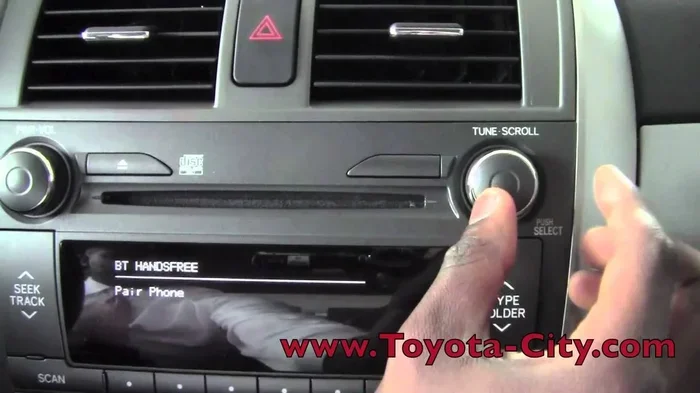
The Bluetooth pairing process is similar across most Toyota models. Start by going to the Bluetooth settings on your Toyota screen. Put your iPhone in pairing mode. Select your iPhone from the list of available devices on the Toyota display. Confirm the pairing request on your phone. Once connected, your iPhone will show up as a paired device.
Using Bluetooth for Calls and Audio
After pairing, you can make calls using the steering wheel controls or the Toyota touch screen. The audio plays through the car speakers, and the microphone picks up your voice clearly. You can also stream music from your iPhone over Bluetooth, though this may limit some CarPlay features at the same time.
One great benefit of Bluetooth is hands-free calling. You can use Siri to send messages or make calls without touching your phone. Just say “Hey Siri” and give your command. The Toyota audio system picks up your voice and handles the rest.
Managing Multiple Devices
If you have multiple phones in the car, the Toyota system can remember more than one paired device. The car usually connects to the last phone that was used. You can switch between devices in the Bluetooth settings menu. This is handy for families who share a Toyota vehicle.
Troubleshooting Common Connection Problems
Sometimes things do not work the first time. That is normal. Most connection issues have simple fixes. Here are the most common problems and how to solve them.
iPhone Does Not Show Up on the Toyota Screen
Try these steps first. Unplug the USB cable and plug it back in. Restart your iPhone. Restart the Toyota infotainment system by holding the power button for about 10 seconds. Make sure your iPhone is unlocked and on the home screen when you plug it in.
Apple CarPlay Keeps Disconnecting
A loose cable is the most common cause. Try a different USB cable or a different USB port in your Toyota. Make sure your iPhone iOS is up to date. Go to Settings on your iPhone, then General, then CarPlay, and re-select your Toyota. This often fixes reconnection issues.
Bluetooth Keeps Dropping
Delete the Toyota device from your iPhone Bluetooth settings and pair it again. Make sure no other Bluetooth devices are interfering. Restart both your iPhone and the Toyota system. If the problem continues, reset the Toyota Bluetooth settings and start fresh.
Audio Sounds Garbled or Low Quality
This usually happens with Bluetooth connections. Check that your iPhone volume and Toyota audio volume are both turned up. Try switching the audio output in your iPhone Control Center to the Toyota system. If you use a USB connection, the audio quality should be much better.
For more tips on keeping your Toyota tech running smoothly, check out our guide on how to get the most from your Uconnect system. It covers general infotainment troubleshooting that applies across Toyota models.
Getting the Most Out of iPhone-Toyota Integration
Once you have your iPhone connected, there are several ways to enhance the experience. These small adjustments make a big difference in daily driving.
Set Up Siri for Hands-Free Use
Siri works great with Apple CarPlay. You can say “Hey Siri, navigate to…” and it will pull up directions. Say “Hey Siri, play my workout playlist” and your music starts. Keep Siri enabled in your iPhone settings for the smoothest experience. This smartphone mirroring feature is one of the biggest advantages of connecting your iPhone.
Customize Your CarPlay Layout
Apple CarPlay lets you choose which apps appear on the Toyota screen. Go to Settings on your iPhone, then General, then CarPlay. You can rearrange apps and set your default navigation app. Put the apps you use most front and center for quick access.
Use the Toyota App for Extra Features
The Toyota app on your phone adds features beyond what the car’s screen offers. You can lock your doors, honk the horn, or flash the lights remotely. Some Toyota models let you remote start the engine from your phone. While this is not part of the navigation system directly, it shows how deeply your iPhone can integrate with your Toyota. You can learn more about what the Toyota app offers, including remote start capabilities, to see if your model supports it.
Keep Your Software Updated
Both Apple and Toyota release software updates that improve iPhone connectivity. Update your iPhone regularly. Check for Toyota infotainment updates at your dealer or through the car’s settings menu. Updated software means fewer bugs and better performance.
Explore the Toyota Multimedia System Settings
Spend a few minutes in the Toyota settings menu. You can adjust display brightness, sound quality, and connection preferences. The Toyota audio system has its own equalizer settings. Fine-tuning these makes a noticeable difference in sound quality when you stream music over CarPlay or Bluetooth.
Which Connection Method Is Right for You?
Each connection method has strengths. Here is a quick comparison to help you decide.
| Feature | USB Cable | Wireless Apple CarPlay | Bluetooth Only |
|---|---|---|---|
| Navigation on Screen | Yes | Yes | No |
| Hands-Free Calls | Yes | Yes | Yes |
| Music Streaming | Yes | Yes | Yes |
| Charges iPhone | Yes | No | No |
| Stability | Very High | High | Medium |
| Cable Needed | Yes | No | No |
| Works on Older Models | Yes | No | Yes |
For most drivers, a combination of wireless Apple CarPlay and Bluetooth gives the best all-around experience. Use CarPlay for maps and music, and Bluetooth for hands-free calling. If your car does not support wireless CarPlay, a USB cable is the next best option. It is reliable, charges your phone, and delivers the clearest navigation display.
Connecting your iPhone to your Toyota navigation system is one of the easiest ways to make every drive better. Once you set it up, you will wonder how you ever drove without it. Take a few minutes today to get it working. You will be glad you did.
Remember, every Toyota model is a little different. If you run into issues that these tips do not solve, your Toyota dealer can help. They know the Toyota navigation system inside and out and can walk you through any setup. And if you ever want to explore more about what your Toyota can do, check out whether you can unlock your car with the Toyota app or explore other connected features that make your Toyota smarter.
Now you know exactly how to get your iPhone talking to your Toyota. Plug in, pair up, and enjoy the ride. Safe travels.
Frequently Asked Questions
Can I use Apple CarPlay on any Toyota model?
Most Toyota models from 2016 onward support Apple CarPlay, but the exact features depend on your model year and trim level. Check your owner’s manual or visit your Toyota dealer to confirm compatibility. Some older models may need a software update to enable CarPlay.
Why does my iPhone keep disconnecting from the Toyota navigation system?
This is usually caused by a loose cable, outdated software, or a full Bluetooth cache. Try using a different USB cable, updating your iPhone iOS, or resetting the Toyota infotainment system. Restarting both devices often fixes the problem quickly.
Can I use wireless Apple CarPlay and Bluetooth at the same time?
Yes, you can. Wireless Apple CarPlay handles navigation and apps, while Bluetooth manages hands-free calls and audio streaming. They work together seamlessly in most Toyota models. You can switch between them easily in your Toyota settings.
Do I need an internet connection for Apple CarPlay navigation?
Apple Maps and some navigation apps need an internet connection for real-time traffic updates. You can use your iPhone’s cellular data for this. Offline maps work for basic directions, but live traffic and rerouting require a data connection.
How do I disconnect my iPhone from the Toyota navigation system?
To disconnect, go to the Toyota infotainment settings and select your iPhone under the connected devices list. Choose to unpair or disconnect. On your iPhone, you can also go to Bluetooth settings and forget the Toyota device. This removes the pairing from both sides.
Can I charge my iPhone while using Apple CarPlay wirelessly?
Wireless Apple CarPlay does not charge your iPhone. If battery life is a concern during long drives, use a USB cable connection instead. You can also use a wireless charging pad on your dashboard if your Toyota has one available.