How to Set Home Address in a Tesla Model 3 Quickly
Setting your home address in a Tesla Model 3 is quick and simple once you know the steps. This guide walks you through both the touchscreen and mobile app methods so you can set your home address in under five minutes. You will also learn tips to optimize your home location for better navigation and EV charging route planning.
Owning a Tesla Model 3 comes with a lot of exciting features. One of the most useful is the ability to save your home address in the vehicle’s navigation system. Once you do this, you can get home with just a single tap. No need to type in your full street address every time you want to head back. It is a small feature that makes a big difference in your daily routine.
If you are new to Tesla ownership or have not yet set up your home location, you are in the right place. This guide will show you exactly how to set home address in a Tesla Model 3 using both the touchscreen and the Tesla mobile app. We will also cover tips, troubleshooting, and frequently asked questions. By the end, you will have your home address saved and ready to go.
Setting your home address is one of the first things you should do after picking up your Tesla Model 3. It connects to your navigation system and helps with route planning every single day. Whether you commute to work or just want a fast way to get back from a road trip, having your home location saved saves you time and effort. Let us walk through the entire process step by step.
Key Takeaways
- Two Methods Available: You can set your home address using the Tesla touchscreen or the mobile app.
- Takes Under Five Minutes: The entire process is quick and does not require technical expertise.
- Enables One-Tap Navigation: Once set, you can return home with a single tap on the Tesla dashboard.
- Works with Tesla App: You can also manage your home location remotely through the Tesla app.
- Improves Route Planning: Having a saved home address helps with EV charging station routing and daily commute planning.
- Easy to Update: You can change or remove your home address anytime from the settings menu.
📑 Table of Contents
- Why Setting Your Home Address Matters in a Tesla Model 3
- Step-by-Step Guide: Setting Your Home Address on the Touchscreen
- Setting Your Home Address Through the Tesla Mobile App
- How to Navigate Home Once Your Address Is Set
- Tips for Optimizing Your Home Address Setup
- Troubleshooting Common Issues When Setting Your Home Address
- How Tesla’s Manufacturing Relates to Your Ownership Experience
- Final Thoughts on Setting Your Home Address
Why Setting Your Home Address Matters in a Tesla Model 3
You might wonder why this feature is so important. After all, you can always type in any address manually. But saving your home address does more than just save you a few keystrokes. It integrates deeply with the Tesla navigation system and offers several real-world benefits.
First, it gives you instant access to home with one tap. When you sit in your car and tap the home icon on the Tesla dashboard, the vehicle knows exactly where you live. Second, it works with EV charging station routing. The car can plan the best route home that includes a charging stop if your battery is low. Third, it helps with daily destination input. The car learns your habits and can suggest your home address at the right times of day.
Also, setting your home address enables features like Smart Summon and location-based climate control. Your Tesla can warm up or cool down your cabin before you arrive, knowing when you are close to home. All of these features rely on having a correct and saved home location in your vehicle.
How Tesla Uses Your Home Address for Navigation
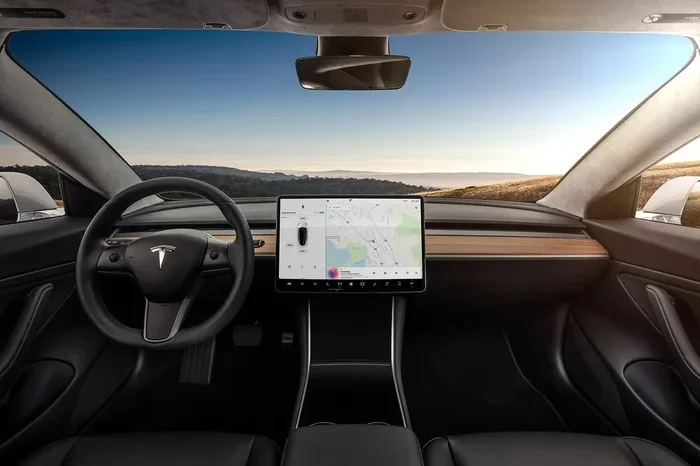
The Tesla navigation system uses your saved home address as a default destination. When you press the home button on the touchscreen controls, the car pulls up the route instantly. It also factors in current traffic, your battery level, and nearby charging stations to build the best possible route planning path.
The car navigation system does not just point you in a general direction. It gives you turn-by-turn directions, just like Google Maps or Apple Maps. But because it is built into the vehicle, it is designed specifically for electric vehicles. It knows how much charge you have, how far you can go, and where the nearest EV charging options are along the way.
Step-by-Step Guide: Setting Your Home Address on the Touchscreen
The most common way to set home address in a Tesla Model 3 is directly through the vehicle’s touchscreen. This method works even if you do not have your phone nearby. Here is exactly what to do.
Start by tapping the search bar at the top of the Tesla touchscreen. Type in your full home address. Make sure you include the street number, street name, city, state, and zip code. The vehicle will start showing matching results as you type. Select the correct one from the dropdown list.
Once your address appears on the map, press and hold on it. A menu will pop up with several options. Look for the option that says “Add to Contacts” or “Save as Home.” Tap that option. Your home address is now saved in the vehicle’s vehicle settings menu.
To confirm it worked, go to the navigation home screen and tap the home icon. The car should immediately pull up the route to your saved address. If it does, you are all set. If not, double-check that you selected the right address and saved it properly.
Tips for Entering Your Address Correctly
Getting your address entry right the first time saves you from headaches later. Here are a few tips to keep in mind. Use the full formal name of your street. For example, use “Street” instead of “St” if the touchscreen allows it. Make sure the city and zip code match what is on file with your local post office.
If you live in an apartment complex, include your apartment or unit number. The Tesla navigation system uses this to pinpoint your exact location. Also, make sure you are connected to Wi-Fi or cellular data while entering your address. This ensures the map data is up to date and accurate.
Setting Your Home Address Through the Tesla Mobile App
Did you know you can also set your home address using the Tesla mobile app? This is a great option if you prefer using your phone or want to set it up before you even get in the car. The Tesla app lets you manage many vehicle features remotely.
Open the Tesla app on your phone. Tap the “Vehicle” tab at the bottom. Scroll down to find the “Home” or “Address” section. Enter your full home address in the provided fields. Save the changes. Within a few moments, the vehicle syncs with the app and updates your home location in the Tesla dashboard.
This method is especially useful if you have moved recently or if you want to update your home address without getting in the car. The app also lets you set other locations like work or favorite spots. You can manage all of your saved destination input points right from your phone.
App vs. Touchscreen: Which Method Is Better?
Both methods work well, but they have slightly different strengths. The touchscreen method is faster if you are already in the car. You can set your home address in about two minutes. The app method is better if you want to set things up in advance or make changes on the go.
Some owners prefer to use both. They set the initial address through the app and then fine-tune it on the touchscreen. This gives you the best of both worlds. Choose whichever method fits your workflow. The important thing is that your home location gets saved correctly.
How to Navigate Home Once Your Address Is Set
Once your home address is saved, navigating home becomes effortless. There are several ways to trigger the route, and each works a little differently.
The simplest way is to tap the home icon on the Tesla dashboard. This icon looks like a small house and is always visible on the navigation system bar. One tap and the car starts building your route instantly. It factors in current traffic conditions and your remaining battery charge.
You can also use voice commands. Press the voice button on the steering wheel and say “Navigate home.” The car will pull up the route to your home location without you touching the screen. This is especially handy when your hands are busy or when driving in heavy traffic.
Another option is to use the Tesla app on your phone. Open the app, tap “Navigate Home,” and the car will start planning the route even before you get in. When you sit down, the route is already ready to go. This is a great feature for those cold mornings when you want the cabin to be warm when you arrive.
How the Car Plans Your Route Home
The Tesla navigation system does more than just give you directions. It intelligently plans your route based on several factors. It checks your current battery level and estimates whether you have enough charge to reach home. If not, it will suggest the nearest charging station along the way.
The system also considers real-time traffic data. If there is a major jam on your usual route, it will offer an alternative path. This kind of route planning is one of the standout features of owning a Tesla. It takes the stress out of daily commuting and long trips alike.
It is worth noting that Tesla’s navigation system is constantly updating. The company pushes map and software updates over the air. This means your car navigation experience keeps getting better over time. New features and improved routing algorithms are added regularly without you needing to visit a service center.
Tips for Optimizing Your Home Address Setup
Now that you know how to set home address in a Tesla Model 3, here are some tips to get the most out of the feature. These small adjustments can make a big difference in your daily experience.
First, make sure your location services are enabled on both the car and your phone. This allows the Tesla to use GPS data accurately. Without it, the navigation system may not know exactly where you are or how far you are from home.
Second, update your vehicle software regularly. Tesla releases over-the-air updates that improve navigation system performance and add new features. Keeping your software current ensures your home address feature works smoothly and efficiently.
Third, consider setting multiple home addresses if your routine changes often. For example, you might want a weekday home and a weekend home. The Tesla vehicle settings allow you to save multiple locations. This is useful if you spend time at a second home or a regular weekend destination.
Fourth, review your saved home address after any move or address change. It is easy to forget to update it, but an outdated address can lead to wrong directions. Take a few minutes to update the information whenever your living situation changes.
Using Home Address for Climate Pre-Conditioning
One of the most underrated benefits of saving your home address is climate pre-conditioning. When your Tesla knows where home is, it can prepare the cabin for your arrival. If you set a departure time, the car will start heating or cooling the interior before you get in.
This feature is especially valuable in extreme weather. In cold climates, you can wake up to a warm car on a freezing morning. In hot climates, the car can cool down the interior while it is still plugged in. All of this works because the Tesla navigation system knows your home location and can time the conditioning perfectly.
Troubleshooting Common Issues When Setting Your Home Address
While setting your home address is generally straightforward, you might run into occasional issues. Here are the most common problems and how to fix them.
If your address does not save, check your internet connection first. The Tesla needs a data connection to sync address entry information. Try connecting to Wi-Fi or making sure your cellular data is active. Then try saving the address again.
If the navigation system does not recognize your saved home, restart the touchscreen. You can do this by holding down both scroll wheels on the steering wheel until the screen goes dark and then turns back on. This refreshes the Tesla dashboard and often fixes minor glitches.
Sometimes the map data might be outdated. Check for a software update in the “Software” section of your vehicle settings. Installing the latest update ensures your maps are current and your navigation system works as intended.
If you are still having trouble, you can reach out to Tesla support through the app. They can walk you through the process and help resolve any persistent issues with your home address setup.
When Your Home Address Shows the Wrong Location
Occasionally, the map might place your home location at the wrong spot. This usually happens when the address database has a slight error. To fix this, try entering your address using a nearby landmark or intersection instead of the street address.
You can also drop a pin manually on the map at your exact location. This gives you more precision than typing in an address. Once the pin is in the right spot, save it as your home address. The car will then navigate to that exact spot every time.
It is also worth noting that Tesla’s map data improves over time through user contributions and updates. If your address is currently wrong, a future software update might fix it automatically. Keep your vehicle updated to benefit from these improvements to the navigation system.
How Tesla’s Manufacturing Relates to Your Ownership Experience
Understanding how your Tesla Model 3 is made can give you a deeper appreciation for the vehicle’s features. The process of building a car is complex and fascinating. For instance, it takes a factory a significant amount of time to build a car from start to finish. Tesla’s factory in Fremont, California, is one of the most advanced manufacturing plants in the world, and it produces vehicles at impressive scale.
The amount of man hours that go into building a car is staggering. Every Tesla Model 3 that rolls off the assembly line represents countless hours of skilled labor, engineering precision, and quality control. From stamping the body panels to installing the battery pack and painting the exterior, each step requires careful attention and specialized expertise.
When you think about how many cars a car factory produces in a single day, the numbers are truly remarkable. Tesla’s production capacity allows it to manufacture thousands of vehicles every week. This high-volume production is what makes electric vehicles more accessible and affordable for everyday buyers. It also means that the technology in your car, including the navigation system and home address features, benefits from massive research and development investments.
All of this manufacturing effort comes together to give you a vehicle with cutting-edge features like GPS home saving, smart navigation, and over-the-air updates. The next time you tap the home icon on your Tesla dashboard, it is worth remembering the incredible journey your car went through to get to you.
Final Thoughts on Setting Your Home Address
Setting your home address in a Tesla Model 3 is one of the simplest yet most impactful things you can do as a new owner. It transforms your daily driving experience by making navigation faster, smarter, and more convenient. Whether you use the touchscreen or the mobile app, the process takes only a few minutes.
Once your home address is saved, you unlock a range of features that work together seamlessly. From one-tap navigation to climate pre-conditioning to smart route planning, your Tesla is designed to make your life easier. The navigation system uses your home location as a central point for all of these features.
Take a few minutes today to set up your home address if you have not already. It is one of those small steps that pays off every single day. And if you ever need to update or change it, you now know exactly how to do that too. Enjoy the full potential of your Tesla Model 3 and let the car navigation system handle the rest.
Frequently Asked Questions
Can I set multiple home addresses in a Tesla Model 3?
Yes, Tesla allows you to save multiple locations including home, work, and favorites. You can add or remove locations from the vehicle settings menu on the touchscreen. This is helpful if you have more than one residence or a regular destination you visit often.
Will my home address sync if I switch to a new Tesla Model 3?
Your home address is tied to your Tesla account, not just the vehicle. When you log into a new Tesla, your saved locations should sync automatically. If they do not, you can manually re-add your home location through the touchscreen or the Tesla app.
Does setting a home address drain my Tesla’s battery?
No, saving a home address does not drain your battery. It is simply a stored piece of data in the vehicle’s memory. The navigation system only uses a small amount of power when actively routing, and even less when the address is just saved and not in use.
Can I use my home address for scheduled departure planning?
Absolutely. The Tesla navigation system lets you set a departure time, and it will use your home address to plan the route. It also factors in EV charging needs and pre-conditions the cabin based on the estimated arrival time at your home location.
What happens if I move and need to change my home address?
Changing your home address is just as easy as setting it. Go to the vehicle settings on the touchscreen or the Tesla app, delete the old address, and enter the new one. The car will update immediately and the new home location will be available for navigation right away.
Do I need an internet connection to set my home address?
Yes, you need an active internet connection to save and sync your home address. The Tesla uses Wi-Fi or cellular data to access map information and update the navigation system. Once saved, the address is stored locally and works even without a connection.