Why Wont My Phone Connect to My Car Toyota Bluetooth
Why wont my phone connect to my car Toyota Bluetooth? This is one of the most common tech headaches Toyota owners face. Whether it is a simple pairing glitch, a software mismatch, or a deeper hardware issue, the good news is that most Bluetooth connection problems are easy to fix at home. This guide walks you through every likely cause and gives you clear, step-by-step solutions to get your Toyota Bluetooth working again fast.
You are getting into your Toyota, ready to hit the road. You reach for your phone, ready to stream music, take a call, or use GPS. But then it happens. Your phone just will not connect to the car Bluetooth. It is frustrating, right? You are not alone.
Toyota owners deal with Bluetooth connection issues all the time. The good news is that most of these problems have simple fixes. In this article, we are going to break down every reason why your phone might not be connecting to your Toyota. We will also give you clear, step-by-step solutions you can try right now.
Whether you drive a Camry, a RAV4, a Highlander, or any other Toyota model, this guide has you covered. Let us get your Toyota Bluetooth working again.
Key Takeaways
- Restart Both Devices First: A simple restart of your phone and the Toyota infotainment system resolves most Bluetooth issues.
- Check Bluetooth Settings Carefully: Make sure Bluetooth is turned on, visible, and not already paired with another device.
- Delete Old Pairings: Clearing cached Bluetooth connections removes conflicts that block new pairings.
- Keep Software Updated: Outdated phone software or Toyota infotainment firmware is a leading cause of connection failures.
- Distance and Interference Matter: Physical barriers and other wireless devices can weaken or block your Bluetooth signal.
- Factory Reset as a Last Resort: Resetting the Toyota infotainment system can fix stubborn Bluetooth problems that nothing else solves.
📑 Table of Contents
- Understanding How Toyota Bluetooth Connectivity Works
- Common Reasons Why Your Phone Will Not Connect to Toyota Bluetooth
- Step-by-Step Fixes to Restore Your Toyota Bluetooth Connection
- How to Prevent Bluetooth Connection Problems in Your Toyota
- When to Seek Professional Help for Toyota Bluetooth Issues
- Quick Tips Table for Toyota Bluetooth Troubleshooting
- Final Thoughts
Understanding How Toyota Bluetooth Connectivity Works
Before we dive into fixes, it helps to understand how your Toyota connects to your phone. Toyota vehicles use a built-in infotainment system that supports Bluetooth wireless pairing. This system lets you make hands-free calls, stream audio, and sometimes even mirror your phone screen.
The Toyota infotainment system acts like a bridge. It links your phone to the car’s audio and communication systems. When you pair your phone for the first time, the car and your phone exchange specific codes. After that, they should connect automatically every time you get in the car.
But here is the thing. Bluetooth technology uses short-range radio waves. Those waves can be disrupted by many things. Distance, other wireless devices, software bugs, and even old pairing data can all cause problems. Understanding this helps you troubleshoot smarter, not harder.
How Toyota Bluetooth Pairs With Your Phone
When you first pair your phone, your Toyota infotainment system goes into a discovery mode. It searches for nearby Bluetooth devices. Your phone also searches for available systems. Once they find each other, you confirm a pairing code on both screens. After that, the connection stays saved in both devices.
Toyota models with Toyota Entune or newer infotainment systems offer even more features. You can stream music, access contacts, and use voice commands. But these features also add more points of potential failure. More features means more software running in the background, which can sometimes lead to Bluetooth connection issues.
Common Reasons Why Your Phone Will Not Connect to Toyota Bluetooth
So, why exactly does this happen? There are several reasons, and they range from super simple to a bit more complex. Let us look at each one so you know what you are dealing with.
1. Bluetooth Is Turned Off or Not Visible
This sounds obvious, but it is the number one reason people call in frustrated. Your phone Bluetooth might be turned off. Or your phone might be on, but set to invisible or hidden mode. The Toyota infotainment system also needs to be in pairing mode or discoverable mode.
Sometimes, Bluetooth turns off accidentally. You might have pressed a button on the steering wheel or in the settings. Other times, your phone switches Bluetooth off to save battery. Either way, checking this first takes only ten seconds.
2. Your Phone Is Already Paired With Another Device
Here is something many people do not think about. Your phone might still be connected to your headphones, smartwatch, or another car’s Bluetooth system. When your phone is already paired and actively connected to a different device, it often will not connect to a second one.
Toyota vehicles can remember multiple paired devices. But your phone usually only connects to one active Bluetooth source at a time for audio streaming. If your phone is streaming music through your wireless earbuds, it will not send that audio to your Toyota at the same time.
3. Old or Corrupted Pairing Data
Over time, the Bluetooth pairing data between your phone and your Toyota can become corrupted. This happens when software updates change how devices communicate. It can also happen after a system glitch or when you update your phone operating system.
Think of it like a saved password that no longer works. The car and your phone remember each other, but the connection details have changed. The old data conflicts with the new setup, and nothing connects. This is one of the most common reasons for Toyota connectivity issues.
4. Software or Firmware Is Outdated
Both your phone and your Toyota infotainment system run on software. When either device has an outdated version, compatibility problems can arise. Phone operating systems update regularly. Toyota also releases firmware updates for its infotainment systems.
If you just updated your phone and now Bluetooth will not connect, the new software might not be fully compatible with your older Toyota system. The reverse is also true. An older phone might struggle with a newer Toyota infotainment system that expects the latest communication protocols.
5. Bluetooth Range and Physical Barriers
Bluetooth has a limited range. It typically works well within about 30 feet. But physical barriers like metal car roofs, tinted windows, and even your phone case can weaken the signal. If your phone is buried under a pile of jackets on the back seat, the Bluetooth signal might not reach the car’s antenna.
Also, other wireless devices in or near your car can cause interference. Wireless chargers, dash cams, and even other phones in the vehicle can all compete for the same Bluetooth frequency. This interference can prevent a stable connection.
6. Your Toyota Infotainment System Needs a Reset
Just like your phone, your Toyota infotainment system can freeze or glitch. A frozen system might not search for Bluetooth devices properly. It might show a connected status even when no audio is flowing. In these cases, a soft reset or a full system reboot often fixes the problem.
Toyota infotainment systems are essentially small computers. They run apps, manage connections, and process audio signals. When one of these processes gets stuck, the whole Bluetooth system can stop working. A reset clears the temporary files and restarts everything cleanly.
Step-by-Step Fixes to Restore Your Toyota Bluetooth Connection
Now that you know the common causes, let us get into the fixes. Try these steps in order. Most people solve their problem by step three or four.
Step 1: Turn Bluetooth Off and Back On
Start with the simplest fix. On your phone, turn Bluetooth off completely. Wait about 10 seconds. Then turn it back on. On your Toyota, go to the Bluetooth settings and turn the system Bluetooth off and then back on. This refreshes the connection and often resolves temporary glitches.
This step works because it clears the active connection queue. It forces both devices to re-detect each other fresh. Many Bluetooth issues are just temporary hiccups that a simple refresh fixes.
Step 2: Restart Both Your Phone and Your Toyota
Restarting both devices is one of the most effective troubleshooting steps. On your phone, power it completely off and then back on. For your Toyota, turn the ignition off, wait 30 seconds, and then start the car again.
Restarting clears temporary memory and stops any background processes that might be interfering. It also resets the Bluetooth module in both devices. Many Toyota owners swear by this simple step. It fixes Bluetooth problems more often than people realize.
As a bonus tip, you can also try restarting your car when it has intermittent electrical issues, since Bluetooth problems sometimes overlap with broader electrical gremlins.
Step 3: Delete the Old Pairing and Re-Pair
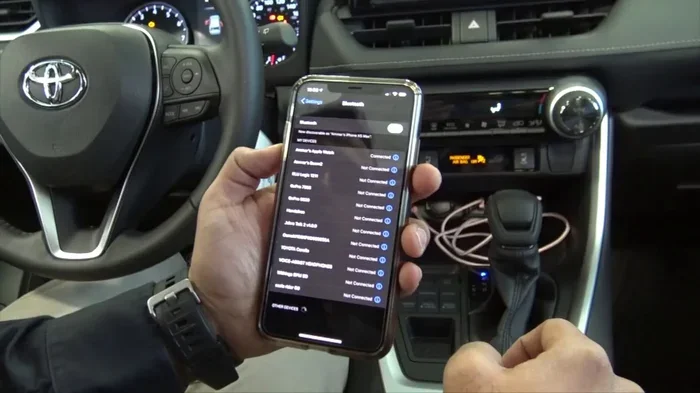
If restarting does not work, delete the old Bluetooth pairing from both your phone and your Toyota. On your phone, go to Bluetooth settings, find your Toyota, and select “Forget This Device” or “Unpair.” On your Toyota infotainment system, find the paired device list and delete your phone from it.
After deleting, start fresh. Put your Toyota into pairing mode. Go to your phone’s Bluetooth settings and search for available devices. Select your Toyota when it appears. Confirm the pairing code on both screens. This fresh start removes any corrupted data that was blocking the connection.
Step 4: Check for Software and Firmware Updates
Go to your phone’s settings and check for any available operating system updates. Install them if available. Next, check your Toyota infotainment system for updates. You can usually find this in the settings menu under “System” or “Software Update.”
Some Toyota models also let you check for updates through the Toyota app on your phone. If your Toyota supports remote updates, make sure you are running the latest firmware. Updated software often includes fixes for known Bluetooth connectivity issues.
Step 5: Reset Network Settings on Your Phone
If the problem persists, try resetting your phone’s network settings. This clears all saved Wi-Fi passwords, Bluetooth pairings, and cellular settings. It does not delete your personal data, but it does remove all network connections.
On iPhone, go to Settings, then General, then Transfer or Reset iPhone, then Reset, then Reset Network Settings. On Android, go to Settings, then System, then Reset Options, then Reset Wi-Fi, Mobile, and Bluetooth.
After the reset, try pairing your phone with your Toyota again. This step is especially helpful when software conflicts are causing the problem.
Step 6: Factory Reset the Toyota Infotainment System
This is the big one. If nothing else has worked, a factory reset of your Toyota infotainment system can do the trick. This wipes all settings, paired devices, and saved preferences back to the original factory state.
To do this, go to your Toyota’s settings menu. Look for “System” or “General Setup.” Find the option for “Factory Reset” or “Reset to Factory Defaults.” Confirm the reset and wait for the system to reboot. This process can take several minutes. Once it is done, re-pair your phone and see if the Bluetooth connection works.
Keep in mind that a factory reset will erase your saved radio stations, navigation favorites, and other personal settings. You will need to set those up again. But for stubborn Bluetooth problems, this step almost always works.
How to Prevent Bluetooth Connection Problems in Your Toyota
Once you get your Toyota Bluetooth working again, you do not want to deal with this problem again. Here are some simple habits that keep your Toyota Bluetooth connection strong and reliable.
Keep Your Software Updated
Regular updates are your best defense against Bluetooth problems. Both your phone and your Toyota benefit from the latest software patches. These updates often include bug fixes for known connectivity issues. Set a reminder to check for updates once a month.
Keep Your Phone Close to the Car
When you first get into your Toyota, place your phone on the center console or the dashboard mount. This puts your phone within the best Bluetooth range. Avoid stuffing your phone under a seat or in the glove box, especially when you are trying to pair it for the first time.
Limit the Number of Paired Devices
Toyota infotainment systems can store multiple paired devices. But having too many devices saved can slow down the system and cause connection conflicts. Periodically go through your paired device list and delete devices you no longer use. This keeps your Bluetooth system running smoothly.
Turn Off Bluetooth When Not in Use
Some experts recommend turning off Bluetooth on your phone when you are not using it. This reduces the chance of accidental connections and interference from other devices. It also saves battery life on your phone. A simple habit that keeps things running clean.
Use a Quality Phone Mount
A good phone mount keeps your phone in a consistent position near the car’s Bluetooth antenna. This improves signal strength and connection stability. Look for mounts that attach to your dashboard or air vent without blocking your view or your phone’s antenna.
When to Seek Professional Help for Toyota Bluetooth Issues
Most Bluetooth problems are easy to fix at home. But sometimes, the issue is deeper than a simple reset or re-pair. Here are signs that you need professional help.
If you have tried all the steps above and your Toyota Bluetooth still will not connect, there might be a hardware problem. The Bluetooth antenna in your Toyota could be damaged. This can happen after an accident, even a minor one. Water damage from a leak can also affect the Bluetooth module.
Another sign is when other features of your Toyota infotainment system stop working too. If your touch screen is unresponsive, your radio has no sound, or your backup camera is not working alongside the Bluetooth problem, you might have a broader electrical issue. In these cases, it is best to visit a Toyota dealer or a qualified automotive electronics specialist.
You can also check if your Toyota is still under warranty. Some Toyota warranty plans cover infotainment system repairs. Before you pay for expensive diagnostics, confirm your warranty status. You might be covered at no cost to you.
If you are wondering whether you can take your Toyota to any dealer for service, the answer might surprise you and could save you time and money on your repair visit.
Quick Tips Table for Toyota Bluetooth Troubleshooting
- Bluetooth off on phone? Turn it on and make sure it is set to visible.
- Already connected to another device? Disconnect from other devices first.
- Old pairing data? Delete and re-pair both devices.
- Software outdated? Update phone OS and Toyota firmware.
- Signal interference? Move phone closer and remove other wireless devices.
- System frozen? Soft reset the Toyota infotainment system.
- Nothing works? Factory reset the Toyota system or seek professional help.
Final Thoughts
Dealing with a phone that will not connect to Toyota Bluetooth is annoying. But it is almost always fixable. The vast majority of Bluetooth connection problems come down to a few simple causes. A restart, a re-pair, or a software update solves the issue in most cases.
Remember to keep your devices updated. Keep your paired device list clean. And give your phone a good spot near the center console when you get in the car. These small habits go a long way toward preventing future Bluetooth headaches.
If you have tried everything in this guide and still have problems, do not hesitate to reach out to a Toyota professional. Sometimes the issue is beyond what a quick fix can solve. But with the steps above, you are well equipped to handle most Toyota Bluetooth connection problems on your own.
Now get back on the road and enjoy your music, your calls, and your hands-free connection. Your Toyota and your phone are meant to work together. With the right setup, they will do exactly that.
Frequently Asked Questions
Why does my phone connect to Toyota Bluetooth but there is no sound?
This usually means the audio source is not set correctly on your Toyota infotainment system. Check that Bluetooth audio is selected as the active audio input. Also make sure your phone volume is turned up and not muted. Sometimes restarting both devices fixes the audio routing issue.
Can I connect multiple phones to my Toyota Bluetooth at the same time?
Yes, most Toyota models support multiple paired devices. However, only one phone can be actively connected for audio streaming at a time. If another phone calls in, the system will switch to that phone automatically. You can also manually switch the active connection in your Toyota Bluetooth settings.
Why does my Toyota Bluetooth keep disconnecting randomly?
Random disconnections are often caused by signal interference or an outdated Bluetooth profile on one of your devices. Other causes include a low phone battery, a phone case that blocks the antenna, or being too far from the car’s Bluetooth antenna. Try moving your phone closer to the center console and check for software updates on both devices.
Does my phone need to be unlocked for Toyota Bluetooth to connect?
On most Toyota models, your phone does not need to be unlocked for basic Bluetooth connection. However, if you want to access contacts, messages, or use voice commands through the car system, your phone may need to be unlocked and you may need to grant permission for the car to access those features.
How do I know if my Toyota supports Bluetooth audio streaming?
Most Toyota models from 2012 and newer support Bluetooth audio streaming. You can check by looking at the Bluetooth settings menu on your Toyota infotainment system. If you see an option for “Audio Streaming” or “Media Audio,” your Toyota supports streaming music from your phone over Bluetooth.
Can I use Apple CarPlay or Android Auto instead of Toyota Bluetooth?
Yes, many newer Toyota models support Apple CarPlay and Android Auto. These systems offer a more seamless phone integration than standard Bluetooth. They provide better navigation, music streaming, and voice assistant features. Check your Toyota’s infotainment manual or visit the Toyota website to see if your model supports these features.