How to Connect Bluetooth to Toyota Camry the Easy Way
Learning how to connect Bluetooth to Toyota Camry is simple and takes just a few minutes. This guide walks you through pairing your phone, streaming music, making hands-free calls, and fixing common Bluetooth issues. Whether you drive a 2012 Camry or a 2024 model, you will find clear steps that work every time.
Staying connected while you drive has never been more important. Whether you want to stream your favorite playlist, take calls hands-free, or use navigation apps, how to connect Bluetooth to Toyota Camry is a skill every Camry owner should master. The good news is that the process is straightforward and works across most model years.
Your Toyota Camry comes packed with modern technology that makes wireless pairing a breeze. From the infotainment screen to the steering wheel controls, Toyota designed the system to be user-friendly. Still, many drivers find themselves stuck at the pairing stage or dealing with connection drops.
This complete guide covers everything you need to know. You will learn the exact steps for pairing, how to stream audio, make phone calls, and fix the most common Bluetooth problems. We also share tips for managing multiple devices and keeping your connection strong over time. By the end, you will feel confident using every Bluetooth feature your Camry has to offer.
If you have ever wondered whether your older Camry even supports Bluetooth, the answer is most likely yes. Toyota has included Bluetooth in the Camry lineup for many years now. And if you are curious about how long your Camry can keep running strong, check out our guide on Can a Toyota Camry Last 30 Years for some inspiring real-world examples.
Key Takeaways
- Bluetooth pairing is quick: Most Toyota Camry models let you connect your phone in under five minutes with simple on-screen steps.
- Hands-free calling keeps you safe: You can make and receive calls without taking your hands off the wheel.
- Audio streaming works wirelessly: Stream music, podcasts, and audiobooks directly through your car speakers.
- Troubleshooting is easy: Most Bluetooth problems can be fixed by resetting the connection or updating your phone settings.
- Multiple devices can pair: Your Camry can remember several phones at once for easy switching between drivers.
- Regular maintenance helps: Keeping your Bluetooth system updated ensures a smooth and reliable connection every time.
📑 Table of Contents
- Understanding Bluetooth in the Toyota Camry
- How to Connect Bluetooth to Toyota Camry: Step-by-Step
- How to Connect Bluetooth to Toyota Camry for Hands-Free Calling
- Troubleshooting Common Bluetooth Problems
- Tips to Get the Most From Bluetooth in Your Toyota Camry
- Maintaining Your Toyota Camry’s Bluetooth System
- Conclusion
Understanding Bluetooth in the Toyota Camry
Before you start pairing, it helps to understand what Bluetooth does in your Camry and which features are available. Bluetooth is a short-range wireless technology that lets your phone talk to your car without cables. In the Toyota Camry, this connection powers several useful functions.
What Bluetooth Does in Your Camry
When you connect your phone via Bluetooth, you unlock a range of features. Here is what you can typically do:
- Hands-free calling: Answer and make calls using your car’s microphone and speakers.
- Audio streaming: Play music, podcasts, and audiobooks through your car audio system.
- Phone book sync: Access your contacts directly from the infotainment screen.
- Steering wheel controls: Use the buttons on your wheel to change tracks or accept calls.
- Voice commands: Some Camry models support voice-activated calling and media control.
These features make your drive safer and more enjoyable. You do not need to fumble with your phone while driving. Everything stays within reach on the dashboard or steering wheel.
Which Toyota Camry Models Support Bluetooth
Bluetooth support in the Camry has been around for a long time. Most models from 2007 onward include standard Bluetooth connectivity. However, the features available can vary depending on your trim level and year.
Here is a quick look at what to expect by generation:
- 6th Generation (2007-2011): Basic Bluetooth for hands-free calling. Audio streaming may require an optional accessory.
- 7th Generation (2012-2017): Full Bluetooth support with audio streaming and phone book sync across most trims.
- 8th Generation (2018-Present): Advanced Bluetooth with wireless charging, improved voice recognition, and seamless device pairing.
If you are unsure about your specific model, your owner’s manual will list the exact Bluetooth features. You can also visit your local Toyota dealer for confirmation. And if you are dealing with other Camry tech questions, such as whether your Camry can take regular oil, our article on Can a Toyota Camry Take Regular Oil has the answers you need.
How to Connect Bluetooth to Toyota Camry: Step-by-Step
Now let us get into the actual process. Connecting your phone to your Camry is a simple procedure. Follow these steps carefully, and you will be paired in no time.
Preparing Your Phone and Car
Before you start, a little preparation goes a long way. Make sure both your phone and your car are ready for the pairing process.
- Turn on your Camry: Start the engine or put the car in accessory mode. The infotainment screen should light up.
- Enable Bluetooth on your phone: Go to your phone’s settings and turn on Bluetooth. Make sure it is set to be visible or discoverable.
- Clear old pairings if needed: If your Camry already has a connected device, you may want to remove it first to avoid confusion.
- Keep your phone close: Place your phone on the center console or dashboard during pairing.
Taking these small steps upfront prevents most common pairing issues. It sets the stage for a smooth and successful connection.
Pairing Your Phone (Step-by-Step)
Here is the core process for pairing your phone with your Toyota Camry. The exact menu names may vary slightly depending on your model year, but the general steps remain the same.
Step 1: On your Camry’s infotainment screen, press the Settings button. This is usually represented by a gear icon on the screen or the steering wheel.
Step 2: Navigate to the Bluetooth or Phone menu. Select it to open the Bluetooth settings panel.
Step 3: Choose the option to Add Device or Search for Devices. Your Camry will begin scanning for nearby Bluetooth devices.
Step 4: On your phone, look for your Camry in the list of available devices. It may show up as “Toyota Camry” or “TOYOTA AUDIO.” Tap on it to initiate pairing.
Step 5: A passkey or PIN may appear on both your car screen and your phone. Confirm that the numbers match, then tap Pair or Connect on both devices.
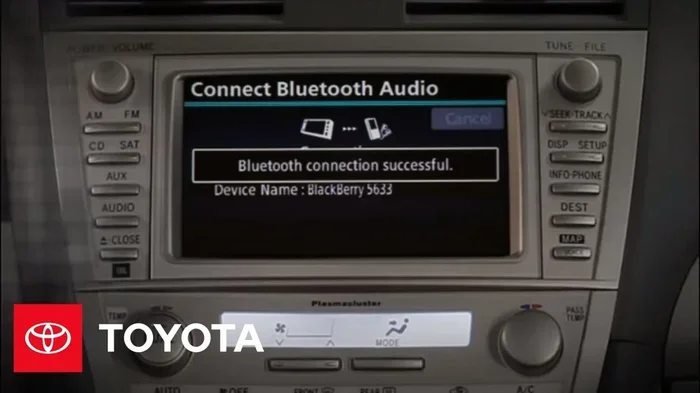
Step 6: Wait a few seconds for the connection to establish. You should see a confirmation message on your infotainment screen. Your phone will also show a Bluetooth icon in the status bar.
That is it! Your phone is now connected to your Toyota Camry. You can start making calls and streaming audio right away. If you run into any issues, do not worry. The troubleshooting section below covers the most common problems and their solutions.
Connecting for Audio Streaming
Once your phone is paired, audio streaming should work automatically on most Camry models. However, you may need to adjust a few settings to get the best experience.
On your infotainment screen, go to the Audio or Media source menu. Look for the Bluetooth audio option and select it. Your phone’s audio output should now route through your car speakers.
If you want to use apps like Spotify, Apple Music, or YouTube Music, make sure the app’s audio output is set to Bluetooth. Most apps detect the car connection automatically once Bluetooth is active.
For drivers who also use their phones for navigation, you can run your GPS app while streaming music. The navigation voice will pause your audio automatically and then resume when the directions are complete. This feature works seamlessly on most Camry models.
Some Camry owners also like to share photos or media between their phone and the car system. If you are interested in adding pictures to your Uconnect system from your phone, our guide on How To Add Pictures To Uconnect From A Phone covers that process in detail.
How to Connect Bluetooth to Toyota Camry for Hands-Free Calling
One of the biggest benefits of Bluetooth in the Camry is hands-free calling. This feature keeps your eyes on the road and your hands on the wheel. Here is how to set it up and use it properly.
Setting Up Phone Book Sync
Syncing your phone book means your Camry can display your contacts and let you dial them by name. This is incredibly convenient while driving.
- Go to the Phone or Contacts menu on your infotainment screen.
- Select Import Contacts or Sync Phone Book.
- Choose your paired phone from the list.
- Wait for the sync to complete. This may take a minute depending on how many contacts you have.
Once synced, you can browse your contacts on the car screen or use voice commands to call someone by name. This is especially helpful when you are on the road and need to reach someone quickly.
Making and Receiving Calls
When a call comes in, your Camry will display the caller’s name or number on the infotainment screen. To answer, press the Phone button on your steering wheel. To end the call, press the same button again.
To make a call, you have several options:
- Dial manually: Use the on-screen keypad to enter a number.
- Select a contact: Browse your synced phone book and tap the name you want to call.
- Use voice commands: Press the voice control button on your steering wheel and say the contact’s name.
- Recent calls: Access your call history directly from the phone menu.
The microphone in your Camry picks up your voice clearly, even at highway speeds. The car speakers deliver the other person’s voice at a comfortable volume. This setup makes talking on the phone while driving much safer than holding your phone in your hand.
For those who also want to make sure their key fob battery is in good shape, our article on How Do I Know If My Key Battery Is Low offers helpful tips for maintaining all your Camry’s wireless systems.
Troubleshooting Common Bluetooth Problems
Even with a simple setup process, Bluetooth issues can happen from time to time. Here are the most common problems Camry owners face and how to fix them.
Bluetooth Won’t Pair
If your phone will not connect to your Camry, try these steps:
- Turn Bluetooth off and back on: On both your phone and your car, disable Bluetooth, wait ten seconds, and re-enable it.
- Remove old pairings: Go to your Camry’s Bluetooth settings and delete any old or unused connections. Do the same on your phone.
- Restart both devices: Turn off your car and your phone. Wait a minute, then start them again and try pairing fresh.
- Check the distance: Keep your phone within a few feet of the car’s infotainment system during pairing.
- Update your phone software: Sometimes an outdated phone operating system causes compatibility issues.
In most cases, simply resetting the Bluetooth connection on both devices solves the problem. If it does not, try the next fix in the list.
Audio Keeps Cutting Out
If your Bluetooth audio keeps dropping or stuttering, the issue is usually related to signal interference or distance. Here is what to do:
- Move your phone closer to the car: Keep it on the center console, not in the back seat or glove box.
- Check for interference: Other Bluetooth devices, USB cables, or even phone cases can sometimes interfere with the signal.
- Switch Bluetooth codecs: Some Camry models allow you to choose a different Bluetooth audio codec in the settings. Try switching if the option is available.
- Check your phone’s Bluetooth version: Older phones with Bluetooth 4.0 or lower may have weaker connections than newer models.
A stable Bluetooth connection depends on a clear line of communication between your phone and the car. Removing physical barriers and electronic interference helps a lot.
Bluetooth Connected But No Sound
This is a frustrating but common issue. Your phone shows as connected, but no audio plays through the car speakers.
Try these fixes:
- Check the audio source: Make sure your infotainment screen is set to the Bluetooth audio source, not radio or USB.
- Check your phone’s volume: Both the media volume on your phone and the car’s volume need to be turned up.
- Check the car’s volume: Press the volume knob or steering wheel volume buttons to increase the car’s audio output.
- Re-pair the device: Delete the pairing and connect again from scratch.
- Check for phone updates: A recent phone update may have changed your Bluetooth audio settings.
In almost every case, one of these steps restores your audio. The problem is usually a simple setting that got changed accidentally.
Tips to Get the Most From Bluetooth in Your Toyota Camry
Once your Bluetooth is working, a few smart habits will keep the experience smooth and enjoyable. Here are some expert tips from seasoned Camry owners.
Keeping Your Connection Stable
A strong Bluetooth connection starts with good habits. Always park your car in a spot where your phone can easily reach the infotainment system. Avoid stacking metal objects or thick phone cases between your phone and the car’s Bluetooth antenna.
Also, keep your phone’s Bluetooth software up to date. Phone manufacturers regularly release updates that improve Bluetooth performance and fix connection bugs. Checking for updates once a month takes only a minute and can prevent many issues.
Managing Multiple Devices
Your Toyota Camry can remember multiple Bluetooth devices at once. This feature is perfect for families or anyone who shares the car. When a second phone connects, the car usually detects it and switches automatically.
To manage your paired devices, go to the Bluetooth settings menu on your infotainment screen. You can see all connected and saved devices here. From this menu, you can delete old connections, rename devices for easy identification, and set which device connects by default.
If you want to learn more about switching between different car modes or features, our article on Can You Switch To Sport Mode While Driving A Toyota explores additional ways to customize your Camry’s driving experience.
Using Voice Commands for Safer Driving
Voice commands are one of the best features of Bluetooth in the Camry. Instead of touching your phone or the screen, you can use your voice to make calls, change songs, and get directions. Press the voice control button on your steering wheel and speak clearly.
Common voice commands include:
- “Call [contact name]”
- “Play [artist or song name]”
- “Next track” or “Previous track”
- “Volume up” or “Volume down”
- “Navigate to [address or location]”
Using voice commands keeps your eyes on the road and your hands on the wheel. It is one of the safest ways to interact with your phone while driving.
Maintaining Your Toyota Camry’s Bluetooth System
Like any technology in your car, your Bluetooth system benefits from regular care. A little maintenance goes a long way toward preventing problems and keeping everything running smoothly.
Start by updating your infotainment system software. Toyota occasionally releases updates that improve Bluetooth performance and add new features. You can check for updates at your local Toyota dealer or through the system settings if your Camry supports over-the-air updates.
Next, keep your phone’s Bluetooth cache clean. Over time, stored Bluetooth data can slow down your connection. Clearing this cache on your phone periodically helps maintain a fast and reliable pairing. On most phones, you can find this option in the Bluetooth settings under “Clear Cache” or “Reset Network Settings.”
Finally, if you ever sell or trade in your Camry, remember to unpair your phone from the car’s system. This protects your privacy and gives the next owner a clean slate. It is a simple step that many people forget.
Taking care of your Camry extends beyond just the Bluetooth system. Regular maintenance keeps your entire vehicle running at its best. If you want to learn more about extending the life of your vehicle, our article on Can a Toyota Camry Go to 500000 Miles offers valuable insights and real-world examples from long-term Camry owners.
Conclusion
Learning how to connect Bluetooth to Toyota Camry opens up a world of convenience and safety. You can make hands-free calls, stream your favorite music, and access your phone contacts without ever taking your hands off the wheel. The process is simple, and the benefits are immediate.
Whether you are pairing a new phone, troubleshooting a connection issue, or just exploring what your Camry’s Bluetooth system can do, this guide has you covered. Follow the step-by-step instructions, use the troubleshooting tips when needed, and keep your system maintained for the best experience.
Your Toyota Camry is a versatile and reliable vehicle. Adding Bluetooth connectivity makes it even better. Take a few minutes today to connect your phone and enjoy a smarter, safer driving experience every time you hit the road.
Frequently Asked Questions
Can I connect multiple phones to my Toyota Camry at the same time?
Yes, most Toyota Camry models can remember and store multiple paired phones. The car will usually connect to the last phone that was used automatically. You can switch between devices by going to the Bluetooth settings on your infotainment screen and selecting the phone you want to use.
Why does my Bluetooth keep disconnecting from my Toyota Camry?
Bluetooth disconnections are usually caused by signal interference, distance, or outdated software. Try moving your phone closer to the car, turning Bluetooth off and back on, or updating your phone’s operating system. If the problem persists, deleting the pairing and reconnecting often resolves the issue.
Do I need any extra equipment to use Bluetooth in my Toyota Camry?
No extra equipment is needed for most Camry models. Bluetooth comes standard in Camry vehicles from 2007 onward. However, if your specific trim does not include a touchscreen infotainment system, you may need a simple Bluetooth adapter that plugs into your car’s auxiliary port.
Can I stream music from any app using Bluetooth on my Toyota Camry?
Yes, you can stream music from any app that uses your phone’s Bluetooth audio output. Popular apps like Spotify, Apple Music, YouTube Music, and podcasts all work through Bluetooth. Just make sure the app’s audio output is set to Bluetooth and your car’s audio source is set to Bluetooth.
How do I delete a paired phone from my Toyota Camry’s Bluetooth system?
Go to your Camry’s infotainment screen, open the Bluetooth or Phone settings, find the device you want to remove, and select the option to delete or unpair it. It is also a good idea to delete the Camry from your phone’s Bluetooth memory to ensure a clean reconnect if you ever pair again.
Is it safe to use Bluetooth for phone calls while driving?
Yes, using Bluetooth for phone calls is much safer than holding your phone while driving. It keeps your hands on the wheel and your eyes on the road. Most states have laws requiring hands-free devices for phone calls while driving, and Bluetooth helps you stay compliant and safe.