How Do I Connect My iPhone to Apple CarPlay Without Cable
How Do I Connect My iPhone to Apple CarPlay? is an essential topic that provides valuable insights.
Key Takeaways
- Understanding How Do I Connect My iPhone to Apple CarPlay?: Provides essential knowledge
📑 Table of Contents
- What Is Apple CarPlay and Why Go Wireless?
- Before You Start: What You Need
- Step-by-Step: How to Connect iPhone to Apple CarPlay Without Cable
- Troubleshooting: CarPlay Not Connecting?
- CarPlay Without Cable: Adapter Options for Older Cars
- Best Practices for a Smooth Wireless CarPlay Experience
- CarPlay Compatibility: Which Cars and iPhones Work?
- Common Mistakes to Avoid
- Expert Insights: Making the Most of Wireless CarPlay
- Key Takeaways
- Conclusion
What Is Apple CarPlay and Why Go Wireless?
Apple CarPlay is a smart system that mirrors key iPhone features onto your car’s infotainment screen. You get access to navigation, music, phone calls, and messages. It keeps your eyes on the road and your hands on the wheel.
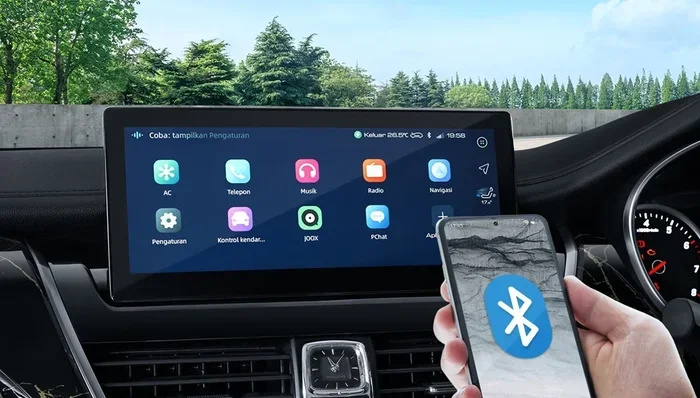
Going wireless removes the need for a USB cable entirely. Your phone connects through Bluetooth and Wi-Fi. This means no cable clutter, no worn-out ports, and no fumbling while driving. The wireless CarPlay experience feels smooth and instant.
Who Supports Wireless CarPlay?
Many popular car brands now offer wireless CarPlay as standard or optional. Brands like BMW, Mercedes-Benz, Hyundai, Kia, and Ford support it. Even some newer Honda, Toyota, and Volkswagen models come with it built in.
If your car does not support wireless CarPlay natively, do not worry. You can still use a wireless CarPlay adapter to add this feature. We will cover that option later in this guide.
Before You Start: What You Need
Getting ready for a wireless iPhone connection is easy. Make sure you have the following things in place before you begin.
- An iPhone 5 or newer running iOS 12 or later (iOS 16 or newer is recommended for the best experience).
- A car with wireless CarPlay support or a wireless CarPlay adapter.
- A stable Wi-Fi network in your car (some cars create their own hotspot).
- Bluetooth enabled on both your iPhone and your car’s system.
- Your car’s infotainment system should be updated to the latest firmware.
Taking a few minutes to check these items saves you a lot of frustration later. It also ensures your CarPlay setup goes as smoothly as possible.
Step-by-Step: How to Connect iPhone to Apple CarPlay Without Cable
Now let us get into the actual process. Follow these steps carefully and you will be up and running in just a few minutes.
Step 1: Enable Bluetooth and Wi-Fi on Your iPhone
First, open the Settings app on your iPhone. Tap on Bluetooth and make sure it is turned on. Then go to Wi-Fi and ensure it is also enabled. Your phone needs both connections to communicate wirelessly with your car.
Tip: If your car has a dedicated Wi-Fi network, you may need to join it manually. Look for the network name in your Wi-Fi list and tap to connect.
Step 2: Start Your Car and Access the Infotainment Menu
Start your car and let the infotainment system fully boot up. Press the CarPlay button on your dashboard or steering wheel. If your car does not have a dedicated button, look for the CarPlay icon in the media or source menu.
Some cars automatically detect your iPhone once Bluetooth is active. Others require you to select CarPlay from the input source list. Check your car’s manual if you are unsure.
Step 3: Accept the Connection on Your iPhone
When your car searches for your iPhone, a prompt will appear on your phone screen. It will ask if you want to allow CarPlay mirroring. Tap Allow to confirm.
You may also need to enter your phone passcode on the car screen the first time you connect. This is a security feature to protect your data.
Step 4: Set CarPlay as Your Default Display
Once connected, your car screen will show the CarPlay home screen. You will see your favorite apps like Maps, Music, Messages, and Phone. You can now use Siri voice commands to control everything hands-free.
Quick Tip: To make wireless CarPlay connect automatically every time you get in the car, go to Settings > General > CarPlay on your iPhone. Select your car from the list and set it as your preferred connection.
Troubleshooting: CarPlay Not Connecting?
Sometimes things do not go as planned. If your CarPlay not connecting, try these fixes before you panic.
Restart Both Devices
The simplest fix often works best. Turn off your car’s infotainment system and restart your iPhone. Then try connecting again. This clears temporary glitches that can block the iPhone connection.
Check for Software Updates
Outdated software is a common cause of connection problems. Go to Settings > General > Software Update on your iPhone. Also check your car manufacturer’s website for infotainment updates. Keeping both devices current solves many CarPlay troubleshooting issues.
Forget the Car and Re-Pair
On your iPhone, go to Settings > Bluetooth. Find your car in the list and tap the info icon. Choose Forget This Device. Then restart both devices and try pairing again. This fresh start often fixes stubborn connection problems.
Reset Network Settings
If Wi-Fi or Bluetooth issues persist, resetting network settings can help. Go to Settings > General > Transfer or Reset iPhone > Reset > Reset Network Settings. Note that this will erase saved Wi-Fi passwords, so have them handy.
Use a Wired Connection Temporarily
If nothing else works, plug in your iPhone with a USB cable. This can help re-establish the connection. After a successful wired session, try going wireless again.
CarPlay Without Cable: Adapter Options for Older Cars
Not every car supports wireless CarPlay out of the box. But you can still enjoy the wireless experience with a wireless CarPlay adapter. These small devices plug into your car’s USB port and create a wireless bridge between your iPhone and the infotainment system.
Popular Wireless CarPlay Adapters
- Carlinkit Wireless CarPlay Adapter: One of the most popular options. Easy to install and works with most car models.
- AAPEX Wireless CarPlay Adapter: Offers fast connectivity and supports both CarPlay and Android Auto.
- Roav Wireless CarPlay Adapter: Compact design with reliable performance and quick pairing.
These adapters typically cost between $50 and $150. They are a great budget-friendly way to add wireless CarPlay to older cars that only support wired connections.
How to Set Up a CarPlay Adapter
- Plug the adapter into your car’s USB port.
- Download the adapter’s companion app on your iPhone if required.
- Enable Bluetooth and Wi-Fi on your iPhone.
- Follow the on-screen prompts to pair the adapter with your phone.
- Select the adapter as your CarPlay source on the car display.
Once paired, the adapter handles the wireless CarPlay mirroring automatically. You get the same wireless experience as a factory-installed system.
Best Practices for a Smooth Wireless CarPlay Experience
To keep your wireless CarPlay running without hiccups, follow these best practices.
Keep Your iPhone Charged
Wireless CarPlay uses more battery than a regular Bluetooth connection. If you drive long distances, consider using a wireless charging pad. Some cars support wireless charging right on the dashboard. This keeps your phone powered while you stay connected.
Limit the Number of Connected Devices
Having too many Bluetooth devices connected can slow things down. Disconnect devices you are not using. This frees up bandwidth and keeps your iPhone connection fast and stable.
Customize Your CarPlay Layout
You can rearrange your CarPlay apps to put the ones you use most front and center. Go to Settings > CarPlay on your iPhone. Tap Customize and drag apps to your preferred order. This makes your driving experience more personal and efficient.
Use Siri for Hands-Free Control
One of the biggest benefits of Apple CarPlay is Siri integration. Say “Hey Siri” to make calls, send messages, or get directions without touching your phone. This keeps you safe and focused on the road.
Update Apps Regularly
Keep your CarPlay apps updated for the best performance. Navigation apps like Google Maps and Waze often release updates that improve CarPlay navigation speed and accuracy. Check the App Store regularly for updates.
CarPlay Compatibility: Which Cars and iPhones Work?
CarPlay compatibility depends on both your iPhone model and your car’s infotainment system. Here is a quick overview.
iPhone Models That Support Wireless CarPlay
- iPhone 12 and newer (fully optimized for wireless CarPlay).
- iPhone 11 and iPhone SE (2nd gen and newer) support wireless CarPlay.
- iPhone X and older models may support wireless CarPlay depending on iOS version.
Car Brands With Strong Wireless CarPlay Support
- BMW: Most models from 2019 onward support wireless CarPlay.
- Hyundai and Kia: Many 2022 and newer models include wireless CarPlay standard.
- Ford: Sync 3 and Sync 4 systems support wireless CarPlay on select models.
- Mercedes-Benz: Most MBUX systems offer wireless CarPlay as standard.
- Volkswagen: MIB3 infotainment systems support wireless CarPlay on newer models.
Always check your car’s manual or contact the dealer to confirm CarPlay supported vehicles for your specific model and year.
Common Mistakes to Avoid
Even with the best setup, people make mistakes that cause CarPlay not connecting issues. Here are the most common ones to watch out for.
- Ignoring software updates: Outdated iOS or car firmware causes many connection problems. Always keep both devices updated.
- Not resetting network settings: If Bluetooth and Wi-Fi are acting up, a network reset often solves the problem quickly.
- Using a damaged cable with a wireless adapter: Even with wireless setups, some adapters need a working USB cable as a power source. Inspect your cable regularly.
- Overloading CarPlay with too many apps: Too many apps can slow down your CarPlay experience. Keep only the essentials on your home screen.
- Forgetting to enable CarPlay in car settings: Some cars have a separate CarPlay toggle in the settings menu. Make sure it is turned on.
Expert Insights: Making the Most of Wireless CarPlay
Expert Insight: According to automotive tech specialists, the biggest advantage of wireless CarPlay is consistency. Once you set it up, it connects automatically every time you get in the car. This seamless iPhone CarPlay settings integration saves time and reduces distraction.
Expert Insight: Tech reviewers also recommend using a dedicated Wi-Fi band if your car allows it. Some cars let you choose between 2.4GHz and 5GHz Wi-Fi. The 5GHz band offers faster data transfer, which means smoother CarPlay mirroring and quicker app loading times.
Expert Insight: If you frequently switch between multiple cars, create a separate CarPlay profile for each vehicle. This prevents settings from one car from overriding another. It also keeps your CarPlay apps organized and personalized for each driving experience.
Key Takeaways
- Wireless CarPlay is easy to set up: You just need Bluetooth, Wi-Fi, and a compatible car or adapter.
- Most modern cars support wireless CarPlay: Check your car’s manual or contact the dealer to confirm CarPlay supported vehicles.
- Use a wireless adapter for older cars: Devices like Carlinkit and AAPEX add wireless CarPlay to any USB-equipped car.
- Troubleshooting is straightforward: Restarting devices, updating software, and resetting network settings solve most issues.
- Keep your iPhone updated: Running the latest iOS version ensures the best iPhone connection and CarPlay compatibility.
- Siri makes driving safer: Use voice commands to control calls, messages, and navigation without taking your hands off the wheel.
- Regular maintenance helps: Keep apps updated, limit connected devices, and customize your CarPlay layout for the best experience.
Conclusion
How do I connect my iPhone to Apple CarPlay without cable? Now you know the full answer. The process is straightforward, and the wireless experience makes every drive more enjoyable. Whether your car supports wireless CarPlay natively or you use an adapter, you can enjoy the same seamless connectivity.
Take a few minutes today to set up your CarPlay setup properly. Follow the steps in this guide, customize your preferences, and enjoy a hands-free driving experience. The freedom of Apple CarPlay without cable is truly worth the effort.
Stay safe on the road, keep your iPhone CarPlay settings optimized, and enjoy the ride. Happy driving!
Frequently Asked Questions
Can I use Apple CarPlay without any cable at all?
Yes, you can use Apple CarPlay without cable if your car supports wireless CarPlay or if you use a wireless CarPlay adapter. The wireless connection uses Bluetooth and Wi-Fi to mirror your iPhone features on your car screen. Just make sure both devices are compatible and properly set up.
Why does my CarPlay keep disconnecting wirelessly?
Wireless CarPlay disconnection is often caused by outdated software, too many connected Bluetooth devices, or Wi-Fi interference. Try restarting both your iPhone and your car’s infotainment system. If the problem persists, forget the car in your Bluetooth settings and re-pair the connection.
Do I need a special adapter for wireless CarPlay?
You only need a wireless CarPlay adapter if your car does not natively support wireless CarPlay. Many older cars only have USB ports for wired connections. A good adapter like Carlinkit or AAPEX can add wireless functionality to these cars easily and affordably.
Is wireless CarPlay slower than wired CarPlay?
In most cases, wireless CarPlay is nearly as fast as wired. However, wired connections may offer slightly quicker app loading and more stable performance in areas with weak Wi-Fi signals. For everyday driving, the difference is minimal and the convenience of going cable-free is well worth it.
Can I charge my iPhone while using wireless CarPlay?
Yes, but wireless CarPlay does not charge your iPhone like a wired connection does. To keep your phone charged, use a wireless charging pad or keep a cable connected for power while enjoying the wireless CarPlay experience. Some newer cars even support wireless charging built into the dashboard.
Which iPhones support wireless Apple CarPlay?
Most iPhones from the iPhone 12 onward support wireless CarPlay fully. The iPhone 11, iPhone SE (2nd generation), and newer models also work with wireless CarPlay. Make sure your iPhone is running iOS 12 or later for the best CarPlay compatibility.
=== FEATURED_IMAGE_PLACEHOLDER ===