How to Add a Second Profile to Your Toyota Account
Adding a second profile to your Toyota account is simple and lets multiple users manage vehicle settings, access connected services, and personalize their experience. Whether you share a Toyota with a family member or want a separate profile for a second driver, the process takes just a few minutes through the MyToyota portal and mobile app. This guide walks you through every step so you can set up profiles quickly and start enjoying tailored features right away.
Managing your Toyota vehicle goes far beyond just driving it. Today, Toyota owners have access to a whole digital ecosystem that lets them control everything from remote start to maintenance reminders. But what happens when more than one person uses the same Toyota? That is where adding a second profile to your Toyota account becomes essential. Toyota account profiles let each driver personalize their experience, access connected services, and manage vehicle settings without stepping on each other’s toes.
Whether you are sharing your Toyota with a spouse, a teen driver, or a co-worker, having a separate profile ensures everyone gets a tailored experience. Adding a second profile to your Toyota account is straightforward, but it helps to know exactly what you need and where to go. In this guide, we will walk you through the entire process step by step. You will learn how to set up profiles on both the MyToyota portal and the mobile app, manage permissions, and make the most of multiple profiles.
Let us be real for a moment. Most Toyota owners do not bother setting up a second profile because they think it is complicated. The truth is, managing multiple Toyota profiles is easier than ever. Toyota designed the MyToyota platform with family sharing in mind. So by the time you finish reading this guide, you will have everything you need to get that second profile up and running in no time.
Key Takeaways
- Easy Setup: Adding a second profile takes only a few minutes through the MyToyota portal or mobile app.
- Personalized Experience: Each profile can have its own vehicle settings, preferences, and connected services access.
- Family Friendly: Multiple profiles make it easy for family members to manage their own Toyota account settings independently.
- No Extra Cost: Creating additional profiles is free and does not require any subscription changes.
- Secure and Separate: Each profile maintains its own login credentials and data for privacy and security.
- Permission Control: You can assign different access levels to each profile so sensitive data stays protected.
📑 Table of Contents
- Why You Need a Second Profile on Your Toyota Account
- How to Add a Second Profile Through the MyToyota Portal
- How to Add a Second Profile Through the Toyota Mobile App
- Managing Permissions and Privacy Between Profiles
- Troubleshooting Common Issues When Adding a Second Profile
- Tips for Getting the Most Out of Multiple Toyota Profiles
Why You Need a Second Profile on Your Toyota Account
Before we dive into the how-to, let us talk about why a second profile matters. A Toyota account is not just a login. It is your gateway to a range of connected services that enhance your driving experience. When you add a second profile, you unlock several benefits that make sharing your vehicle more convenient.
Personalized Settings for Each Driver
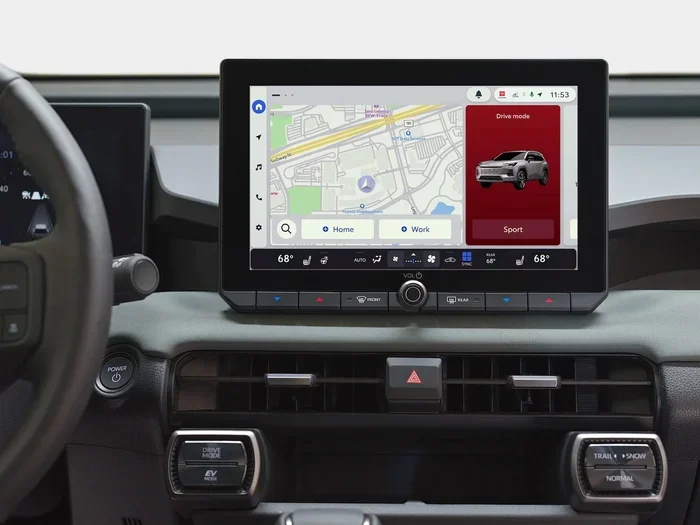
Every driver has their own preferences. One person might like the seat positioned high while another prefers it low. One driver might want the climate set to a cooler temperature, while the other likes it warm. With separate Toyota owner profiles, each person can save their own settings. This means no more adjusting the seat, mirrors, and climate controls every time someone else drives.
The MyToyota portal also lets each profile save preferred navigation destinations, radio presets, and display preferences. These settings sync across the vehicle and the app, so the experience feels seamless whether you are using the infotainment screen or the mobile app.
Separate Access to Connected Services
Toyota connected services include features like remote start, vehicle tracking, and maintenance alerts. When you add a second profile, each user can access these services independently. For example, one driver might use the Toyota app to check fuel levels while the other uses it to schedule service appointments. Each profile maintains its own activity log and notifications.
This separation is especially useful for families. Parents can monitor a teen driver’s habits through their own profile, while the teen can access their own navigation and entertainment settings. It keeps things organized without creating confusion.
Better Vehicle Management
When multiple people use the same vehicle, keeping track of maintenance schedules, fuel fill-ups, and driving habits can get messy. Separate profiles help each user manage their own records. You can track who drove when, monitor fuel economy per driver, and even set individual maintenance reminders. This level of Toyota vehicle profile management helps you stay on top of your car’s health.
How to Add a Second Profile Through the MyToyota Portal
The MyToyota portal is the web-based platform where you manage your Toyota account. It is accessible from any browser and provides the full range of account management tools. Adding a second profile through the portal is the most straightforward method.
Step-by-Step Guide
Follow these steps to add a second profile to your Toyota account via the MyToyota portal:
- Log in to your Toyota account. Go to the Toyota owner portal and enter your credentials. If you do not have an account yet, you will need to create one first by clicking the “Sign Up” button and following the prompts.
- Navigate to Account Settings. Once logged in, look for the “Account Settings” or “Profile Management” section. This is usually found in the top-right corner or under a menu icon.
- Select “Add New Profile.” Click on the option to add a new user or profile. The portal will prompt you to enter the new user’s details, including their name, email address, and preferred username.
- Set permissions and preferences. You can choose what each profile can access. For example, you might allow the second profile to view vehicle status but not modify certain settings.
- Save and confirm. Once you have entered all the details, click “Save.” You will receive a confirmation email at the new profile’s email address. The new user should follow the link in the email to activate their profile.
Tips for a Smooth Setup
- Make sure the new user has a valid email address. This is required for account activation.
- Use clear, descriptive names for each profile so you can easily tell them apart.
- If you are setting up a profile for a teenage driver, consider enabling additional safety and monitoring features through the Toyota account dashboard.
- Take advantage of the “Guest Profile” option if the second user only needs temporary access.
How to Add a Second Profile Through the Toyota Mobile App
The Toyota mobile app offers a convenient way to manage your account on the go. If you prefer using your smartphone, adding a second profile through the app is just as easy as using the web portal. The app is available for both iOS and Android devices and mirrors most of the portal’s features.
Step-by-Step Guide
Here is how you can add a second profile using the Toyota mobile app:
- Open the Toyota app and log in. Launch the app on your phone and sign in with your existing Toyota account credentials.
- Go to the Profile Menu. Tap on the menu icon, usually located in the top-left or bottom-right corner of the screen. Look for “Profiles” or “Account.”
- Tap “Add Profile.” Select the option to add a new profile. The app will walk you through a simple setup wizard.
- Enter the new user’s information. Fill in the required fields, including name, email, and a password for the new profile.
- Assign vehicle access. You can link the new profile to your Toyota vehicle by selecting the vehicle from your connected fleet.
- Complete the setup. Tap “Finish” to create the profile. The new user will receive a confirmation email and can log in to the app right away.
App-Specific Features for Multiple Profiles
The Toyota mobile app offers some features that are especially useful when managing multiple profiles. For instance, each profile can receive its own push notifications for maintenance reminders, fuel alerts, and security warnings. You can also set up Toyota remote services for each profile independently, so one person can remote start the car while another receives a separate notification about a scheduled service.
If you have ever wondered whether you can unlock your car with the Toyota app from a second profile, the answer is yes. Each profile can control connected features as long as they have the appropriate permissions set by the primary account holder.
Managing Permissions and Privacy Between Profiles
One of the most important aspects of having multiple profiles is managing what each profile can see and do. Toyota gives you fine-grained control over permissions, so you can keep sensitive information private while still giving each user the access they need.
Permission Levels
When you add a second profile, you can assign different permission levels. Here are the most common options:
- Full Access: The profile can view and modify all vehicle settings, access billing information, and manage connected services.
- Limited Access: The profile can view vehicle status and use navigation but cannot change account settings or billing details.
- Guest Access: The profile has temporary, read-only access to basic vehicle information.
Privacy Considerations
It is important to think about privacy when sharing a Toyota account. Each profile has its own login credentials, which means activity is tracked separately. However, some data, such as vehicle location and overall usage statistics, may be visible to the primary account holder. If you are adding a profile for a family member, it is a good idea to have an open conversation about what each person can access.
For those concerned about security, Toyota uses encryption and secure servers to protect account data. You can also enable two-factor authentication on the primary account to add an extra layer of protection. If you are curious about whether you can remote start your Toyota using the key fob separately from the app, the key fob operates independently of the account profiles and works the same for all users of the vehicle.
Troubleshooting Common Issues When Adding a Second Profile
While adding a second profile is generally a smooth process, you might run into some hiccups along the way. Here are the most common issues and how to fix them.
Profile Not Showing Up After Creation
If the new profile does not appear in the account after you have completed the setup, try the following:
- Check that the confirmation email was not sent to the spam folder.
- Log out and log back in to refresh the account dashboard.
- Clear your browser cache if you are using the MyToyota portal.
- Make sure the new user has clicked the activation link in their confirmation email.
Permission Errors
If the second profile cannot access certain features, it is likely a permissions issue. Go to Account Settings, select the profile, and review the permission levels. Adjust them as needed and save your changes. Sometimes a simple log-out and log-in is all it takes to refresh the permissions.
Vehicle Not Linking to the New Profile
Sometimes the new profile cannot see the vehicle in the app. To fix this, go to the “My Vehicles” section in the primary account, remove the vehicle, and then re-add it while the second profile is active. This forces the system to re-sync the vehicle with the new profile. Make sure both profiles are using the latest version of the app.
App Syncing Issues
If the Toyota app is not syncing properly between profiles, try uninstalling and reinstalling the app. Also make sure you are running the latest version of the app. You can check for updates in the App Store or Google Play Store. Restarting your phone can also help resolve temporary syncing glitches.
Tips for Getting the Most Out of Multiple Toyota Profiles
Now that you know how to add and manage a second profile, here are some tips to help you get the most out of the feature.
Use Profiles to Track Individual Driving Habits
Each profile can track its own driving data, including mileage, fuel usage, and driving behavior. This is especially useful if you want to monitor how much each person is using the vehicle. You can use this data to set fair expectations or even resolve disputes about who drove more on a trip. It also helps when planning maintenance schedules based on actual usage.
Set Up Separate Maintenance Reminders
With multiple profiles, each user can set their own maintenance reminders. For example, the primary driver might want oil change reminders every 5,000 miles, while the second driver might prefer every 7,500 miles. Keeping these separate helps ensure nothing gets missed. You can also use the reminders to track tire rotations, brake inspections, and other routine services.
Share the Vehicle With Confidence
When you have separate profiles, you can share your Toyota with confidence. Each person has their own login, their own settings, and their own activity history. This makes it easy to hand off the vehicle to a family member or friend without worrying about lost preferences or mixed-up notifications.
Toyota has made it incredibly easy to manage a shared vehicle through digital profiles. The process to add a second profile to your Toyota account is quick, free, and gives each user a personalized experience. Whether you use the MyToyota portal on your computer or the Toyota mobile app on your phone, you have full control over permissions, settings, and connected services.
Take a few minutes today to set up that second profile. Your family members, co-workers, or anyone else who drives your Toyota will appreciate the personalized experience. And you will enjoy the peace of mind that comes with organized, separate accounts for each driver.
Remember, managing your Toyota account does not have to be complicated. With the right knowledge, you can make the most of every feature Toyota offers. If you ever need to check on your vehicle’s maintenance schedule or want to learn more about your Toyota’s capabilities, resources are just a click away. For instance, you can learn how to reset your oil life indicator to keep your maintenance records accurate, or find out whether your Toyota warranty is transferable if you plan to sell or share the vehicle long-term.
Start exploring the full potential of your Toyota account today. A second profile opens up a world of convenience and personalization that makes sharing your vehicle a breeze.
Frequently Asked Questions
Can I add more than two profiles to my Toyota account?
Yes, Toyota allows you to add multiple profiles to a single account. While the exact number may vary depending on your vehicle model and the MyToyota platform version, most accounts support at least three to five profiles. Each profile can be customized with its own permissions and preferences.
Is there a cost to add a second profile to my Toyota account?
No, adding a second profile is completely free. There are no additional fees or subscription changes required. All profile management features are included with your standard Toyota connected services at no extra charge.
Can each profile control the vehicle independently?
Yes, each profile can control connected features independently based on the permissions you set. For example, one profile can remote start the vehicle while another can lock or unlock the doors. The primary account holder determines what each profile can access.
What happens if I want to remove a profile from my Toyota account?
You can remove a profile at any time from the Account Settings section of the MyToyota portal or the Toyota mobile app. Simply select the profile you want to remove and choose the delete option. The user associated with that profile will no longer have access to the account or connected services.
Can a second profile access Toyota remote services like remote start and lock/unlock?
Yes, as long as the second profile has the appropriate permissions. The primary account holder can grant or restrict access to remote services for each profile individually. This ensures that you have full control over who can use which features on your Toyota vehicle.
Do I need a separate email address for each profile?
Yes, each profile requires a unique email address for account creation and activation. This helps Toyota maintain separate login credentials and activity logs for each user, which enhances both security and personalization across all profiles.
=== CONCLUSION ===
Adding a second profile to your Toyota account is one of the simplest ways to enhance the shared driving experience. It gives each user their own personalized settings, separate access to connected services, and a clean, organized way to manage the vehicle. Whether you use the MyToyota portal on your computer or the Toyota mobile app on your phone, the process is quick and straightforward.
Take advantage of the tips and troubleshooting steps in this guide to make the most of your multiple profiles. From managing permissions to tracking individual driving habits, a second profile transforms how you and your passengers interact with your Toyota. Add that second profile today and enjoy a more organized, personalized Toyota experience for everyone who gets behind the wheel.