How Do I Force a Bluetooth Device to Delete Permanently
Forcing a Bluetooth device to delete permanently is something many people need but few know how to do correctly. Whether you are cleaning up your phone’s pairing list or clearing your car’s infotainment system, this guide covers every method. You will learn step-by-step instructions for phones, cars, and laptops. We also share common mistakes, quick tips, and expert insights to make the process smooth. By the end, you will know exactly how to force a Bluetooth device to delete and keep your devices running clean.
You paired a Bluetooth device once, and now it just sits there in your list, taking up space and cluttering your screen. Maybe it is an old car kit you no longer use, or a forgotten speaker from a garage sale. Whatever the reason, you want it gone. But when you try to remove it, nothing happens. The device just will not delete. This is where knowing how to force a Bluetooth device to delete becomes essential.
Forcing a Bluetooth deletion is not as complicated as it sounds. In fact, most devices make it easy once you know the right steps. The challenge is that different gadgets use different methods. Your phone handles Bluetooth removal differently than your car does. Your laptop has its own set of rules. This guide walks you through every scenario so you can clean up your Bluetooth connections with confidence.
We will cover everything from basic unpairing to advanced reset methods. You will also learn why some Bluetooth devices refuse to delete and what to do about it. Whether you are dealing with a stubborn car infotainment system or a phone that keeps remembering old devices, this article has you covered. Let us get started.
Key Takeaways
- Force deleting a Bluetooth device removes it from your pairing memory permanently on most devices.
- Different devices require different steps, including phones, cars, and laptops.
- Clearing your Bluetooth cache can help resolve stubborn deletion issues.
- Common mistakes like skipping the unpair step can cause problems later.
- Regular Bluetooth device cleanup keeps your connections fast and secure.
- Factory resetting the Bluetooth module is a last resort for persistent issues.
- Always restart your device after deleting a Bluetooth connection for best results.
📑 Table of Contents
- Why You Need to Force Delete a Bluetooth Device
- How to Force Delete a Bluetooth Device from Your Phone
- How to Force Delete Bluetooth Devices from Your Car
- Common Problems When Deleting Bluetooth Devices
- Advanced Methods to Force Delete Bluetooth Devices
- Comparison: Bluetooth Deletion Methods by Device Type
- Quick Tips for Bluetooth Device Management
- When to Seek Professional Help
- Final Thoughts
Why You Need to Force Delete a Bluetooth Device
Bluetooth devices store pairing information in a memory called the pairing list or paired devices list. Every time you connect to a new device, it gets added to this list. Over time, this list can grow long and cluttered. A crowded Bluetooth list can slow down your connection speeds and cause pairing problems.
There are several real reasons you might need to force a Bluetooth device to delete permanently:
- Old devices take up memory on your phone or car system, which can affect performance.
- Security risks increase when old paired devices remain accessible on your system.
- Connection conflicts happen when multiple devices try to connect at the same time.
- A clean Bluetooth list means faster pairing and smoother connections every time.
- Selling or giving away a device requires removing all previous Bluetooth connections for privacy.
- Troubleshooting connection issues often starts with removing old or problematic pairings.
Simply selecting “forget” or “unpair” does not always work. Some devices hold onto Bluetooth data even after you remove them from the list. This is when you need to take stronger action. That is exactly what this guide teaches you.
How to Force Delete a Bluetooth Device from Your Phone
Force Deleting from an iPhone
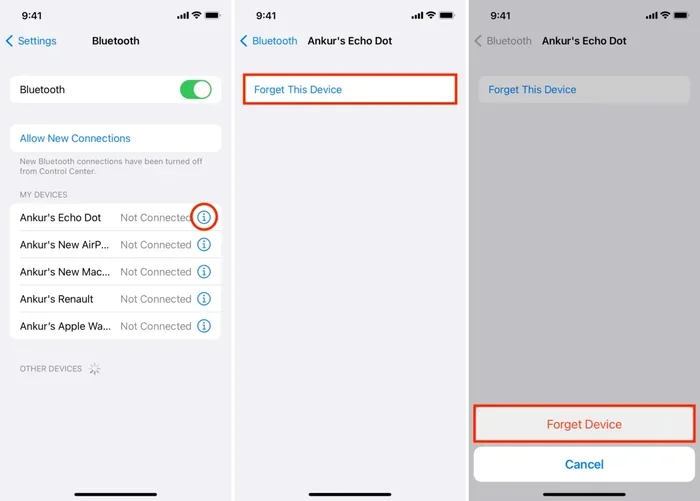
Apple makes Bluetooth management simple, but sometimes a device just will not go away. Here is how to force a Bluetooth device to delete on your iPhone:
- Open the Settings app on your iPhone.
- Tap on Bluetooth to open your Bluetooth settings.
- Find the device you want to remove in the list of paired devices.
- Tap the info icon (the small “i” in a circle) next to the device name.
- Select “Forget This Device” and confirm your choice.
- If the device still appears, restart your iPhone and check the list again.
If the device persists even after a restart, try turning Bluetooth off and back on. You can also reset your network settings, which clears all Bluetooth pairings along with Wi-Fi connections. This is a powerful step that removes stubborn devices completely.
Quick Tip: Before resetting network settings, make sure you know your Wi-Fi passwords. Resetting will remove all saved Wi-Fi networks too.
Force Deleting from an Android Phone
Android phones offer more control over Bluetooth device management. Here is how to force a Bluetooth device to delete on most Android devices:
- Go to Settings and tap on Connected Devices or Bluetooth.
- Find the device you want to remove in your paired devices list.
- Tap the gear icon or settings icon next to the device.
- Select “Forget” or “Unpair” to remove the connection.
- For stubborn devices, go to Bluetooth Settings and look for a “Clear Cached Data” option.
- Restart your phone and check if the device is gone.
Some Android phones also let you clear the Bluetooth cache through the app settings. Go to Settings, then Apps, find the Bluetooth sharing app, and clear its cache and data. This forces the phone to rebuild its Bluetooth memory from scratch.
How to Force Delete Bluetooth Devices from Your Car
Car infotainment systems can be tricky when it comes to Bluetooth device deletion. Many car owners struggle to remove old phone connections from their dashboard screens. Whether you drive a Ford, Toyota, Honda, or BMW, the basic process is similar.
General Steps for Most Car Infotainment Systems
- Start your car and go to the Settings menu on the infotainment screen.
- Navigate to Bluetooth or Phone Connections.
- Find the device you want to remove from the list of paired devices.
- Select the device and look for an option like “Delete”, “Forget”, or “Remove.”
- Confirm the deletion when prompted.
- If the device remains, try turning the car off and back on.
Force Deleting from Specific Car Brands
Some car brands require extra steps to force a Bluetooth device to delete permanently:
- Ford SYNC: Go to Settings, then Bluetooth, select the device, and choose Delete. If it persists, hold the phone icon on the steering wheel for a few seconds to clear the connection.
- Toyota Entune: Go to Setup, then Bluetooth, find the device, and select Delete. A factory reset of the Bluetooth module may be needed for stubborn devices.
- Honda Link: Open the HondaLink app on your phone and remove the car connection first. Then delete the car from your phone’s Bluetooth list.
- BMW iDrive: Go to Settings, then Bluetooth, select the device, and choose Remove Device. For persistent issues, reset the iDrive system.
Quick Tip: If your car’s Bluetooth system has a “Clear All Paired Devices” option, use it when selling or giving away the car. This ensures complete Bluetooth device cleanup.
Common Problems When Deleting Bluetooth Devices
Why Won’t My Bluetooth Device Delete?
There are several reasons a Bluetooth device might refuse to delete. Understanding these causes helps you find the right solution:
- The device is currently connected. You cannot delete a Bluetooth device while it is actively paired and connected. Disconnect it first, then try deleting again.
- Software glitches prevent deletion. Sometimes the Bluetooth module on your device freezes or crashes. A simple restart usually fixes this.
- Cached data is stuck. Your device saves Bluetooth pairing data in a cache. If this cache becomes corrupted, deletion may fail.
- Firmware needs updating. Outdated Bluetooth firmware can cause all sorts of problems, including deletion failures.
- Parental controls or restrictions. Some managed devices, like company phones or car fleet systems, restrict Bluetooth changes.
Common Mistakes People Make When Deleting Bluetooth Devices
Avoid these mistakes to save time and frustration:
- Skipping the unpair step. Always unpair or disconnect a device before trying to delete it. Jumping straight to deletion often fails.
- Not restarting the device. Many people forget that a simple restart clears temporary Bluetooth errors that block deletion.
- Ignoring the cache. Clearing the Bluetooth cache is one of the most effective ways to force a stubborn device to delete.
- Trying only one method. If the first method does not work, try the next one. There are multiple paths to force deletion.
- Forgetting to check for updates. An outdated operating system can cause Bluetooth management issues.
Expert Insight: According to Bluetooth technology experts, the most common reason deletion fails is that the device remains in a “connected” state in the background. Always verify the connection status before attempting deletion. A simple toggle of Bluetooth off and back on can clear this hidden connection state.
Advanced Methods to Force Delete Bluetooth Devices
Clearing the Bluetooth Cache
Clearing the Bluetooth cache is one of the most effective ways to force a Bluetooth device to delete. This method works on both phones and computers. The cache stores temporary pairing data, and clearing it forces your device to rebuild its Bluetooth memory.
On Android, go to Settings, then Apps, find Bluetooth Share or Bluetooth Management, and clear both the cache and data. On Windows, go to Device Manager, find your Bluetooth adapter, right-click, and select Delete Device, then scan for hardware changes. On a Mac, delete Bluetooth plist files from the Library folder and restart.
Factory Resetting the Bluetooth Module
When nothing else works, a factory reset of the Bluetooth module is your final option. This removes all paired devices and resets the Bluetooth system to its original state.
On phones, this usually means resetting network settings. On cars, it may mean resetting the entire infotainment system. On laptops, it could mean uninstalling and reinstalling the Bluetooth driver. Always note down your important Bluetooth connections before performing a factory reset.
Using Third-Party Bluetooth Management Apps
Several apps can help you manage and force delete Bluetooth devices more effectively. These apps provide advanced scanning and cleanup features that built-in settings often lack:
- Bluetooth Manager Pro offers detailed device information and batch deletion.
- Bluetooth Scanner helps identify hidden or hidden Bluetooth devices.
- Car Bluetooth Cleaner is designed specifically for car infotainment systems.
Be careful when using third-party apps. Only download from trusted sources like the official app store. Always check reviews and permissions before installing any Bluetooth management tool.
Comparison: Bluetooth Deletion Methods by Device Type
| Device Type | Primary Method | Advanced Method | Difficulty Level |
|---|---|---|---|
| iPhone | Forget This Device in Settings | Reset Network Settings | Easy |
| Android Phone | Unpair from Bluetooth List | Clear Bluetooth Cache | Easy to Medium |
| Car Infotainment | Delete from Bluetooth Menu | Factory Reset Infotainment | Medium |
| Windows Laptop | Remove Device in Settings | Delete Driver in Device Manager | Medium |
| Mac Computer | Remove from Bluetooth Preferences | Delete Bluetooth Plist Files | Medium to Hard |
| Tablet | Unpair from Bluetooth Settings | Reset Network Settings | Easy |
Quick Tips for Bluetooth Device Management
Keeping your Bluetooth device list clean does not have to be a chore. Follow these simple tips to make Bluetooth management easy:
- Review your paired devices once a month and remove anything you no longer use.
- Name your devices clearly so you can identify them easily when deleting.
- Turn off Bluetooth when you are not using it to save battery and reduce connection clutter.
- Update your device firmware regularly to keep Bluetooth management features working properly.
- Restart your device after deleting Bluetooth connections to ensure changes take effect.
- Use the “Make Discoverable” option only when actively pairing a new device for security.
- Keep a note of important pairings before performing a factory reset on your Bluetooth system.
Expert Insight: Automotive tech specialists recommend cleaning your car’s Bluetooth pairing list every time you change vehicles or sell your car. This protects your personal data and ensures the next driver starts with a clean connection slate. A quick Bluetooth cleanup takes less than five minutes but provides significant privacy benefits.
When to Seek Professional Help
Most Bluetooth deletion issues can be resolved at home using the methods in this guide. However, there are times when professional help is the right choice:
- Your car’s infotainment system freezes after a Bluetooth deletion attempt.
- Multiple Bluetooth devices refuse to delete despite trying all methods.
- Your phone’s Bluetooth hardware may be physically damaged.
- You are dealing with a fleet management system that requires specialized tools.
- The Bluetooth module on your device needs hardware-level replacement.
In these cases, visit a certified technician or contact your device manufacturer’s support team. They have access to diagnostic tools and advanced methods that go beyond what most users can do at home.
Final Thoughts
Knowing how to force a Bluetooth device to delete permanently gives you control over your connections. A clean Bluetooth list means better performance, stronger security, and fewer connection headaches. Whether you are clearing old pairings from your phone, your car, or your laptop, the steps in this guide cover every scenario.
Start with the basic unpairing method. If that does not work, move to cache clearing or network resets. For car systems, check your specific brand’s instructions. And remember, a quick restart after any deletion attempt can make all the difference. Keep your Bluetooth connections tidy, and your devices will thank you for it.
Take a few minutes today to clean up your Bluetooth device list. You will be surprised how much smoother your connections work afterward. A little maintenance goes a long way toward keeping your devices running at their best.
Frequently Asked Questions
Can I force delete a Bluetooth device that is currently connected?
No, you must disconnect the device first before you can delete it. Go to your Bluetooth settings, tap on the connected device, and select disconnect. Once it is disconnected, you can proceed with the deletion process. This is the most common reason people cannot delete a Bluetooth device.
Will force deleting a Bluetooth device remove its data from my phone?
Force deleting a Bluetooth device removes the pairing information from your device. It does not delete any files, photos, or data that the device may have transferred. However, it does remove the ability to automatically reconnect to that device in the future.
How do I delete a Bluetooth device from my car if the screen is unresponsive?
If your car infotainment screen is unresponsive, try turning the car off, removing the key, and waiting two minutes. Reinsert the key and try again. You can also disconnect your phone from the car, then try deleting from the Bluetooth menu. If the screen remains frozen, a full infotainment system reset may be needed.
Is it safe to clear the Bluetooth cache on my phone?
Yes, clearing the Bluetooth cache is completely safe. It only removes temporary pairing data and does not affect your personal files, photos, or apps. After clearing the cache, your phone will rebuild its Bluetooth memory as you pair new devices. This is one of the most effective ways to resolve stubborn Bluetooth deletion issues.
Why does my Bluetooth device reappear after I delete it?
This usually happens when the device is still nearby and actively broadcasting a Bluetooth signal. Your phone or car may automatically reconnect to it. To prevent this, turn off Bluetooth on the other device before deleting it from your list. You may also need to clear the Bluetooth cache or restart your device to fully remove it.
Can I delete multiple Bluetooth devices at once?
It depends on your device. Most phones require you to delete Bluetooth devices one at a time. However, some Android phones and car infotainment systems offer a “Clear All Paired Devices” option. Always check your device settings first before deleting devices individually, as this can save you significant time.
=== CONCLUSION ===
Forcing a Bluetooth device to delete permanently is a simple process once you know the right steps. Whether you are using a phone, a car, or a laptop, the methods in this guide cover every situation. Start with the basic unpairing steps, and work your way up to cache clearing or factory resets if needed. Remember to always restart your device after making changes to your Bluetooth settings. A clean Bluetooth list keeps your devices running smoothly and your connections secure. Take action today and enjoy a clutter-free Bluetooth experience on all your devices.