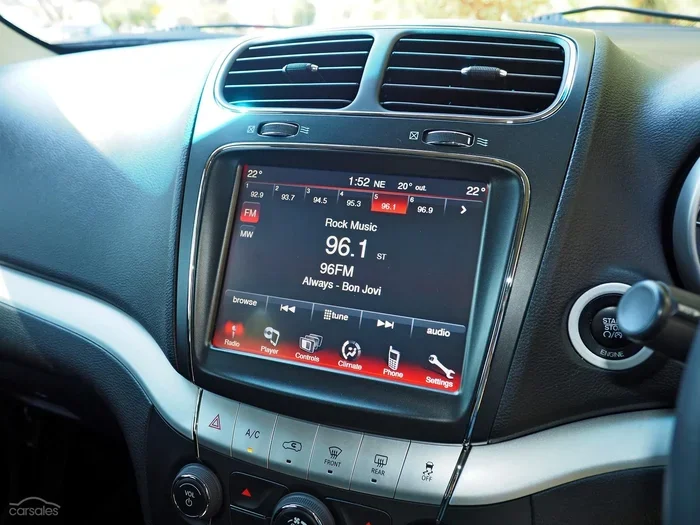
Easy Steps How Do I Reset My Dodge Journey Screen
Resetting your Dodge Journey screen is simple and can fix freezes, black screens, and unresponsive touchscreens. You can perform a quick soft reset by holding the power button, or a full factory reset through the settings menu. This guide walks you through every step safely, so you can get back on the road with a fully working display.
There is nothing more frustrating than a frozen or black screen on your Dodge Journey. You are trying to change the radio station, check navigation, or adjust the climate control, and the Dodge Journey touchscreen just does not respond. Whether you are dealing with a simple screen freeze or a complete black screen of death, a reset often solves the problem in minutes.
This guide shows you exactly how to reset your Dodge Journey screen, step by step. We cover both the quick soft reset and the full factory reset, so you can choose the right method. You will also learn why screens freeze, how to prevent future issues, and what to do if the problem persists. No jargon, no fluff, just clear instructions that work.
By the end of this article, you will feel confident tackling any Dodge Journey display reset on your own. Let us get your screen working perfectly again.
Key Takeaways
- Soft reset is fast and safe: It reboots the system without deleting any data, perfect for minor freezes.
- Hard reset restores factory settings: Use this only for serious glitches, and always back up first.
- Know the difference: A soft reset takes seconds; a hard reset takes minutes and erases personal data.
- Common causes include software bugs, overheating, and loose connections: Regular updates help prevent issues.
- Always turn off the ignition before resetting: Safety first, and it ensures a clean reboot.
- If the screen stays black after a reset: Check the fuse and battery voltage before seeking professional help.
📑 Table of Contents
Why You Might Need to Reset Your Dodge Journey Screen
The infotainment system in your Dodge Journey is essentially a small computer. Like any computer, it can slow down, freeze, or act unpredictably. Understanding the root cause helps you decide which type of reset to perform. A screen reset Dodge Journey is not just a quick fix; it refreshes the entire Uconnect system and clears temporary glitches.
Common Screen Issues That Require a Reset
- Screen freeze: The display locks up and does not respond to taps or buttons.
- Black screen: The monitor turns off completely, even when the vehicle is running.
- Unresponsive touchscreen: You tap icons but nothing happens, or the screen lags severely.
- Flickering display: The screen flashes or shows random lines and colors.
- Reboot loop: The system restarts repeatedly and never fully loads the home screen.
Soft Reset vs Hard Reset
A soft reset is like restarting a smartphone. It clears the RAM and stops background processes without touching your saved data. A hard reset is a full factory reset that wipes all personal settings, paired phones, and custom preferences. Here is a quick comparison.
| Feature | Soft Reset | Hard Reset (Factory Reset) |
|---|---|---|
| What it does | Reboots the system instantly | Wipes all user data and restores original settings |
| Time required | 30 seconds | 5 to 10 minutes |
| Data loss | None | All saved data erased |
| When to use it | Screen freeze, minor lag, unresponsive touch | Persistent black screen, software corruption, before selling the vehicle |
| Difficulty | Very easy | Moderate, requires backup |
Most of the time, a soft reset is all you need. If that does not work, you can move on to the hard reset. Always remember to back up your Uconnect phone pairing and any saved navigation addresses before a factory reset.
How to Perform a Soft Reset (Quick Reboot)
A soft reset is the fastest way to refresh your Dodge Journey screen. It is safe, takes seconds, and does not delete anything. Think of it as a reboot for your vehicle’s brain. This method works on all model years from 2011 to 2024.
Step-by-Step Soft Reset
- Put the vehicle in Park. Make sure the engine is running or the ignition is in the Accessory position.
- Locate the power button. On most Dodge Journey models, the power button is on the top-right corner of the infotainment screen or on the left side of the steering wheel column.
- Press and hold the power button for 10 to 15 seconds. Do not release it early. The screen will go dark, and you may see the Dodge logo appear.
- Wait for the system to fully restart. This can take 30 to 60 seconds. The home screen will appear when it is ready.
- Test the screen. Tap a few icons to confirm the touchscreen is responsive.
Quick Tip: If the screen does not respond even after holding the power button, try the alternative method. Turn the ignition off, wait 30 seconds, then turn it back to the Accessory position. This forces a full power cycle of the Dodge Journey infotainment system.
Common Mistake: Some drivers tap the power button briefly and assume it is not working. A soft reset requires a long, steady hold. Short presses only put the screen to sleep. Be patient and hold it for the full 15 seconds.
How to Perform a Hard Reset (Factory Reset)
A hard reset is the deeper solution. It restores the Dodge Journey touchscreen to its original out-of-the-box state. You use this when a soft reset fails, when the screen shows persistent errors, or when you are preparing the vehicle for sale. Because it erases all personal data, follow the steps carefully.
Step-by-Step Hard Reset
- Back up your data. Write down your paired Bluetooth phones, saved Wi-Fi networks, and any custom radio presets. You cannot recover them after the reset.
- Turn off the ignition. Remove the key or press the start/stop button until the dashboard lights go off.
- Press and hold the volume knob and the tuner knob simultaneously. On most models, these are the knobs on the left side of the infotainment unit. Hold them firmly.
- While still holding both knobs, turn the ignition to the On position. The screen may flicker or show a recovery menu.
- Release the knobs when you see the factory reset option. Use the volume knob to scroll to “Factory Reset” and press the tuner knob to select.
- Confirm the reset. The system will ask you to verify. Select “Yes” and wait. The process takes 5 to 10 minutes. Do not turn off the ignition during this time.
- Reconfigure your settings. After the reboot, set the time, reconnect Bluetooth, and adjust your preferences.
What a Hard Reset Erases
- All paired Bluetooth devices
- Saved Wi-Fi passwords
- Custom radio stations and equalizer settings
- Navigation history and saved home addresses
- User profiles and display themes
Expert Insight: A hard reset is not the same as updating the software. If your Dodge Journey screen is outdated, a reset will not install new maps or firmware. Always check for a Uconnect software update after performing a factory reset. You can do this by connecting to Wi-Fi and going to Settings > System > Software Update.
Common Mistake: Forgetting to back up your phone contacts. The reset removes Bluetooth pairings, and you will have to re-pair your phone. Some vehicles also store garage door opener codes in the infotainment system. Write those down before you start.
Troubleshooting Common Dodge Journey Screen Problems
Sometimes a reset alone does not fix the issue. You need to identify the specific symptom and apply the right solution. Here are the most common problems and how to handle them.
Screen Freeze
A frozen screen means the system has stopped processing inputs. This often happens when you have too many apps open or after a software glitch. Start with the soft reset described above. If the freeze returns, a hard reset usually clears the underlying bug. If the screen remains frozen even after a hard reset, the problem could be a faulty Dodge Journey display cable. In that case, visit a dealership for inspection.
Black Screen of Death
The black screen is terrifying, but it is often caused by a simple power issue. First, check that the vehicle is in Park and the ignition is on. Try the soft reset. If the screen stays black, the problem might be a blown fuse. The infotainment fuse is located in the engine compartment fuse box. Refer to your owner’s manual for the exact fuse number. Replace the fuse with one of the same amperage. If the new fuse blows immediately, there is a short circuit that needs professional diagnosis.
Unresponsive Touchscreen
If the screen lights up but your taps do nothing, the touch digitizer may be misaligned. A soft reset often fixes this. If not, try cleaning the screen with a microfiber cloth. Dirt and moisture can interfere with touch sensitivity. If cleaning and resetting do not help, the touchscreen module itself may need replacement. This is a job for a certified Dodge technician.
Screen Flickering or Lines
Flickering or horizontal lines usually indicate a loose internal connection or a failing display. Perform a hard reset first to rule out software corruption. If the flickering persists, the screen assembly likely needs to be replaced. Do not ignore this symptom, as it can worsen over time and eventually cause a total loss of display.
Quick Tip: Keep a small bottle of screen cleaner and a microfiber cloth in your glove box. A quick wipe before driving can prevent many touch-related issues. Also, avoid spraying liquid directly onto the screen; spray the cloth lightly instead.
Preventive Tips to Keep Your Dodge Journey Screen Running Smoothly
Prevention is always easier than repair. A few simple habits can keep your Dodge Journey infotainment system healthy for years. Here are the best practices every owner should follow.
Keep Software Updated
Dodge releases software updates that fix bugs and improve performance. Connect your vehicle to a stable Wi-Fi network and check for updates monthly. You can also visit a Dodge dealership and ask them to flash the latest software. Updates often resolve the exact issues that cause screen freezes and black screens.
Avoid Overheating
The infotainment unit generates heat, especially in summer. Park in the shade when possible. If your vehicle has a sunshade, use it. Overheating can cause the screen to dim, flicker, or shut down unexpectedly. In extreme cases, prolonged heat exposure damages the internal components.
Use the Correct Power Sources
Avoid plugging in cheap aftermarket chargers or devices that draw too much power. Use only genuine Dodge accessories or high-quality, certified USB cables. A power surge from a faulty charger can fry the infotainment unit.
Restart the System Weekly
Just like your smartphone, the Uconnect system benefits from a regular restart. Once a week, perform a soft reset to clear temporary files and refresh the memory. This simple habit can dramatically extend the life of your screen and prevent many common issues.
Expert Insight: Many Dodge Journey owners do not realize that leaving the system on overnight with the engine off can drain the battery and cause a black screen the next morning. Always turn off the infotainment system when you exit the vehicle if you are not using the accessory mode.
Expert Insights and Final Thoughts
Resetting your Dodge Journey screen is one of the most useful skills you can learn as a vehicle owner. Whether you choose a quick soft reset or a full factory reset, the process is straightforward and safe when you follow the steps correctly. Most screen problems are temporary and caused by software glitches, not hardware failure. A simple reboot often brings the display back to life in under a minute.
Remember to always back up your data before a hard reset. Keep your software updated, protect the screen from heat and moisture, and restart the system weekly. These habits will keep your Dodge Journey touchscreen running smoothly for the life of the vehicle. If you ever feel unsure, consult your owner’s manual or contact a Dodge service advisor. They are there to help.
Now you know exactly what to do when the screen acts up. The next time someone asks, “How do I reset my Dodge Journey screen?” you will have the answer ready. Share this guide with fellow Journey owners and keep the roads safer and smarter for everyone.
Frequently Asked Questions
Can I reset my Dodge Journey screen while driving?
No, you should always reset the screen when the vehicle is parked and the ignition is off or in Accessory mode. Performing a reset while driving can distract you and may cause the system to malfunction. Safety comes first, so pull over and complete the reset before continuing your drive.
Will a factory reset delete my saved navigation addresses?
Yes, a hard reset erases all user data, including saved navigation addresses, Bluetooth pairings, and radio presets. Always write down important information before starting the factory reset process. You can easily re-enter these details after the system restarts.
How often should I reset my Dodge Journey screen?
You do not need to reset the screen regularly. A soft reset once a month or whenever you notice lag can keep the system running smoothly. A hard reset is only necessary when troubleshooting serious issues or before selling the vehicle. Over-resetting can wear down the system unnecessarily.
What should I do if the screen stays black after a reset?
If the screen remains black after both a soft and hard reset, check the infotainment fuse in the engine compartment. A blown fuse is a common cause. Also, ensure the battery voltage is healthy, as a weak battery can prevent the screen from powering on. If these steps do not work, visit a Dodge dealership for professional diagnosis.
Is it safe to use third-party apps that claim to reset the screen?
No, it is not safe. Third-party apps or software can introduce malware or corrupt the Uconnect system further. Always use the built-in reset methods described in this guide or follow instructions from the official Dodge owner’s manual. Stick to trusted sources to protect your vehicle’s electronics.
Can a software update fix a black screen without a reset?
Sometimes yes. If the black screen is caused by a known software bug, a Uconnect update can resolve it without needing a reset. Connect to Wi-Fi and check for updates in Settings > System > Software Update. If the screen is completely unresponsive, you will need to perform a reset first to install the update.