How Do I Put My Phone on Pairing Mode for Beginners
Putting your phone on pairing mode is simple once you know the steps. This guide walks you through enabling Bluetooth, finding your phone, and connecting it to your car or other devices. You will learn common fixes for pairing issues, expert tips, and everything a beginner needs to know about Bluetooth pairing and phone connection.
How Do I Put My Phone on Pairing Mode? It sounds technical, but it really is not. Whether you want to connect your phone to your car, a speaker, or headphones, the process is the same. You just need to know where to look. This guide makes it easy for beginners. You will learn every step, every tip, and every trick to get your Bluetooth pairing working fast. No tech skills needed. Just follow along.
Many people struggle with phone connection the first few times. Your screen looks different from mine. Your car buttons work differently too. That is perfectly normal. The core steps stay the same across all devices. Once you understand the basics, you can pair any device in under a minute. Let us get started with the simple answer to how do I put my phone on pairing mode.
Key Takeaways
- Pairing mode is easy: You can activate it in just a few taps on any smartphone.
- Car Bluetooth works differently: Your car infotainment system must also be in pairing mode for a successful device pairing.
- Troubleshooting is simple: Most pairing failures come from small fixable issues like distance or old software.
- Hands-free calling and audio streaming: Once paired, you can make calls and play music wirelessly.
- Multiple devices: Many cars let you connect more than one phone at a time.
- Security matters: Always use a pairing code or passkey to keep your wireless connectivity safe.
📑 Table of Contents
- What Is Pairing Mode and Why Do You Need It?
- How to Put Your Phone on Pairing Mode: Step by Step
- How to Pair Your Phone with Your Car
- Common Pairing Problems and How to Fix Them
- Expert Tips for Better Bluetooth Performance
- Understanding the Technology Behind Pairing
- Is It Safe to Pair Your Phone in Public?
- Key Takeaways
- Conclusion
What Is Pairing Mode and Why Do You Need It?
Pairing mode is a special state your phone enters. It makes your phone visible to other devices. Think of it like waving hello to a stranger. Without pairing mode, your phone stays hidden. Other devices cannot find it. This is why Bluetooth visibility matters so much.
When you turn on pairing mode, your phone broadcasts a signal. Nearby devices can detect that signal. Your car stereo, wireless speaker, or headphones pick it up. Then you can connect the two devices. This process is called device pairing. It creates a secure wireless link between them.
Why Does Pairing Mode Matter for Cars?
In the automotive world, pairing mode is essential. You want to use hands-free calling while driving. You also want to stream music through your car speakers. Both of these need a car phone connection. Your phone must be discoverable. Your car stereo must be too. Only then can they find each other and pair up.
Modern cars use Bluetooth technology. Most cars made after 2010 support it. Some older models do too. The Bluetooth version on your phone and car affects performance. Newer versions offer faster connections and better range. But even older versions work fine for most tasks.
How to Put Your Phone on Pairing Mode: Step by Step
Here is the good news. The steps are almost identical on every phone. Whether you use Android or iPhone, the process is simple. Let us walk through it together.
For Android Phones
Android phones make Bluetooth pairing very easy. Here is exactly what to do:
- Open your Settings app. Look for the gear icon on your home screen.
- Tap on Bluetooth or Connections. The name varies by phone brand.
- Turn the Bluetooth toggle ON. You will see it switch to blue or green.
- Tap the word Pair New Device or Search for Devices.
- Your phone now enters pairing mode. It is visible to nearby devices.
- Wait a few seconds. Your phone will scan for available devices.
That is it. Your Android phone is now broadcasting its name. Other devices can see it. If your car does not show up, keep reading. We will cover troubleshooting soon.
For iPhones
iPhone users follow a similar path. Apple keeps things simple:
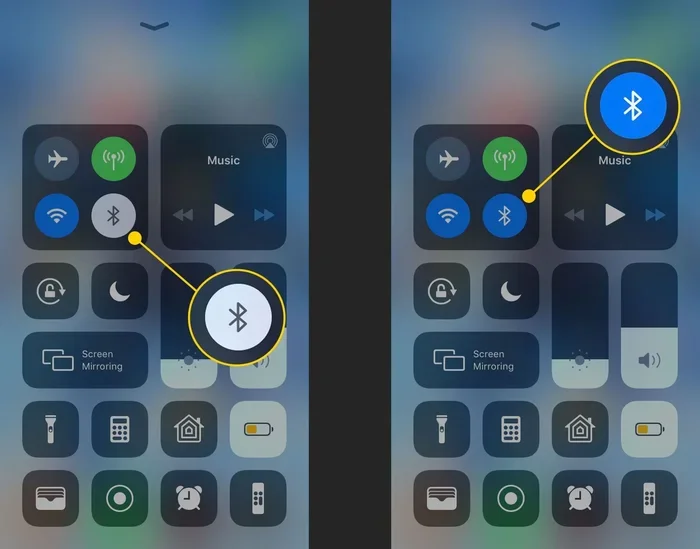
- Open the Settings app. It is the gray gear icon.
- Tap Bluetooth. It is near the top of the settings list.
- Toggle Bluetooth ON. The switch turns green.
- Your iPhone automatically enters discovery mode.
- It will start searching for nearby devices.
- Your car or speaker should appear in the list below.
One nice thing about iPhones is they stay in discovery mode for a while. Android phones sometimes time out faster. If your iPhone does not find your car, try turning Bluetooth off and back on.
Quick Tips for Faster Pairing
- Turn off other Bluetooth devices nearby. Too many signals can confuse the search.
- Restart your phone before pairing. This clears minor software glitches.
- Move closer to your car. Bluetooth range is usually about 30 feet.
- Make sure your car is on. The infotainment system needs power to broadcast.
- Update your phone software. Old software can cause Bluetooth connectivity problems.
How to Pair Your Phone with Your Car
Now that your phone is in pairing mode, you need your car to cooperate too. Both sides must be visible. This is where many beginners get stuck. They put their phone in pairing mode but forget the car needs it too.
Step 1: Put Your Car in Pairing Mode
Every car is different. But the general steps are similar across brands:
- Start your car engine or press the start button.
- Go to the infotainment system on your dashboard.
- Find the Settings menu. Look for a phone or Bluetooth icon.
- Select Bluetooth Settings or Device Connection.
- Choose Add New Device or Pair New Phone.
- The car system now enters discovery mode.
Some cars have a dedicated Bluetooth button on the steering wheel. Others require you to navigate through touch screens. Check your car manual if you get stuck. The manual is your best friend here.
Step 2: Find Each Other
Now both your phone and car are searching. On your phone, look for your car name in the list. It might say something like My Car Bluetooth or the car brand name. Tap on it to select it.
Your car screen will show a pairing code. This is a series of numbers. Check if the same numbers appear on your phone. If they match, tap Pair or Connect on both devices.
Step 3: Confirm the Connection
Once paired, you should see a confirmation. Your phone will say the device is connected. Your car screen will show the phone name. You may hear a short tone in your car speakers.
Now you can do amazing things:
- Make and receive hands-free calls through your car speakers.
- Stream music and podcasts from your phone to your car.
- Use voice assistants like Siri or Google Assistant while driving.
- Access your phone contacts through the car display.
This is the real magic of wireless connectivity. You stay connected without ever touching your phone. That is safer and more convenient.
Common Pairing Problems and How to Fix Them
Even when you follow every step, things can go wrong. Do not worry. Most issues are easy to fix. Let us look at the most common problems.
Phone Not Showing Up in Car
This happens more than you think. Usually it is a simple fix. First, make sure Bluetooth visibility is turned on. Some phones hide themselves after the first pairing. Go back to your Bluetooth settings and look for an option called Visible to All Devices or Discoverable. Turn it on.
Second, check the distance. Move your phone closer to your car. Bluetooth range is limited. Walls and metal also weaken the signal. Park closer and try again.
Pairing Code Not Matching
If the codes do not match, do not panic. This is actually a security feature. It prevents strangers from connecting to your car. Try this:
- Cancel the pairing attempt on both devices.
- Turn Bluetooth off on your phone.
- Wait 10 seconds.
- Turn Bluetooth back on.
- Start the pairing process again from your car.
Fresh attempts often resolve code mismatch issues. If it still fails, restart both your phone and your car infotainment system.
Phone Connects but No Audio
Sometimes the phone connection works but you cannot hear music or calls. This is usually an audio routing issue. On your phone, go to Bluetooth settings. Find your car device. Tap the settings gear next to it. Make sure Audio Sharing or Media Audio is turned on.
Also check your car settings. Some cars have separate options for calls and music. Both need to be enabled for full functionality.
Phone Keeps Disconnecting
If your Bluetooth connectivity drops often, the issue could be distance. Stay within range. Also check if your phone battery saver mode is on. Some battery modes limit Bluetooth pairing to save power. Turn it off while driving.
Old software is another culprit. Update your phone to the latest version. Car infotainment systems sometimes need updates too. Check with your dealer if updates are available.
Multiple Devices Confusion
Many cars can remember several phones. But only one can be active at a time. If your friend’s phone was last connected, your phone might not auto-connect. Go to your car Bluetooth settings. Find your phone and set it as the priority device or favorite. This ensures it connects first every time you start the car.
Expert Tips for Better Bluetooth Performance
Once you master the basics, these tips will level up your experience. They come from years of working with car Bluetooth systems.
Keep Your Devices Updated
Software updates fix bugs. They also improve wireless connectivity. Make it a habit to update your phone regularly. Check for car infotainment updates once a year. These small updates make a big difference.
Delete Old Pairings
Over time, your phone and car save many old connections. These can slow things down. Go through your Bluetooth list and remove devices you no longer use. A clean list means faster and more reliable device pairing.
Understand Your Bluetooth Version
Different Bluetooth versions offer different features. Bluetooth 5.0 and newer provide better range and faster transfers. If your phone and car both support the latest version, you get the best experience. Check your phone settings to see what version you have.
Use Voice Commands Instead of Touching Your Phone
Once paired, use voice commands for calls and music. This keeps your eyes on the road. It is also hands-free, which is safer. Most modern phones and cars support this feature well.
Reset Network Settings for Stubborn Issues
If nothing else works, reset your phone network settings. This clears all Bluetooth pairings and Wi-Fi connections. You will need to reconnect everything. But it fixes most stubborn Bluetooth troubleshooting issues. On iPhone, go to Settings > General > Transfer or Reset > Reset > Reset Network Settings. On Android, go to Settings > System > Reset > Reset Wi-Fi, Mobile and Bluetooth.
Understanding the Technology Behind Pairing
You do not need to be a tech expert. But knowing a little bit helps. It makes troubleshooting easier and gives you confidence.
How Bluetooth Works
Bluetooth uses radio waves to connect devices. It operates on a specific frequency. This frequency is 2.4 GHz. It is the same frequency used by Wi-Fi. But Bluetooth uses less power. It is designed for short-range connections. That is why Bluetooth range is usually around 30 feet.
What Is a Passkey or PIN?
A passkey is a security measure. It ensures only your devices connect to each other. When you see a series of numbers on both screens, that is the passkey. If the numbers match, you can trust the connection. Never pair with a stranger who sends you a random code request.
What Is the Difference Between Pairing and Connecting?
Pairing is the first time you link two devices. Connecting happens every time after that. Once paired, your phone and car remember each other. They auto-connect when both Bluetooth features are on. This is why the first Bluetooth pairing is the hardest part. After that, it is automatic.
Is It Safe to Pair Your Phone in Public?
Safety is a valid concern. Pairing mode makes your phone visible. This means strangers nearby could try to connect. Here is how to stay safe:
- Only pair in trusted environments. Your car is a safe place.
- Turn off pairing mode when you are done connecting.
- Never accept pairing requests from unknown devices.
- Use a passkey whenever possible. This adds a layer of protection.
- Check your connected devices regularly in Bluetooth settings.
Following these simple steps keeps your phone connection secure. You can enjoy wireless connectivity without worry.
Key Takeaways
- Pairing mode is easy: You can activate it in just a few taps on any smartphone.
- Car Bluetooth works differently: Your car infotainment system must also be in pairing mode for a successful device pairing.
- Troubleshooting is simple: Most pairing failures come from small fixable issues like distance or old software.
- Hands-free calling and audio streaming: Once paired, you can make calls and play music wirelessly.
- Multiple devices: Many cars let you connect more than one phone at a time.
- Security matters: Always use a pairing code or passkey to keep your wireless connectivity safe.
Conclusion
So how do I put my phone on pairing mode? The answer is simpler than you think. You just need to find the right setting. Turn on Bluetooth. Make your phone discoverable. Then let your car find it. The whole process takes less than a minute once you know the steps.
Remember that Bluetooth pairing is a skill. Like any skill, it gets easier with practice. The first time might feel confusing. By the third or fourth time, it becomes second nature. You will wonder how you ever drove without it.
Use the tips in this guide to troubleshoot problems. Keep your devices updated. Delete old pairings when needed. And most importantly, stay safe. Use hands-free features while driving. Keep your eyes on the road and your hands on the wheel.
Now you have everything you need. Go ahead and try it. Put your phone in pairing mode. Connect it to your car. Enjoy the freedom of wireless connectivity on the road. You have got this.
Frequently Asked Questions
What does putting a phone on pairing mode mean?
Putting your phone on pairing mode makes it visible to other Bluetooth devices. It allows your phone to be discovered and connected to devices like your car stereo, headphones, or speakers. This is the first step in establishing a wireless link between two devices.
How long does my phone stay in pairing mode?
Most phones stay in pairing mode for about two minutes. Some Android phones time out faster, while iPhones stay discoverable longer. If your phone exits pairing mode, simply go back to Bluetooth settings and tap the option to search for devices again.
Why can my car not find my phone even though it is in pairing mode?
This usually happens because of distance, interference, or old software. Move your phone closer to your car. Make sure both Bluetooth features are turned on. Restart both devices if needed. Also check that your phone is set to be visible to all nearby devices.
Is it safe to pair my phone with my car?
Yes, it is very safe. Car infotainment systems are designed for personal use. The pairing code ensures that only your devices connect to each other. Always make sure the code on your phone matches the code on your car screen before confirming the connection.
Can I pair more than one phone with my car?
Most modern cars support multiple paired phones. However, only one phone can be the active audio source at a time. You can set a priority phone in your car settings. This ensures your phone connects first when you start the car.
What should I do if my phone keeps disconnecting from my car Bluetooth?
First, check that both devices are within range. Move your phone closer to the car if needed. Make sure your phone battery saver mode is off. Also delete the old pairing and pair the devices again. Updating your phone software often fixes recurring disconnection issues.