How Do I Set Date and Time in Settings on Any Device
Setting the date and time on any device is easier than you think. This guide walks you through adjusting the clock on your phone, computer, and car infotainment system in just a few taps. Whether you need to fix an incorrect clock or enable automatic sync, we have you covered with clear, simple steps.
Have you ever glanced at your car dashboard and noticed the clock is wrong again? Or maybe your phone shows a completely different time than your vehicle does. It happens to everyone. The good news is that fixing this is quick and easy once you know where to look.
In this guide, we will walk you through exactly how to set date and time in settings on any device. We will cover smartphones, computers, and car infotainment systems. By the end, you will never have to worry about a wrong clock again. Let us get started.
Key Takeaways
- Automatic Time Zone: Most devices can sync date and time automatically using your network or GPS signal.
- Manual Adjustment Is Simple: You can always set the clock by hand through the settings menu on any device.
- Car Infotainment Systems: Setting the time in your vehicle follows a similar process across most car brands.
- Daylight Saving Time: Many devices handle DST changes automatically if you enable the right setting.
- Phone-to-Car Sync: Connecting your phone via Bluetooth can help keep your car clock accurate.
- 24-Hour Format: You can switch between 12-hour and 24-hour clock display in device settings.
- Reset Options: If your clock keeps resetting, a simple factory reset or settings check usually fixes it.
📑 Table of Contents
- Why Getting the Date and Time Right Matters
- How to Set Date and Time on Your Phone
- How to Set Date and Time on Your Computer
- How to Set Date and Time in Your Car
- Common Problems and How to Fix Them
- Expert Insights on Device Clock Settings
- Comparing Clock Settings Across Devices
- How Phone-to-Car Connectivity Affects Clock Accuracy
- Key Takeaways
- Conclusion
Why Getting the Date and Time Right Matters
You might think the clock on your device does not matter much. But it really does. Your phone uses the time to organize your schedule, set reminders, and log events. Your car uses it for navigation timestamps and Bluetooth call logs. Even your computer relies on accurate time for file timestamps and network connections.
When the date and time are off, small problems start adding up. Meeting reminders arrive too late. Your GPS navigation might show incorrect arrival times. Your call history becomes confusing to read. That is why knowing how to adjust the clock quickly is such a useful skill.
The Role of Automatic Time Sync
Most modern devices come with an automatic time zone feature. This setting uses your network connection or GPS signal to keep the clock accurate at all times. When this feature works, you never have to touch the settings. But sometimes it glitches or gets turned off by accident. That is when you need to step in and adjust things manually.
How to Set Date and Time on Your Phone
Your phone is the device you use most often. So it makes sense to start there. Whether you have an iPhone or an Android phone, the process is straightforward. Let us break it down.
Setting the Clock on iPhone
Open the Settings app on your iPhone. Scroll down and tap General. Then tap Date & Time. You will see a toggle for Set Automatically. If this is turned on, your phone uses the network to sync the date and time automatically. If it is off, you can tap the date and time fields to adjust them yourself.
Below that, you will find a 24-Hour Time option. Turn it on if you prefer the 24-hour clock format. Turn it off for the standard AM/PM display. This is a small change that makes a big difference in how your clock looks.
Setting the Clock on Android
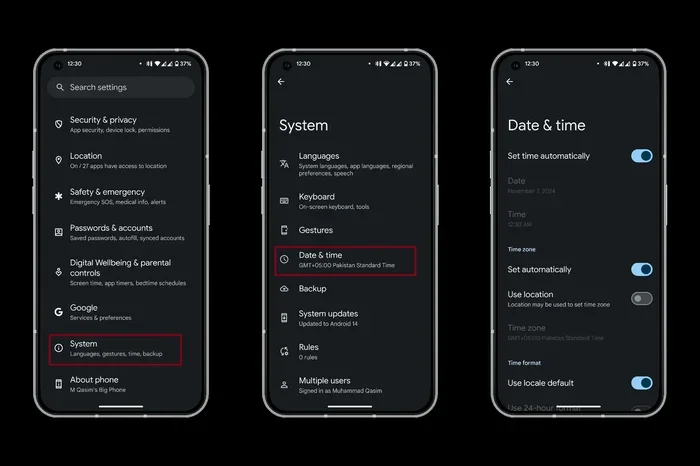
On Android phones, open the Settings app. Look for System or General Management, depending on your brand. Tap Date and Time. You will see a similar automatic toggle. When it is on, your phone uses the network to keep the time accurate.
You can also tap the time zone field to change it manually. This is helpful when you travel to a different region. Some Android phones let you choose your clock display format right from this same menu. Look for the 12-hour or 24-hour option and select your preference.
Quick Tips for Phone Clock Settings
- Always keep the automatic sync turned on for the most accurate time.
- Check your time zone after traveling to a new place.
- Restart your phone if the clock does not update after a long flight.
- Use the world clock feature to track multiple time zones at once.
How to Set Date and Time on Your Computer
Computers also rely on accurate time for many functions. File timestamps, email logs, and network connections all depend on the correct clock. Setting the time on your computer is just as easy as on your phone.
Adjusting the Clock on Windows
On a Windows PC, right-click the clock in the bottom-right corner of your screen. Select Adjust date and time from the menu. This opens the settings panel. You will see a toggle for Set time automatically. Turn it on to let Windows sync with an internet time server.
If you need to set the time manually, turn off the automatic toggle. Then click Change and enter the correct date and time. You can also change the time zone from this same screen. Just select your time zone from the dropdown list. Windows will save the new settings right away.
Adjusting the Clock on Mac
On a Mac, click the Apple menu in the top-left corner. Select System Settings or System Preferences. Click General, then Date and Time. Turn on Set date and time automatically for network-based syncing.
To set the time manually, click the lock icon and enter your password. Then turn off the automatic toggle and adjust the date and time fields. You can also click the Time Zone tab to set your location. This helps your Mac keep the right time throughout the year.
Quick Tips for Computer Clock Settings
- Make sure your computer is connected to the internet for automatic syncing.
- Check the time zone setting if you notice the clock is off by exactly one hour.
- Restart your computer if the clock does not update after changing settings.
- Use the clock app to add multiple world clocks for work or travel.
How to Set Date and Time in Your Car
This is where things get a little different. Car infotainment systems do not always work the same way. The process varies by brand and model. But the general steps are similar across most vehicles. Let us look at how to set the clock in your car.
Setting the Clock in Common Car Brands
In most vehicles, you access the clock through the infotainment settings. Look for a Settings or Preferences icon on the home screen. Then find the Clock or Date and Time option. From there, you can turn off automatic sync and adjust the time manually.
Some cars use a knob or touchscreen to change the time. Others let you use voice commands. If your vehicle has a voice assistant, simply say something like set the clock to 3:30 PM. The system will update the time for you.
How GPS and Bluetooth Affect Car Clock Settings
Many modern vehicles sync their clock with GPS signals. This means the car clock updates automatically based on your location. When you cross time zones, the clock should change with you. Bluetooth connectivity can also help. If your phone is connected, some cars pull the time from your phone.
However, these features do not always work perfectly. GPS signals can be weak in tunnels or underground parking garages. Bluetooth connections can drop. That is why it is still good to know how to set the time manually in your car.
Quick Tips for Car Clock Settings
- Check your owner manual for brand-specific clock setting steps.
- Keep your GPS signal strong by parking in open areas when setting the time.
- Turn on automatic time sync if your car supports it.
- Manually adjust the clock after long trips across time zones.
Common Problems and How to Fix Them
Sometimes setting the clock does not go as smoothly as you would like. Here are some common issues and their solutions.
Clock Keeps Resetting to the Wrong Time
If your clock keeps resetting, the automatic sync feature might be pulling from the wrong source. Check your network connection first. On your phone, make sure Wi-Fi or mobile data is working. On your computer, check that you are connected to the internet. On your car, make sure the GPS antenna is not blocked.
If the problem continues, try turning off automatic sync and setting the time manually. Then turn it back on and see if the clock holds. This simple trick often fixes the issue.
Time Zone Shows the Wrong Location
Your device might be using an old or incorrect time zone. This happens often after traveling. Go into your settings and manually select the correct time zone. On most devices, you can also turn off automatic time zone and pick the right one by hand.
After selecting the correct zone, the clock should update right away. If it does not, restart your device and check again.
Daylight Saving Time Changes Not Updating
Most devices handle daylight saving time changes automatically. But sometimes the setting gets turned off by accident. Go to your date and time settings and look for a Daylight Saving Time option. Make sure it is turned on. This will ensure your clock adjusts correctly when the seasons change.
Common Mistakes to Avoid
- Do not ignore the automatic sync toggle. It is your best friend for accurate time.
- Do not forget to check the time zone after traveling.
- Do not assume your car clock will always sync with your phone. Test it regularly.
- Do not leave your device off for long periods without charging it. The clock battery can drain.
Expert Insights on Device Clock Settings
According to tech experts, keeping your device clocks synced is one of the simplest things you can do for better digital hygiene. A misaligned clock can cause issues with device synchronization, secure logins, and even software updates. Many security protocols rely on accurate timestamps to verify connections.
Automotive experts also point out that an incorrect car clock can affect navigation systems. Some GPS devices use the current time to calculate arrival estimates. If the clock is off by even a few minutes, your arrival time could be inaccurate. This is especially important for daily commuters and long road trips alike.
One thing to keep in mind is that older devices may not support automatic time syncing. If your car is a few years old or your phone is running an outdated operating system, you might need to set the time manually every time it changes. Regularly checking and updating your clock settings can save you a lot of headaches.
How Network Time Protocol Works
Behind the scenes, most devices use something called the Network Time Protocol, or NTP. This is a system that connects your device to time servers on the internet. These servers keep extremely accurate time using atomic clocks. Your device checks in with these servers regularly to make sure its clock stays correct.
In cars, the process works a bit differently. Many vehicles use GPS satellites to get the exact time. This is the same system that powers your car navigation. The GPS signal carries precise time data from satellites orbiting the Earth. Your car infotainment system uses this data to keep the clock accurate.
Comparing Clock Settings Across Devices
Different devices handle clock settings in their own way. Here is a quick comparison of how the process works on the most common devices.
| Device | Where to Find Clock Settings | Auto Sync Available | Manual Adjustment |
|---|---|---|---|
| iPhone | Settings > General > Date & Time | Yes | Tap date and time fields |
| Android Phone | Settings > System > Date and Time | Yes | Tap time zone and clock fields |
| Windows PC | Right-click clock > Adjust date and time | Yes | Click Change button |
| Mac | Apple Menu > System Settings > Date and Time | Yes | Click lock and adjust fields |
| Car Infotainment | Settings > Clock or Date and Time | Varies by brand | Use knob, touchscreen, or voice |
As you can see, the general process is very similar across all devices. The main difference is where you find the settings. Once you know the steps for one device, you can apply the same logic to any other device.
How Phone-to-Car Connectivity Affects Clock Accuracy
Many modern cars can connect to your phone through Bluetooth or USB. This connection does more than play music. It can also share data like your phone number, call logs, and even the current time. When your phone is connected to the car, some vehicles will pull the clock from your phone.
This is a great feature when it works. But it can also cause problems. If your phone clock is wrong, the car clock will be wrong too. This is why it is important to make sure your phone has the correct time before connecting it to your vehicle.
Some cars also use the phone connection to download time zone data. This means that when you cross into a new time zone, the car clock can update automatically. Not all vehicles support this feature, but more are adding it every year.
Best Practices for Phone-to-Car Time Sync
- Keep your phone clock set to automatic sync at all times.
- Make sure Bluetooth is connected before starting your trip.
- Check the car clock after a long drive to confirm it is still accurate.
- If the car clock is wrong, check your phone clock first.
Key Takeaways
- Automatic Time Zone: Most devices can sync date and time automatically using your network or GPS signal.
- Manual Adjustment Is Simple: You can always set the clock by hand through the settings menu on any device.
- Car Infotainment Systems: Setting the time in your vehicle follows a similar process across most car brands.
- Daylight Saving Time: Many devices handle DST changes automatically if you enable the right setting.
- Phone-to-Car Sync: Connecting your phone via Bluetooth can help keep your car clock accurate.
- 24-Hour Format: You can switch between 12-hour and 24-hour clock display in device settings.
- Reset Options: If your clock keeps resetting, a simple factory reset or settings check usually fixes it.
Conclusion
Setting the date and time in settings on any device does not have to be complicated. Whether you are adjusting the clock on your phone, computer, or car, the steps are simple and quick. Start by checking the automatic sync feature on each device. If that is not working, you can always set the time manually.
Remember to check your time zone after traveling. Keep your Bluetooth and GPS connections active for the best results. And do not forget to enable daylight saving time adjustments if your device supports it. These small steps will keep all your clocks accurate and your schedule running smoothly.
Now that you know how to set date and time in settings on any device, you can tackle it whenever the clock goes wrong. Share this guide with friends and family who might be struggling with the same problem. A little knowledge goes a long way in keeping your digital life organized and on track.
Frequently Asked Questions
Why does my car clock keep resetting to the wrong time?
This usually happens when the automatic time sync feature is turned off or not working properly. Check your car infotainment settings and make sure the automatic sync toggle is enabled. If it still does not work, try setting the time manually and then turning automatic sync back on.
Can I set the time on my car without a touchscreen?
Yes, most cars let you adjust the clock using the steering wheel controls or the infotainment knob. Refer to your car owner manual for the exact steps. Many vehicles also let you use voice commands to set the time hands-free.
How do I change my phone clock from 12-hour to 24-hour format?
On iPhone, go to Settings, then General, then Date and Time, and toggle on 24-Hour Time. On Android, go to Settings, then System, then Date and Time, and select the 24-hour format option. The change takes effect immediately.
Does my phone clock sync automatically when I connect to my car via Bluetooth?
It depends on your car model and phone. Some vehicles pull the time from your connected phone through Bluetooth. Others use GPS signals to set the clock independently. Check your car settings to see if time sync through Bluetooth is enabled.
What should I do if the automatic time zone on my device is wrong?
Go to your date and time settings and turn off the automatic time zone toggle. Then manually select the correct time zone from the list. Once you do this, your device clock will update to match the new zone. You can turn automatic sync back on afterward if you want.
How accurate is the Network Time Protocol for syncing device clocks?
NTP is extremely accurate. It connects your device to time servers that use atomic clocks. Most devices sync within milliseconds of the correct time. This makes NTP one of the most reliable ways to keep your phone, computer, and other connected devices perfectly accurate.