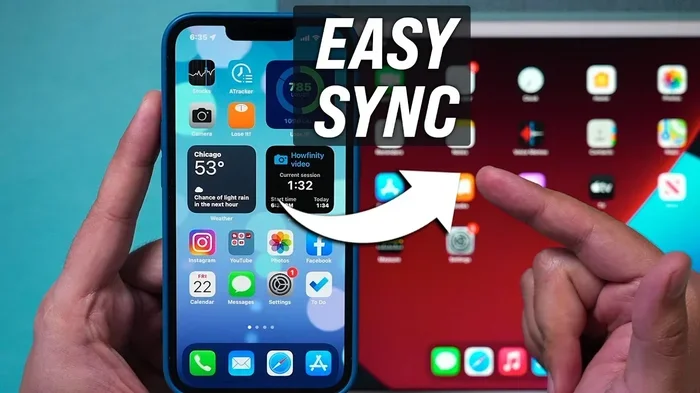
How Do I Sync My Phone With These Simple Easy Steps
Learning how to sync your phone with your car is easier than you think. This guide walks you through Bluetooth pairing, Apple CarPlay, Android Auto, and USB connections in simple steps. Whether you drive a new sedan or a classic truck, you will get your phone connected fast. We also cover common sync problems and expert tips to keep everything running smoothly.
Have you ever gotten into your car and wished your phone just worked with the stereo? You want to play music, get directions, and make calls without fumbling around. Learning how to sync my phone with your vehicle is one of the simplest upgrades you can make. It transforms your driving experience and keeps you connected safely. Let us walk you through every step so you can get going right away.
Phone syncing is not just for tech-savvy drivers anymore. Modern cars come with built-in car infotainment systems that make smartphone integration a breeze. Even older vehicles can benefit from simple adapters and wireless solutions. The process is straightforward once you know what to do. This guide covers everything from Bluetooth pairing to wired connections and troubleshooting tips.
Key Takeaways
- Bluetooth pairing is the most common way to sync your phone wirelessly with your car.
- Apple CarPlay and Android Auto offer seamless smartphone integration for navigation, music, and calls.
- A USB cable connection provides a reliable backup when wireless syncing fails.
- Keeping your phone and car software updated prevents most sync issues.
- Voice commands and hands-free calling make synced phone use safer and more convenient.
- Common mistakes like outdated software and incorrect settings cause most sync problems.
- Regularly clearing paired devices helps maintain a strong and stable car sync connection.
📑 Table of Contents
- Understanding Phone Sync and Why It Matters
- How Do I Sync My Phone via Bluetooth
- Syncing Through Apple CarPlay and Android Auto
- Using a USB Cable to Sync Your Phone
- Common Sync Problems and How to Fix Them
- Expert Tips for a Seamless Sync Experience
- How Do I Sync My Phone With Different Car Brands
- Conclusion
Understanding Phone Sync and Why It Matters
What Is Phone Sync?
Phone sync means connecting your mobile device to your car’s audio and display system. Once connected, you can stream music, make calls, and use navigation apps directly through your vehicle. Wireless syncing uses Bluetooth technology to link your phone without any cables. Wired connections use a USB cable connection for a more stable link. Both methods have their strengths, and we will cover both in detail.
The idea behind phone pairing is simple. Your phone and car exchange signals, recognize each other, and share data. This data transfer includes contacts, call logs, and media libraries. Once paired, your phone and car work together like a single system. You can control everything from the steering wheel or dashboard screen.
Why You Should Sync Your Phone to Your Car
There are many reasons to sync your phone with your vehicle. First, it enables hands-free calling, which keeps your eyes on the road and hands on the wheel. Second, you get access to your favorite music playback options through the car speakers. Third, navigation apps like Google Maps and Waze work beautifully on larger car screens.
Syncing also makes media streaming effortless. You can play podcasts, audiobooks, and streaming music without draining your phone battery as fast. Contact syncing lets you see incoming calls and respond without digging through your pocket. Overall, a synced phone makes every drive more enjoyable and much safer.
How Do I Sync My Phone via Bluetooth
Step-by-Step Bluetooth Pairing
Bluetooth is the go-to method for most drivers. It is wireless, fast, and works with almost every modern car. Here is exactly how to do it.
- Turn on your car and make sure the infotainment system is active.
- Go to Settings on your car’s display and select Bluetooth or Phone.
- Turn on Bluetooth on your phone from the quick settings panel.
- Search for available devices on your car screen. Your phone should appear in the list.
- Tap your phone name on the car display to start pairing.
- Confirm the pairing code if your car asks you to. Both screens should show the same number.
- Wait for the connection to complete. You will see a confirmation on both screens.
That is it! Your Bluetooth connection is now live. You can start playing music and making calls right away. If your car does not find your phone, try turning Bluetooth off and on again on both devices.
Quick Tips for Better Bluetooth Connection
- Keep your phone close to the car’s antenna during initial pairing.
- Remove old paired devices from your car system to avoid confusion.
- Restart both devices if the connection fails the first time.
- Check for interference from other Bluetooth devices in the car.
- Update your car’s firmware if available for better wireless syncing performance.
Syncing Through Apple CarPlay and Android Auto
Setting Up Apple CarPlay
Apple CarPlay is a fantastic way to use your iPhone in the car. It mirrors your phone’s interface on the car screen, making it easy to access apps, maps, and music. Phone mirroring through CarPlay gives you a familiar experience every time you get behind the wheel.
To set up Apple CarPlay, first make sure your iPhone is running the latest iOS version. Plug your phone into the car’s USB port using a Lightning or USB-C cable. The CarPlay icon should appear on your car display. Tap it, and your phone will take over the screen. You can now use Siri for voice commands, access Maps for directions, and control your music library.
Some newer cars support wireless CarPlay, which means no cable is needed. Check your car manual to see if this feature is available. Wireless vehicle connectivity through CarPlay is a game-changer for convenience.
Setting Up Android Auto
Android Auto works similarly but is designed for Android phones. It gives you a clean, driver-friendly interface on your car screen. Smartphone integration through Android Auto supports Google Maps, Spotify, WhatsApp, and more.
Start by downloading the Android Auto app from the Google Play Store. Connect your phone to the car using a USB cable. The Android Auto interface should load automatically. If it does not, open the app on your phone and select your car from the list of connected devices. You can now use Google Assistant for voice commands and access all your favorite apps safely.
Wireless Android Auto is also available on select phones and cars. This eliminates the need for a cable and makes device compatibility even smoother. Just like with CarPlay, check your car and phone specs to confirm wireless support.
Apple CarPlay vs. Android Auto Comparison
| Feature | Apple CarPlay | Android Auto |
|---|---|---|
| Supported Phones | iPhone (iOS 12+) | Android (Android 8+) |
| Wired Connection | USB or Wireless | USB or Wireless |
| Voice Assistant | Siri | Google Assistant |
| Navigation | Apple Maps, Google Maps | Google Maps, Waze |
| Music Apps | Apple Music, Spotify, Podcasts | Spotify, YouTube Music, Podcasts |
| Setup Difficulty | Easy | Easy |
| Wireless Support | Yes (select models) | Yes (select models) |
Using a USB Cable to Sync Your Phone
Benefits of Wired Connections
A USB cable connection is the most reliable way to sync your phone with your car. It does not depend on Bluetooth signals, so you get a stable and consistent link. Wired connections also charge your phone while you drive, which is a huge plus on long trips.
To sync via USB, simply plug your phone into the car’s USB port. Most modern cars recognize the device automatically and switch to a media or charging mode. If your car has multiple USB ports, try the one labeled for data or media. Some ports only provide power and will not sync your phone.
Once connected, you can browse your phone’s music library on the car screen. You can also use navigation apps and receive calls through the car’s speakers. A wired connection is especially helpful when troubleshooting sync issues because it eliminates wireless interference as a variable.
Choosing the Right USB Cable
Not all USB cables are the same. Use a high-quality cable that supports data transfer, not just charging. Cheap cables often only carry power and will not sync your phone. Look for cables labeled as “data sync” or “charge and sync.” If you have a USB-C phone, make sure your car supports USB-C input. Older cars may only have USB-A ports, so you might need an adapter.
Common Sync Problems and How to Fix Them
Troubleshooting Connection Issues
Sometimes syncing your phone does not go smoothly the first time. Do not worry; this is very common and usually easy to fix. Here are the most frequent issues and their solutions.
- Phone not showing up on car display: Make sure Bluetooth is turned on. Restart both devices and try again. Move your phone closer to the car’s center console.
- Connection keeps dropping: Delete the old pairing from both devices and create a fresh connection. Check for software updates on your phone and car system.
- No sound through car speakers: Check the audio source on your car display. Make sure it is set to Bluetooth or Aux, not radio or CD.
- Contacts not syncing: Go to your phone’s Bluetooth settings and make sure contacts sharing is enabled for the car connection.
- Music skips or buffers: This often happens with weak Bluetooth signals. Stay within range and reduce interference from other devices.
Common Mistakes to Avoid
Many drivers make small mistakes that cause big sync headaches. Here are the ones to watch out for.
- Skipping software updates. Both your phone and car need the latest software for smooth phone pairing and device compatibility.
- Leaving too many paired devices. Old connections can interfere with new ones. Clear out unused pairings regularly.
- Using a low-quality cable. A bad USB cable is the number one cause of failed wired syncing.
- Ignoring car settings. Your car may have a specific sync mode for phone calls versus media. Check the settings menu to configure both.
- Not granting permissions. Your phone will ask for permission to share data with the car. Always allow it when prompted.
Expert Tips for a Seamless Sync Experience
Keeping Your Phone and Car Software Updated
Software updates are the secret to a flawless car sync experience. Both Apple and Google release updates that improve Bluetooth performance and fix bugs. Car manufacturers also push updates that add new features and improve smartphone integration. Set your phone to update automatically and check your car’s system updates every few months.
Updating is simple. On your phone, go to Settings and look for Software Update. For your car, check the owner’s manual or visit your dealer. Many newer cars support over-the-air updates, so you do not even need to visit a service center.
Maximizing Hands-Free Features
Once your phone is synced, take full advantage of hands-free calling and voice commands. These features keep you safe and make driving more enjoyable. Use Siri or Google Assistant to send texts, make calls, and change music without touching your phone.
Set up your favorite navigation apps before you start driving. This way, you get directions without touching your screen while on the road. You can also create playlists before you drive so music playback starts the moment you turn the key. These small habits make a big difference in your daily commute.
Organizing Your Synced Phone for Best Performance
A clean phone syncs faster and works better. Delete unused apps and clear out old Bluetooth pairings regularly. Keep your media library organized so you can find what you want quickly. If you share your car with family members, create separate profiles or unpair your phone when not in use.
Also, consider how much data transfer happens during syncing. Large music libraries and lots of contacts can slow things down. Be selective about what you sync to keep the connection fast and responsive.
How Do I Sync My Phone With Different Car Brands
Sync for Ford, Toyota, Honda, and Other Brands
Every car brand has its own way of handling phone syncing, but the basics are the same. Ford vehicles use Ford Sync, which supports both Apple CarPlay and Android Auto. Toyota uses Toyota Audio, and most models from 2018 onward support wireless syncing. Honda’s Display Audio system works with both major phone platforms through USB or Bluetooth.
No matter what brand you drive, the process follows the same general steps. Turn on Bluetooth, search for devices, pair your phone, and confirm the connection. If your car does not support CarPlay or Android Auto natively, you can still use Bluetooth for calls and music. Aftermarket adapters can also add these features to older vehicles.
When to Consider an Aftermarket Solution
If your car is older and does not support modern smartphone integration, do not worry. Aftermarket solutions like Bluetooth receivers, CarPlay adapters, and Android Auto head units can bring modern features to any vehicle. These devices plug into your car’s auxiliary input or replace the factory stereo entirely. They are affordable and easy to install, making wireless syncing possible even in classic cars.
Popular aftermarket options include brands like Belkin, Anker, and Pioneer. These devices range from simple Bluetooth adapters to full infotainment replacements. Check your car’s compatibility before purchasing, and you will be up and running in no time.
Conclusion
Learning how to sync my phone with my car is one of the best things you can do for your daily drives. It brings music, maps, and hands-free calling right to your fingertips. Whether you use Bluetooth, Apple CarPlay, Android Auto, or a USB cable, the process is simple and rewarding. Follow the steps in this guide and you will have your phone connected in minutes.
Remember to keep your software updated, avoid common mistakes, and take advantage of voice commands for a safer driving experience. A synced phone is not just a convenience, it is a safety upgrade. So go ahead, try it out, and enjoy the ride. Your car and your phone were made to work together, and now you know exactly how to make that happen.
Frequently Asked Questions
How long does it take to sync my phone with my car?
Most Bluetooth pairings take less than a minute. Wired connections through USB are even faster. Apple CarPlay and Android Auto setup usually takes two to three minutes the first time. After the initial setup, your phone connects automatically every time you get in the car.
Why won’t my phone connect to my car via Bluetooth?
This is usually caused by outdated software, interference from other devices, or too many paired devices in your car’s memory. Try turning Bluetooth off and on, restarting both devices, and deleting old pairings. If the problem continues, check for software updates on your phone and car system.
Do I need a special cable to sync my phone through USB?
You need a USB cable that supports data transfer, not just charging. Most original phone cables work fine. Avoid cheap, no-name cables as they often only carry power. If your phone uses USB-C and your car has USB-A ports, you will need a USB-C to USB-A cable or adapter.
Can I sync my phone with any car?
Most cars made after 2015 support Bluetooth syncing. Apple CarPlay and Android Auto are available on many models from 2016 onward. Older cars can still sync through Bluetooth for calls and music. Aftermarket adapters can add modern syncing features to almost any vehicle.
Is it safe to sync my phone with my car?
Yes, it is very safe. Car systems use encrypted Bluetooth connections to protect your data. Only the devices you pair can access the connection. You can also set privacy controls on your phone to decide what data you share with the car. Always review permissions when pairing a new device.
Can I sync more than one phone with my car?
Yes, most cars can store multiple paired devices. However, only one phone can be actively connected at a time for calls and media. When you get in the car, the last connected phone usually reconnects automatically. You can switch between phones in your car’s Bluetooth settings menu.
=== CONCLUSION ===
Syncing your phone with your car does not have to be complicated. With Bluetooth, Apple CarPlay, Android Auto, and USB connections, there are multiple ways to get your phone working with your vehicle. Follow the simple steps in this guide and you will be connected in no time. Remember to keep your software updated, avoid common mistakes, and enjoy the convenience of a fully synced driving experience. Your next drive is going to be smoother, safer, and more connected than ever before.