How to Activate Android Auto on Your Smartphone Screen
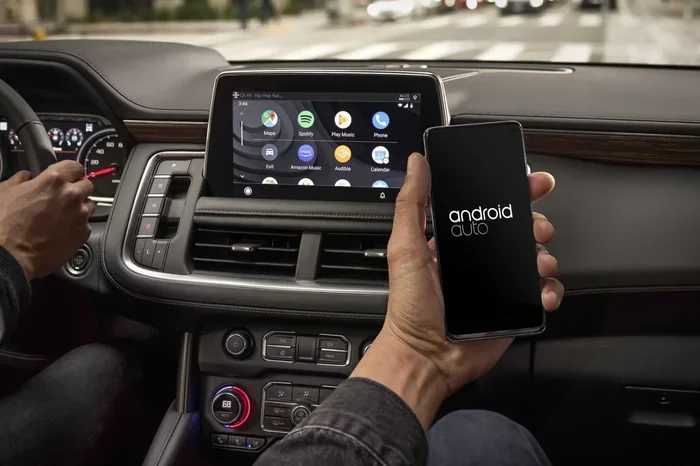
Android Auto brings your favorite apps to the car display screen, making navigation, music, and messaging safer and easier. This guide walks you through exactly how to activate Android Auto on your smartphone screen in just a few simple steps. Whether you use a USB cable or wireless Android Auto, you will be up and running quickly. We also cover troubleshooting tips, compatible devices, and expert advice to get the most out of your setup.
Driving has changed a lot over the years. Cars today are smarter, and so are our phones. One of the best ways to bring these two together is through Android Auto. This powerful tool turns your car display screen into a smart, safe hub for all your favorite apps. Whether you need directions, music, or a quick reply to a text message, Android Auto has you covered.
If you have never used it before, you might wonder how to activate Android Auto on your smartphone screen. The good news is that the process is straightforward. You do not need to be a tech expert. In this guide, we will walk you through every step, from downloading the app to fixing common problems. By the end, you will know exactly how to get Android Auto running smoothly every time you get behind the wheel.
So grab your phone, and let us dive in. This guide is packed with practical tips, real examples, and expert insights to make your setup as smooth as possible.
Key Takeaways
- Easy Setup: Activating Android Auto is simple and takes only a few minutes with the right preparation.
- Two Connection Methods: You can use a USB cable or go wireless depending on your car and phone.
- Broad Compatibility: Most modern Android phones and Android Auto compatible cars support the feature.
- Hands-Free Safety: Voice commands Android Auto lets you keep your eyes on the road.
- Quick Fixes Available: Common issues like Android Auto not working can be resolved with basic steps.
- Free to Use: The Android Auto app is free to download from the Google Play Store.
- Enhances Driving: Smartphone integration makes your daily commute more productive and enjoyable.
📑 Table of Contents
- What Is Android Auto and Why Should You Use It?
- Before You Start: What You Need to Activate Android Auto
- How to Activate Android Auto Using a USB Cable
- How to Activate Android Auto Wirelessly
- Setting Up Android Auto Settings for the Best Experience
- Troubleshooting: What to Do When Android Auto Is Not Working
- Tips to Get the Most Out of Android Auto Every Day
- Is Android Auto Safe for Daily Driving?
- Android Auto vs. Apple CarPlay: Quick Comparison
- Conclusion
What Is Android Auto and Why Should You Use It?
Android Auto is a smartphone integration platform created by Google. It projects your phone’s most useful apps onto your car display screen. Think of it as a safe, driver-friendly version of your phone built right into your vehicle.
The main goal of Android Auto is hands-free driving. Instead of picking up your phone while on the road, you use voice commands, large buttons, and simple menus. This keeps your eyes on the road and your hands on the wheel. It is a huge safety upgrade for anyone who relies on their phone daily.
Here are some of the key features you get with Android Auto:
- Google Maps Navigation: Get turn-by-turn directions without holding your phone.
- Music and Podcasts: Control Spotify, YouTube Music, Pandora, and more from your car screen.
- Messaging Made Safe: Use voice-to-text to send and receive messages without typing.
- Voice Assistant: Google Assistant is built in, so you can ask questions or give commands by voice.
- Smart Notifications: See important alerts at a glance, filtered for driving safety.
The beauty of Android Auto is that it works with most modern cars and Android phones. It does not matter if your car is brand new or a few years old. As long as your vehicle has a compatible infotainment system, you can likely use it. This makes smartphone integration more accessible than ever before.
Before You Start: What You Need to Activate Android Auto
Before you learn how to activate Android Auto on your smartphone screen, you need to make sure you have everything ready. Skipping this step can lead to frustration later. Here is a quick checklist of what you need.
Check Your Phone Compatibility
Not all phones support Android Auto. You need a compatible Android phone running Android 6.0 or higher. Most phones made after 2015 will work just fine. Here is how to check:
- Go to your phone’s Settings.
- Tap on About Phone.
- Look for your Android version number.
- Make sure it is 6.0 or newer.
If your phone is older than that, you may need to consider upgrading. Also, make sure your phone has enough storage space. Android Auto needs at least 100 MB of free space to run properly.
Prepare Your Car
Your car needs a compatible infotainment system to display Android Auto. Most vehicles made after 2016 support it either natively or through an aftermarket head unit. Check your car’s manual or visit the manufacturer’s website to confirm compatibility. You should also make sure your car has either a USB port or Bluetooth capability.
Download the Android Auto App
You need the Android Auto app installed on your phone. Here is how to get it:
- Open the Google Play Store on your phone.
- Search for “Android Auto.”
- Tap Install.
- Wait for the download to finish.
The app is free and takes up very little space. Once installed, open it and agree to the terms and conditions. You are now ready to move to the next step.
How to Activate Android Auto Using a USB Cable
The USB cable method is the most reliable way to connect your phone to your car. It works with almost every vehicle that supports Android Auto. Here is exactly how to do it.
Step 1: Connect Your Phone to the Car
Plug one end of a USB cable into your phone and the other end into your car’s USB port. Most cars have the USB port located on the center console, dashboard, or inside the glove box. Once connected, your car should recognize the phone automatically.
Step 2: Open Android Auto
On your car display screen, you should see the Android Auto icon appear within a few seconds. Tap the icon to launch the app. If this is your first time, Android Auto will walk you through a brief setup. You can choose your preferred apps, adjust display settings, and set up voice matching.
Step 3: Grant Permissions
Android Auto will ask for several permissions. These include access to your location, contacts, and messages. Granting these permissions is essential for the app to work properly. Without them, features like navigation and messaging will not function correctly.
Step 4: Start Using Android Auto
Once everything is set up, you are good to go. You will see a clean, driver-friendly interface on your car display screen. Tap on Google Maps for directions, select your music app, or use the microphone button to send a voice message. The entire experience is designed to keep you focused on the road.
Quick Tip: Use a high-quality USB cable. Cheap or damaged cables are one of the most common reasons Android Auto does not connect properly. A braided USB-C cable tends to last longer and provide a more stable connection.
How to Activate Android Auto Wirelessly
Wireless Android Auto is a game changer. It lets you connect your phone to your car without any cables. This method is cleaner and more convenient, but it requires both your phone and car to support it.
Step 1: Make Sure Your Car Supports Wireless Connection
Not all cars support wireless Android Auto. Check your car’s manual or look for a “Wireless” option in the Android Auto settings menu. Newer models from brands like Volvo, Polestar, and some 2022+ vehicles from other manufacturers offer wireless support.
Step 2: Enable Wireless Android Auto on Your Phone
On your phone, go to Settings, then Apps, then Android Auto. Look for a setting called “Wireless Android Auto” or “Enable wireless projection.” Turn it on. Your phone will now search for available car systems nearby.
Step 3: Pair with Your Car
On your car display screen, navigate to the Android Auto or Smartphone Mirror option. Your phone should appear as a available device. Select it to pair. You may need to confirm a PIN code on both devices for the first connection.
Step 4: Enjoy a Cable-Free Experience
Once paired, your phone will automatically connect to your car whenever you get in. The car display screen will show Android Auto without you needing to plug in anything. It is a seamless experience that makes daily driving much more enjoyable.
Quick Tip: Wireless Android Auto uses Bluetooth and Wi-Fi Direct. Make sure both Bluetooth and Wi-Fi are turned on in your phone settings. If the connection drops, restarting both your phone and your car’s infotainment system usually fixes the issue.
Setting Up Android Auto Settings for the Best Experience
Once you know how to activate Android Auto on your smartphone screen, it is worth taking a few minutes to fine-tune your settings. The default setup works well, but a few tweaks can make a big difference.
Customize Your App Layout
Android Auto lets you choose which apps appear on your car display screen. You can pin your most-used apps for quick access. Go to the Android Auto settings menu on your phone and tap “Customize launcher.” From there, you can add or remove apps as you like.
Popular apps to include are:
- Google Maps or Waze for navigation
- Spotify or Apple Music for audio
- WhatsApp or Messages for communication
- Podcast apps like Pocket Casts or Spotify Podcasts
Adjust Display and Brightness
Your car display screen can be hard to read in bright sunlight. Android Auto has a dark mode that reduces glare and saves battery. Go to Settings, then Display, and toggle on Dark Mode. You can also adjust the text size for easier reading while driving.
Set Up Voice Matching
Voice matching lets Google Assistant recognize your voice. This means only you can use voice commands to control Android Auto. To set it up, go to Android Auto settings and follow the voice match setup wizard. This is a great security feature that keeps your personal data private.
Troubleshooting: What to Do When Android Auto Is Not Working
Even with a perfect setup, you might run into issues. Android Auto not working is a common complaint, but the fix is usually simple. Here are the most frequent problems and how to solve them.
Android Auto Does Not Launch When You Connect
If your car display screen does not show Android Auto when you plug in your phone, try these steps:
- Unplug the USB cable and plug it back in.
- Make sure the cable is fully inserted into both devices.
- Restart your phone and try again.
- Check that Android Auto is enabled in your phone’s Developer Options if you have that turned on.
Connection Keeps Dropping
A loose or unstable connection can be annoying. Here is what to do:
- Try a different USB cable or USB port in your car.
- Clean the USB port on your phone with a soft brush.
- For wireless connections, toggle Bluetooth off and back on.
- Update the Android Auto app to the latest version.
Apps Do Not Appear on the Car Screen
If your apps are missing from the Android Auto interface:
- Open Android Auto on your phone.
- Go to Settings and then Customize launcher.
- Make sure the apps you want are toggled on.
- Some apps may not be optimized for Android Auto yet. Check the app’s page in the Play Store.
Touchscreen Not Responding
Sometimes the car screen becomes unresponsive when Android Auto is active. Try disconnecting and reconnecting your phone. If the problem persists, restart your car’s infotainment system by holding the power button for 10 seconds.
Expert Insight: According to automotive tech experts, updating both your phone’s operating system and your car’s infotainment software regularly prevents most connection issues. Manufacturers often release patches that improve compatibility and fix bugs.
Tips to Get the Most Out of Android Auto Every Day
Now that you know how to activate Android Auto and troubleshoot common issues, let us look at some pro tips to elevate your experience.
Use Voice Commands While Driving
One of the biggest advantages of Android Auto is hands-free driving. Say “Hey Google” to launch navigation, play music, or send a text without touching your phone. This is especially useful when you are in heavy traffic or bad weather.
Keep Your Phone Charged
Android Auto can drain your phone battery quickly, especially during long drives. Use a USB cable that supports fast charging, or invest in a car charger. Keeping your phone plugged in ensures Android Auto runs smoothly without interruptions.
Explore Third-Party Apps
Android Auto supports many third-party apps beyond the basics. Apps like Waze offer community-driven traffic updates. Podcast apps let you binge your favorite shows during your commute. The more apps you explore, the more useful Android Auto becomes.
Update Regularly
Google frequently updates Android Auto with new features and improvements. Check the Google Play Store weekly for app updates. Keeping everything current ensures the best performance and security.
Is Android Auto Safe for Daily Driving?
Safety is the number one concern for any driver using technology in the car. The good news is that Android Auto is designed with safety as a top priority. The interface uses large buttons, simple menus, and a dark color scheme to reduce distraction.
Voice commands are the safest way to interact with Android Auto. You never need to look away from the road for more than a second. The app also limits notifications and filters incoming calls to reduce temptation.
That said, no technology is completely distraction-free. Always pull over if you need to make a complex adjustment. Use Android Auto as a tool to enhance your driving, not replace your attention on the road.
Android Auto vs. Apple CarPlay: Quick Comparison
If you have ever compared smartphone integration options, you have likely heard of Apple CarPlay. Here is a quick side-by-side look at how the two stack up.
| Feature | Android Auto | Apple CarPlay |
|---|---|---|
| Platform | Android phones | iPhone |
| Connection | USB and Wireless | USB and Wireless |
| Voice Assistant | Google Assistant | Siri |
| Default Maps | Google Maps | Apple Maps |
| App Availability | Wide range of Android apps | iOS-optimized apps |
| Customization | High | Moderate |
| Free to Use | Yes | Yes |
Both platforms offer excellent smartphone integration. Your choice mostly depends on which phone you use. If you have an Android phone, Android Auto is the natural and best choice. It offers deep integration with Google services and a highly customizable interface.
Conclusion
Learning how to activate Android Auto on your smartphone screen opens up a world of convenience and safety. From Google Maps navigation to hands-free messaging, Android Auto makes every drive better. The setup process is simple, whether you use a USB cable or go wireless. And with the troubleshooting tips in this guide, you can handle any hiccup that comes your way.
Take a few minutes today to set up Android Auto on your phone. Download the app, connect to your car, and explore the features. You will wonder how you ever drove without it. The road ahead is smarter, safer, and more connected with Android Auto by your side.
Start your journey now. Activate Android Auto and experience the future of driving, one tap at a time.
Frequently Asked Questions
How do I activate Android Auto on my smartphone screen?
Download the Android Auto app from the Google Play Store, connect your phone to your car using a USB cable or wirelessly, and tap the Android Auto icon on your car display screen. Follow the on-screen setup prompts, grant the necessary permissions, and you are ready to go.
What phones are compatible with Android Auto?
Most Android phones running Android 6.0 or higher are compatible with Android Auto. This includes phones from Samsung, Google Pixel, OnePlus, Xiaomi, and many other brands. Check your phone’s settings under About Phone to confirm your Android version.
Can I use Android Auto without a USB cable?
Yes, you can use wireless Android Auto if both your phone and car support it. Go to Android Auto settings on your phone, enable wireless projection, and pair with your car’s infotainment system. No cable is needed for a wireless connection.
Why is Android Auto not working on my car screen?
Common reasons include a faulty USB cable, outdated app versions, or missing permissions. Try using a different cable, updating the Android Auto app, restarting both your phone and car system, and ensuring all permissions are granted in the app settings.
Is Android Auto safe to use while driving?
Yes, Android Auto is designed with driver safety in mind. It uses a simplified interface, large buttons, and voice commands to minimize distractions. Always use hands-free features and pull over if you need to make complex adjustments.
Does Android Auto use a lot of battery?
Android Auto can drain your phone battery faster than normal use, especially during long drives. To preserve battery, keep your phone plugged into a USB charger while using Android Auto, and reduce screen brightness on the car display.