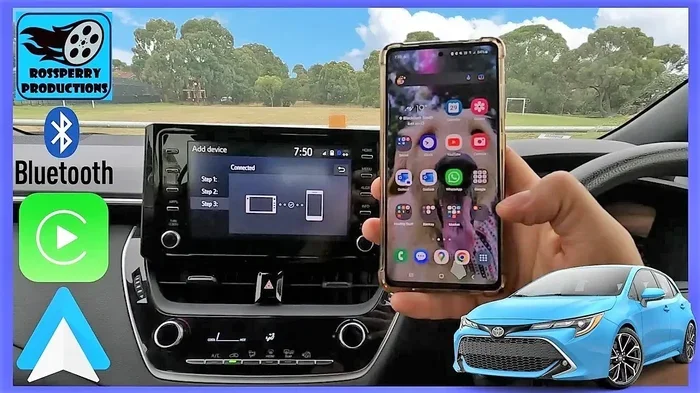
How to Pair Toyota Bluetooth for Seamless Connection
Pairing your phone to Toyota Bluetooth is simple when you follow the right steps. This guide covers the full process for Toyota models like the Camry, RAV4, and Corolla. You will learn how to connect, troubleshoot common issues, and make the most of hands-free calling and audio streaming.
Connecting your phone to your Toyota through Bluetooth is one of the easiest ways to stay connected on the road. Whether you want to stream music, take calls hands-free, or use navigation apps, how to pair Toyota Bluetooth is a skill every Toyota owner should know. The process is quick, and once you do it once, you will never want to go back to tangled wires.
Toyota has made Bluetooth integration a standard feature across most of its lineup. From the Toyota Camry to the Toyota RAV4, the steps are similar but may vary slightly depending on your model year. In this guide, we walk you through everything you need to know about Toyota Bluetooth pairing. You will learn the exact steps, find troubleshooting tips, and discover how to get the most out of your Toyota wireless connectivity.
Many people think pairing Bluetooth is complicated. It really is not. Whether you drive a Toyota Corolla or a Toyota Grand Highlander, the process is designed to be simple and user-friendly. This guide breaks it all down so you can get connected in just a few minutes.
Key Takeaways
- Easy Pairing Process: Toyota Bluetooth pairing follows a straightforward steps that work across most Toyota models from the 2010s onward.
- Hands-Free Safety: Connecting Bluetooth lets you make calls and stream music without taking your hands off the wheel, keeping you safe.
- Troubleshooting Works: Most Bluetooth issues can be fixed quickly by restarting devices, clearing old connections, or updating your phone.
- Multiple Devices Supported: Most Toyota systems let you pair more than one phone, so passengers can connect too.
- Maintenance Matters: Keeping your Toyota Bluetooth updated and your phone software current ensures a smooth, reliable connection every time.
📑 Table of Contents
- How Toyota Bluetooth Works
- Step-by-Step Guide to Pairing Toyota Bluetooth
- Toyota Bluetooth Compatibility by Model
- Toyota Bluetooth Troubleshooting Tips
- Toyota Bluetooth Features You Should Know About
- Tips for Maintaining Your Toyota Bluetooth Connection
- Expert Insights on Toyota Bluetooth
- Common Mistakes to Avoid When Pairing Toyota Bluetooth
- Conclusion
How Toyota Bluetooth Works
Toyota Bluetooth uses a wireless technology called Bluetooth Low Energy to connect your phone to your car’s infotainment system. This connection lets you share audio, make phone calls, and access certain phone features right from your dashboard. The system works with both Apple and Android devices, which makes it very flexible.
Most Toyota models built after 2010 come with Bluetooth capability as standard. Older models may need a factory accessory or an aftermarket adapter to add Bluetooth support. When you understand how the system works, pairing becomes much easier. The Toyota infotainment screen acts as a bridge between your phone and your car’s audio system.
Bluetooth Versions in Toyota Vehicles
Toyota uses different Bluetooth versions depending on the model year. Newer Toyota vehicles support Bluetooth 5.0 or higher, which gives you a stronger signal and better range. Older models may use Bluetooth 4.0 or 3.0, which still works well but may have a shorter range. Here is a quick look at what to expect:
- Bluetooth 5.0: Found in newer Toyota models. Offers the best range and fastest data transfer.
- Bluetooth 4.2: Common in mid-range Toyota models from 2015 to 2020. Reliable and stable.
- Bluetooth 3.0: Found in older Toyota models. Still works for calls and basic audio streaming.
Knowing your Bluetooth version helps when troubleshooting connection issues. If your Toyota Bluetooth connection keeps dropping, the Bluetooth version may be a factor. Toyota wireless connectivity has improved a lot over the years, and newer models offer a much smoother experience.
Step-by-Step Guide to Pairing Toyota Bluetooth
Now let us get into the actual steps. The process for how to pair Toyota Bluetooth is very similar across most Toyota models. We will break it down into simple, easy-to-follow steps. Whether you have a Toyota Camry or a Toyota 4Runner, these steps will guide you through the process.
Step 1: Prepare Your Phone
Before you start, make sure your phone is ready. Turn on Bluetooth on your phone by going to your settings. Make sure your phone is discoverable, which means it is visible to other devices. Most phones keep Bluetooth discoverable for a short time after you turn it on. If your phone has been connected to another device recently, forget that device first to avoid connection conflicts.
Also, make sure your phone battery is charged enough. A low battery can sometimes cause pairing problems. If you are asking yourself should I charge my Bz4X to 100, the same idea applies here. A full or near-full battery helps ensure a smooth pairing process.
Step 2: Turn on Your Toyota Bluetooth
Start your Toyota and press the Bluetooth or Phone button on your steering wheel or infotainment screen. On most Toyota models, you will find this button near the audio controls. If your Toyota has a touchscreen, look for the Phone or Bluetooth icon on the home screen. Tap it to open the Bluetooth settings menu.
On older Toyota models without a touchscreen, use the audio controls on the dashboard or center console to navigate to the Bluetooth menu. Use the tune knob or arrow buttons to scroll through the options. Select Bluetooth Settings and then choose Add Device or Pair New Device.
Step 3: Search for Your Toyota
On your phone, go to your Bluetooth settings and look for available devices. Your Toyota should appear in the list with a name like Toyota Audio or BT-01. Tap on your Toyota’s name to start the pairing process. Some Toyota models may ask you to confirm a PIN code that appears on both your phone and your car screen. Make sure the codes match and then confirm.
If your Toyota does not show up in the list, do not worry. This is a common issue, and we will cover how to fix it in the troubleshooting section below. First, try the steps above again to make sure everything is set up correctly.
Step 4: Test the Connection
Once pairing is complete, test your connection. Play some music from your phone and see if it comes through your Toyota speakers. Try making a hands-free call to confirm the microphone works. If both work, you are all set. Toyota hands-free calling is now active, and you can enjoy a safer, more convenient driving experience.
Most Toyota models will remember your phone after the first pairing. The next time you get in your car, the Bluetooth connection should happen automatically. This is one of the best things about Toyota Bluetooth pairing. You do not have to repeat the process every time you drive.
Toyota Bluetooth Compatibility by Model
Toyota Bluetooth works across a wide range of models, but the exact features may differ. Here is a quick look at how Toyota Bluetooth connection works in some popular models:
- Toyota Camry: Bluetooth has been standard since the mid-2000s. The Camry supports hands-free calling and audio streaming with ease.
- Toyota RAV4: The RAV4 offers full Bluetooth support including contact syncing and audio streaming. The process is very similar to the Camry.
- Toyota Corolla: Even the base Corolla models include Bluetooth. The steps are simple and the connection is reliable.
- Toyota 4Runner: The 4Runner supports Bluetooth for calls and audio. The process is straightforward, especially in newer model years.
- Toyota Grand Highlander: The newest addition to the Toyota family offers the latest Bluetooth 5.0 connectivity with excellent range and stability.
No matter which Toyota you drive, the basic pairing process stays the same. The main differences are in how you access the Bluetooth menu on your specific model. If you are unsure about your model’s Bluetooth features, check your owner’s manual or visit a Toyota dealership.
Can You Switch Between Connected Devices?
Yes, most Toyota systems allow you to pair multiple phones. When multiple phones are paired, the system usually connects to the last device that was used. You can manually switch between devices through the Bluetooth settings menu on your Toyota infotainment screen. This is helpful if you share your car with a passenger who also wants to stream music or take calls.
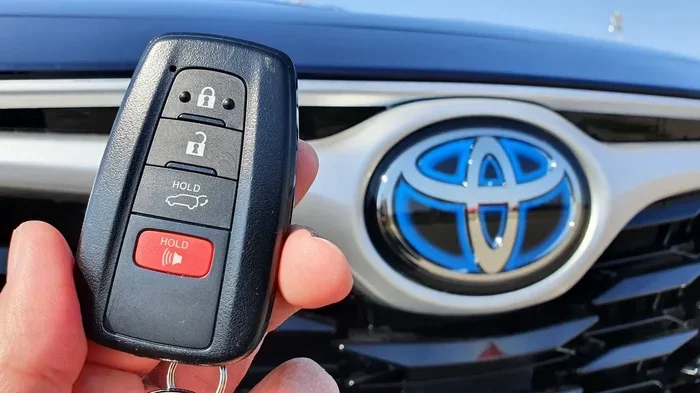
Some people wonder if can you reprogram a used Toyota key fob to a different car and whether that affects Bluetooth. The answer is no. Key fob programming and Bluetooth pairing are separate systems. Reprogramming a key fob will not erase your Bluetooth connections.
Toyota Bluetooth Troubleshooting Tips
Even though Toyota Bluetooth is reliable, you may run into issues from time to time. Here are the most common problems and how to fix them. These Toyota Bluetooth troubleshooting tips will save you time and frustration.
Toyota Bluetooth Not Showing Up on Phone
If your phone cannot find your Toyota Bluetooth, try these steps. First, make sure Bluetooth is turned on both on your phone and in your Toyota. Turn Bluetooth off and back on in your car’s settings. Restart your phone and try again. Sometimes simply restarting the car’s infotainment system by holding the power button for 10 seconds helps.
Another common fix is to delete old Bluetooth connections from both your phone and your car. Old connections can interfere with new pairing. Go to your phone’s Bluetooth settings and forget any old Toyota connections. Then try pairing again from scratch.
Toyota Bluetooth Connected But No Sound
If your phone connects to Toyota Bluetooth but you cannot hear any audio, check a few things. First, make sure the media audio option is turned on in your phone’s Bluetooth settings. On Android phones, go to Bluetooth settings, tap your Toyota device, and make sure Media Audio is enabled. On iPhones, go to Settings, Bluetooth, tap the info icon next to your Toyota, and ensure Media Audio is on.
Also check your car’s audio source. Make sure the infotainment screen is set to Bluetooth Audio or BT Audio as the input source. If the source is set to radio or USB, you will not hear any sound from your phone even though the connection is active.
Toyota Bluetooth Keeps Disconnecting
A Bluetooth connection that keeps dropping can be annoying. This usually happens when your phone is too far from the car’s antenna or when there is interference from other devices. Make sure your phone is in a pocket or holder close to the center console. If you are asking yourself how to take a tonneau cover off and you store your phone in the truck bed, that distance can cause disconnections. Keep your phone inside the cabin for the best Bluetooth signal.
Interference from other Bluetooth devices in the car can also cause issues. If you have multiple Bluetooth devices connected, try disconnecting the ones you are not using. This frees up bandwidth and can stabilize your Toyota Bluetooth connection.
Quick Troubleshooting Checklist
- Turn Bluetooth off and back on in both your phone and your car.
- Restart your phone and your Toyota infotainment system.
- Delete old Bluetooth pairings from both devices.
- Make sure media audio is enabled on your phone.
- Check that the car audio source is set to Bluetooth.
- Move your phone closer to the center console.
- Update your phone software and your Toyota infotainment firmware.
Toyota Bluetooth Features You Should Know About
Pairing your phone is just the beginning. Toyota Bluetooth offers several features that make driving safer and more enjoyable. Understanding these features helps you get the most out of your Toyota’s Toyota multimedia system.
Hands-Free Calling
The most important Toyota Bluetooth feature is hands-free calling. Once your phone is paired, you can answer and make calls using your car’s microphone and speakers. You do not need to touch your phone, which keeps your hands on the wheel and your eyes on the road. Most Toyota models also support voice commands for calls, so you can say “Call Mom” and the system handles the rest.
Audio Streaming
Bluetooth audio streaming lets you play music, podcasts, and audiobooks from your phone through your Toyota speakers. Whether you use Spotify, Apple Music, or YouTube Music, the audio comes through clearly. This feature works great for long road trips and daily commutes alike. You can control playback from either your phone or your car’s infotainment screen.
Contact Syncing
Many Toyota models sync your phone contacts with the infotainment system. This means you can access your contacts list using the car’s screen or voice commands. Finding a contact and calling them becomes very fast and easy. This feature is especially useful when you have a passenger who cannot reach your phone.
Voice Recognition Integration
Toyota’s voice recognition system works hand-in-hand with Bluetooth. You can use voice commands to make calls, change music, and adjust settings without touching any buttons. This adds another layer of safety and convenience to your driving experience. Toyota smartphone integration through voice commands is one of the best features of the Toyota infotainment system.
Tips for Maintaining Your Toyota Bluetooth Connection
Once your Toyota Bluetooth is paired, keeping it working smoothly is easy. A few simple habits go a long way in ensuring reliable connectivity. These Toyota Bluetooth maintenance tips will help you avoid most common issues.
- Keep your phone updated: Software updates often include Bluetooth improvements. Check for phone updates regularly.
- Restart your car’s infotainment system: A quick restart once a month can clear minor glitches and keep things running smoothly.
- Delete old pairings: If you sell or share your car, remove old Bluetooth connections. This keeps your system clean and secure.
- Avoid interference: Keep other Bluetooth devices turned off or far away when pairing a new device.
- Use official Toyota accessories: If you add aftermarket devices, make sure they are compatible with Toyota Bluetooth to avoid conflicts.
Taking care of your Toyota audio Bluetooth connection is just like taking care of any other feature in your car. A little maintenance goes a long way. If you notice issues, address them early before they become bigger problems.
Expert Insights on Toyota Bluetooth
From working with Toyota owners and technicians, here are some expert tips that can make your Bluetooth experience even better. These insights come from real-world experience and can save you time.
Tip 1: Pair in a quiet environment. Background noise can sometimes interfere with the initial pairing process. Turn off your radio and any other audio sources when pairing for the first time.
Tip 2: Update your Toyota firmware. Toyota occasionally releases infotainment updates that improve Bluetooth performance. Ask your dealer about available updates for your model. Keeping your system current ensures the best compatibility with new phones.
Tip 3: Use the steering wheel controls. Most Toyota models let you answer calls and control audio using steering wheel buttons. This is safer and more convenient than reaching for your phone. Get familiar with these controls right after pairing.
Tip 4: Switch to sport mode for better responsiveness. If you want your Toyota’s system to respond faster, you can switch modes on the infotainment screen. Can you switch to sport mode while driving a Toyota? Yes, most models allow this, and it can make the system feel more responsive when navigating Bluetooth settings.
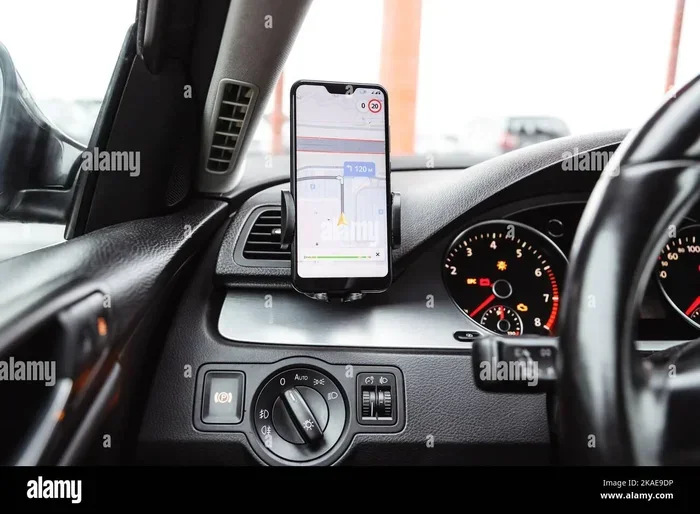
Tip 5: Keep your phone in a signal-friendly location. Your phone’s Bluetooth antenna works best when it is not blocked by metal or thick cases. A phone holder on the dashboard or center console gives the best signal strength for a stable connection.
Common Mistakes to Avoid When Pairing Toyota Bluetooth
Even with a simple process like Bluetooth pairing, mistakes can happen. Here are the most common ones and how to avoid them.
- Not turning off other Bluetooth devices: Other connected devices can interfere with pairing. Turn off Bluetooth on devices you are not using.
- Skipping the phone update: An outdated phone operating system can cause compatibility issues. Update your phone before pairing.
- Not clearing old pairings: Old connections clutter your Bluetooth list and can cause conflicts. Clear them before adding a new device.
- Ignoring the PIN code: Some Toyota models require you to confirm a PIN. If you skip this step, pairing will fail.
- Giving up too quickly: If the first attempt does not work, do not get frustrated. Restart both devices and try again.
Avoiding these simple mistakes will save you a lot of time and make the Toyota Bluetooth pairing process smooth the first time around.
Conclusion
How to pair Toyota Bluetooth is a straightforward process that anyone can do in just a few minutes. Whether you drive a Toyota Camry, RAV4, Corolla, or any other Toyota model, the steps are simple and consistent. You have learned how to prepare your phone, turn on Bluetooth in your Toyota, search for your car, and test the connection. You also know how to troubleshoot common issues and maintain a strong connection over time.
Toyota Bluetooth connection gives you hands-free calling, audio streaming, and contact syncing. These features make every drive safer and more enjoyable. By following the tips and insights in this guide, you can get the most out of your Toyota’s wireless technology. Keep your phone updated, maintain your connection, and enjoy the convenience of a seamless Bluetooth experience every time you get behind the wheel.
Now that you know how to pair Toyota Bluetooth, try it out on your next drive. Once you experience the freedom of wireless connectivity, you will wonder how you ever drove without it. Stay connected, stay safe, and enjoy every mile in your Toyota.
Frequently Asked Questions
How long does it take to pair Toyota Bluetooth?
The entire process takes about 2 to 3 minutes once you know the steps. First-time pairing may take a little longer as you set up your preferences. After the first connection, your Toyota will remember your phone and reconnect automatically the next time you start the car.
Can I pair more than one phone to my Toyota Bluetooth?
Yes, most Toyota models support multiple phone pairings. The system usually connects to the last device that was used automatically. You can switch between paired phones through the Bluetooth settings menu on your infotainment screen.
Why is my Toyota Bluetooth not connecting to my phone?
This is usually caused by an old pairing that needs to be cleared, a phone software issue, or Bluetooth being turned off on one of the devices. Try restarting both your phone and your car’s infotainment system. Delete old pairings and try connecting again. If the problem persists, check for software updates on both devices.
Does Toyota Bluetooth work with both iPhone and Android?
Yes, Toyota Bluetooth is compatible with both iPhone and Android devices. The pairing process is very similar for both. Whether you use an iPhone or an Android phone, you can enjoy hands-free calling, audio streaming, and contact syncing through your Toyota’s infotainment system.
Can I stream music through Toyota Bluetooth?
Absolutely. Once your phone is paired, you can stream music from apps like Spotify, Apple Music, and YouTube Music through your Toyota speakers. Just make sure the media audio option is enabled in your phone’s Bluetooth settings and that your car’s audio source is set to Bluetooth Audio.
What should I do if my Toyota Bluetooth keeps disconnecting?
First, check that your phone is close to the car’s center console. Move any other Bluetooth devices away that might be causing interference. Restart both your phone and your car’s infotainment system. If disconnections continue, delete the old pairing and pair your phone again from scratch. Keeping both devices updated also helps maintain a stable connection.