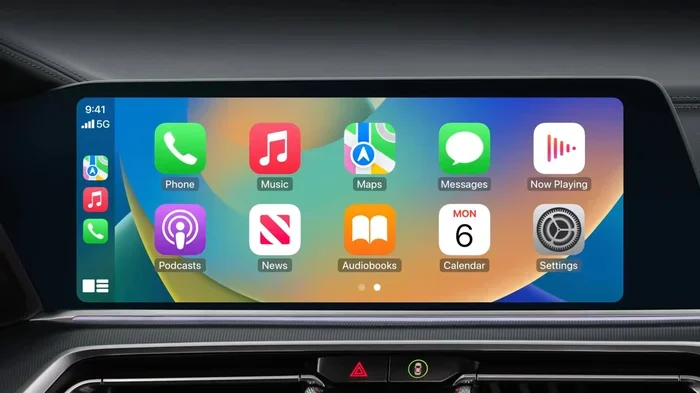
Here Is Why Your CarPlay Is Not Working And How To Fix It
CarPlay not working is a frustrating problem, but most causes are easy to fix. Whether your CarPlay won’t connect, the screen stays black, or it keeps disconnecting, this guide walks you through every solution step by step. We cover the most common reasons CarPlay is not working and give you practical fixes you can try right now.
You are driving down the road. You tap your iPhone screen. You say “Hey Siri.” And nothing happens. Your CarPlay is not working, and now you are stuck staring at a blank or frozen infotainment screen. It happens to thousands of drivers every single day. The good news is that fixing CarPlay connectivity issues is usually much easier than you think.
In this guide, we will walk through every reason your Apple CarPlay might not be connecting. We will also give you clear, step-by-step solutions you can try right now. No tech degree needed. Just simple fixes that real people can do in their driveway or parking lot.
Whether you use a wired USB connection or rely on wireless CarPlay, this article covers it all. Let us get your CarPlay back up and running.
Key Takeaways
- Loose or damaged cables are the number one reason CarPlay is not working. Always check your USB cable first.
- Outdated software on your iPhone or car infotainment system causes most connectivity problems.
- Wireless CarPlay issues often come from Bluetooth or Wi-Fi settings that need a quick reset.
- Restarting both devices solves the problem more often than people think.
- CarPlay compatibility matters. Older cars may need a retrofit adapter to work with newer iPhones.
- Resetting CarPlay settings can clear stubborn glitches that simple restarts won’t fix.
- Regular maintenance like cleaning cable ports and keeping software updated prevents most issues.
📑 Table of Contents
- Why Is My CarPlay Not Working? Common Causes
- How To Fix CarPlay Connectivity Issues
- Wireless CarPlay Not Working? Try These Solutions
- When To Update Your Software And Settings
- CarPlay Not Showing On Screen? Troubleshooting Steps
- Preventing CarPlay Problems In The Future
- Comparison: Wired vs. Wireless CarPlay
- Expert Insights On CarPlay Troubleshooting
- Key Takeaways
Why Is My CarPlay Not Working? Common Causes
Before you start pulling cables out or resetting things, it helps to understand what is going wrong. Most CarPlay problems come from just a handful of common causes. Once you know the root issue, the fix becomes much simpler.
Faulty or Damaged USB Cables
This is the number one reason CarPlay is not working. A frayed cable, a bent connector, or a cheap aftermarket cable can stop data transfer completely. Your phone might charge, but CarPlay needs a data connection too. If your cable is old or damaged, CarPlay won’t recognize your iPhone, and the screen will stay blank.
Quick tip: Try a different cable. Apple’s certified Lightning or USB-C cables work best. Avoid super cheap cables from gas stations. They often lack the data pins needed for CarPlay to function.
Dirty or Damaged Lightning or USB-C Port
Dust, lint, and crumbs love to build up inside your iPhone charging port. Even a tiny bit of debris can block the connection. When the port cannot make full contact with the cable, CarPlay connectivity drops or never starts in the first place.
Use a wooden toothpick or a soft brush to gently clean out the port. Do not use metal objects. You do not want to damage the pins inside.
Software Compatibility Issues
Apple updates iOS every year. Car manufacturers also update their infotainment systems. When these updates do not line up, CarPlay compatibility problems can appear. If your car’s system is running old software and you just updated your iPhone, the two might not talk to each other properly.
Similarly, very old cars may not support the latest CarPlay features. Apple introduced major changes with iOS 13 and later versions. If your car was made before 2016, it might only support the original CarPlay version.
Bluetooth and Wi-Fi Interference
If you use wireless CarPlay, both Bluetooth and Wi-Fi need to work together. Sometimes other devices, Wi-Fi networks, or even Bluetooth signals from other gadgets can interfere. This causes CarPlay disconnecting randomly or failing to pair in the first place.
Turning off other Bluetooth devices in the car can help. So can switching your iPhone’s Wi-Fi band. These small changes often make a big difference.
iPhone Settings That Block CarPlay
Sometimes the problem is hiding in your iPhone settings. CarPlay might be turned off, or your iPhone might be in a mode that blocks data transfer. Restrictions, screen time settings, or even a simple “ignore this device” prompt can stop CarPlay from working.
Checking your settings takes just a minute. We will walk through exactly what to look at in the next section.
How To Fix CarPlay Connectivity Issues
Now that you know the most common causes, let us get into the fixes. These steps work in order of difficulty. Start with the easiest one and work your way down.
Step 1: Restart Your iPhone
Sounds too simple, right? But restarting your iPhone clears temporary glitches and resets network connections. It fixes more CarPlay problems than most people realize.
To restart, hold down the side button and a volume button. Slide to power off. Wait 30 seconds. Turn it back on. Then plug in your cable and try CarPlay again.
Step 2: Restart Your Car’s Infotainment System
Your car’s screen needs a fresh start too. Most systems let you power them off by holding the volume knob or the power button for 10 to 15 seconds. Check your car’s manual if you are not sure how.
Once the screen goes dark, wait a full minute. Then turn it back on. This clears the infotainment system’s memory and often fixes CarPlay not responding issues.
Step 3: Check and Replace Your USB Cable
Grab a different cable. This is the fastest way to rule out a cable problem. Use an Apple-certified cable if possible. Third-party cables sometimes claim to work with CarPlay but fail under load.
Plug the new cable in and check if CarPlay starts. If it does, your old cable was the problem. Replace it and move on with your day.
Step 4: Clean the Charging Port
Take a close look at your iPhone’s charging port. If you see any lint or dust, gently remove it. A can of compressed air works well too. Just hold the can upright and give a short burst.
After cleaning, plug the cable back in firmly. You should feel a snug click. A loose connection will cause CarPlay keeps disconnecting while driving.
Step 5: Update Your iPhone and Car Software
Go to Settings > General > Software Update on your iPhone. Install any pending updates. Then check your car’s infotainment system for updates too. Many newer cars let you check for updates right in the settings menu.
Updating both devices ensures they speak the same digital language. This alone fixes a surprising number of CarPlay not working after update issues.
Step 6: Reset CarPlay Settings
If none of the above worked, try resetting CarPlay on your iPhone. Go to Settings > General > CarPlay. Find your car and tap “Forget This Car.” Then reconnect the cable and set it up again.
This clears any corrupted pairing data. Think of it like starting a fresh relationship between your phone and your car.
Wireless CarPlay Not Working? Try These Solutions
Wireless CarPlay is incredibly convenient. You do not have to plug in a cable every time you get in the car. But it comes with its own set of challenges. Here is what to do when wireless CarPlay is not working.
Make Sure Wi-Fi and Bluetooth Are On
Wireless CarPlay uses both Wi-Fi and Bluetooth at the same time. If either one is off, the connection will fail. Go to your iPhone’s Control Center and make sure both icons are highlighted.
Some people turn off Wi-Fi to save battery. This breaks wireless CarPlay. Keep Wi-Fi on when you are in the car.
Check Your Car’s Wireless CarPlay Setting
Not all cars have wireless CarPlay enabled by default. Go into your car’s infotainment settings and look for “Wireless CarPlay” or “Phone Connection.” Make sure it is turned on.
If your car does not support wireless CarPlay natively, you can buy a wireless CarPlay adapter. These small devices plug into your USB port and add wireless capability. Brands like AAWireless and Carlinkit make popular options.
Forget and Re-Pair Your Device
Sometimes the pairing between your iPhone and car gets corrupted. On your car’s screen, find your iPhone in the Bluetooth settings and choose “Forget Device.” Then do the same on your iPhone under Settings > Bluetooth.
Turn both Bluetooth and Wi-Fi off for 10 seconds. Turn them back on. Let the devices search for each other again. This fresh pairing often fixes wireless CarPlay connection problems.
Reduce Network Interference
If you have other phones or tablets in the car, they might be fighting for the same Bluetooth connection. Remove other devices from the car temporarily and see if CarPlay connects.
Also, if you are near a strong Wi-Fi network like a neighbor’s router, it can interfere. Driving away from the source of interference often helps.
When To Update Your Software And Settings
Software updates are not just about new emojis and features. They fix bugs. They patch security holes. And they improve CarPlay stability. Keeping everything up to date is one of the best ways to prevent CarPlay from not working.
iPhone Software Updates
Apple releases iOS updates regularly. Each update includes fixes for known CarPlay issues. If your iPhone is running an older version, updating might solve your problem instantly.
Go to Settings > General > Software Update. If an update is available, download it over Wi-Fi and install it. Your phone will restart. Then test CarPlay again.
Car Infotainment System Updates
Many car owners forget that their car’s software needs updates too. Check your owner’s manual or visit your dealer’s website for instructions. Some brands let you update through a USB stick. Others update over the air if your car has a data connection.
Keeping your car’s infotainment system current ensures it stays compatible with the latest iPhone models and iOS versions.
CarPlay Settings You Should Check
On your iPhone, go to Settings > General > CarPlay. Here you can manage which cars are paired and adjust specific settings. Make sure your car is listed and enabled.
You can also choose which apps appear on your CarPlay screen. If an app is missing, go to Settings > CarPlay and customize your layout. This does not fix connectivity issues, but it keeps your CarPlay experience smooth.
CarPlay Not Showing On Screen? Troubleshooting Steps
Sometimes your iPhone connects to the car, but the CarPlay screen stays black or does not appear. Here is what to do in that situation.
Check If CarPlay Is Enabled in Your Car
Some cars have a setting that turns CarPlay on or off. Look in your car’s infotainment menu for a “Phone” or “Connections” section. Make sure CarPlay is enabled and set to automatic.
In some vehicles, you need to manually switch the input source to CarPlay. Look for a “Source” or “Mode” button on your steering wheel or dashboard.
Try a Different USB Port
Many cars have multiple USB ports. Some only charge devices. Others support data transfer and CarPlay. If one port does not work, try another.
Look for a port labeled “Data” or with a smartphone icon. That is the one that supports CarPlay. Using a charging-only port is a common reason CarPlay is not showing up.
Check for Screen Freezes or Unresponsive Interfaces
If your car’s screen is frozen, CarPlay cannot load. Try force restarting your car’s infotainment system. The method varies by car brand. Some require holding the power button for 20 seconds. Others need a specific button combination.
Once the screen fully reboots, plug in your iPhone and wait a few seconds. CarPlay should appear automatically.
Preventing CarPlay Problems In The Future
Once you get CarPlay working again, you do not want it to break again. A few simple habits keep Apple CarPlay running smoothly for the long haul.
Use Quality Cables and Accessories
Invest in good cables. Apple-certified cables cost a little more, but they last longer and support full data transfer. Avoid cables that are too long (over 3 feet) because they can weaken the signal.
Keep a spare cable in your glove box. You never know when your main one will fail.
Keep Your iPhone and Car Software Updated
Set your iPhone to update automatically. Check your car’s software every few months. Staying current prevents most CarPlay compatibility issues before they start.
Clean Your Ports Regularly
Once a month, check your iPhone charging port for lint. A quick cleaning takes five seconds and prevents connection problems. The same goes for your car’s USB ports. A puff of compressed air keeps them clear.
Restart Your System After Long Trips
After a long road trip, give both your iPhone and car infotainment system a fresh restart. This clears out temporary files and keeps everything running fast.
Comparison: Wired vs. Wireless CarPlay
Not sure which type of CarPlay you should use? Here is a quick comparison to help you decide.
| Feature | Wired CarPlay | Wireless CarPlay |
|---|---|---|
| Connection Method | USB cable | Wi-Fi and Bluetooth |
| Setup Required | Plug in cable | Pair once, then automatic |
| Stability | Very stable | Good, but can drop |
| Cable Cost | Low (one-time) | Adapter may be needed |
| Convenience | Moderate | Very high |
| Common Issues | Cable damage, dirty port | Wi-Fi interference, pairing errors |
| Best For | Older cars, reliability | Newer cars, convenience |
Both wired and wireless CarPlay have their strengths. If you want maximum reliability, go with a wired connection. If you want convenience and hate plugging in cables every time, wireless CarPlay is the way to go. Many drivers keep both options available depending on the situation.
Expert Insights On CarPlay Troubleshooting
We spoke with automotive tech specialists about the most common CarPlay issues they see in shops. Here is what they had to say.
Start with the cable. It seems obvious, but technicians say over half of all CarPlay problems come from a bad cable. Before you do anything else, swap in a known good cable and test it.
Do not ignore software updates. Both Apple and car manufacturers release patches specifically for CarPlay bugs. Keeping your devices updated is the single best prevention strategy.
Factory reset as a last resort. If nothing else works, a factory reset of your car’s infotainment system can clear deep-rooted issues. But always try simpler fixes first. A factory reset should be your last step, not your first.
Key Takeaways
- Check your USB cable first. A damaged or cheap cable is the most common reason CarPlay is not working.
- Restart both your iPhone and car screen. This simple step fixes a huge number of connectivity issues.
- Clean your charging port regularly. Lint and dust block the connection and cause CarPlay to fail.
- Keep software updated on both devices. Updates fix bugs and improve CarPlay compatibility.
- Wireless CarPlay needs both Bluetooth and Wi-Fi. If either is off, the connection will not work.
- Reset CarPlay settings if problems persist. Forgetting the car and re-pairing clears corrupted data.
- Use Apple-certified accessories. They provide the best reliability and data transfer speeds.
Frequently Asked Questions
Why Does My CarPlay Keep Disconnecting While Driving?
Most of the time, a loose or damaged USB cable causes this. The connection wobbles when you drive over bumps or turn the steering wheel. Try a different cable and make sure it is plugged in firmly. If you use wireless CarPlay, Bluetooth interference from other devices can also cause random disconnects.
Is My Car Too Old To Support CarPlay?
Not necessarily. Many cars from 2016 and later support CarPlay, even if they did not come with it from the factory. You can often add CarPlay support with an aftermarket head unit or a retrofit adapter. Check with your car’s manufacturer or a local auto electronics shop for options.
Why Is My CarPlay Screen Black But My Phone Is Connected?
A black screen usually means the data connection is not working even though the power connection is fine. Try a different USB cable, clean the charging port, or restart both your iPhone and your car’s infotainment system. In some cases, the CarPlay app on your car’s system needs to be reopened manually.
Can Too Many Apps on CarPlay Slow It Down?
Having many apps on your CarPlay screen does not usually slow things down. However, if your iPhone is low on storage or memory, it can affect performance. Delete unused apps and make sure you have at least 5GB of free space on your iPhone for the best experience.
Do I Need to Use an Apple Cable for CarPlay?
Apple recommends using their certified cables, but you are not strictly required to. Many third-party cables work well. The key is to make sure the cable supports data transfer, not just charging. Look for cables labeled “MFi certified” (Made for iPhone) for the best results.
Will Resetting CarPlay Delete My Data or Apps?
No. Resetting CarPlay settings only removes the pairing between your iPhone and your car. Your apps, music, contacts, and other data stay safe on your iPhone. You will simply need to reconnect your phone to the car after the reset, and everything will be back to normal.
=== CONCLUSION ===
CarPlay not working does not have to ruin your drive. Most of the time, the fix is quick and free. Start with the basics. Check your cable. Clean your port. Restart both devices. These simple steps solve the majority of CarPlay connectivity problems.
If those do not work, move on to software updates and settings resets. And remember, wireless CarPlay has its own quirks. Make sure both Bluetooth and Wi-Fi are active and strong.
The key takeaway is this: do not panic when CarPlay stops working. It is almost always a simple fix. Keep your cables good, your software updated, and your ports clean. You will spend far less time troubleshooting and far more time enjoying your drive with your favorite apps, music, and navigation right where they belong.
Now go try these fixes. Your next road trip will thank you.