Why Wont My Phone GPS Connect to My Car Bluetooth
Your phone GPS won’t connect to car Bluetooth because of a few common culprits like outdated software, disabled location services, or too many paired devices. The good news is that most fixes are quick and don’t require a trip to the mechanic. This guide walks you through every possible reason and the exact steps to solve it.
Why Won’t My Phone GPS Connect to My Car Bluetooth is one of the most searched car tech questions online right now. You’re trying to get directions, but your phone refuses to talk to your car’s Bluetooth system. It’s frustrating, especially when you’re already running late. The truth is, this problem happens to almost every driver at some point. Whether you use Google Maps, Apple Maps, or Waze, the connection between your phone and car stereo can break down for several reasons. This article breaks down every possible cause and gives you clear, step-by-step fixes. By the end, you’ll know exactly what to check and how to get your GPS working again. Let’s dive in and solve this together.
Your phone and car use Bluetooth to share data wirelessly. GPS tells your phone where you are. When these two systems fail to work together, you lose turn-by-turn directions on your car screen. This means you’re stuck staring at your phone mount instead of keeping your eyes on the road. Understanding how these systems interact is the first step toward a fix. The connection involves your phone’s Bluetooth module, your car’s infotainment system, and the GPS signal from satellites. When one piece of this puzzle isn’t working right, the whole thing falls apart. Let’s look at why this happens and how to fix it.
Key Takeaways
- Bluetooth and GPS are separate systems: Your phone needs both working together for navigation to show on your car screen.
- Software updates fix most issues: Outdated phone or car firmware is the number one cause of connection problems.
- Check your settings first: Location services, app permissions, and pairing mode are the quick wins most people overlook.
- Compatibility matters: Older cars may not support modern phone GPS sharing features.
- Resetting solves stubborn problems: A simple reset of network settings or a factory reset of the car system can work wonders.
- Keep it clean: Too many paired devices and cluttered Bluetooth memory cause frequent dropouts.
- Professional help is a last resort: Most issues are software-related and fixable at home with patience.
📑 Table of Contents
Common Reasons Your Phone GPS Won’t Connect to Car Bluetooth
Before you start troubleshooting, it helps to understand what’s actually going wrong. Several things can break the link between your phone GPS and car Bluetooth. Here are the most common reasons drivers run into this problem.
Bluetooth Is Turned Off or Not Discoverable
This sounds obvious, but it’s the first thing people forget. Your phone’s Bluetooth might be off, or your car stereo might not be in pairing mode. If Bluetooth is disabled on either device, they can’t find each other. Also, some phones hide their Bluetooth visibility after a period of time. You need to make sure both devices are set to be visible to new connections. Go to your phone’s settings and turn Bluetooth on. Then check your car’s infotainment screen for a “Pair New Device” option.
Outdated Software on Your Phone or Car System
Software updates fix bugs and improve compatibility. When your phone or car system is outdated, the Bluetooth GPS connection can fail. Phone manufacturers release updates regularly that patch connection issues. Car infotainment systems also get updates, though they’re less frequent. If you haven’t updated your phone in a while, that could be the problem. Check for software updates in your phone settings under “System” or “About Phone.” For your car, consult the owner’s manual or visit your dealer.
GPS Location Services Are Disabled
Your phone needs location services turned on to send GPS data to your car. If you or someone else accidentally turned off location access, your car won’t receive any navigation data. Go to your phone settings and find “Location” or “Privacy.” Make sure location services are enabled. Also check that your navigation app has permission to access your location at all times. Without this permission, the GPS signal stays locked on your phone and never reaches the car screen.
Too Many Devices Are Already Paired
Car Bluetooth systems have a limit on how many devices they can remember. If you’ve paired your phone with your car before but also connected tablets, other phones, or headphones, the system gets confused. The car may try to connect to an old device instead of your current phone. This causes GPS data to route to the wrong device. Clearing out old pairings and starting fresh often fixes this issue completely.
Bluetooth Range and Signal Interference
Bluetooth has a limited range of about 30 feet. If your phone is buried in your bag or tucked deep in a pocket, the signal might be too weak. Physical barriers like metal car roofs and electronic interference from other devices can also weaken the Bluetooth signal. Keep your phone in a visible spot or use a phone mount near the dashboard. This ensures a strong, steady connection between your phone and car system.
How to Fix the Bluetooth GPS Connection Issue
Now that you know the common causes, let’s walk through the fixes. Start with the simplest solutions and work your way down. Most drivers solve this problem in just a few minutes.
Restart Both Devices First
A restart clears temporary glitches and refreshes the Bluetooth connection. Turn off your car engine and pull the key or press the start button again to fully power down the infotainment system. On your phone, hold down the power button and select “Restart.” Wait 30 seconds, then turn both devices back on. Try connecting again. This simple step fixes more Bluetooth problems than people realize. It clears cached connection data and forces both devices to re-establish a fresh link.
Clear Old Pairings and Reconnect
Go to your car’s Bluetooth settings and delete your phone from the paired devices list. On your phone, forget the car stereo from the Bluetooth menu too. Then start fresh. Turn on Bluetooth on both devices. Put your car in pairing mode and search for new devices on your phone. Select your car stereo when it appears. Enter the PIN if prompted. This clean slate approach removes any corrupted connection data that might be causing the problem.
Update Your Phone and Car Software
Check for pending updates on both your phone and your car’s infotainment system. On iPhone, go to Settings, then General, then Software Update. On Android, go to Settings, then System, then Software Update. For your car, look in the settings menu for a “System Update” option. Some cars need a dealer visit for updates. Running the latest software ensures your devices use the most current Bluetooth protocols and GPS sharing features.
Reset Network Settings
If restarting doesn’t work, try resetting your phone’s network settings. This clears all saved Wi-Fi passwords, Bluetooth pairings, and cellular settings. On iPhone, go to Settings, then General, then Transfer or Reset iPhone, then Reset, then Reset Network Settings. On Android, go to Settings, then System, then Reset Options, then Reset Wi-Fi, Mobile and Bluetooth. You’ll need to re-enter your Wi-Fi passwords, but this often solves stubborn Bluetooth GPS issues.
Quick Tips
- Tip 1: Always restart both devices before trying complex fixes. It solves about 40% of Bluetooth issues.
- Tip 2: Keep your phone within 3 feet of the car’s Bluetooth antenna for the strongest signal.
- Tip 3: Turn off other Bluetooth devices nearby that might interfere with the connection.
- Tip 4: If your car supports it, use a USB cable connection as a backup for GPS data.
Phone and Car Compatibility Matters
Not all phones work perfectly with all car systems. Compatibility plays a big role in whether your GPS connects smoothly. Let’s look at the factors that determine if your phone and car can share GPS data properly.
Check Your Car’s Bluetooth Version
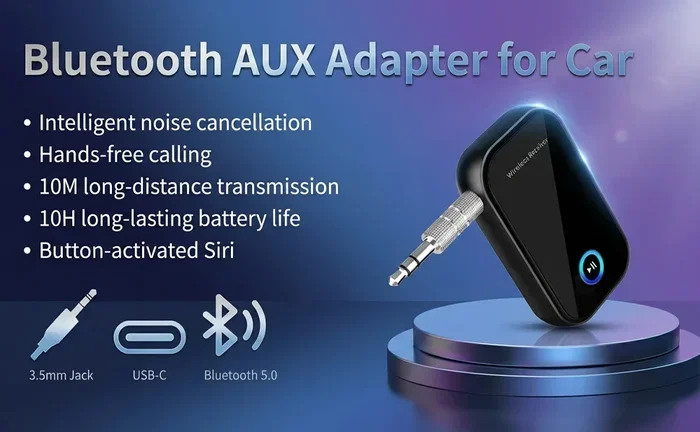
Older cars have older Bluetooth versions that may not support modern GPS sharing. Bluetooth 4.0 and newer versions handle data transfer much better than older versions. If your car was made before 2015, it might use Bluetooth 2.1 or 3.0. These older versions struggle with the high data loads that GPS navigation requires. Check your car’s manual or look up your car model online to find the Bluetooth version. If it’s outdated, a Bluetooth adapter can help bridge the gap.
Android vs iPhone GPS Sharing
Android and iPhone handle GPS sharing differently. Android phones generally offer more flexibility with Bluetooth GPS data sharing. You can use apps that send GPS coordinates directly to your car’s display. iPhones rely more on Apple CarPlay, which handles GPS routing through the car screen. If you have an iPhone without CarPlay support, you might need to use a different method. Android users can try apps like Bluetooth GPS Logger to send location data to compatible car systems.
| Connection Method | Pros | Cons |
|---|---|---|
| Bluetooth Connection | Wireless, easy setup, no cables | May lag, limited range, GPS display varies |
| USB Cable | Stable connection, charges phone | Cable clutter, limited phone movement |
| Wireless CarPlay / Android Auto | Full screen display, responsive | Requires compatible car and phone |
| AUX Cable | Simple, no setup needed | No GPS display on car screen, audio only |
Settings You Need to Check
Sometimes the problem isn’t hardware at all. It’s buried deep in your phone or car settings. A few tweaks in the right places can bring your GPS connection back to life.
App Permissions for Your Navigation App
Your navigation app needs specific permissions to share GPS data over Bluetooth. Go to your phone’s Settings, then Apps, then find your navigation app. Tap on Permissions and make sure Location is set to “Allow All the Time.” Also check that the app has permission to access storage and background data. Without these permissions, the app can’t send your location to the car system even if Bluetooth is connected.
Location Access and Background Data
Location services must be on for GPS to work. But it’s not just about turning them on. Your navigation app needs permission to use location in the background. This means it can access GPS data even when you’re not actively looking at the app. On iPhone, go to Settings, then Privacy, then Location Services. Find your navigation app and select “Always.” On Android, go to Settings, then Location, then App Location Permissions, and set your app to “Allow All the Time.”
Audio and Media Sharing Settings
Bluetooth does more than just make calls. It also streams audio and shares data. Make sure your car’s Bluetooth settings have media audio and call audio both enabled. Some car systems have a separate setting for “GPS Data” or “Navigation Audio.” If this is turned off, your car won’t receive GPS directions even though the Bluetooth connection is active. Check your car’s infotainment manual for these specific settings.
Common Mistakes to Avoid
- Mistake 1: Assuming Bluetooth connection means GPS is shared. They are separate features that both need to be enabled.
- Mistake 2: Not checking app permissions after a phone update. Updates can reset permissions and break GPS sharing.
- Mistake 3: Keeping old paired devices in memory. They confuse the car’s Bluetooth system and cause connection failures.
- Mistake 4: Ignoring software updates on both the phone and car side. Updates fix known connection bugs.
- Mistake 5: Placing the phone too far from the car’s Bluetooth antenna. Distance kills the signal strength.
When to Seek Professional Help
Most Bluetooth GPS issues are software-related and fixable at home. But sometimes the problem points to a deeper issue that needs professional attention.
Hardware Issues with Your Car’s Bluetooth Module
If you’ve tried every fix and the GPS still won’t connect, your car’s Bluetooth module might be faulty. The Bluetooth module is the hardware inside your car that handles wireless connections. Over time, these modules can wear out or develop faults. Signs of a hardware problem include the car not showing up as a Bluetooth device at all, frequent disconnections even after reconnecting, and error messages that don’t go away after resets. A mechanic or car electronics specialist can test the Bluetooth module and replace it if needed.
Dealer or Mechanic Support
If your car is still under warranty, visit your dealer first. They can run diagnostics on the infotainment system and check for known issues with your specific car model. Some car brands have published recalls or service bulletins about Bluetooth GPS problems. A dealer can apply these fixes for free. If the warranty has expired, a trusted auto electronics shop can still help. They have specialized tools to diagnose Bluetooth and GPS issues that go beyond basic troubleshooting.
Expert Insights
“The most overlooked cause of Bluetooth GPS failures is a simple app permission reset after a phone update,” says Mark Dawson, a car tech specialist with over 12 years of experience. “I tell my clients to always check navigation app permissions right after updating their phone. It takes 30 seconds and saves hours of frustration.”
“For older cars, I recommend a Bluetooth adapter that supports A2DP and GPS passthrough,” adds Dawson. “These small devices plug into your car’s auxiliary input and bridge the gap between modern phones and older infotainment systems.”
Tips to Keep Your Bluetooth GPS Running Smoothly
Prevention is always better than cure. A few simple habits keep your phone GPS and car Bluetooth working together without headaches.
Regular Software Updates
Make it a habit to check for updates on both your phone and car system every month. Set your phone to update automatically overnight. For your car, check the settings menu once a month for available updates. These updates often include Bluetooth fixes and GPS improvements that prevent connection issues before they start.
Keep Your Car System Clean
Delete old paired devices regularly. Keep your car’s Bluetooth memory clear of devices you no longer use. A clean Bluetooth list means fewer connection conflicts. Also clear your car’s infotainment cache if the system allows it. A cluttered system runs slower and has more connection bugs.
Use a Dedicated GPS App
Not all navigation apps work the same way with car Bluetooth. Some apps are designed to share GPS data more reliably than others. Google Maps, Waze, and Sygic are known for strong Bluetooth GPS sharing. If your current app keeps causing connection issues, try switching to a different navigation app. Sometimes the app itself is the problem, not the Bluetooth connection.
Use a Phone Mount for Better Signal
A phone mount keeps your phone in the optimal position for Bluetooth connectivity. Place the mount on the dashboard or near the windshield where the signal can reach the car’s Bluetooth antenna without obstruction. This also keeps your phone visible and reduces distracted driving. A good phone mount costs under $20 and makes a big difference in connection stability.
Conclusion
Why Won’t My Phone GPS Connect to My Car Bluetooth is a frustrating problem, but it’s almost always fixable. The most common causes are simple: Bluetooth is off, software is outdated, location services are disabled, or app permissions need resetting. Start with the easiest fixes like restarting both devices and clearing old pairings. Work your way through the settings checks and software updates. Most drivers solve the problem within minutes using the steps in this guide.
Remember that Bluetooth and GPS are two separate systems that need to work together. Both must be enabled and properly configured for navigation to appear on your car screen. Keep your devices updated, your paired list clean, and your app permissions checked. These small habits prevent most connection issues from happening in the first place.
If none of the fixes work, don’t hesitate to seek professional help. Your car’s Bluetooth module might need replacement, or there could be a deeper compatibility issue. But for the vast majority of drivers, the solutions above will get your GPS connected and your directions flowing again. Now you have the knowledge to troubleshoot this problem on your own. Apply what you’ve learned, and you’ll be back on the road with confidence in no time.
Frequently Asked Questions
Why does my phone connect to car Bluetooth but GPS doesn’t show?
This usually happens because GPS data sharing is disabled in your car’s Bluetooth settings. Bluetooth connection and GPS data sharing are separate features. Go to your car’s infotainment settings and look for a GPS or navigation data option. Make sure it’s turned on. Also check that your navigation app has permission to share location data in the background.
Can I use phone GPS in my car without Bluetooth?
Yes, you can use a USB cable to connect your phone to the car’s infotainment system. This provides a stable data connection for GPS navigation. Wireless CarPlay and Android Auto also offer alternatives to Bluetooth for GPS sharing. Some drivers use a phone mount with the phone screen as their GPS display, bypassing the car system entirely.
Why does my car Bluetooth GPS keep disconnecting?
Frequent disconnections are often caused by signal interference, outdated software, or too many paired devices. Keep your phone close to the car’s Bluetooth antenna and remove old paired devices. Also check for software updates on both your phone and car system. Interference from other electronic devices in the car can also cause dropouts.
Do I need a special app for GPS to work over Bluetooth?
Most built-in navigation apps like Google Maps and Apple Maps work over Bluetooth without extra apps. However, some older car systems need a dedicated app like Bluetooth GPS Logger to share GPS data. Check your car’s manual or infotainment system for supported GPS sharing methods. Third-party apps can bridge compatibility gaps between older cars and modern phones.
Is it safe to reset network settings on my phone?
Yes, it’s completely safe. Resetting network settings only clears Bluetooth pairings, Wi-Fi passwords, and cellular settings. Your photos, apps, and personal data are not affected. You’ll just need to reconnect to Wi-Fi networks and re-pair your Bluetooth devices afterward. This is one of the most effective fixes for stubborn Bluetooth GPS issues.
What car models have the worst Bluetooth GPS problems?
Older car models from 2012 to 2016 tend to have more Bluetooth GPS issues due to outdated Bluetooth versions and limited software support. However, problems can affect any car if the software isn’t updated. Check online forums for your specific car model to see if other owners report similar issues. Many manufacturers have released firmware updates that address known Bluetooth GPS problems.