Can I Connect My iPhone to CarPlay Wirelessly for Free
Yes, you can connect your iPhone to CarPlay wirelessly — and it costs nothing. Wireless CarPlay lets you access navigation, music, and messages without plugging in a cable. This guide covers everything from compatibility checks to step-by-step setup, common fixes, and expert tips to get your wireless CarPlay running smoothly today.
You are sitting in your car, ready to hit the road. You grab your iPhone and want to get CarPlay running without fumbling with a cable. So you ask yourself, can I connect my iPhone to CarPlay wirelessly? The short answer is yes. The longer answer is that it depends on your car, your iPhone model, and a few simple settings. This guide walks you through everything you need to know about wireless CarPlay — from setup to troubleshooting — and proves that you do not need to spend a dime to enjoy it.
Wireless CarPlay has changed the way people use their phones while driving. Instead of plugging in a USB cable every time you get behind the wheel, your iPhone connects to your car’s infotainment system through Wi-Fi and Bluetooth. It is clean, it is convenient, and it is completely free if your car and phone support it. Whether you use CarPlay navigation, stream music, or send messages through Siri, going wireless makes the whole experience smoother and more enjoyable.
In this article, we will cover exactly how wireless CarPlay works, which cars support it, how to set it up on your iPhone, and what to do when things do not go as planned. We will also compare wireless and wired CarPlay so you can decide which option suits you best. By the end, you will have all the knowledge you need to get iPhone CarPlay running without a single cable.
Key Takeaways
- Wireless CarPlay is free: You do not need to pay extra to use wireless connectivity on supported cars and iPhones.
- Check compatibility first: Not every car or iPhone model supports wireless CarPlay, so verify before you try.
- Setup takes minutes: The process is simple and does not require any special apps or adapters.
- Troubleshooting is straightforward: Most wireless CarPlay issues can be fixed with a quick reset or software update.
- Wired vs. wireless: Wireless offers more convenience, but wired connections can be more stable in some cases.
- Keep your iPhone updated: The latest iOS version ensures the best wireless CarPlay experience.
- Third-party adapters exist: If your car does not support wireless natively, affordable adapters can add the feature.
📑 Table of Contents
- What Is Wireless CarPlay and How Does It Work?
- Which Cars Support Wireless CarPlay?
- How to Set Up Wireless CarPlay on Your iPhone
- Wireless CarPlay vs Wired CarPlay: Which Is Better?
- Common Wireless CarPlay Problems and How to Fix Them
- Is Wireless CarPlay Really Free?
- Expert Tips to Get the Most Out of Wireless CarPlay
- Conclusion
What Is Wireless CarPlay and How Does It Work?
Wireless CarPlay is a feature that lets your iPhone connect to your car’s display without using a cable. Instead of a physical connection, your phone communicates with the car through a combination of Bluetooth and Wi-Fi. This means you can start using CarPlay as soon as you sit down in the driver’s seat, as long as your phone is already paired with the car.
The technology works by creating a direct wireless connection between your iPhone and the car’s infotainment system. Your phone mirrors its screen onto the car display, giving you access to all the same apps and features you would see with a wired connection. You can make calls, send and receive text messages, use Siri, and launch your favorite CarPlay apps — all without touching a single cable.
How Wireless CarPlay Differs from Bluetooth
Some people confuse wireless CarPlay with regular Bluetooth, but they are not the same thing. Bluetooth handles audio streaming and basic phone calls. Wireless CarPlay goes much further. It mirrors your iPhone screen in real time, giving you access to maps, music apps, podcasts, and more. The connection uses Wi-Fi for faster data transfer, which is why you can stream music and use navigation smoothly.
What You Need for Wireless CarPlay
Before you can use wireless CarPlay, you need a few things in place. First, your iPhone must be a model that supports wireless CarPlay. This includes the iPhone 12 and later models, as well as the iPhone 11 Pro and iPhone 11 Pro Max. Older iPhones may only support wired CarPlay, so check your model if you are unsure.
Second, your car needs to have a head unit or infotainment system that supports wireless CarPlay. Many newer vehicles from brands like BMW, Mercedes-Benz, Honda, Toyota, and Ford come with this feature built in. If your car does not support it natively, do not worry — we will cover options for that later in this article.
Which Cars Support Wireless CarPlay?
Not every car on the road supports wireless CarPlay yet. However, the list of compatible vehicles grows every year. Most cars released after 2020 from major manufacturers offer wireless CarPlay as either standard or optional equipment. Here are some of the brands and models that support wireless connectivity.
BMW has offered wireless CarPlay on many of its models since around 2019. Mercedes-Benz includes it in most vehicles from the 2020 model year onward. Honda, Toyota, and Ford have also added wireless CarPlay to several of their newer models. Even some Kia and Hyundai vehicles from recent years support the feature.
How to Check if Your Car Supports Wireless CarPlay
The easiest way to find out if your car supports wireless CarPlay is to check the owner’s manual. Look for mentions of Apple CarPlay and see if it says “wireless” or “Bluetooth” next to it. You can also check the car manufacturer’s website or contact your dealer directly.
Another quick method is to plug your iPhone into your car using a USB cable. If CarPlay works, go to the CarPlay settings on your car’s display and look for a wireless or Bluetooth option. If you see it, your car likely supports wireless iPhone CarPlay. If not, your car may only support wired connections.
How to Set Up Wireless CarPlay on Your iPhone
Setting up wireless CarPlay is straightforward and does not require any special tools or apps. Follow these steps to get connected in just a few minutes.
Step 1: Make sure your iPhone is updated. Go to Settings, tap General, then Software Update. Install any available updates before you begin. The latest iOS version ensures the best CarPlay compatibility and performance.
Step 2: Turn on Bluetooth and Wi-Fi. Go to Settings and make sure both Bluetooth and Wi-Fi are enabled. Wireless CarPlay uses both connections to communicate with your car. You do not need to join a specific Wi-Fi network — the car and phone create their own direct connection.
Step 3: Connect your iPhone to your car with a cable first. This initial step is important. Plug your iPhone into the car’s USB port using a Lightning or USB-C cable. This establishes the first connection and allows the car to recognize your phone.
Step 4: Enable wireless CarPlay on your car. On your car’s infotainment screen, go to Settings, then CarPlay. Look for the wireless or Bluetooth option and turn it on. Your car will now search for compatible iPhones.
Step 5: Select your iPhone from the car’s display. Your iPhone should appear as an available device. Tap on it to pair. You may need to confirm the connection on both your phone and the car’s screen. Once paired, you can unplug the cable, and your iPhone will connect to wireless CarPlay automatically every time you get in the car.
Quick Tips for a Smooth Setup
- Make sure your iPhone is unlocked during the pairing process.
- Restart both your iPhone and your car’s infotainment system if you run into issues.
- Keep your iPhone within a few feet of the car’s antenna for the best signal.
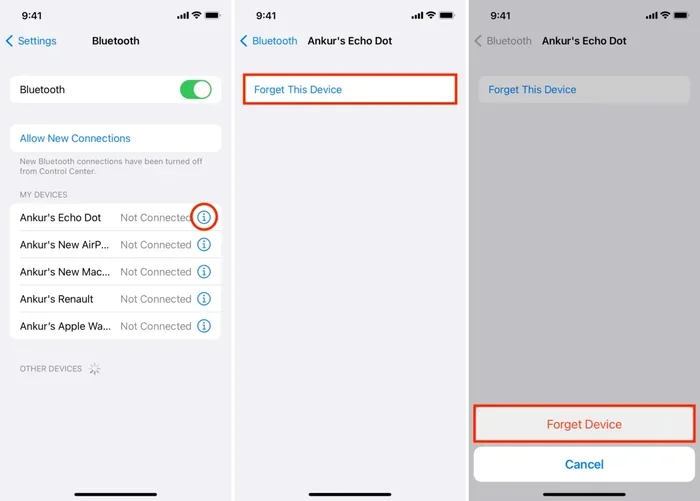
- Delete old CarPlay pairings from your car if you are connecting a new or reset iPhone.
- Disable Low Power Mode on your iPhone, as it can sometimes interfere with wireless connections.
Wireless CarPlay vs Wired CarPlay: Which Is Better?
This is one of the most common questions people ask when they learn about wireless CarPlay. Both options have their strengths, and the right choice depends on your needs and your car’s capabilities.
Advantages of Wireless CarPlay
- Convenience: No cables to plug in or unplug. Your phone connects automatically when you get in the car.
- Less wear and tear: You do not have to keep plugging and unplugging your cable, which can damage the port over time.
- Cleaner dashboard: No cables hanging from your dashboard or blocking your charger port.
- Faster reconnection: Once paired, wireless CarPlay reconnects almost instantly.
- Charging flexibility: You can use a wireless charging pad or a different charger while using CarPlay.
Advantages of Wired CarPlay
- Stability: Wired connections tend to be more reliable and less prone to audio dropouts or lag.
- Broader compatibility: Almost every car that supports CarPlay works with a cable, even if it does not support wireless.
- Lower latency: Some users notice that wired CarPlay responds slightly faster, especially for voice commands through Siri.
- Simultaneous charging: Using a cable means your phone charges while you drive, which can be important on long trips.
Comparison Table
| Feature | Wireless CarPlay | Wired CarPlay |
|---|---|---|
| Cable Required | No | Yes |
| Setup Complexity | Simple after initial pairing | Plug and play |
| Connection Stability | Good, but can vary | Very stable |
| Charging While Connected | Depends on setup | Yes, always |
| Reconnects Automatically | Yes | No, needs cable |
| Works on Older Cars | Only with adapters | Yes, with USB port |
| Cost | Free (built-in) | Free (built-in) |
For most people, wireless CarPlay offers the best daily driving experience. The convenience of not dealing with cables is a big win. However, if you notice connection issues or need rock-solid reliability, a wired connection is still a great option. Many drivers keep both options available and switch between them depending on the situation.
Common Wireless CarPlay Problems and How to Fix Them
Even though wireless CarPlay is generally reliable, you may run into issues from time to time. Here are the most common problems and simple fixes to get you back on track.
CarPlay Won’t Connect Wirelessly
If your iPhone CarPlay does not connect automatically, the first thing to do is make sure Bluetooth and Wi-Fi are turned on. Next, try restarting your iPhone and your car’s infotainment system. Sometimes a simple reboot fixes the issue. If that does not work, forget the CarPlay pairing on your car and try connecting again from scratch.
Audio Keeps Cutting Out
Intermittent audio is one of the most frustrating CarPlay problems. This usually happens when the Wi-Fi signal between your phone and car is weak. Move your iPhone closer to the center console or dashboard. Also check if other Wi-Fi devices nearby are causing interference. Switching your car’s Wi-Fi band or moving to a less crowded frequency can help.
CarPlay Screen Freezes or Laggs
A frozen or laggy wireless CarPlay screen can make navigation and music control difficult. Close any apps running in the background on your iPhone. Make sure your iPhone has enough storage space, as low storage can slow things down. Updating both your iPhone’s iOS and your car’s infotainment software can also resolve performance issues.
Siri Does Not Work Wirelessly
If Siri is not responding during wireless CarPlay, check that “Hey Siri” is enabled on your iPhone. Go to Settings, then Siri & Search, and make sure all the relevant toggles are on. Also ensure that your car’s microphone is not muted. Sometimes the car’s voice recognition system conflicts with Siri, so restarting both devices can clear things up.
CarPlay Disconnects After a Few Minutes
This issue often relates to your iPhone’s Wi-Fi settings. Go to Settings, then General, then CarPlay. Remove the car from the list and set it up again. Also check if your iPhone has a Low Power Mode or Background App Refresh setting that might be interfering with the connection. Disabling these temporarily can help maintain a stable wireless CarPlay session.
Is Wireless CarPlay Really Free?
One of the biggest advantages of wireless CarPlay is that it costs nothing extra. If your car and iPhone both support the feature, you can use it at no additional charge. There are no subscriptions, no hidden fees, and no special equipment required. Apple provides CarPlay as a free feature, and most car manufacturers include wireless support in their newer models at no extra cost.
However, there are a few situations where you might incur costs. If your car does not support wireless CarPlay natively, you may need a third-party wireless CarPlay adapter. These adapters plug into your car’s USB port and add wireless capability. Prices range from around 50 to 150 dollars depending on the brand and features. While this is a one-time cost, it is not completely free.
Some aftermarket car stereos and head units also support wireless CarPlay. Replacing your factory stereo with an aftermarket unit that supports wireless connectivity can be a great option for older cars. These units typically cost between 100 and 400 dollars, but they also upgrade your entire infotainment system.
Beyond the hardware, using CarPlay apps like Apple Maps, Spotify, or podcast apps is completely free (though some apps may have premium subscriptions). The core wireless CarPlay experience itself remains free regardless of which apps you use.
How to Get Wireless CarPlay for Free
- Check if your car already supports it. Many newer vehicles include wireless CarPlay at no extra cost.
- Update your car’s software. Some manufacturers added wireless CarPlay support through software updates that are free.
- Use your phone’s built-in features. No apps or downloads are needed — everything is already on your iPhone.
- Consider a free software update from your dealer. Some dealerships can update your car’s system to add wireless CarPlay if the hardware supports it.
Expert Tips to Get the Most Out of Wireless CarPlay
Getting wireless CarPlay working is only half the battle. Here are some expert tips to help you get the best experience every time you drive.
Keep Your iPhone Close to the Car’s Antenna
The wireless connection between your iPhone and your car works best when the phone is close to the car’s internal antenna. Most cars have the antenna located near the center console or dashboard. Placing your iPhone in a mount on the dashboard or center stack gives you the strongest and most stable wireless CarPlay connection.
Use a Dedicated Wi-Fi Network for CarPlay
Some cars allow you to set up a dedicated Wi-Fi network for CarPlay. This separates the CarPlay connection from your home or work Wi-Fi network, reducing interference and improving performance. Check your car’s infotainment settings to see if this option is available.
Disable Unnecessary Background Apps
Before you start driving, close any apps you do not need. Background apps can consume bandwidth and processing power, which may slow down your wireless CarPlay experience. A clean iPhone gives you a faster and more responsive CarPlay session.
Set Up Your Favorites Before You Drive
One of the best things about CarPlay navigation is that it saves your favorite destinations. Set up your home, work, and frequently visited locations in Apple Maps before you need them. This way, when you get in the car and wireless CarPlay connects automatically, your destinations are right there waiting for you.
Keep Both Devices Updated
Apple regularly releases iOS updates that improve CarPlay performance and fix bugs. Similarly, car manufacturers push infotainment updates that enhance wireless connectivity. Keeping both your iPhone and your car’s system up to date ensures the smoothest iPhone CarPlay experience possible.
Use Siri for Hands-Free Control
One of the safest and most convenient features of wireless CarPlay is Siri integration. You can ask Siri to make calls, send messages, play music, or set navigation destinations — all without taking your hands off the wheel. Press and hold the voice command button on your steering wheel to activate Siri and give it a command.
Conclusion
Can I connect my iPhone to CarPlay wirelessly for free? Absolutely. Wireless CarPlay is a fantastic feature that makes driving safer and more enjoyable. As long as your car and iPhone support the technology, you can enjoy all the benefits of CarPlay without spending a penny. The setup is simple, the connection is convenient, and the experience is seamless.
If your car does not support wireless CarPlay natively, you still have options. Software updates from your manufacturer might add the feature, or a third-party adapter can bring wireless capability to your existing system. Either way, the core wireless CarPlay experience remains free.
We hope this guide has given you everything you need to know about connecting your iPhone to CarPlay wirelessly. From setup steps to troubleshooting tips, you are now equipped to enjoy a cable-free driving experience. Try it out today, and you will wonder how you ever drove without it.
Frequently Asked Questions
Do I need to pay for wireless CarPlay?
No, wireless CarPlay is completely free if your car and iPhone support it. Apple does not charge for CarPlay, and most car manufacturers include wireless support at no extra cost in newer vehicles.
Can I add wireless CarPlay to an older car?
Yes, you can add wireless CarPlay to an older car using a third-party wireless CarPlay adapter. These devices plug into your car’s USB port and enable wireless connectivity. Prices typically range from 50 to 150 dollars.
Why does my wireless CarPlay keep disconnecting?
Wireless CarPlay disconnections are usually caused by weak Wi-Fi signals, interference from other devices, or outdated software. Try restarting both your iPhone and your car’s infotainment system, and make sure your iPhone is close to the car’s antenna for a stronger connection.
Which iPhone models support wireless CarPlay?
iPhone 12 and later models support wireless CarPlay natively. The iPhone 11 Pro and iPhone 11 Pro Max also support it. Older iPhone models may only work with wired CarPlay connections.
Does wireless CarPlay drain my iPhone battery faster?
Wireless CarPlay uses more battery than a wired connection because it relies on Wi-Fi and Bluetooth. However, the difference is usually small. You can minimize battery drain by closing background apps and keeping your iPhone plugged in while driving.
Can I use wireless CarPlay and charge my iPhone at the same time?
Yes, but you may need a wireless charging pad or a separate charger. Since wireless CarPlay does not use a cable for the data connection, you can plug in a charger separately to keep your iPhone powered while using CarPlay wirelessly.