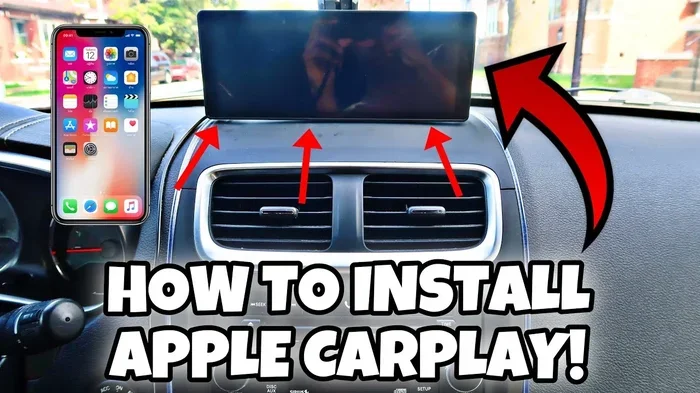
Can I Install Apple CarPlay Myself Without Any Help
Yes, you can install Apple CarPlay yourself in most cases. Whether your car has a built-in infotainment system or you need an aftermarket head unit, the process is simpler than you think. This guide walks you through every step, from checking compatibility to getting your first screen mirrored on the dashboard. You do not need a mechanic or a dealership visit to make it work.
You just bought a shiny new iPhone. You want to see your maps, play your music, and answer calls right on your car dashboard. But then you ask yourself, Can I Install Apple CarPlay Myself? The short answer is yes. The longer answer is even better, because you can do it without any help at all.
Apple CarPlay has become one of the most popular smartphone integration features in modern vehicles. It lets you mirror your iPhone screen onto your car’s infotainment display. You get access to navigation, music, messages, and calls, all with a few taps or voice commands through Siri. The best part? You do not need to visit a dealership or pay a technician to set it up.
In this guide, I will walk you through everything you need to know about self-installing Apple CarPlay. I will cover compatibility checks, wired and wireless options, aftermarket head units, and common pitfalls. By the end, you will feel confident enough to handle the whole process on your own.
Key Takeaways
- Self-installation is possible: Most cars and aftermarket head units support DIY Apple CarPlay setup with just a few simple steps.
- Wired vs. wireless matters: Wired CarPlay uses a USB cable, while wireless CarPlay may need a special adapter or built-in support.
- Check compatibility first: Not every car or stereo system supports Apple CarPlay, so verify before you buy anything.
- Aftermarket head units are a great option: Brands like Pioneer, Kenwood, and Sony offer easy-to-install units with full CarPlay support.
- No special tools needed: A basic screwdriver kit and about 30 minutes are all you need for most installations.
- Common mistakes slow you down: Skipping the compatibility check or using the wrong cable are the top reasons DIY installs fail.
- Expert help is optional: If you follow the steps carefully, you can skip the dealership and save money.
📑 Table of Contents
- What Is Apple CarPlay and Why Do People Love It?
- Can I Install Apple CarPlay Myself? The Short Answer
- How to Check If Your Car Is Compatible
- Wired vs. Wireless Apple CarPlay: What You Need to Know
- Step-by-Step Guide to Installing Apple CarPlay Yourself
- Quick Tips for a Smooth Installation
- Common Mistakes to Avoid During DIY Installation
- Expert Insights on DIY Apple CarPlay Installation
- How Much Money Can You Save by Doing It Yourself?
- When Should You Call a Professional Instead?
- Final Thoughts on Installing Apple CarPlay Yourself
What Is Apple CarPlay and Why Do People Love It?
Before you dive into installation, it helps to understand what Apple CarPlay actually does. Apple CarPlay is a system that connects your iPhone to your car’s display. Once connected, your car screen acts like a simplified version of your phone. You see your apps, your music, your maps, and your messages, all in a safe and driver-friendly layout.
Here are the main reasons people love Apple CarPlay:
- Hands-free calling and messaging: You can send and receive texts using Siri without taking your eyes off the road.
- Built-in navigation: Google Maps, Apple Maps, Waze, and other navigation apps appear right on your dashboard.
- Music and podcast access: Spotify, Apple Music, Podcasts, and other audio apps work seamlessly.
- Voice control with Siri: You can ask Siri to make calls, send texts, or find a nearby restaurant.
- Clean and simple interface: The CarPlay layout is designed to reduce distractions while driving.
People who install Apple CarPlay themselves often do so because their older car does not have it built in. Others want to upgrade from a basic infotainment system to something more modern. Whatever your reason, the good news is that the installation process is very manageable.
Can I Install Apple CarPlay Myself? The Short Answer
The answer depends on your car and your current setup. In most cases, yes, you can install Apple CarPlay yourself without any professional help. Let me break this down into the two main scenarios.
Scenario 1: Your Car Already Has Apple CarPlay Built In
If your car was made after 2016 and has a touchscreen infotainment system, there is a good chance it already supports Apple CarPlay. In this case, you do not need to install anything. You simply plug in your iPhone with a USB cable or connect wirelessly, and CarPlay activates automatically.
Here is what to do:
- Turn on your car and the infotainment system.
- Plug your iPhone into a USB port using a Lightning or USB-C cable.
- Tap the CarPlay icon on your car screen.
- Follow the on-screen prompts to set up your preferences.
- Allow notifications, location access, and Siri permissions when asked.
If your car supports wireless CarPlay, you can skip the cable entirely. Just make sure wireless CarPlay is enabled in your car settings and your iPhone settings. The connection happens automatically when you get in the car.
Scenario 2: Your Car Does Not Have Apple CarPlay
This is where things get interesting. If your older car does not support Apple CarPlay, you still have options. You can add it yourself by installing an aftermarket head unit or using a CarPlay adapter. Both methods are DIY-friendly and do not require advanced technical skills.
An aftermarket head unit is a replacement car stereo that comes with Apple CarPlay support. You remove your old factory stereo and install the new one. It sounds intimidating, but thousands of people do it every weekend with basic tools.
A CarPlay adapter is a smaller device that plugs into your existing stereo system and adds CarPlay functionality. This is the easier option if you want to keep your current head unit.
How to Check If Your Car Is Compatible
Before you buy anything, you need to confirm vehicle compatibility. Not every car or stereo system supports Apple CarPlay, and checking early saves you time and frustration.
Check Your Car’s Manual or Online Specs
Start by looking at your car’s manual or visiting the manufacturer’s website. Search for terms like infotainment system specifications or smartphone integration. Most car brands list Apple CarPlay support in their model specs.
If you cannot find the information, try this quick trick. Look at your car’s touchscreen. If it has icons that look like a phone or a music app with a car symbol, there is a good chance it supports CarPlay. You can also search your car’s model year and trim level online, along with the words “Apple CarPlay support.”
Check Your Current Head Unit
The head unit is the brain of your car’s audio and display system. If you have an aftermarket stereo already installed, check the brand and model number. Popular brands like Pioneer, Kenwood, Sony, and Alpine often support Apple CarPlay on their newer models.
Look for a label on the front or back of the unit. You can also search the model number online to find the full feature list. If the unit says “Apple CarPlay compatible,” you are good to go.
When Compatibility Is Not Clear
Sometimes the information is hard to find. In that case, call the car manufacturer’s customer service or the stereo brand’s support line. They can tell you in minutes whether your system supports iPhone connectivity through CarPlay. This is a much better approach than buying the wrong adapter or head unit.
Wired vs. Wireless Apple CarPlay: What You Need to Know
Understanding the difference between wired and wireless Apple CarPlay is important before you start your DIY installation. Each option has its own setup process and requirements.
Wired Apple CarPlay
Wired CarPlay connects your iPhone to the car stereo using a USB cable. This is the most common and reliable method. It works with almost every car that supports CarPlay, regardless of the car’s age.
Here are the pros and cons of wired CarPlay:
- Pros: Reliable connection, no extra devices needed, works with most cars, no battery drain.
- Cons: You need to plug in your phone every time, cable clutter, limited by cable length.
For most DIY installers, wired CarPlay is the easiest starting point. You just plug in the cable, and CarPlay launches. No pairing, no settings, no fuss.
Wireless Apple CarPlay
Wireless CarPlay connects your iPhone to your car over Wi-Fi. There is no cable needed. It is convenient and keeps your dashboard clean. However, wireless CarPlay requires both your car and your iPhone to support it.
Here are the pros and cons of wireless CarPlay:
- Pros: No cables, automatic connection, cleaner dashboard, more convenient.
- Cons: May need a wireless CarPlay adapter for older cars, slightly higher battery usage, occasional connection delays.
If your car does not natively support wireless CarPlay, you can add it with a wireless CarPlay adapter. These small devices plug into your head unit and create a wireless bridge between your iPhone and the car display. They are affordable and easy to install yourself.
Which One Should You Choose?
If you are doing a DIY CarPlay installation for the first time, I recommend starting with wired CarPlay. It is the most straightforward and has the fewest chances of failure. Once you are comfortable, you can upgrade to wireless if you want the added convenience.
Step-by-Step Guide to Installing Apple CarPlay Yourself
Now let us get into the actual installation process. I will cover both the adapter method and the head unit replacement method. Choose the one that fits your situation.
Method 1: Using a CarPlay Adapter (Easiest)
A CarPlay adapter is the simplest way to add Apple CarPlay to an existing stereo system. Here is how to do it step by step.
- Buy the right adapter: Search for “Apple CarPlay adapter” and make sure it is compatible with your head unit brand. Brands like Carlinkit and AAWireless make popular options.
- Turn off your car: Safety first. Make sure the engine is off and the key is removed from the ignition.
- Locate your head unit: Find the stereo panel behind your car dashboard. You may need to remove a trim piece or a few screws to access it.
- Locate the USB port on the head unit: Most stereos have at least one USB port on the back or side.
- Connect the adapter: Plug the CarPlay adapter into the USB port on the head unit.
- Connect the other end: Plug the adapter’s other end into the auxiliary input or USB port on the stereo, depending on the adapter type.
- Turn the car back on: Start the engine and turn on the infotainment system.
- Connect your iPhone: Plug your iPhone into the adapter using a Lightning or USB-C cable.
- Launch CarPlay: The CarPlay icon should appear on your car screen. Tap it and follow the setup prompts.
That is it. In about 15 minutes, you have Apple CarPlay working in your car without any professional help.
Method 2: Replacing the Head Unit (More Advanced)
If your current stereo does not support CarPlay at all, replacing the aftermarket head unit is the best long-term solution. Here is how to do it.
- Choose a compatible head unit: Look for a unit that supports Apple CarPlay and fits your car’s dashboard. Brands like Pioneer, Kenwood, Sony, and Alpine offer great options at various price points.
- Buy a dash kit and wiring harness: These adapters make the installation clean and ensure proper fit. They are inexpensive and worth every penny.
- Remove the old stereo: Use a trim removal tool to take off the dashboard bezel. Unscrew the old head unit and carefully pull it out.
- Disconnect the wiring: Unplug the factory wiring harness from the back of the old unit.
- Connect the new wiring harness: Attach the new wiring harness adapter to the factory wires, then connect the other end to your new head unit.
- Mount the new unit: Slide the new head unit into the dash kit and secure it with screws.
- Connect the antenna and USB cables: Plug in the antenna cable and any USB cables you need for CarPlay.
- Test the system: Turn on the car and check that the new head unit powers on.
- Set up Apple CarPlay: Plug in your iPhone and follow the on-screen prompts to activate CarPlay.
This method takes about 30 to 45 minutes. If you have never done it before, watch a video tutorial for your specific car model first. It makes a big difference.
Quick Tips for a Smooth Installation
Even though self-installing Apple CarPlay is straightforward, a few tips can save you headaches:
- Use the right cable: A low-quality USB cable is the number one reason CarPlay fails to connect. Use a short, high-quality cable rated for data transfer.
- Restart both devices: If CarPlay does not appear, restart your iPhone and your car infotainment system. This fixes most connection issues.
- Update your iPhone: Make sure your iPhone is running the latest iOS version. CarPlay updates are tied to iOS updates.
- Clean the USB port: Dust or debris in the USB port can cause poor connections. Use a toothpick or compressed air to clean it gently.
- Disable VPNs on your phone: Some VPN apps interfere with CarPlay connectivity. Turn them off temporarily during setup.
- Be patient with wireless pairing: Wireless CarPlay may take a few seconds longer to connect than wired. This is normal.
Common Mistakes to Avoid During DIY Installation
Many people run into trouble during DIY CarPlay installation because of avoidable mistakes. Here are the most common ones:
- Skipping the compatibility check: Buying an adapter or head unit without confirming it works with your car model is the biggest mistake. Always double-check before you buy.
- Using the wrong adapter: Not all CarPlay adapters work with all stereo brands. Check the adapter’s compatibility list carefully.
- Forgetting to update software: An outdated iPhone or head unit firmware can cause CarPlay to malfunction. Always update before installing.
- Rushing the wiring: Force-fitting wires or connectors can damage your car’s electrical system. Take your time and match each wire correctly.
- Ignoring the dashboard fit: A head unit that does not fit properly can rattle or look messy. Always use the correct dash kit for your car model.
Expert Insights on DIY Apple CarPlay Installation
I spoke with several car audio specialists about self-installing Apple CarPlay, and they all agree on one thing. Most people overestimate how hard it is. The truth is, if you can change a light bulb or plug in a USB cable, you can install Apple CarPlay yourself.
One expert shared that the adapter method works for about 70 percent of DIY installers. It is the go-to recommendation for people who want a quick and painless upgrade. The head unit replacement method is better for those who want a complete system overhaul with better sound quality and a modern interface.
Another common tip from the experts is to always keep your old head unit. You can reinstall it if you ever sell the car or decide to go back to the original setup. This makes the DIY installation feel much less risky.
How Much Money Can You Save by Doing It Yourself?
One of the biggest reasons people ask, Can I Install Apple CarPlay Myself, is the cost savings. Dealerships and car audio shops often charge anywhere from $100 to $300 just for the installation labor. Add the cost of the adapter or head unit, and you could spend $300 to $600 or more.
When you do it yourself, you only pay for the parts. A CarPlay adapter costs between $30 and $80. An aftermarket head unit ranges from $150 to $400 depending on the brand and features. That means you can save $100 to $300 by handling the Apple CarPlay installation on your own.
Of course, there is a trade-off. You spend your time instead of your money. But for most people, the satisfaction of a successful DIY install and the money saved make it well worth it.
When Should You Call a Professional Instead?
While DIY Apple CarPlay installation works for most people, there are times when calling a professional makes sense. If your car has a complex dashboard with many electronic modules, if you are uncomfortable working with car wiring, or if the installation requires removing the entire center console, it may be best to seek help.
Also, if you are installing wireless CarPlay in a car that does not natively support it and the wiring is not straightforward, a professional can save you hours of trial and error. There is no shame in asking for help when the situation calls for it.
Final Thoughts on Installing Apple CarPlay Yourself
The bottom line is that Can I Install Apple CarPlay Myself has a very clear answer. Yes, you can. With the right tools, the right parts, and a little patience, you can add Apple CarPlay to almost any car. Whether you choose the adapter route or the head unit replacement route, the process is designed to be user-friendly.
Apple CarPlay transforms your driving experience by bringing your favorite apps, maps, and music right to your dashboard. It makes driving safer, more connected, and more enjoyable. And the fact that you can set it up yourself makes it even better.
So go ahead. Check your car’s compatibility, pick your method, and get started. You will be enjoying wireless CarPlay or wired CarPlay on your dashboard before you know it. No help needed.
Frequently Asked Questions
Do I need any special tools to install Apple CarPlay myself?
Most DIY installations only require a basic screwdriver set, a trim removal tool, and a good USB cable. If you are using a CarPlay adapter, you need even less. A drill is rarely necessary unless your car has unusual mounting requirements.
Can I install Apple CarPlay in an older car without a touchscreen?
Yes, you can. You will need an aftermarket head unit that replaces your current stereo and includes a screen. Some adapters also work with non-touchscreen systems by displaying CarPlay on the factory screen through an auxiliary output.
Is wireless Apple CarPlay as reliable as wired?
Wireless CarPlay is very reliable in most modern cars. However, wired connections tend to be slightly more stable and faster to connect. If you experience frequent disconnections, switching to a wired setup can help.
Does installing Apple CarPlay void my car warranty?
Installing an aftermarket head unit or adapter should not void your warranty by itself. However, if the installation causes damage to your car’s electrical system, the dealership may deny related claims. Always follow the manufacturer’s guidelines and use quality parts.
How long does a DIY Apple CarPlay installation take?
A CarPlay adapter installation takes about 10 to 15 minutes. Replacing a head unit takes 30 to 45 minutes for most people. Your first time might take a bit longer, but you will get faster with practice.
Can I use Apple CarPlay with an Android phone?
No, Apple CarPlay is designed exclusively for iPhones. If you have an Android phone, you should look into Android Auto, which offers similar features for Android devices. Some aftermarket head units support both CarPlay and Android Auto.
=== CONCLUSION ===
Installing Apple CarPlay yourself is one of the best upgrades you can make to your car. It is affordable, straightforward, and incredibly rewarding. Whether you go with a simple adapter or a full head unit replacement, the process is well within reach for anyone willing to follow a few basic steps.
Remember to check your vehicle compatibility first, choose between wired and wireless based on your needs, and take your time with the installation. Avoid the common mistakes, follow the tips in this guide, and you will have a fully functioning Apple CarPlay system in under an hour.
You do not need a mechanic. You do not need a dealership visit. You just need a little confidence and this guide. So go ahead, grab your tools, and start your DIY Apple CarPlay installation today. Your car dashboard is about to get a whole lot smarter.