How Do I Reset My Toyota Highlander Bluetooth Easily
Resetting your Toyota Highlander Bluetooth is a simple process that can solve most connection issues in just a few minutes. Whether your Bluetooth is not connecting, keeps dropping, or won’t pair with a new device, this guide walks you through every method. You will learn how to reset Bluetooth settings, delete old pairings, and troubleshoot common problems without visiting a dealer.
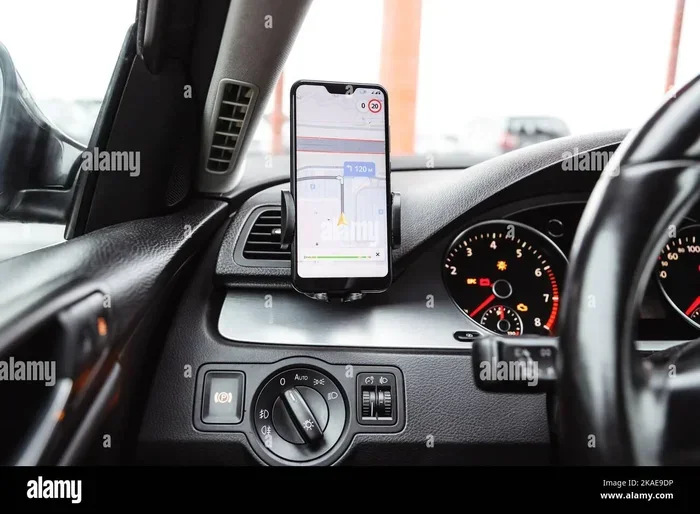
Have you ever tried to connect your phone to your Toyota Highlander and the Bluetooth just refuses to cooperate? You are not alone. Toyota Highlander Bluetooth problems are one of the most common tech issues owners face. Whether you are trying to stream music, take hands-free calls, or use navigation through your phone, a broken Bluetooth connection can turn a smooth drive into a frustrating experience.
The good news is that resetting your Toyota Highlander Bluetooth is usually quick and easy. You do not need to be a tech expert. In this guide, we walk you through every method step by step. From a simple soft reset to clearing your phone cache, you will find the solution that works for your situation. We also cover common mistakes and expert tips that help you avoid the same problem in the future.
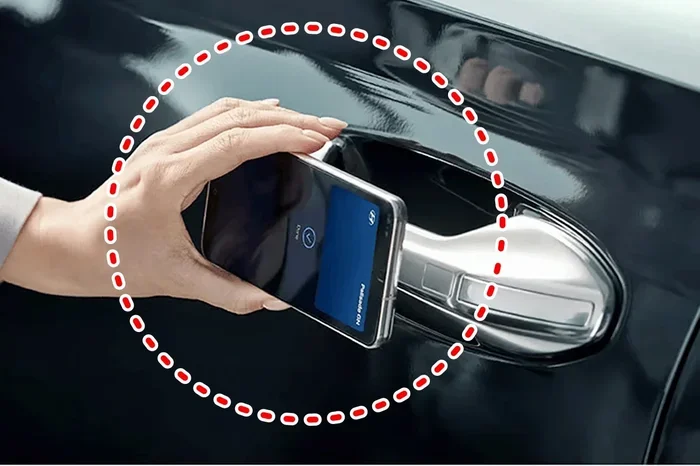
If you are also curious about other Toyota Highlander tech features, check out our guide on Can I Start My Highlander With My Phone for more useful tips. Let us dive in and get your Bluetooth working again.
Key Takeaways
- Soft Reset: Restarting your Toyota Highlander can often fix minor Bluetooth glitches instantly.
- Delete and Re-pair: Removing old Bluetooth connections and pairing fresh solves most audio and call issues.
- Factory Reset Option: A full system reset through the infotainment menu can fix stubborn Bluetooth problems.
- Phone Settings Matter: Clearing your phone’s Bluetooth cache often resolves pairing failures.
- Dealer Help: If all else fails, Can I Take My Toyota To Any Dealer For Service for professional diagnostics.
📑 Table of Contents
- Why Does Toyota Highlander Bluetooth Stop Working?
- How to Reset Toyota Highlander Bluetooth: Step-by-Step Methods
- Common Toyota Highlander Bluetooth Problems and Quick Fixes
- Tips to Prevent Toyota Highlander Bluetooth Issues
- When Should You Seek Professional Help?
- Expert Insight: Why Regular Bluetooth Maintenance Matters
- Final Thoughts
Why Does Toyota Highlander Bluetooth Stop Working?
Before we jump into the reset process, it helps to understand why Bluetooth problems happen in the first place. Knowing the cause can save you time and prevent the issue from coming back. Several common factors lead to Toyota Highlander Bluetooth connection failures.
Software Glitches After Updates
Your Toyota Highlander runs on a software system that controls the infotainment screen, audio, and Bluetooth. Sometimes, after a system update or a power interruption, the Bluetooth module gets confused. It may forget paired devices or refuse to search for new ones. This is one of the most frequent reasons drivers search for a Toyota Highlander Bluetooth reset.
Too Many Paired Devices
The Toyota Highlander Bluetooth system can store a limited number of paired devices. When you pair too many phones or devices, the system can slow down or stop working properly. Old, unused connections take up space and can cause conflicts with your current device.
Phone Software Issues
Sometimes the problem is not your car at all. Your phone’s Bluetooth software can develop glitches too. A phone update, low battery, or full cache can all interfere with the Toyota Highlander Bluetooth pairing process. This is why we always recommend checking both sides of the connection.
Hardware or Distance Problems
In rare cases, the Bluetooth antenna or module inside your Highlander may have a hardware issue. Physical damage from water, heat, or wear and tear can cause this. Also, keeping your phone too far from the car’s antenna can weaken the signal and cause disconnections.
How to Reset Toyota Highlander Bluetooth: Step-by-Step Methods
Now that you know the common causes, let us get into the solutions. We have organized these methods from the simplest to the most thorough. Start with Method 1 and work your way down until your Bluetooth is working again.
Method 1: The Soft Reset (Turn It Off and On)
The easiest fix for most Bluetooth issues is a soft reset. This method works just like restarting your phone. It clears temporary glitches without deleting any of your settings.
Here is how to do it:
- Turn off your Toyota Highlander engine.
- Press and hold the power button on the infotainment screen for about 10 seconds.
- Wait for the screen to go completely black.
- Wait about 30 seconds.
- Press the power button again to turn the system back on.
- Try connecting your phone to Bluetooth.
This simple trick fixes Bluetooth issues more often than people realize. It gives the system a fresh start and clears any temporary errors in the Toyota infotainment system. If this works, you are all set. If not, move on to the next method.
Method 2: Delete Old Bluetooth Pairings
When a soft reset does not work, the next step is to clear out old Bluetooth connections. Over time, your Highlander’s system builds up a list of devices it has paired with. Some of these may be outdated or causing conflicts.
Here is how to clear old pairings:
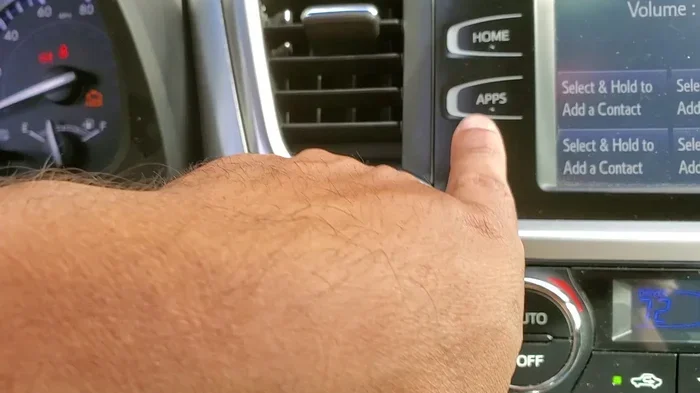
- Go to the Home screen on your Toyota Highlander infotainment display.
- Tap on Settings.
- Select Bluetooth.
- You will see a list of all paired devices.
- Tap on each device and select Delete or Forget Device.
- Confirm the deletion for each one.
Once all old pairings are removed, turn your Bluetooth off on your phone. Wait a few seconds. Then turn Bluetooth back on and search for your Toyota Highlander. This fresh pairing process often resolves Toyota Highlander Bluetooth not connecting issues right away.
Quick Tip: If you use multiple phones, pair only the one you use most often. Keeping the paired device list short helps your system run smoothly.
Method 3: Reset Bluetooth Through the Car Settings Menu
If deleting pairings does not fix the problem, you can try resetting the Bluetooth module directly through your car’s settings. This method goes deeper than a soft reset.
Follow these steps:
- Turn on your Toyota Highlander without starting the engine (accessory mode).
- Go to Settings on the infotainment screen.
- Look for System Settings or Bluetooth Settings.
- Find the option that says Reset Bluetooth or Initialize Bluetooth.
- Confirm the reset when prompted.
- The system will clear all Bluetooth data and restore default settings.
After the reset, your car will behave like it did when you first bought it regarding Bluetooth. You will need to re-pair your phone. Make sure your phone’s Bluetooth is turned on and visible. Then search for your Highlander from your phone’s Bluetooth menu.
Method 4: Clear Your Phone’s Bluetooth Cache
Many people forget that their phone also stores Bluetooth data. A corrupted cache on your phone can prevent a successful connection with your Toyota Highlander. This is especially common on Android devices.
For Android phones:
- Go to Settings on your phone.
- Tap on Apps or Applications.
- Find and tap on Bluetooth.
- Select Storage.
- Tap Clear Cache and then Clear Data.
- Restart your phone.
- Try pairing with your Highlander again.
For iPhone users:
- Go to Settings.
- Tap on Bluetooth.
- Find your Toyota Highlander in the list of devices.
- Tap the “i” icon next to it.
- Select Forget This Device.
- Turn Bluetooth off and back on.
- Re-pair your phone with the car.
Clearing your phone cache is one of the most overlooked fixes for Toyota Highlander Bluetooth troubleshooting. It takes less than a minute and solves the problem more often than you might expect.
Method 5: Factory Reset the Infotainment System
This is the most thorough reset method. A factory reset wipes all your infotainment settings, including Bluetooth, Wi-Fi, display preferences, and saved navigation data. Use this method only if all the other methods have failed.
Here is what to do:
- Turn on your Toyota Highlander.
- Go to Settings.
- Navigate to System Settings.
- Look for Factory Reset or Master Reset.
- Follow the on-screen prompts to confirm.
- Wait for the system to restart completely.
- Set up your preferences again and re-pair your Bluetooth device.
Important Warning: A factory reset will erase all your saved settings. Make sure you remember your radio presets, navigation home address, and any other important data before you proceed. If you are unsure, you might want to visit a dealer or read about Can I Upgrade My Toyota Entune for additional support on your infotainment system.
Common Toyota Highlander Bluetooth Problems and Quick Fixes
Different Bluetooth problems need different solutions. Here are the most common issues drivers face with their Toyota Highlander Bluetooth and the quickest ways to fix them.
| Problem | Likely Cause | Quick Fix |
|---|---|---|
| Bluetooth will not turn on | System freeze or power glitch | Soft reset the infotainment system |
| Phone will not pair with the car | Too many paired devices or cache issue | Delete old pairings and clear phone cache |
| Bluetooth connects but no audio | Wrong audio source selected | Switch audio source to Bluetooth on the car screen |
| Bluetooth disconnects randomly | Phone too far or low battery | Keep phone close and charge both devices |
| Bluetooth connects but calls have no sound | Microphone or call audio setting issue | Check call audio permissions on your phone |
| New phone will not replace old one | Old device still stored in car memory | Factory reset Bluetooth module |
Use this table as a quick reference whenever your Toyota Highlander Bluetooth problems pop up. Most of these fixes take less than five minutes.
Tips to Prevent Toyota Highlander Bluetooth Issues
Prevention is always better than fixing a problem. Here are some simple habits that keep your Toyota Highlander Bluetooth running smoothly for years.
- Keep your software updated. Both your phone and your car’s infotainment system benefit from regular updates. These updates often include Bluetooth bug fixes that prevent connection issues.
- Limit paired devices. Only pair the devices you actually use regularly. This keeps your Bluetooth module running efficiently and reduces the chance of conflicts.
- Restart your phone occasionally. A simple restart clears temporary Bluetooth glitches on your phone before they cause problems with your car connection.
- Turn off Bluetooth when not in use. If you are not actively using Bluetooth in your car, turning it off on your phone saves power and reduces the chance of unwanted auto-connections.
- Keep your phone charged. A low battery can cause Bluetooth to behave unpredictably. Make sure your phone has enough charge before a long drive.
- Avoid using Bluetooth in extreme temperatures. Very hot or very cold weather can affect Bluetooth signal strength and cause temporary disconnections.
Following these tips can save you from dealing with Toyota Highlander Bluetooth connection issues in the future. A little maintenance goes a long way.
When Should You Seek Professional Help?
Most Bluetooth issues can be fixed at home using the methods in this guide. However, there are times when professional help is the right call. If you have tried every method above and your Toyota Highlander Bluetooth still will not work, it is time to consider expert assistance.
You should seek help if you notice any of the following:
- The Bluetooth option is missing from your infotainment settings entirely.
- Your car shows a hardware error message related to the Bluetooth module.
- Bluetooth problems started after a physical impact, like an accident or water exposure.
- Other infotainment features are also malfunctioning alongside Bluetooth.
- You have tried all reset methods multiple times with no success.
In these situations, a trained technician can run diagnostics that go beyond what a simple reset can fix. If you need help, you can visit any Toyota dealer or check if Can I Take My Toyota To Any Dealer For Service to get professional support without being limited to your home dealer.
Also, if you are exploring other connectivity options, learning about Can I Start My Highlander With My Phone can give you more ways to integrate your phone with your vehicle seamlessly.
Expert Insight: Why Regular Bluetooth Maintenance Matters
As someone who has worked with Toyota vehicles for years, I can tell you that Bluetooth maintenance is just as important as oil changes and tire rotations. Your car’s Bluetooth module is a small computer that needs care and attention. Just like any other tech device, it performs best when you keep it clean, updated, and free of clutter.
Many Toyota owners ignore Bluetooth problems until they become severe. By then, a simple reset would have been enough. The key is to act quickly when you notice connection issues. A few minutes of troubleshooting early on can save you hours of frustration later.
Remember that your Toyota Highlander Bluetooth reset is not something you need to fear. It is a standard maintenance task that every car owner can do. With the steps in this guide, you have all the tools you need to handle Bluetooth problems confidently.
If you also want to explore hands-free features beyond Bluetooth, check out Can I Unlock My Car With The Toyota App to learn more about connecting your Toyota to your smartphone for even more convenience.
Final Thoughts
Resetting your Toyota Highlander Bluetooth does not have to be complicated. Whether you use the soft reset method, delete old pairings, or go all the way with a factory reset, each method brings you closer to a working connection. The key is to start simple and work your way up to more thorough solutions.
Most Bluetooth issues are temporary and fixable at home. You do not need expensive tools or a trip to the dealer for the majority of problems. A little patience and the right steps go a long way in getting your Toyota Highlander Bluetooth back to working perfectly.
Keep the tips and prevention strategies from this guide in mind. Regular maintenance of your car’s Bluetooth system will keep your drives connected, safe, and enjoyable. Share this guide with fellow Toyota Highlander owners who might be struggling with the same issues. A working Bluetooth connection makes every drive better.
Frequently Asked Questions
How long does it take to reset Toyota Highlander Bluetooth?
A soft reset takes less than two minutes. Deleting old pairings and re-pairing takes about five minutes. A factory reset may take 10 to 15 minutes because you need to set up your preferences again. Most Bluetooth issues are resolved in under five minutes using the methods in this guide.
Will resetting Toyota Highlander Bluetooth delete my music playlists?
No. A Bluetooth reset only affects your Bluetooth connections and pairing data. Your music playlists, saved radio stations, and personal data on your phone remain untouched. However, a factory reset of the infotainment system may reset radio presets and display settings on the car itself.
Why does my Toyota Highlander Bluetooth keep disconnecting?
Random disconnections are usually caused by your phone being too far from the car, a low phone battery, or too many paired devices competing for connection. Try moving your phone closer to the center console, clearing old pairings, and making sure both devices have enough charge to maintain a stable connection.
Can I reset Toyota Highlander Bluetooth without turning off the car?
Yes. You can access the Bluetooth settings and perform a soft reset or delete pairings while the car is running. However, for a full system reset or factory reset, it is recommended to turn off the engine first for safety and to prevent any interruptions during the process.
Is it safe to factory reset my Toyota Highlander infotainment system?
Yes, it is completely safe. A factory reset restores the system to its original settings. The only thing you lose is your saved preferences like radio presets and display settings. Make sure you remember any important data before proceeding, and you can always reconfigure everything after the reset is complete.
What should I do if none of the reset methods work for my Toyota Highlander Bluetooth?
If none of the methods in this guide work, the issue may be hardware-related. Contact a Toyota dealer or certified technician for professional diagnostics. You can also check if Can I Take My Toyota To Any Dealer For Service to explore your service options and get expert help resolving the problem.
=== CONCLUSION ===
Resetting your Toyota Highlander Bluetooth is one of the easiest and most effective ways to fix connection problems. You have learned five different methods, from a simple soft reset to a full factory reset. Each method addresses a different level of Bluetooth issue, so you can choose the one that fits your situation.
Remember to start with the simplest fix and work your way up. Most problems are solved with a soft reset or by clearing old pairings. Prevention tips like keeping your software updated and limiting paired devices will help you avoid future Bluetooth headaches. If you ever feel stuck, professional help is always available through your dealer or by reading our guide on Can I Take My Toyota To Any Dealer For Service.
Keep this guide bookmarked for future reference. Your Toyota Highlander Bluetooth should work smoothly now, giving you seamless hands-free calling, music streaming, and navigation every time you get behind the wheel. Drive safely and stay connected!