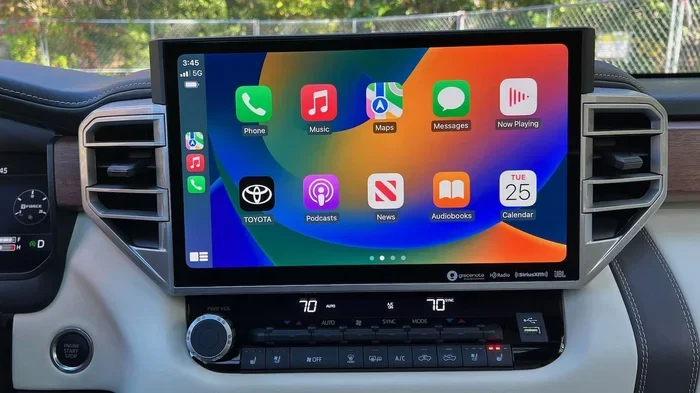
How Long Does a Toyota Software Update Take to Complete
A Toyota software update typically takes between 15 minutes and 2 hours, depending on the type of update, your vehicle model, and where you perform it. Over-the-air updates are usually faster, while dealership updates may take longer due to additional diagnostics and checks. Understanding the process helps you plan your time and avoid frustration.
Have you ever wondered how long does a Toyota software update take? If you own a Toyota, you have probably seen that little notification pop up on your screen, telling you a new update is available. It is tempting to tap “Remind Me Later” and carry on with your day. But understanding the update process can save you time, stress, and even prevent costly problems down the road.
A Toyota software update is not just a quick fix. It can improve your safety features, boost your infotainment system, and even enhance fuel efficiency. The time it takes depends on several factors, including the type of update, your vehicle model, and where you perform the update. In this guide, we will walk you through everything you need to know about Toyota update time, what to expect, and how to make the process as smooth as possible.
Whether you drive a Toyota Camry, a Toyota RAV4, or a Toyota Highlander, this article has you covered. We will break down the different types of updates, the factors that affect duration, and practical tips to make sure your update goes without a hitch. Let us get into it.
Key Takeaways
- Typical Update Time: Most Toyota software updates take 15 minutes to 2 hours to complete.
- OTA Updates Are Faster: Over-the-air updates usually finish in 15-30 minutes if your connection is stable.
- Dealership Updates Take Longer: Visiting a dealer may take 1-3 hours due to thorough system checks.
- Stable Connection Is Key: A weak Wi-Fi or cellular signal can significantly slow down or interrupt your update.
- Do Not Interrupt the Process: Turning off the car or losing power during an update can cause serious issues.
- Regular Updates Improve Performance: Keeping your software current enhances safety features and infotainment.
📑 Table of Contents
- What Is a Toyota Software Update?
- How Long Does a Toyota Software Update Take?
- Factors That Affect Toyota Software Update Time
- How to Update Your Toyota Software at Home
- What to Do If Your Toyota Software Update Gets Stuck
- Why Keeping Your Toyota Software Updated Matters
- Common Mistakes to Avoid During a Toyota Software Update
- Frequently Asked Questions
- Final Thoughts
What Is a Toyota Software Update?
A Toyota software update is a digital patch or upgrade that improves your vehicle’s computer systems. Think of it like updating the apps on your phone. Just as your phone needs regular updates to work its best, your Toyota does too.
These updates can touch many parts of your vehicle:
- Infotainment System: Updates your audio, navigation, and connectivity features.
- Safety Systems: Enhances Toyota Safety Sense and other driver-assist features.
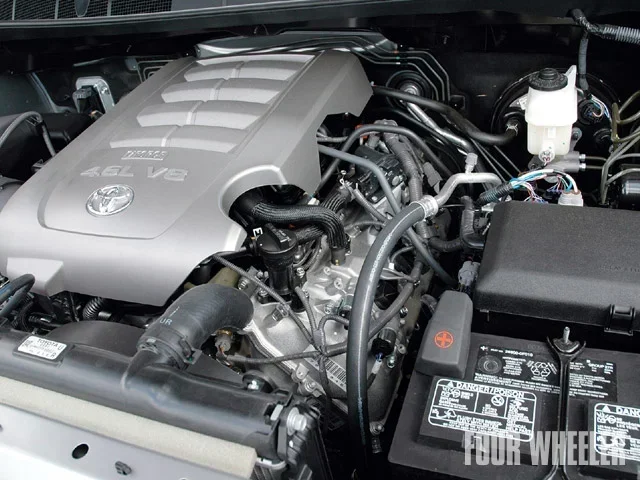
- Engine Management: Fine-tunes engine performance and fuel efficiency.
- Bluetooth and Connectivity: Improves phone pairing and wireless features.
- Bug Fixes: Resolves known software glitches and errors.
Toyota has been moving toward over-the-air (OTA) updates, similar to what Tesla and other modern brands offer. This means some updates can happen right from your garage, without you needing to visit a dealership. However, not all Toyota models support OTA updates yet. Older models may still require a trip to the dealer or a service center.
If you are curious whether you can take your Toyota to any dealer for service, check out our guide on whether you can take a Toyota to any Toyota dealership for more details.
How Long Does a Toyota Software Update Take?
The Toyota update time varies quite a bit. There is no single answer because several factors come into play. Here is a general breakdown of what you can expect.
Over-the-Air (OTA) Updates
OTA updates are the fastest and most convenient option. If your Toyota supports this feature, you can update your software right from the vehicle’s touchscreen or the Toyota app on your phone. OTA updates typically take 15 to 30 minutes, assuming you have a strong and stable internet connection.
Here is what the process looks like for an OTA update:
- Your Toyota checks for available updates automatically or on demand.
- You download the update file over Wi-Fi or cellular data.
- The system installs the update, which may require a few restarts.
- Your vehicle is ready to go once the installation completes.
The download itself might only take a few minutes. But the installation phase is where most of the time goes. Your vehicle needs to reboot several times to apply the changes properly. Do not turn off the car during this phase, or you could corrupt the software.
Dealership or Service Center Updates
If you visit a Toyota dealership for a software update, the process takes longer. A dealership update usually takes 1 to 3 hours. This is because the technician runs additional diagnostics, checks for other issues, and ensures everything is working correctly after the update.
Here is why dealership updates take more time:
- Diagnostic Checks: The technician scans your vehicle before and after the update.
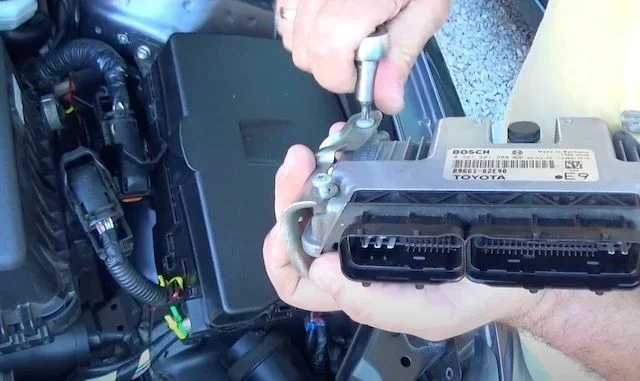
- Multiple System Updates: They may update several modules at once.
- Testing: They test critical systems like braking, steering, and safety features.
- Additional Services: You might combine the update with other maintenance tasks.
While it takes longer, a dealership update gives you peace of mind. A trained professional handles everything, and you can address other concerns at the same time.
USB or SD Card Updates
Some older Toyota models require you to load the update onto a USB drive or SD card and insert it into the vehicle. These updates usually take 30 minutes to 1 hour. The process is more hands-on, and you need to follow specific steps to avoid errors.
Factors That Affect Toyota Software Update Time
Several things can make your Toyota software update faster or slower. Understanding these factors helps you plan better and avoid surprises.
Internet Connection Speed
This is the biggest factor for OTA updates. A strong Wi-Fi connection will make the download phase quick. A weak or unstable connection can cause the download to stall, which extends the total time significantly. If you are at home, make sure your Wi-Fi signal is strong in the garage where you park.
Similarly, if you rely on cellular data, check your signal strength before starting the update. A slow or dropping connection is the number one reason updates take longer than expected.
Vehicle Model and Year
Newer Toyota models generally have faster processors and more efficient software, which means updates go smoother and quicker. Older models might take a bit longer, especially if they have more complex systems that need updating.
For example, a 2023 Toyota RAV4 with the latest infotainment system might complete an OTA update in 15 minutes. An older model from 2018 might take 30 minutes or more for the same type of update.
Size of the Update
Not all updates are the same size. A minor bug fix might only be a few megabytes and installs in minutes. A major update that includes new features, map data, and system improvements can be several hundred megabytes or even gigabytes. Larger updates naturally take more time to download and install.
How Many Systems Are Being Updated
If the update touches multiple modules, such as the infotainment, safety, and engine systems, it will take longer. Some updates are comprehensive and touch every part of the vehicle. Others are targeted and only update one specific area.
Battery Level
Your Toyota needs sufficient battery power to complete an update. If your battery is low, the vehicle might refuse to start the update or might pause midway. Keep your battery above 50% before starting any software update. If your battery is low, consider driving the car for a while or plugging it in first.
Also, if you are worried about your car sitting idle for too long, you might wonder how long a hybrid can sit without being driven. Check out our article on how long a hybrid can sit without being driven for helpful insights.
How to Update Your Toyota Software at Home
If your Toyota supports OTA updates, updating at home is straightforward. Here is a step-by-step guide to help you through the process.
Step 1: Check for Updates
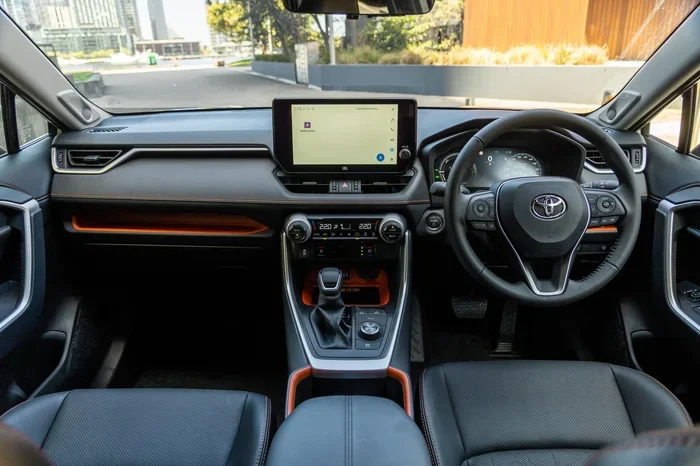
Go to your vehicle’s settings menu and look for the software or system update option. Your Toyota will automatically check for available updates. If an update is available, you will see a notification with details about what the update includes.
Step 2: Connect to Wi-Fi
Make sure your Toyota is connected to a strong and stable Wi-Fi network. OTA updates use a lot of data, so avoid using cellular data unless Wi-Fi is not available. A stable connection prevents the download from failing or corrupting.
Step 3: Start the Download
Tap “Download” to start the process. You can continue using other vehicle features while the download runs in the background. Keep an eye on the progress bar to make sure the download stays on track.
Step 4: Install the Update
Once the download is complete, the system will prompt you to install the update. Choose a time when you are not in a rush. Do not start an update if you need to drive soon. The installation process requires the vehicle to be parked and powered on.
Step 5: Let the System Reboot
After installation, your Toyota will restart several times. This is completely normal. The system is applying the new software to different modules. Do not turn off the vehicle or open the doors during this phase. Wait until the screen shows that the update is complete.
Quick Tips for a Smooth Update
- Start the update when you have plenty of free time.
- Make sure your battery is fully charged or above 50%.
- Keep the vehicle parked in a safe, sheltered location.
- Do not press any buttons or touch the screen during installation.
- Have your phone nearby in case you need to check the Toyota app for status updates.
Want to learn more about keeping your Toyota in top shape? Read our article on how to create a maintenance schedule to stay on top of all your Toyota care needs.
What to Do If Your Toyota Software Update Gets Stuck
Sometimes, a Toyota software update can get stuck or freeze. This is rare, but it does happen. Here is what you should do if it occurs.
Do Not Panic
The first rule is to stay calm. Most of the time, a stuck update is just taking longer than expected. Large updates or slow internet connections can cause the process to appear frozen when it is actually still working in the background.
Wait It Out
Give the update at least 30 to 60 minutes before assuming something is wrong. If the progress bar is still moving, even slowly, let it do its thing. Interruptions during an update can cause serious software problems.
Check Your Connection
If the update has been stuck for over an hour, check your Wi-Fi or cellular connection. A dropped connection can halt the installation. If you are at home, try restarting your router and then restarting the update process on your Toyota.
Restart the Vehicle
If the update is truly frozen and has not progressed for a long time, you can try restarting the vehicle. Turn the engine off, wait a minute, and turn it back on. The system should resume the update from where it left off.
Visit a Dealership
If none of the above steps work, it is time to visit a Toyota dealership. A technician can diagnose the issue and manually complete the update. This is why some owners prefer to have software updates done at the dealership, especially for major updates.
To keep your Toyota running smoothly and prevent issues like overheating during long update sessions, check out our guide on how to prevent a car from overheating in summer.
Why Keeping Your Toyota Software Updated Matters
Some Toyota owners skip software updates. They see the notification, tap “Remind Me Later,” and forget about it. But keeping your software current offers real benefits that go beyond just having the latest features.
Improved Safety
Toyota regularly updates its safety systems to improve performance and address potential vulnerabilities. A Toyota software update can enhance features like automatic emergency braking, lane departure warning, and adaptive cruise control. These are not features you want to be outdated on.
Better Performance
Software updates can optimize your engine’s performance, improve fuel economy, and smooth out your driving experience. Even small updates can make a noticeable difference in how your Toyota drives and responds.
New Features
Ever wished your Toyota had a new feature that you saw on a friend’s model? Software updates can add new functionality to your vehicle without you needing to buy a new car. From new voice commands to improved navigation maps, updates keep your Toyota feeling fresh.
Bug Fixes and Stability
Every software has bugs. Toyota releases updates to fix known issues that can cause glitches in the infotainment system, Bluetooth connectivity, or other features. Installing updates promptly keeps your vehicle running smoothly and reliably.
Resale Value
A Toyota with up-to-date software is more attractive to buyers. It shows that the vehicle has been well-maintained and that the owner stayed current with the latest improvements. This can positively impact your resale value when it is time to sell or trade in.
For more information on how long your Toyota can last with proper care, check out our guide on how many miles a Chevy Tahoe lasts, which offers insights on vehicle longevity that apply across brands.
Common Mistakes to Avoid During a Toyota Software Update
Avoiding these common mistakes can save you time, headaches, and potential repair costs.
Starting an Update When You Are in a Hurry
This is the most common mistake. Do not start a Toyota software update if you need to drive somewhere soon. Updates can take anywhere from 15 minutes to 2 hours, and you cannot interrupt the process without risking software damage.
Using a Weak Internet Connection
A weak Wi-Fi signal will cause the download to fail or corrupt. Always use a strong, stable connection. If your Wi-Fi signal is weak in the garage, consider moving the car closer to the router or using a Wi-Fi extender.
Ignoring Battery Warnings
If your Toyota warns you that the battery is too low to start an update, do not ignore it. A power loss during an update can brick your system and lead to expensive repairs. Charge your vehicle fully before starting.
Interrupting the Update
Never turn off the engine, open the doors, or disconnect the power during an update. This can corrupt the software and leave your vehicle inoperable until a technician can fix it.
Skipping Updates Entirely
It might be tempting to ignore update notifications, especially if your Toyota seems to be working fine. But skipping updates means missing out on safety improvements, bug fixes, and new features. Make it a habit to install updates promptly.
Frequently Asked Questions
Can I drive my Toyota while a software update is installing?
No. You should never drive your Toyota while a software update is installing. The vehicle needs to remain parked and powered on for the entire process. Driving during an update can corrupt the software and cause serious problems with your vehicle’s systems.
Do Toyota software updates cost money?
Most Toyota software updates are free. However, some features or major updates may require a subscription or a visit to the dealership. Check with your local Toyota dealer or the Toyota app for specific pricing details on any given update.
How often should I update my Toyota software?
Toyota recommends checking for updates regularly, ideally once a month. New updates are released periodically, and installing them promptly ensures your vehicle stays safe, performant, and up to date with the latest features.
Can a software update fix all Toyota problems?
No. Software updates can fix software-related issues, improve performance, and enhance features. However, they cannot fix mechanical problems, physical damage, or hardware failures. If your Toyota has a mechanical issue, you will need a different type of repair.
What happens if my Toyota software update fails?
If an update fails, your vehicle will usually prompt you to try again. In most cases, you can restart the update process without any harm. If the failure persists, visit a Toyota dealership where a technician can diagnose and resolve the issue.
Is it safe to use my phone’s hotspot for a Toyota software update?
Yes, it is generally safe to use a phone hotspot for a Toyota software update. However, make sure your hotspot has a strong and stable connection. A weak or inconsistent hotspot connection can cause the download to fail or the update to install incorrectly.
Final Thoughts
So, how long does a Toyota software update take? The answer is anywhere from 15 minutes to 3 hours, depending on the type of update, your vehicle model, and where you perform the update. OTA updates are the fastest option, typically taking 15 to 30 minutes. Dealership updates take longer, usually 1 to 3 hours, but they come with the added benefit of professional diagnostics and care.
The key takeaway is simple: do not rush the process. A Toyota software update is an important part of keeping your vehicle safe, performant, and up to date. Give yourself plenty of time, ensure a strong internet connection, and keep your battery charged. By following the tips in this guide, you can make sure every update goes smoothly and your Toyota keeps running at its best.
Stay proactive about your vehicle’s software. Check for updates regularly, install them promptly, and enjoy the benefits of a well-maintained Toyota. Your car is a significant investment, and keeping its software current is one of the easiest ways to protect that investment for years to come.