How to Add Vehicle to Toyota App Step by Step Guide
Adding your vehicle to the Toyota App is quick and easy when you follow the right steps. This guide walks you through the entire process from creating your account to linking your Toyota model. You will learn how to unlock doors, check fuel levels, and use remote start features right from your phone.
Have you ever wanted to control parts of your car right from your phone? The Toyota App makes that possible. Whether you want to check if your doors are locked or start your engine before getting in, the app puts a lot of power in your hands. But first, you need to know how to add vehicle to Toyota App correctly. This guide will show you every step without any confusion.
Many Toyota owners download the app but feel stuck when it is time to link their car. The process is simpler than most people think. You do not need to be a tech expert. With a few basic details about your vehicle and a few minutes of your time, you can have everything connected. Let us walk through it together.
Key Takeaways
- Simple Setup: Adding your vehicle to the Toyota App takes just a few minutes with a stable internet connection.
- Remote Features: Once linked, you can lock doors, start the engine, and check vehicle status from anywhere.
- Prerequisites Matter: You need a compatible Toyota model, a working Wi-Fi or data connection, and your vehicle details ready.
- Troubleshooting Is Straightforward: Most issues can be fixed by updating the app, checking your network, or re-linking your vehicle.
- Extra Benefits: The Toyota App offers maintenance reminders, trip tracking, and smart alerts that keep your car running smoothly.
📑 Table of Contents
- What Is the Toyota App and Why Should You Add Your Vehicle?
- Prerequisites Before You Add Your Vehicle
- Step-by-Step Guide to Add Your Vehicle to the Toyota App
- Troubleshooting Common Issues When Adding Your Vehicle
- Tips to Get the Most From Your Toyota App
- Frequently Asked Questions About the Toyota App
- Final Thoughts on Adding Your Vehicle to the Toyota App
What Is the Toyota App and Why Should You Add Your Vehicle?
The Toyota App is a free mobile application that connects your smartphone to your Toyota vehicle. It works with most newer Toyota models that support Toyota Connected Services. Once your vehicle is linked, you gain access to a range of useful features right from your phone screen.
So why should you bother adding your vehicle? Here are some great reasons:
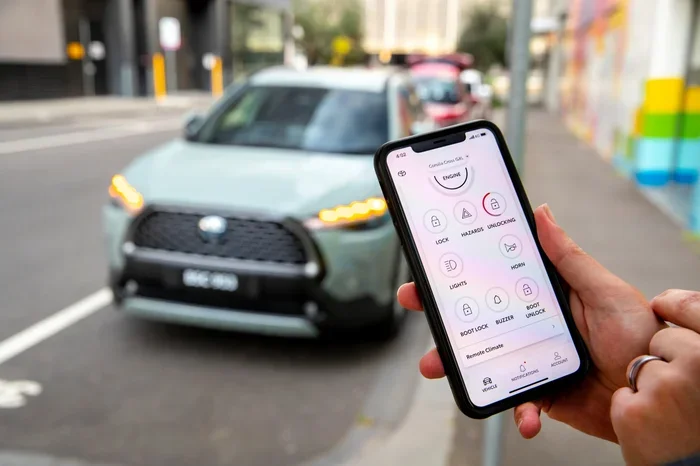
- Remote Lock and Unlock: You can lock or unlock your doors from anywhere. This is especially helpful when you forget to lock up.
- Remote Start: Warm up or cool down your car before you get in. It is a game changer during extreme weather.
- Vehicle Status Checks: See your fuel level, tire pressure, and oil life without walking up to your car.
- GPS Tracking: Know where your vehicle is parked or locate it in a crowded parking lot.
- Maintenance Alerts: Get notified when your car needs service or an oil change is due.
When you connect your car to the Toyota App, you turn your phone into a smart remote control for your vehicle. The experience feels natural and fast. Many users say they wonder how they ever lived without it.
Prerequisites Before You Add Your Vehicle
Before jumping into the setup process, make sure you have everything ready. Skipping this step can cause frustration later. Here is what you need:
Compatible Toyota Model
Not every Toyota model supports full app connectivity. Most models from 2017 and newer work well with the Toyota App. Some older models may have limited features. Check your vehicle manual or visit the Toyota website to confirm your model is supported. If you own a Toyota Camry, Toyota RAV4, or Toyota Highlander, chances are you are good to go.
A Stable Internet Connection
You will need Wi-Fi or mobile data during the setup process. Make sure your phone has a strong signal. A weak connection can cause the pairing process to fail. If you are setting this up at home, connect to your Wi-Fi network first.
Your Vehicle Details
Have your vehicle identification number (VIN) handy. You can usually find this on the driver side dashboard or on your registration card. The app will ask for this number during setup. Having it ready saves time and prevents errors.
Your Toyota Account
You need a Toyota account to use the app. If you do not have one yet, you will create it during the setup process. Make sure you use a valid email address and a strong password.
Step-by-Step Guide to Add Your Vehicle to the Toyota App
Now that you have everything ready, let us get into the actual process. Follow these steps carefully and you will be connected in no time.
Step 1: Download the Toyota App
Go to the Apple App Store or Google Play Store on your phone. Search for “Toyota App” or “myToyota.” Download the official app from Toyota Motor North America. Make sure you are downloading the correct app. The icon is typically red with the Toyota logo. Once downloaded, open the app and tap on “Create Account” or “Sign Up.”
Step 2: Create or Log Into Your Toyota Account
Enter your email address and create a password. You can also sign in using your existing Toyota account if you already have one. After logging in, the app will ask you to agree to the terms of service. Read through them quickly and accept to continue.
Step 3: Select “Add Vehicle”
On the home screen of the app, you will see an option that says “Add Vehicle” or “Link a Vehicle.” Tap on it. The app will now prompt you to enter your vehicle details. This is where your VIN comes in handy. Type in the 17-character VIN carefully. Double-check for any typos before moving forward.
Step 4: Verify Your Vehicle
The app will now verify your vehicle information. This may take a few seconds or up to a minute. During this time, the app checks the VIN against Toyota’s database. It confirms your model year, trim level, and available features. Once verified, the app will show a confirmation message.
Step 5: Pair Your Phone with Your Vehicle
This is the most important step. The app will guide you through pairing your phone with your car. Make sure your phone’s Bluetooth is turned on. You may also need to enable location services for full functionality. Follow the on-screen prompts. Your vehicle may display a confirmation code on the dashboard screen. Enter that code into the app to complete the pairing.
Pro tip: If your vehicle supports Toyota Remote Connect, you will see additional options during pairing. This feature unlocks remote start, remote lock, and GPS tracking. Make sure you enable it when prompted.
Step 6: Test Your Connection
Once pairing is complete, test a few features. Try locking your doors remotely. Check your fuel level on the app dashboard. If everything works, you are all set. If something does not work, do not worry. We will cover troubleshooting in the next section.
Now that your car is linked, you might also want to check how to unlock your car with the Toyota App for a smoother daily routine. This is one of the most popular features among new users.
Troubleshooting Common Issues When Adding Your Vehicle
Sometimes things do not go as smoothly as we hope. If you run into problems while adding your vehicle, here are some common fixes.
App Won’t Recognize Your VIN
This usually happens when the VIN is entered incorrectly. Go back and double-check each character. Make sure you are not confusing the letter “I” with the number “1” or the letter “O” with the number “0.” VINs only use certain letters to avoid confusion. If the problem persists, try restarting the app and entering the VIN again.
Pairing Fails or Keeps Timing Out
A failed pairing often means your phone has a weak Bluetooth or Wi-Fi signal. Move closer to your vehicle and try again. Make sure no other devices are interfering with the connection. You can also try turning Bluetooth off and back on. If the issue continues, restart your phone and the vehicle infotainment system.
App Features Are Grayed Out
If some features appear grayed out or unavailable, your vehicle may not support those specific functions. Not every Toyota model has remote start or GPS tracking. Check your vehicle manual or contact a Toyota dealer to confirm which features your model supports. You can also reprogram a used Toyota key fob to ensure your vehicle setup is fully optimized for app connectivity.
App Crashes During Setup
Make sure your app is updated to the latest version. Outdated apps can cause crashes and errors. Visit the App Store or Google Play Store and check for updates. Also, clear the app cache on your phone if needed. A fresh restart of your device can also resolve temporary glitches.
Tips to Get the Most From Your Toyota App
Once your vehicle is added and working, you can get even more out of the app. Here are some tips to enhance your experience.
Enable Push Notifications
Turn on notifications so the app can alert you about maintenance reminders, low fuel warnings, and security alerts. These timely nudges help you stay on top of your vehicle health.
Use the Trip Tracking Feature
The Toyota App tracks your driving habits and trip history. This is useful for monitoring fuel efficiency over time. You can see how your driving style affects your mileage and adjust accordingly.
Set Up Smart Alerts
Configure smart alerts for things like geofencing. You can set a boundary around your home or workplace. The app will notify you if your vehicle leaves that area. This adds an extra layer of security.
Keep Your App Updated
Toyota regularly releases app updates with new features and bug fixes. Check for updates at least once a month. Staying current ensures the best performance and access to the latest tools.
Explore EV Features if Applicable
If you own a Toyota EV or hybrid like the BZ4X, the app offers charging features. You can check your battery level, set charging schedules, and monitor charging progress remotely. For EV owners wondering about charging habits, you can also explore whether you should charge your BZ4X to 100 percent for optimal battery health.
Frequently Asked Questions About the Toyota App
Here are some common questions that Toyota owners ask when getting started with the app.
Is the Toyota App Free to Use?
Yes, the Toyota App is free to download and use for basic features. Some advanced services may require a subscription or trial period depending on your vehicle model and year. Check the app details for any premium feature offers.
Can I Add More Than One Vehicle to the App?
Absolutely. The Toyota App allows you to add multiple vehicles to a single account. This is great for families who own more than one Toyota. Simply repeat the add vehicle process for each car you want to link.
Do I Need a Data Plan for the App to Work?
Your phone needs an active internet connection, either Wi-Fi or cellular data, to use the app. Your vehicle also needs a built-in cellular module for remote features. Some Toyota models include this at no extra cost for a trial period, after which a subscription may be required.
What Should I Do if I Sell or Trade in My Toyota?
When you sell or trade in your vehicle, you should remove it from the Toyota App. Go to your vehicle settings and select “Remove Vehicle.” This ensures the next owner can link their own account. If you are switching to a new Toyota, you can add it easily using the same steps.
Can I Use the Toyota App with a Used or Pre-Owned Vehicle?
Yes, you can use the Toyota App with a used vehicle as long as it is compatible and the previous owner has removed it from their account. You may need to reset the vehicle’s connected services settings first. If you are dealing with a key fob transfer as well, it is worth checking whether you need to reprogram a used Toyota key fob to ensure full functionality with the app.
How Do I Reset My Toyota App Password?
Tap on “Forgot Password” on the login screen. Enter your registered email address, and Toyota will send you a reset link. Follow the instructions in the email to create a new password. Choose a strong password that you can remember but others cannot guess.
Final Thoughts on Adding Your Vehicle to the Toyota App
Adding your vehicle to the Toyota App is one of the best things you can do as a Toyota owner. The process is straightforward and the benefits are substantial. From remote locking to maintenance alerts, the app makes car ownership more convenient and connected. Follow the steps in this guide, and you will have your vehicle linked within minutes.
Remember to keep your app updated and your account secure. Use a strong password and enable two-factor authentication if available. These small steps protect your vehicle data and give you peace of mind.
If you ever run into issues, refer back to the troubleshooting section. Most problems have simple solutions. And once your vehicle is connected, you will wonder how you ever managed without it. The Toyota App truly brings your car into the digital age, making everyday driving smoother and smarter.