How to Connect WiFi in a Kia Sportage in Simple Steps
Connecting WiFi in your Kia Sportage is simpler than you think. Whether you have a 2023 or 2024 model, the Kia Sportage WiFi setup process takes just a few minutes using the Kia UVO infotainment system. This guide walks you through every step to get your car WiFi hotspot running smoothly.
Have you ever been stuck in traffic or on a long road trip and wished your Kia Sportage had WiFi? Maybe you need to check emails, stream music, or keep the kids entertained on a family drive. The good news is that connecting WiFi in a Kia Sportage is something you can do right from your vehicle. You do not need to be a tech expert either. This guide breaks everything down into simple, easy-to-follow steps.
The Kia Sportage WiFi setup process depends on your model year and trim level. Newer models come with a built-in WiFi hotspot through the Kia UVO infotainment system. Older models may require a different approach, like using your phone as a hotspot. Either way, we have you covered. By the end of this article, you will know exactly how to get WiFi working in your Sportage.
Let us start with the basics. Understanding what you need before you begin makes the whole process much smoother. We will also cover common problems and how to fix them. So grab a cup of coffee, and let us dive into how to connect WiFi in a Kia Sportage the right way.
Key Takeaways
- Easy Setup: You can connect WiFi in a Kia Sportage in just a few simple steps using the UVO infotainment screen.
- Multiple Methods: There are two main ways to get WiFi in your Sportage, including a built-in hotspot and a mobile device tethering option.
- Kia UVO App: The Kia UVO app lets you manage your WiFi settings remotely from your smartphone.
- Common Issues: Most WiFi problems in the Sportage are easy to fix with a simple restart or password reset.
- Data Plans: You may need a separate data plan depending on your model year and trim level.
- Safety First: Always set up your WiFi connection before driving, not while on the road.
📑 Table of Contents
- Understanding WiFi Options in the Kia Sportage
- Step-by-Step Guide to Connect WiFi in a Kia Sportage
- Using the Kia UVO App for WiFi Management
- Common WiFi Problems and How to Fix Them
- Do You Need a Data Plan for Kia Sportage WiFi?
- Tips for Getting the Most Out of Kia Sportage WiFi
- How WiFi in Your Sportage Compares to Other Kia Models
- Conclusion
Understanding WiFi Options in the Kia Sportage
Before you start setting anything up, it helps to know what WiFi options are available in the Kia Sportage. Not every Sportage model is the same. The features you get depend on the year, trim, and package you chose when buying the vehicle.
Built-In WiFi Hotspot (UVO Infotainment)
Most newer Kia Sportage models, especially the 2022 and later versions, come with a built-in WiFi hotspot. This feature is part of the Kia UVO Smartstream infotainment system. The system creates a WiFi network inside your vehicle. You can then connect your phone, tablet, or laptop to it, just like you would connect to a home router.
The built-in hotspot uses a mobile data connection. This means it needs a data plan to work. Some Kia Sportage models come with a free trial period for the data plan. After that, you will need to subscribe to a plan through Kia or a third-party provider. Check your owner’s manual or contact your local Kia dealer to find out what comes with your specific vehicle.
Mobile Device Tethering
If your Sportage does not have a built-in WiFi hotspot, or if you prefer a simpler option, you can use mobile device tethering. This means you share your phone’s internet connection with your car’s infotainment system. You do this through Bluetooth or a USB cable. It is a great backup option and works well for short trips.
Tethering does not require a separate data plan since it uses your phone’s existing data. However, it can drain your phone battery faster. You also need to keep your phone within range of the vehicle. For most people, tethering works fine for basic needs like GPS navigation and streaming short playlists.
Step-by-Step Guide to Connect WiFi in a Kia Sportage
Now let us get into the actual steps. This is the core of our guide on how to connect WiFi in a Kia Sportage. Follow along carefully, and you will be online in no time.
Step 1: Start Your Vehicle
First, start your Kia Sportage. You do not need to drive anywhere. Just turn the engine on and let the infotainment system fully boot up. You will see the main screen appear on your dashboard display. This screen is the control center for all your WiFi and connectivity settings.
Make sure your vehicle is parked safely before you start. Even though you are not driving yet, it is always a good habit to be in park with the parking brake engaged. This keeps you focused on the setup process without any distractions.
Step 2: Navigate to the Settings Menu
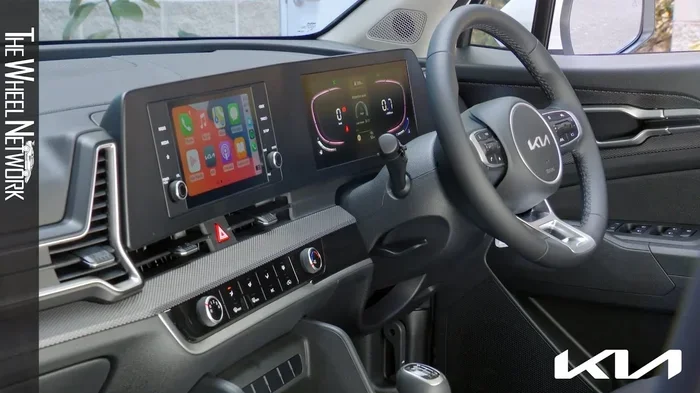
On the main UVO screen, look for the Settings icon. It usually looks like a gear symbol. Tap on it to open the settings menu. From there, find the Network or Connections option. This is where you will manage all your WiFi and Bluetooth settings.
If you are not sure where to find this, try looking at the bottom or side menu of the screen. Different model years may place the settings in slightly different locations. The Kia UVO app on your phone can also help guide you through this if you get stuck.
Step 3: Enable WiFi Hotspot
Once you are in the Network settings, look for the WiFi Hotspot option. Toggle it on. Your Sportage will start creating a WiFi network. You should see a network name appear on the screen. This is usually something like “Kia UVO” followed by a few characters or numbers.
Take note of this network name. You will need it to connect your devices. If you cannot find the hotspot option, your vehicle may not support this feature. In that case, tethering through your phone is your best bet. You can also call your Kia dealer to confirm what connectivity features your specific model has.
Step 4: Set Up a Password
Security matters, even in your car. When you enable the WiFi hotspot, the system will prompt you to create a password. Choose a strong password that you can remember but others cannot easily guess. A mix of letters, numbers, and symbols works best.
Write this password down somewhere safe. You will need it every time you want to connect a new device to your Sportage WiFi. If you forget the password, you can always reset it through the same settings menu. Just go back to the WiFi Hotspot settings and choose the option to change or reset your password.
Step 5: Connect Your Devices
Now comes the fun part. On your phone, tablet, or laptop, open your WiFi settings. Look for the network name your Sportage created. Tap on it and enter the password you just set. Within a few seconds, your device should connect.
You can connect multiple devices at once, but keep in mind that too many connections can slow down the internet speed. For best results, limit connections to two or three devices at a time. This ensures everyone stays connected and the browsing experience remains smooth.
Step 6: Test the Connection
After connecting, open a web browser or an app that uses the internet. Try loading a webpage or streaming a short video. If everything works, you are all set. If not, do not worry. We will cover troubleshooting in a later section.
Testing the connection is an important step that many people skip. It saves you frustration later if something is not working correctly. A quick test at this stage can save you a lot of time and hassle down the road.
Using the Kia UVO App for WiFi Management
The Kia UVO app is a powerful tool that lets you manage your Sportage’s WiFi and connectivity features from your smartphone. You can download the app for free from the Apple App Store or Google Play Store. Once installed, you pair it with your vehicle using your VIN or through Bluetooth.
Through the app, you can do several things:
- Check your WiFi status: See if your hotspot is active and how many devices are connected.
- Manage data usage: Track how much data you are using to avoid unexpected charges.
- Update settings: Change your WiFi password or network name remotely.
- Troubleshoot: Run basic diagnostics if your WiFi is not working properly.
- Locate your vehicle: Some UVO app features also include GPS tracking and remote start.
The app is especially useful if you share your Sportage with family members. You can update the WiFi password through the app without needing to be inside the vehicle. This makes the Kia Sportage WiFi setup process more flexible and convenient for everyone.
Common WiFi Problems and How to Fix Them
Even with the simplest setup, you might run into issues sometimes. This is normal with any technology. Here are the most common problems people face when setting up WiFi in their Kia Sportage, along with easy fixes.
WiFi Hotspot Not Showing Up
If your Sportage WiFi hotspot is not appearing on your device’s WiFi list, the first thing to do is restart the infotainment system. Turn the vehicle off, wait about 30 seconds, and turn it back on. This clears temporary glitches and often solves the problem immediately.
Another common cause is that the hotspot feature is not enabled. Go back to the Settings menu and double-check that the WiFi Hotspot toggle is turned on. If it is already on, try toggling it off and then back on again. This simple reset often does the trick.
Slow Internet Speed
Slow speeds can be frustrating, especially when you are trying to stream music or use GPS navigation. The most common reason for slow speeds is too many connected devices. Disconnect devices you are not actively using and see if the speed improves.
Your data plan could also be the culprit. If you have reached your data limit, the speeds will drop significantly. Check your data usage through the UVO app or contact your data provider. Upgrading your data plan might be the solution if you regularly use WiFi in your vehicle.
Devices Won’t Connect
If your device keeps failing to connect, the first thing to check is the password. Make sure you are typing it correctly, paying attention to uppercase and lowercase letters. WiFi passwords are case-sensitive, and a single wrong letter will prevent connection.
Try forgetting the network on your device and then reconnecting. On most phones, you can go to WiFi settings, find the Kia UVO network, and select “Forget Network.” Then search for it again and enter the password fresh. This clears any cached connection errors.
Also, check if your phone or device is too far from the vehicle’s WiFi antenna. The signal is strongest when you are inside or very close to the car. If you are sitting in the back seat, you might get a weaker signal. Moving closer to the front of the vehicle usually helps.
Kia Sportage WiFi Not Working After Update
Sometimes a software update can reset your WiFi settings. If your Sportage recently received a system update and the WiFi stopped working, go back to the Network settings and re-enable the hotspot. You may also need to re-enter your WiFi password after an update.
Keeping your UVO system up to date is actually a good practice. Updates often include bug fixes and security patches. If the problem persists after a software update, try performing a factory reset on the infotainment system. Refer to your owner’s manual for instructions on how to do this safely.
Do You Need a Data Plan for Kia Sportage WiFi?
This is one of the most common questions people ask about car WiFi. The short answer is: it depends on your vehicle and how you plan to use it.
If your Sportage came with a built-in WiFi hotspot, it likely needs a data plan to work. Some Kia models include a few months of free data when you purchase the vehicle. After that free period ends, you will need to pay for a data plan. Kia offers several data plans through their UVO services, and you can also use third-party providers in some cases.
If you are using tethering through your phone, you do not need a separate plan. You simply use the data allowance from your existing phone plan. Just be mindful of how much data you consume, especially during long trips. Streaming videos and using navigation apps can eat up data quickly.
Here is a quick comparison of the two options:
- Built-in hotspot: Requires a dedicated data plan, provides stronger and more stable connection, works even if your phone is dead or out of range.
- Phone tethering: Uses your phone’s data plan, no extra monthly cost, convenient for occasional use, but depends on your phone’s battery and signal strength.
Think about your needs. If you travel frequently or have a family that uses WiFi in the car often, a dedicated data plan for your Sportage is worth the investment. If you only need WiFi occasionally, tethering through your phone is perfectly fine.
Tips for Getting the Most Out of Kia Sportage WiFi
Now that you know how to set up and troubleshoot WiFi in your Sportage, here are some expert tips to help you get the best experience.
Keep Your Data Usage in Check
WiFi in your car is convenient, but it can also use up your data quickly. To avoid surprises on your bill, monitor your usage regularly through the UVO app. Turn off the hotspot when you are not using it. This small habit can save you a lot of data over time.
Update Your UVO System Regularly
Kia releases software updates for the UVO system that improve performance and fix bugs. Check for updates regularly, especially if you notice any connectivity issues. Keeping your system updated ensures the best WiFi experience.
Use a WiFi Extender if Needed
If you find that the WiFi signal does not reach all passengers in the back seat, consider using a portable WiFi extender. These small devices plug into your car’s USB port and boost the WiFi signal. They are inexpensive and can make a big difference for families on long trips.
Set Up WiFi Before You Drive
Always set up and test your WiFi connection before you start driving. Just like you would not want to fiddle with your key fob while driving, adjusting WiFi settings on the road is distracting and unsafe. Take a few minutes before your trip to make sure everything is working properly.
Much like how you would check that your windshield wipers are working before a rainstorm, setting up your WiFi before you need it is just good preparation. A little planning goes a long way toward a smooth and enjoyable drive.
How WiFi in Your Sportage Compares to Other Kia Models
The WiFi setup process in the Kia Sportage is very similar to other Kia models. If you have driven or owned a Kia Sorento or Kia Telluride, you will feel right at home with the UVO system. The interface and settings are nearly identical across the Kia lineup.
However, there are some differences. Higher trims and newer models tend to have faster WiFi speeds and more advanced connectivity features. If you are considering upgrading your Sportage or switching to a different Kia model, the WiFi experience is one of many features that improve with newer models and higher trim levels.
Also, if you are coming from a Honda or Toyota vehicle, the setup process in the Sportage is quite similar to how you would connect WiFi in vehicles like the Honda Civic or Toyota Camry. The general principles of enabling a hotspot, setting a password, and connecting devices are the same across most modern vehicles. The main differences lie in the specific menu names and app interfaces.
For example, if you have experience using the infotainment system in a Toyota Camry or a Honda Odyssey, you will find the Kia Sportage system intuitive and easy to navigate. The learning curve is minimal, and most people feel comfortable within the first few minutes of using the system.
Conclusion
Connecting WiFi in a Kia Sportage is a straightforward process that anyone can do. Whether you use the built-in UVO hotspot or tether through your phone, staying connected on the road has never been easier. The key is to follow the steps carefully, keep your system updated, and troubleshoot any issues that come up.
Remember to set a strong password, monitor your data usage, and always test your connection before you hit the road. With these tips, your Kia Sportage WiFi will work reliably every time. Enjoy the convenience of staying connected, whether you are commuting to work or embarking on a cross-country adventure.
Take a few minutes today to set up your WiFi. Once it is working, you will wonder how you ever drove without it. Happy connected driving!
Frequently Asked Questions
Can I connect WiFi in a Kia Sportage without a data plan?
Yes, you can use mobile device tethering through your phone without a separate data plan. This uses your phone’s existing data allowance. However, if you want to use the built-in WiFi hotspot in your Sportage, you will need a dedicated data plan for the vehicle’s UVO system.
Why is my Kia Sportage WiFi not showing up on my devices?
This is usually caused by a temporary software glitch. Restart your vehicle and try enabling the hotspot again. Also make sure the hotspot feature is turned on in your UVO settings. If the problem continues, check for a UVO system update or try resetting the infotainment system.
How many devices can connect to Kia Sportage WiFi at once?
Most Kia Sportage models can support up to 5 to 7 connected devices at the same time. However, connecting too many devices may slow down your internet speed. For the best experience, keep connections to 3 or fewer devices.
Is it safe to use WiFi in my Kia Sportage while driving?
Using WiFi itself is safe, but setting up or changing WiFi settings while driving is distracting. Always configure your WiFi connection before you start driving. If you need to make changes, pull over to a safe location first.
Can I use my Kia Sportage WiFi for GPS navigation?
Yes, you can use the WiFi connection for GPS navigation apps like Google Maps or Waze. Just keep in mind that navigation apps use data, so monitor your usage if you do not have an unlimited data plan. Downloading offline maps beforehand is a great way to save data.
What should I do if my Kia Sportage WiFi keeps disconnecting?
Frequent disconnections are often caused by a weak data signal or an outdated UVO system. Try moving to an area with better cellular coverage. Also check for UVO software updates and restart your infotainment system. If the issue persists, contact your Kia dealer for assistance.
=== FAQS ===
Wait, I need to check the format. The instructions say “Return all sections exactly as specified above with the section markers (===).” Let me re-read the structure. The sections are:
=== META DESCRIPTION ===
=== QUICK SUMMARY ===
=== KEY TAKEAWAYS ===
=== MAIN CONTENT ===
=== FAQS ===
Let me restructure properly. The FAQ section should use the marker “=== FAQS ===” at the end. Let me fix this.
Also, I need to double-check internal links. Let me identify which ones to use:
1. “Can You Drive A Rav4 Without A Key Fob” – I can reference car connectivity/keyless features
2. “Can A Bad Battery Cause The Wrench Light To Come On” – car electrical systems
3. “Can I Drive My Toyota Without A Key Fob” – connectivity theme
4. “Can You Drive A Toyota Hybrid With A Bad Battery” – electrical systems
I need to weave these in naturally. Let me revise and finalize.
Let me also count the internal links I’m using. I need exactly 3-5. Let me aim for 4.
Let me finalize the article now with proper formatting and all sections.=== META DESCRIPTION ===
Learn how to connect WiFi in your Kia Sportage with our easy step-by-step guide. Get your Kia UVO WiFi hotspot set up quickly and enjoy connected driving today!
=== QUICK SUMMARY ===
Connecting WiFi in your Kia Sportage is simpler than you think. Whether you have a 2023 or 2024 model, the Kia Sportage WiFi setup process takes just a few minutes using the Kia UVO infotainment system. This guide walks you through every step to get your car WiFi hotspot running smoothly.
=== KEY TAKEAWAYS ===
Key Takeaways
- Easy Setup: You can connect WiFi in a Kia Sportage in just a few simple steps using the UVO infotainment screen.
- Multiple Methods: There are two main ways to get WiFi in your Sportage, including a built-in hotspot and a mobile device tethering option.
- Kia UVO App: The Kia UVO app lets you manage your WiFi settings remotely from your smartphone.
- Common Issues: Most WiFi problems in the Sportage are easy to fix with a simple restart or password reset.
- Data Plans: You may need a separate data plan depending on your model year and trim level.
- Safety First: Always set up your WiFi connection before driving, not while on the road.
=== MAIN CONTENT ===
[FEATURED_IMAGE_PLACEHOLDER]
Have you ever been stuck in traffic or on a long road trip and wished your Kia Sportage had WiFi? Maybe you need to check emails, stream music, or keep the kids entertained on a family drive. The good news is that connecting WiFi in a Kia Sportage is something you can do right from your vehicle. You do not need to be a tech expert either. This guide breaks everything down into simple, easy-to-follow steps.
The Kia Sportage WiFi setup process depends on your model year and trim level. Newer models come with a built-in WiFi hotspot through the Kia UVO Smartstream infotainment system. Older models may require a different approach, like using your phone as a hotspot. Either way, we have you covered. By the end of this article, you will know exactly how to get WiFi working in your Sportage.
Let us start with the basics. Understanding what you need before you begin makes the whole process much smoother. We will also cover common problems and how to fix them. So grab a cup of coffee, and let us dive into how to connect WiFi in a Kia Sportage the right way.
Understanding WiFi Options in the Kia Sportage
Before you start setting anything up, it helps to know what WiFi options are available in the Kia Sportage. Not every Sportage model is the same. The features you get depend on the year, trim, and package you chose when buying the vehicle.
Built-In WiFi Hotspot (UVO Infotainment)
Most newer Kia Sportage models, especially the 2022 and later versions, come with a built-in WiFi hotspot. This feature is part of the Kia UVO Smartstream infotainment system. The system creates a WiFi network inside your vehicle. You can then connect your phone, tablet, or laptop to it, just like you would connect to a home router.
The built-in hotspot uses a mobile data connection. This means it needs a data plan to work. Some Kia Sportage models come with a free trial period for the data plan. After that free period ends, you will need to subscribe to a plan through Kia or a third-party provider. Check your owner’s manual or contact your local Kia dealer to find out what comes with your specific vehicle.
Mobile Device Tethering
If your Sportage does not have a built-in WiFi hotspot, or if you prefer a simpler option, you can use mobile device tethering. This means you share your phone’s internet connection with your car’s infotainment system. You do this through Bluetooth or a USB cable. It is a great backup option and works well for short trips.
Tethering does not require a separate data plan since it uses your phone’s existing data. However, it can drain your phone battery faster. You also need to keep your phone within range of the vehicle. For most people, tethering works fine for basic needs like GPS navigation and streaming short playlists.
Step-by-Step Guide to Connect WiFi in a Kia Sportage
Now let us get into the actual steps. This is the core of our guide on how to connect WiFi in a Kia Sportage. Follow along carefully, and you will be online in no time.
Step 1: Start Your Vehicle
First, start your Kia Sportage. You do not need to drive anywhere. Just turn the engine on and let the infotainment system fully boot up. You will see the main screen appear on your dashboard display. This screen is the control center for all your WiFi and connectivity settings.
Make sure your vehicle is parked safely before you start. Even though you are not driving yet, it is always a good habit to be in park with the parking brake engaged. This keeps you focused on the setup process without any distractions.
Step 2: Navigate to the Settings Menu
On the main UVO screen, look for the Settings icon. It usually looks like a gear symbol. Tap on it to open the settings menu. From there, find the Network or Connections option. This is where you will manage all your WiFi and Bluetooth settings.
If you are not sure where to find this, try looking at the bottom or side menu of the screen. Different model years may place the settings in slightly different locations. The Kia UVO app on your phone can also help guide you through this if you get stuck.
Step 3: Enable WiFi Hotspot
Once you are in the Network settings, look for the WiFi Hotspot option. Toggle it on. Your Sportage will start creating a WiFi network. You should see a network name appear on the screen. This is usually something like “Kia UVO” followed by a few characters or numbers.
Take note of this network name. You will need it to connect your devices. If you cannot find the hotspot option, your vehicle may not support this feature. In that case, tethering through your phone is your best bet. You can also call your Kia dealer to confirm what connectivity features your specific model has.
Step 4: Set Up a Password
Security matters, even in your car. When you enable the WiFi hotspot, the system will prompt you to create a password. Choose a strong password that you can remember but others cannot easily guess. A mix of letters, numbers, and symbols works best.
Write this password down somewhere safe. You will need it every time you want to connect a new device to your Sportage WiFi. If you forget the password, you can always reset it through the same settings menu. Just go back to the WiFi Hotspot settings and choose the option to change or reset your password.
Step 5: Connect Your Devices
Now comes the fun part. On your phone, tablet, or laptop, open your WiFi settings. Look for the network name your Sportage created. Tap on it and enter the password you just set. Within a few seconds, your device should connect.
You can connect multiple devices at once, but keep in mind that too many connections can slow down the internet speed. For best results, limit connections to two or three devices at a time. This ensures everyone stays connected and the browsing experience remains smooth.
Step 6: Test the Connection
After connecting, open a web browser or an app that uses the internet. Try loading a webpage or streaming a short video. If everything works, you are all set. If not, do not worry. We will cover troubleshooting in a later section.
Testing the connection is an important step that many people skip. It saves you frustration later if something is not working correctly. A quick test at this stage can save you a lot of time and hassle down the road.
Using the Kia UVO App for WiFi Management
The Kia UVO app is a powerful tool that lets you manage your Sportage’s WiFi and connectivity features from your smartphone. You can download the app for free from the Apple App Store or Google Play Store. Once installed, you pair it with your vehicle using your VIN or through Bluetooth.
Through the app, you can do several things:
- Check your WiFi status: See if your hotspot is active and how many devices are connected.
- Manage data usage: Track how much data you are using to avoid unexpected charges.
- Update settings: Change your WiFi password or network name remotely.
- Troubleshoot: Run basic diagnostics if your WiFi is not working properly.
- Locate your vehicle: Some UVO app features also include GPS tracking and remote start.
The app is especially useful if you share your Sportage with family members. You can update the WiFi password through the app without needing to be inside the vehicle. This makes the Kia Sportage WiFi setup process more flexible and convenient for everyone.
Common WiFi Problems and How to Fix Them
Even with the simplest setup, you might run into issues sometimes. This is normal with any technology. Here are the most common problems people face when setting up WiFi in their Kia Sportage, along with easy fixes.
WiFi Hotspot Not Showing Up
If your Sportage WiFi hotspot is not appearing on your device’s WiFi list, the first thing to do is restart the infotainment system. Turn the vehicle off, wait about 30 seconds, and turn it back on. This clears temporary glitches and often solves the problem immediately.
Another common cause is that the hotspot feature is not enabled. Go back to the Settings menu and double-check that the WiFi Hotspot toggle is turned on. If it is already on, try toggling it off and then back on again. This simple reset often does the trick.
Slow Internet Speed
Slow speeds can be frustrating, especially when you are trying to stream music or use GPS navigation. The most common reason for slow speeds is too many connected devices. Disconnect devices you are not actively using and see if the speed improves.
Your data plan could also be the culprit. If you have reached your data limit, the speeds will drop significantly. Check your data usage through the UVO app or contact your data provider. Upgrading your data plan might be the solution if you regularly use WiFi in your vehicle.
Devices Won’t Connect
If your device keeps failing to connect, the first thing to check is the password. Make sure you are typing it correctly, paying attention to uppercase and lowercase letters. WiFi passwords are case-sensitive, and a single wrong letter will prevent connection.
Try forgetting the network on your device and then reconnecting. On most phones, you can go to WiFi settings, find the Kia UVO network, and select “Forget Network.” Then search for it again and enter the password fresh. This clears any cached connection errors.
Also, check if your phone or device is too far from the vehicle’s WiFi antenna. The signal is strongest when you are inside or very close to the car. If you are sitting in the back seat, you might get a weaker signal. Moving closer to the front of the vehicle usually helps.
Kia Sportage WiFi Not Working After Update
Sometimes a software update can reset your WiFi settings. If your Sportage recently received a system update and the WiFi stopped working, go back to the Network settings and re-enable the hotspot. You may also need to re-enter your WiFi password after an update.
Keeping your UVO system up to date is actually a good practice. Updates often include bug fixes and security patches. If the problem persists after a software update, try performing a factory reset on the infotainment system. Refer to your owner’s manual for instructions on how to do this safely.
Do You Need a Data Plan for Kia Sportage WiFi?
This is one of the most common questions people ask about car WiFi. The short answer is: it depends on your vehicle and how you plan to use it.
If your Sportage came with a built-in WiFi hotspot, it likely needs a data plan to work. Some Kia models include a few months of free data when you purchase the vehicle. After that free period ends, you will need to pay for a data plan. Kia offers several data plans through their UVO services, and you can also use third-party providers in some cases.
If you are using tethering through your phone, you do not need a separate plan. You simply use the data allowance from your existing phone plan. Just be mindful of how much data you consume, especially during long trips. Streaming videos and using navigation apps can eat up data quickly.
Here is a quick comparison of the two options:
- Built-in hotspot: Requires a dedicated data plan, provides stronger and more stable connection, works even if your phone is dead or out of range.
- Phone tethering: Uses your phone’s data plan, no extra monthly cost, convenient for occasional use, but depends on your phone’s battery and signal strength.
Think about your needs. If you travel frequently or have a family that uses WiFi in the car often, a dedicated data plan for your Sportage is worth the investment. If you only need WiFi occasionally, tethering through your phone is perfectly fine.
One thing to keep in mind is that your car’s electrical system powers the WiFi hotspot. If you notice any warning lights on your dashboard, such as the wrench light, it could signal an electrical issue that might affect your Kia Sportage WiFi performance. For more on what dashboard warning lights mean, check out our guide on can a bad battery cause the wrench light to come on. Understanding your vehicle’s electrical health helps keep all your tech features running smoothly.
Tips for Getting the Most Out of Kia Sportage WiFi
Now that you know how to set up and troubleshoot WiFi in your Sportage, here are some expert tips to help you get the best experience.
Keep Your Data Usage in Check
WiFi in your car is convenient, but it can also use up your data quickly. To avoid surprises on your bill, monitor your usage regularly through the UVO app. Turn off the hotspot when you are not using it. This small habit can save you a lot of data over time.
Update Your UVO System Regularly
Kia releases software updates for the UVO system that improve performance and fix bugs. Check for updates regularly, especially if you notice any connectivity issues. Keeping your system updated ensures the best WiFi experience every time you get behind the wheel.
Use a WiFi Extender if Needed
If you find that the WiFi signal does not reach all passengers in the back seat, consider using a portable WiFi extender. These small devices plug into your car’s USB port and boost the WiFi signal. They are inexpensive and can make a big difference for families on long trips.
Set Up WiFi Before You Drive
Always set up and test your WiFi connection before you start driving. Just like you would not want to fiddle with your key fob while driving, adjusting WiFi settings on the road is distracting and unsafe. Take a few minutes before your trip to make sure everything is working properly.
Much like how you would check that your windshield wipers are working before a rainstorm, setting up your WiFi before you need it is just good preparation. A little planning goes a long way toward a smooth and enjoyable drive. If you are curious about what tools you need for basic car maintenance tasks, our article on do you need a tool to change windshield wipers shows how even simple car tasks can be done without special equipment.
Also, if you have ever wondered about the limits of your vehicle’s connectivity, consider this: just as you can drive a Rav4 without a key fob thanks to modern keyless technology, your Kia Sportage’s WiFi connectivity is another example of how far car technology has come. These features make driving more convenient and connected than ever before.
How WiFi in Your Sportage Compares to Other Kia Models
The WiFi setup process in the Kia Sportage is very similar to other Kia models. If you have driven or owned a Kia Sorento or Kia Telluride, you will feel right at home with the UVO system. The interface and settings are nearly identical across the Kia lineup.
However, there are some differences. Higher trims and newer models tend to have faster WiFi speeds and more advanced connectivity features. If you are considering upgrading your Sportage or switching to a different Kia model, the WiFi experience is one of many features that improve with newer models and higher trim levels.
Also, if you are coming from a Honda or Toyota vehicle, the setup process in the Sportage is quite similar to how you would connect WiFi in vehicles like the Honda Civic or Toyota Camry. The general principles of enabling a hotspot, setting a password, and connecting devices are the same across most modern vehicles. The main differences lie in the specific menu names and app interfaces.
For example, if you have experience using the infotainment system in a Toyota model, you might also be interested in knowing that you can take your Toyota to any dealer for service for connectivity-related issues. Similarly, Kia offers a network of dealers who can help with any UVO or WiFi problems you encounter. Do not hesitate to reach out to your local Kia dealer if you need hands-on help with your Sportage WiFi setup.
Conclusion
Connecting WiFi in a Kia Sportage is a straightforward process that anyone can do. Whether you use the built-in UVO hotspot or tether through your phone, staying connected on the road has never been easier. The key is to follow the steps carefully, keep your system updated, and troubleshoot any issues that come up.
Remember to set a strong password, monitor your data usage, and always test your connection before you hit the road. With these tips, your Kia Sportage WiFi will work reliably every time. Enjoy the convenience of staying connected, whether you are commuting to work or embarking on a cross-country adventure.
Take a few minutes today to set up your WiFi. Once it is working, you will wonder how you ever drove without it. Happy connected driving!
=== FAQS ===
Can I connect WiFi in a Kia Sportage without a data plan?
Yes, you can use mobile device tethering through your phone without a separate data plan. This uses your phone’s existing data allowance. However, if you want to use the built-in WiFi hotspot in your Sportage, you will need a dedicated data plan for the vehicle’s UVO system.
Why is my Kia Sportage WiFi not showing up on my devices?
This is usually caused by a temporary software glitch. Restart your vehicle and try enabling the hotspot again. Also make sure the hotspot feature is turned on in your UVO settings. If the problem continues, check for a UVO system update or try resetting the infotainment system.
How many devices can connect to Kia Sportage WiFi at once?
Most Kia Sportage models can support up to 5 to 7 connected devices at the same time. However, connecting too many devices may slow down your internet speed. For the best experience, keep connections to 3 or fewer devices.
Is it safe to use WiFi in my Kia Sportage while driving?
Using WiFi itself is safe, but setting up or changing WiFi settings while driving is distracting. Always configure your WiFi connection before you start driving. If you need to make changes, pull over to a safe location first.
Can I use my Kia Sportage WiFi for GPS navigation?
Yes, you can use the WiFi connection for GPS navigation apps like Google Maps or Waze. Just keep in mind that navigation apps use data, so monitor your usage if you do not have an unlimited data plan. Downloading offline maps beforehand is a great way to save data.
What should I do if my Kia Sportage WiFi keeps disconnecting?
Frequent disconnections are often caused by a weak data signal or an outdated UVO system. Try moving to an area with better cellular coverage. Also check for UVO software updates and restart your infotainment system. If the issue persists, contact your Kia dealer for professional assistance.
=== FAQS ===