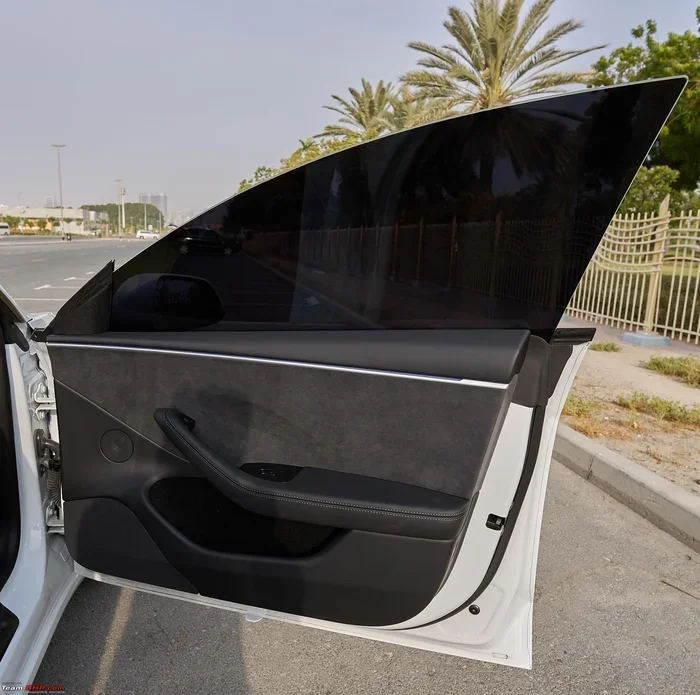
How to Unlock the Tesla Passenger Door From Outside
Unlocking the Tesla passenger door from outside is simple once you know your options. You can use the Tesla mobile app, key card, phone key, or even a physical key to get back in. This guide walks you through every method, troubleshooting tips, and security best practices so you are never locked out again.
Have you ever stood outside your Tesla, phone in hand, trying to figure out how to unlock just the passenger door? It happens more often than you might think. Whether you are carrying groceries, holding a child, or simply forgot which door you unlocked, knowing your options makes all the difference.
The good news is that Tesla gives owners several ways to unlock the passenger door from outside. You are not stuck with just one method. From the Tesla mobile app to the classic key card, there is a solution for every situation. In this guide, we will walk you through each method step by step. You will also learn how to troubleshoot common problems and keep your Tesla secure.
Whether you drive a Tesla Model 3, Model Y, Model S, or Model X, the unlock process is very similar. The features may vary slightly depending on your model and software version, but the core methods remain the same. Let us dive in and explore every way you can unlock the Tesla passenger door from outside.
Key Takeaways
- Multiple unlock methods exist: Tesla offers the mobile app, key card, phone key, and physical key for exterior access.
- The Tesla mobile app is the most convenient: You can unlock the passenger door from anywhere with an internet connection.
- Walk-away door lock is a default feature: Tesla automatically locks doors when you walk away, which can sometimes cause confusion.
- Battery issues can affect unlocking: A weak key fob battery or car battery may prevent normal door access.
- Sentry Mode and valet mode add security layers: These features can limit how doors are unlocked from outside.
- Troubleshooting is straightforward: Most unlock problems can be solved with simple resets or replacements.
📑 Table of Contents
How the Tesla Passenger Door Unlock System Works
Before we get into the methods, it helps to understand how Tesla door unlocking works. Tesla uses a proximity key system. This means your phone or key fob communicates wirelessly with the car. When you approach, the car detects your device and prepares to unlock.
Tesla also uses walk-away door lock technology. When you walk away from the car with your phone, the doors lock automatically. This is a great security feature. But it can also catch people off guard if they forget they are locked out.
The passenger door operates the same way as the driver door in most cases. Tesla treats all doors equally when it comes to unlock commands. You can unlock just the passenger door, or all doors at once. The method you choose determines how this works in practice.
Understanding this basic system helps you troubleshoot faster. If one method fails, you will know whether the issue is with your phone, the car, or the network. This knowledge saves time and frustration.
Methods to Unlock the Tesla Passenger Door From Outside
Tesla offers several ways to unlock the passenger door from outside. Each method has its own advantages. Let us look at them one by one.
Using the Tesla Mobile App
The Tesla mobile app is the most popular way to unlock your car from outside. It works with both iPhone and Android devices. You simply open the app, tap the unlock icon, and the door opens.
Here is how to do it step by step:
- Make sure your phone has an internet connection. Wi-Fi or cellular data both work.
- Open the Tesla app on your phone.
- Tap the Controls tab at the bottom of the screen.
- Select Unlock from the menu options.
- Choose the passenger door if you want to unlock just that door.
- The door will pop open automatically.
This method is incredibly convenient. You can unlock your car from anywhere in the world. As long as you have internet access, the app works. It is also the fastest way to unlock if you are already standing outside the car.
Using the Tesla Key Card
Every Tesla comes with a key card in the box. This small card looks like a credit card but has RFID technology inside. You can use it to unlock the passenger door from outside.
To use the key card:
- Hold the card against the B-pillar on the driver side.
- The car will detect the card and unlock the doors.
- Open the passenger door from the outside handle.
The key card is a great backup option. It does not need a battery or internet connection. It works even when your phone is dead. Many Tesla owners keep a key card in their wallet or bag for exactly this reason.
You can also order extra key cards from Tesla. They are inexpensive and easy to set up. If you lose your card, a replacement is just a few clicks away in the app.
Using the Phone Key
The phone key uses Bluetooth to communicate with your Tesla. It works even when you do not have an internet connection. This makes it different from the mobile app, which needs data or Wi-Fi.
To use the phone key for exterior unlocking:
- Make sure Bluetooth is turned on in your phone settings.
- Have the Tesla app running in the background.
- Approach the car with your phone in your pocket or bag.
- Grab the outside door handle on the passenger side.
- The door will unlock and pop open.
The phone key is seamless. You do not need to take your phone out or open any app. Just walk up to the car and pull the handle. Tesla detects your phone and unlocks the door automatically.
You can also set up the phone key for multiple people. Family members and friends can use their own phones to unlock the car. Each phone gets its own access level, which you can manage from the app.
Using a Physical Key
Tesla also offers a physical key as an accessory. This is a small metal key that fits into a slot on the passenger door handle. It is a simple, reliable backup method.
To use the physical key:
- Locate the small slot on the passenger door handle.
- Insert the key and turn it.
- The door will unlock manually.
The physical key is especially useful in situations where electronics fail. If your phone dies, the app crashes, or the key card stops working, the physical key gets you back in. Tesla recommends keeping one in your home or office for emergencies.
Step-by-Step: Unlocking With the Tesla Mobile App
The Tesla mobile app deserves a closer look because it is the most powerful unlock tool. Here is a detailed walkthrough for unlocking the passenger door specifically.
First, make sure you are logged into the correct Tesla account. If you share a Tesla with family members, each person should have their own login. This ensures the app connects to the right car.
Next, check your internet connection. The app needs data to communicate with Tesla servers. If you are in a remote area with no signal, the app may not work. In that case, fall back to the key card or physical key.
Once the app is open, tap the Controls menu. You will see options for lights, horn, climate, and doors. Tap Unlock. A menu will appear asking if you want to unlock all doors or just the front doors. Select the passenger door.
You should hear a click and see the door handle extend. The passenger door is now unlocked. Pull it open from the outside.
If the app does not respond, try closing and reopening it. Sometimes the connection drops temporarily. Restarting the app often fixes the issue. You can also try logging out and back in if the problem persists.
For the best experience, keep your app updated. Tesla releases regular updates that improve connectivity and fix bugs. An outdated app can cause unlock failures.
One thing to note: if Sentry Mode is active, the unlock process may take a few extra seconds. Sentry Mode puts the car in a heightened security state. It monitors the surroundings and may delay certain functions for safety reasons.
Troubleshooting Common Unlock Issues
Sometimes unlocking the Tesla passenger door from outside does not go smoothly. Here are the most common problems and how to fix them.
The App Will Not Connect
If the Tesla app will not connect, the first thing to check is your internet connection. Try switching between Wi-Fi and cellular data. Sometimes one works better than the other depending on your location.
Next, make sure your phone’s Bluetooth is on. The phone key feature needs Bluetooth to function. If Bluetooth is off, the app may not communicate with the car properly.
You can also try force-closing the app and reopening it. On iPhone, double-click the home button or swipe up from the bottom to see open apps. Swipe the Tesla app away and reopen it. On Android, go to recent apps and clear the app from memory.
If none of these steps work, try logging out of the Tesla app and logging back in. This refreshes your connection to Tesla servers. It is a simple fix that works surprisingly often.
The Key Card Is Not Working
If the key card fails to unlock the door, try these steps. First, check that you are holding the card in the right spot. The RFID reader is located on the B-pillar, which is the vertical panel between the front and rear doors on the driver side.
Make sure the card is flat against the reader. If it is twisted or angled, the car may not detect it. Hold it firmly for a few seconds and wait for the door to unlock.
If the card still does not work, the battery inside the card may be low. Tesla key card batteries last for years, but they do eventually die. You can replace the battery yourself or order a new card from Tesla.
In rare cases, the RFID reader on the car may be faulty. This could happen after a bumper repair or body work. If you recently had work done on the car, the reader may have been damaged. In that case, you may want to visit a Tesla service center. You can learn more about how long it takes to fit a new bumper and understand the timeline for body repairs.
The Door Will Not Unlock Even Though the Car Responds
This is a frustrating issue but usually has a simple fix. First, check if valet mode is active. Valet mode limits what the car can do. It may prevent doors from unlocking through the app or phone key.
To check, go to the Controls menu in the car’s touchscreen. Look for the valet mode setting and turn it off. Once valet mode is disabled, the doors should unlock normally from outside.
Another possible cause is a low car battery. If the 12-volt battery is weak, the door motors may not have enough power to unlock. This is similar to how a bad battery can cause warning lights to appear on the dashboard. If the car battery is low, you may need a jump start or a replacement.
What to Do If You Are Locked Out
If you are completely locked out of your Tesla, do not panic. You have several options. First, try the key card method. It does not need any technology to work.
If you do not have the key card, call Tesla roadside assistance. They can help you get back into your car. You can reach them through the Tesla app or by phone. Keep your Tesla account information handy when you call.
You can also ask a nearby Tesla owner for help. If they have the Tesla app linked to your car, they can unlock it for you. This is a great reason to share access with a trusted friend or family member.
Tips for Keeping Your Tesla Secure
Unlocking the passenger door from outside is useful, but keeping your Tesla secure is just as important. Here are some tips to help you stay safe.
Enable Sentry Mode
Tesla Sentry Mode uses the car’s cameras to monitor the area around your vehicle. If someone approaches the car suspiciously, Sentry Mode alerts you and starts recording. This is a powerful deterrent against theft and vandalism.
You can enable Sentry Mode from the Controls menu on the touchscreen. It uses the car’s external cameras to create a security perimeter around the vehicle. When someone gets too close, the cameras activate and you receive a notification on your phone.
Use Valet Mode When Needed
Valet mode limits access to your Tesla when someone else is driving. It restricts speed, disables certain features, and locks the trunk and glove box. This is helpful when you hand your keys to a parking attendant or a friend.
Keep in mind that valet mode can also prevent you from unlocking the car from outside using the app. If you have enabled valet mode, make sure to disable it before you try to unlock the passenger door remotely.
Keep Your Phone and Key Card Safe
Your phone and key card are your keys to the Tesla. If either one is lost or stolen, someone could potentially access your car. Keep them in a safe place and enable phone lock screen security.
Tesla also allows you to remove lost devices from your account. If your phone is stolen, you can log into the Tesla account from another device and remove the lost phone from the key list. This immediately revokes its access to the car.
Regularly Update Your Software
Tesla pushes software updates over the air. These updates often include security patches and bug fixes. Keeping your car software up to date ensures your unlock system works reliably and securely.
You can check for updates in the Software section of the touchscreen. If an update is available, install it as soon as possible. Most updates take about 15 to 30 minutes and do not require you to visit a service center.
Share Access Carefully
Tesla lets you share car access with other people through the app. You can create a key share for friends, family, or service providers. Each shared key has customizable permissions.
Be thoughtful about who you share access with. Only give access to people you trust. You can also set time limits on shared keys so they expire after a certain period. This adds an extra layer of security.
How Unlock Methods Compare
Each unlock method has its strengths and weaknesses. Here is a quick comparison to help you choose the best option for your situation.
| Method | Needs Internet | Needs Bluetooth | Speed | Best For |
|---|---|---|---|---|
| Tesla Mobile App | Yes | No | Fast | Remote unlock from anywhere |
| Phone Key | No | Yes | Instant | Daily hands-free use |
| Key Card | No | No | Fast | Backup and emergencies |
| Physical Key | No | No | Slow | Last resort and emergencies |
As you can see, the phone key is the fastest and most convenient for daily use. The mobile app is best when you are away from the car and need to unlock remotely. The key card and physical key serve as reliable backups when technology fails.
Most Tesla owners use a combination of methods. They rely on the phone key for everyday access and keep a key card in their wallet for emergencies. This approach gives you the best of both worlds: convenience and reliability.
You might also want to compare your Tesla unlock options with other car brands. For instance, some brands offer app-based unlocking similar to Tesla. You can learn more about how other cars handle remote unlocking and what options are available across different manufacturers.
Key Takeaways
- Multiple unlock methods exist: Tesla offers the mobile app, key card, phone key, and physical key for exterior access.
- The Tesla mobile app is the most convenient: You can unlock the passenger door from anywhere with an internet connection.
- Walk-away door lock is a default feature: Tesla automatically locks doors when you walk away, which can sometimes cause confusion.
- Battery issues can affect unlocking: A weak key fob battery or car battery may prevent normal door access.
- Sentry Mode and valet mode add security layers: These features can limit how doors are unlocked from outside.
- Troubleshooting is straightforward: Most unlock problems can be solved with simple resets or replacements.
- Keep backups ready: Always have a key card or physical key available in case your phone dies or the app fails.
Frequently Asked Questions
Can I unlock just the Tesla passenger door from outside using the app?
Yes, the Tesla mobile app allows you to choose which doors to unlock. When you tap the unlock button, a menu appears where you can select individual doors. This is useful when you only need access to the passenger side.
What should I do if the Tesla mobile app will not unlock the passenger door?
First, check your internet connection and make sure the app is updated. Try closing and reopening the app, or logging out and back in. If the problem continues, use the key card or physical key as a backup. You can also restart your phone to refresh the Bluetooth and network connections.
Does Tesla Sentry Mode affect the ability to unlock doors from outside?
Sentry Mode can slightly delay the unlock process because the car is in a heightened security state. It does not prevent unlocking, but it may take a few extra seconds for the doors to respond. If Sentry Mode is active, wait a moment after tapping unlock and the door should open normally.
Can I use the key card to unlock the passenger door if my phone is dead?
Absolutely. The Tesla key card works independently of your phone. It uses RFID technology and does not need Bluetooth, internet, or any battery power from your phone. Simply hold the card against the B-pillar reader to unlock the doors.
Is it possible for someone else to unlock my Tesla passenger door remotely?
Only if they have access to your Tesla account or a shared key. Tesla uses secure authentication to prevent unauthorized access. You can manage shared keys from the app and remove access at any time. Keeping your account credentials safe is the best way to prevent unauthorized unlocks.
How do I know if walk-away door lock is enabled on my Tesla?
You can check walk-away door lock settings in the Controls menu on the touchscreen. Look for the Safety & Security section. If walk-away locking is turned on, your Tesla will automatically lock all doors when you walk away with your phone. You can toggle this feature on or off based on your preference.
=== CONCLUSION ===
Knowing how to unlock the Tesla passenger door from outside gives you confidence and convenience every time you approach your car. Whether you use the Tesla mobile app, the key card, the phone key, or the physical key, you have reliable options for every situation. Each method serves a purpose, and combining them gives you the best experience.
Keep your app updated, maintain your key cards, and always have a backup method available. These simple habits prevent lockouts and keep your Tesla secure. If you ever run into trouble, the troubleshooting steps in this guide will help you get back on track quickly.
Tesla continues to innovate its access and security features with every software update. Staying informed about new features and best practices ensures you get the most out of your vehicle. Share this guide with fellow Tesla owners who might benefit from it. The more you know about your car, the more enjoyable and stress-free your ownership experience becomes.