Why Is My iPhone Not Connecting to My Vehicle Properly
Why Is My iPhone Not Connecting to My Vehicle? The most common culprits are Bluetooth glitches, outdated software, cable problems, and compatibility conflicts. This guide walks you through every major cause and gives you clear, step-by-step fixes you can try right now. Whether your phone won’t pair, keeps dropping, or shows no signal at all, you will find the solution here.
Key Takeaways
- Restart Both Devices First: A simple reboot of your iPhone and your car’s infotainment system solves the majority of connection problems.
- Check for Software Updates: Outdated iOS or car firmware is one of the top reasons your iPhone fails to connect to your vehicle.
- Forget and Re-Pair the Device: Removing the Bluetooth pairing and setting it up again often fixes stubborn connection errors.
- Use the Right Cable: Faulty or low-quality USB cables are a surprisingly common cause of iPhone-to-car connection failures.
- Reset Network Settings When Needed: This clears cached connection data and can resolve deep Bluetooth or network conflicts.
- Check Vehicle Compatibility: Older cars may not support newer iPhone features, and vice versa.
- Seek Professional Help if All Else Fails: A dealer or auto electrician can diagnose hardware-level issues you cannot fix on your own.
📑 Table of Contents
Why Is My iPhone Not Connecting to My Vehicle?
You are getting into your car, ready to start your commute or road trip. You grab your iPhone, expecting a seamless connection. But nothing happens. No Bluetooth prompt. No Apple CarPlay screen. Just silence.
This frustrating experience happens to millions of people every single day. The good news is that most connection problems have simple, fixable causes. Why Is My iPhone Not Connecting to My Vehicle? In most cases, the answer lies in a software glitch, a cable issue, or a minor settings conflict. This article breaks down every major reason and gives you the exact steps to fix it.
You do not need to be a tech expert. You just need a little patience and the right guidance. Let us dive in and get your iPhone talking to your car again.
The Most Common Reasons Your iPhone Won’t Connect
Before jumping into fixes, it helps to understand what is actually going wrong. Several factors can block the connection between your phone and your car. Here are the most common reasons.
Bluetooth interference is a huge one. Your car’s infotainment system uses Bluetooth to communicate wirelessly with your iPhone. But other devices, Wi-Fi networks, and even USB chargers can create signal noise that disrupts this connection.
Outdated software is another major culprit. If your iPhone is running an older version of iOS or your car’s system needs a firmware update, the two devices may not speak the same digital language. This is especially true after major iOS releases.
Hardware problems also play a role. A worn-out USB cable, a dirty charging port, or a failing Bluetooth module in your car can all prevent a solid connection. Sometimes the issue is not your phone at all.
Quick Tips Before You Start Troubleshooting
- Turn off Bluetooth on your iPhone and then turn it back on. This simple step refreshes the wireless connection.
- Make sure your iPhone is unlocked. Some cars will not pair with a locked device.
- Check that your phone is fully charged. Low battery can cause unstable connections.
- Move your iPhone closer to the car’s antenna. Usually near the center console or dashboard.
- Remove your phone case if it is very thick. Some cases block Bluetooth signals.
How to Fix iPhone Connection Problems with Your Car
Now that you know the common causes, let us walk through the fixes. Start from the top and work your way down. Most people find a solution in the first few steps.
Step 1: Restart Both Your iPhone and Your Car
This is the most underrated fix in tech. Restarting clears temporary bugs and refreshes all wireless connections. For your iPhone, hold down the power button and slide to power off. Wait 30 seconds, then turn it back on.
For your car, turn the ignition off, remove the key, and wait at least two minutes. This fully powers down the infotainment system. Turn the car back on and try connecting again. You would be surprised how often this alone solves the problem.
Step 2: Delete the Paired Device and Re-Pair
Sometimes the connection data between your iPhone and car gets corrupted. Deleting the pairing and starting fresh fixes this. Here is how to do it.
On your car’s infotainment screen, find your iPhone in the Bluetooth settings. Select it and choose “Forget This Device” or “Delete.” On your iPhone, go to Settings, then Bluetooth. Find your car and tap the “i” icon next to it. Select “Forget This Device” too.
Now turn Bluetooth off and back on. Put your car in pairing mode. On your iPhone, select your car from the list of available devices. Follow any prompts that appear. This fresh pairing often resolves stubborn connection issues.
Step 3: Update Your iPhone and Car Software
Software updates fix bugs and improve compatibility. If your iPhone is running an old version of iOS, it may not connect properly to newer car systems. Here is what to do.
On your iPhone, go to Settings, then General, then Software Update. Install any available updates. For your car, check the owner’s manual for update instructions. Many modern vehicles support over-the-air updates through the infotainment system.
If your car does not support wireless updates, you may need to visit a dealership. They can flash the latest firmware to your car’s system for free in most cases.
Step 4: Reset Network Settings on Your iPhone
This step goes deeper than a simple restart. Resetting network settings clears all saved Wi-Fi passwords, Bluetooth pairings, and VPN configurations. It is a powerful fix for persistent connection problems.
Go to Settings, then General, then Transfer or Reset iPhone. Tap Reset, then choose Reset Network Settings. You will need to enter your passcode. After the reset, you will have to reconnect to your Wi-Fi and re-pair your car. But this almost always fixes deep Bluetooth or network conflicts.
Expert Insight
Auto technicians recommend resetting network settings as a go-to fix for iPhones that keep dropping connection in the car. It clears the cache that stores broken pairing data and forces a clean handshake between devices.
Step 5: Check Your USB Cable and Charging Port
If you are using a cable to connect your iPhone to the car, the cable itself might be the problem. Damaged cables, loose connectors, and low-quality aftermarket cables are notorious for causing connection failures.
Try a different cable. Ideally, use an Apple-certified Lightning or USB-C cable. Inspect the port on your iPhone for lint, dust, or debris. A quick blast of compressed air can work wonders. Also, try a different USB port in your car if one is available.
Apple CarPlay and Wireless Connectivity Issues
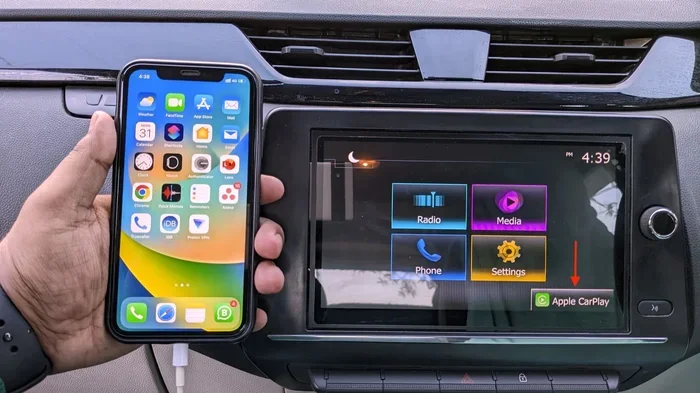
Apple CarPlay has become a staple feature for modern drivers. It mirrors your iPhone’s interface on your car’s screen, giving you access to maps, music, messages, and more. But CarPlay connection problems are extremely common.
Why Is My iPhone Not Connecting to My Vehicle via CarPlay? There are a few specific reasons. First, CarPlay requires a compatible car infotainment system. Not all cars support it, especially older models. Second, wireless CarPlay needs a stable Wi-Fi connection between the phone and car, which can be disrupted by interference.
Fixing CarPlay Connection Problems
- Make sure CarPlay is enabled on your iPhone. Go to Settings, then General, then CarPlay. Select your car from the list.
- Restart CarPlay by disconnecting and reconnecting the cable. Or toggle wireless CarPlay off and back on.
- Delete the CarPlay pairing and set it up again. This works the same way as re-pairing Bluetooth.
- Check that Siri is enabled. CarPlay relies on Siri for voice commands and certain features.
- Try a different cable. CarPlay over USB is very sensitive to cable quality.
Wireless CarPlay vs. Wired CarPlay
Both options have pros and cons. Wireless CarPlay offers convenience because you do not need to plug in a cable every time. However, it uses more battery and can be less stable. Wired CarPlay gives a more reliable connection but requires you to keep a cable plugged in.
If wireless CarPlay keeps disconnecting, try switching to a wired connection temporarily. This can help you determine whether the issue is with the wireless signal or the car’s system itself.
Vehicle-Specific Connection Problems
Not all cars are created equal when it comes to iPhone connectivity. The age, brand, and model of your vehicle all play a role in how well it works with your phone.
Older Vehicles and iPhone Compatibility
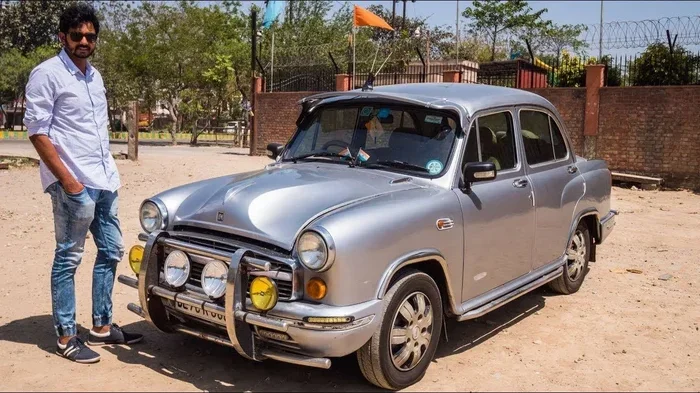
If you drive an older car, it may not support modern Bluetooth profiles or CarPlay. Cars made before 2015 often lack the hardware needed for wireless CarPlay or the latest Bluetooth standards. In these cases, a simple Bluetooth audio connection might be the best you can get.
You can still use your iPhone for hands-free calling through the car’s speakerphone system. But features like music streaming, voice assistants, and screen mirroring may not be available without an aftermarket adapter or receiver.
Newer Vehicles and Software Glitches
Even brand-new cars can have iPhone connection issues. Manufacturers sometimes rush software updates that introduce bugs. If you just bought a new car and your iPhone will not connect, check for infotainment system updates from the dealer.
Some car brands are more prone to iPhone connection issues than others. This is not because the cars are bad, but because different manufacturers use different Bluetooth and infotainment platforms. The key is to work with the car’s support resources to find the right fix.
Common Mistakes That Break the Connection
- Connecting too many devices. Some car systems struggle when multiple phones are paired. Delete devices you no longer use.
- Leaving Bluetooth on in crowded areas. Airports, malls, and busy streets have lots of Bluetooth signals that can interfere.
- Ignoring low battery warnings. A phone with less than 10% charge may not maintain a stable connection.
- Using a non-Apple charger near the car’s USB port. Some third-party chargers emit interference that disrupts Bluetooth.
- Not restarting the car’s system after updates. If your car updated its software, a full restart is essential.
When to Seek Professional Help
Most iPhone-to-car connection issues are software-related and easy to fix. But sometimes the problem is hardware. If you have tried every step in this guide and your iPhone still will not connect, it is time to call in the experts.
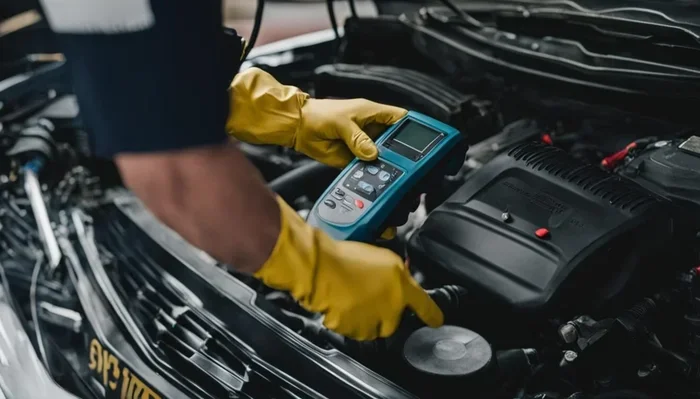
Start by contacting your car dealership’s service department. They have specialized diagnostic tools that can read your car’s infotainment system and identify hardware failures. A Bluetooth module that has physically failed, for example, needs professional replacement.
You can also visit an Apple Store or authorized service provider. They can check your iPhone for hardware issues like a damaged wireless antenna or a faulty Bluetooth chip. In most cases, these checks are free or low-cost.
For older vehicles, consider investing in an aftermarket Bluetooth receiver or CarPlay adapter. These devices plug into your car’s audio system and add modern connectivity features. They are affordable and can breathe new life into an older car.
Quick Tips: When to Seek Help
- If your iPhone connects to other devices but not your car, the car’s Bluetooth module may need replacement.
- If your car connects to other phones but not your iPhone, the issue is likely with your phone or its settings.
- If you see error messages on your car’s screen, write them down and share them with a technician.
- If the connection works intermittently, it is likely an interference or software issue, not a hardware failure.
Preventing Future Connection Problems
Once you get your iPhone connected to your car, you want it to stay that way. A few simple habits can prevent most future connection problems.
Keep your iPhone and car software updated. Updates fix known bugs and improve compatibility. Turn on automatic updates on your iPhone so you never miss a patch.
Use high-quality cables. Invest in Apple-certified or MFi-certified cables. They cost a little more but last longer and provide a more stable connection.
Clean your ports regularly. Dust and lint build up in USB ports and Lightning ports over time. A quick cleaning every few weeks keeps connections strong.
Limit the number of paired devices. Keep only the devices you use regularly in your car’s Bluetooth memory. This reduces clutter and interference.
Restart your car’s infotainment system once a month. Just like your phone, your car’s system benefits from a fresh start. Turn the car off, wait a minute, and turn it back on.
Comparison: Common iPhone-to-Car Connection Issues and Fixes
| Problem | Likely Cause | Best Fix |
|---|---|---|
| iPhone does not appear in car Bluetooth list | Bluetooth disabled or phone is locked | Unlock phone and toggle Bluetooth off and on |
| Connection drops frequently while driving | Signal interference or outdated software | Reset network settings and update iOS |
| CarPlay won’t launch | CarPlay not enabled or cable issue | Re-enable CarPlay and try a different cable |
| No audio plays through car speakers | Wrong audio output selected | Select car as audio output in iPhone settings |
| Phone charges but does not connect | Faulty cable or USB port | Replace cable or try a different USB port |
| Connection works once then stops | Paired device data is corrupted | Forget device and re-pair both sides |
Final Thoughts
Why Is My iPhone Not Connecting to My Vehicle? The answer is usually simpler than you think. Most of the time, it is a quick fix like restarting both devices, updating software, or re-pairing the Bluetooth connection. By following the steps in this guide, you should be able to resolve the issue on your own without spending a dime.
Remember that technology is not perfect. Even the best iPhones and car infotainment systems can have occasional hiccups. The key is knowing how to troubleshoot quickly so you are not stuck staring at a disconnected screen on your way to work.
Keep your software updated, use quality cables, and treat your devices with a little care. Your iPhone and your car will work together beautifully. And the next time a connection problem pops up, you will know exactly what to do.
Now go start your engine, plug in your phone, and enjoy the drive. You have got this.
Frequently Asked Questions
Why does my iPhone keep disconnecting from my car Bluetooth?
This usually happens because of signal interference, outdated software, or corrupted pairing data. Try resetting your network settings and re-pairing the devices. If the problem continues, check for software updates on both your iPhone and your car’s infotainment system.
Can a case on my iPhone block the Bluetooth connection to my car?
Yes, especially thick cases or cases with metal plates can interfere with Bluetooth signals. Remove the case and try connecting again. If the connection works without the case, consider using a thinner case while driving.
Do I need Apple CarPlay to connect my iPhone to my car?
No, Apple CarPlay is optional. You can connect your iPhone to your car using standard Bluetooth for audio streaming and hands-free calling. CarPlay simply adds a mirrored screen experience with additional features like navigation and Siri integration.
What should I do if my car does not show up on my iPhone Bluetooth list?
First, make sure your car is in pairing mode. Then go to Settings, Bluetooth, on your iPhone and tap Other Devices. Your car should appear there. If it does not, restart both devices and try again. Also check that your car’s Bluetooth is turned on in its settings menu.
Is it safe to reset network settings on my iPhone?
Yes, it is completely safe. Resetting network settings only clears Wi-Fi passwords, Bluetooth pairings, and VPN configurations. It does not delete any photos, apps, or personal data. You will just need to reconnect to your Wi-Fi and pair your devices again.
Can a dirty USB port prevent my iPhone from connecting to my car?
Absolutely. Dust, lint, and debris in USB ports can block the connection and prevent data transfer. Use a toothpick or compressed air to gently clean the port. Avoid using liquids, as moisture can damage the internal components.
=== CONCLUSION ===
Why Is My iPhone Not Connecting to My Vehicle? Now you have the answers. From Bluetooth glitches and software updates to cable problems and hardware failures, you know exactly what to look for and how to fix it. The steps in this guide cover every major scenario, so you can work through them one by one until your connection is restored.
Keep your devices updated, use quality accessories, and restart regularly. These simple habits will keep your iPhone and car working together smoothly for years to come. Share this guide with a friend who is dealing with the same problem. You might just save them a trip to the dealership.