Why Wont My Toyota Connect to Apple CarPlay Anymore
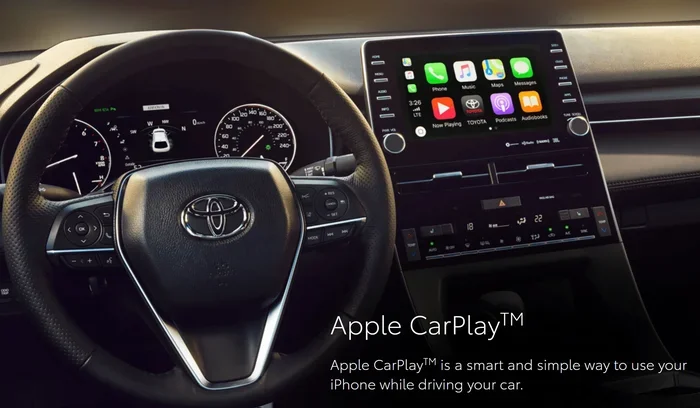
If your Toyota won’t connect to Apple CarPlay anymore, you’re not alone. This common issue can stem from outdated Entune software, faulty cables, iPhone settings conflicts, or corrupted wireless pairing data. In this guide, we walk you through every proven fix to restore your Toyota Apple CarPlay connection quickly and easily.
If you’ve been sitting in your Toyota and your Apple CarPlay just won’t connect, you know how frustrating that moment can be. You grab your iPhone, plug it in or try to go wireless, and nothing happens. The screen stays blank, or it shows an error message you’ve never seen before.
You’re not the only one dealing with this. Toyota Apple CarPlay connectivity problems are incredibly common, and they can happen for a bunch of different reasons. Sometimes it’s a simple fix you can do in two minutes. Other times, it points to a deeper issue with your Toyota infotainment system.
This guide breaks down every reason your Toyota won’t connect to Apple CarPlay anymore and gives you step-by-step solutions that actually work. Whether you drive a Camry, a RAV4, or a Highlander, the tips here apply to most Toyota models. Let’s get your CarPlay back up and running.
Key Takeaways
- Multiple causes exist: Toyota CarPlay failures can come from software glitches, cable problems, iPhone settings, or corrupted pairing data.
- Restart first: A simple infotainment system reboot fixes more CarPlay issues than most people realize.
- Keep software updated: Outdated Toyota Entune and iPhone iOS versions are among the top reasons CarPlay stops working.
- Check your cable: A damaged or non-data USB cable is one of the most common and easiest-to-fix causes.
- Prevent future problems: Regular maintenance habits like monthly restarts and software updates keep your Toyota CarPlay running smoothly.
- Know when to seek help: Persistent issues or hardware signs like screen freezes need professional diagnosis at a Toyota dealership.
📑 Table of Contents
- Understanding Why Your Toyota Won’t Connect to Apple CarPlay
- Common Reasons for Toyota Apple CarPlay Connection Failures
- How to Fix Toyota CarPlay Connectivity Issues
- Preventing Future Toyota Apple CarPlay Connection Problems
- When to Seek Professional Help for Toyota CarPlay Issues
- Final Thoughts on Toyota Apple CarPlay Troubleshooting
Understanding Why Your Toyota Won’t Connect to Apple CarPlay
The short answer is that multiple things can cause CarPlay not working on your Toyota. Unlike a single broken wire, the problem could live in your phone, your car’s software, the cable you’re using, or even a settings mismatch. Understanding the root cause is the first step toward a fix.
Toyota vehicles use the Toyota Entune infotainment system to manage connections like Apple CarPlay and Toyota Bluetooth. When something goes wrong in this system, it can block CarPlay from recognizing your iPhone. The good news is that most of these issues are fixable without a trip to the dealer.
Here are the most common reasons your Toyota connectivity issues keep showing up:
- Outdated Toyota Entune software
- A faulty or damaged USB cable
- iPhone software that needs updating
- CarPlay settings that got turned off accidentally
- Your Toyota dashboard screen needs a restart
- Wireless CarPlay pairing has become corrupted
Common Reasons for Toyota Apple CarPlay Connection Failures
Outdated Toyota Entune Software
Your Toyota’s infotainment system runs on software, just like your phone. And just like your phone, that software needs regular updates to stay compatible with new apps and features. When Toyota Entune gets outdated, it can lose the ability to talk to your iPhone properly.
Toyota releases software updates through dealerships, and some models allow you to check for updates right from the system settings. If you haven’t updated your infotainment system in a while, this could be the main reason your wireless CarPlay Toyota setup has stopped working.
Older Toyota models that came with Entune 3.0 or earlier may not support the latest CarPlay features. If you’re driving a Toyota model year from before 2018, there’s a chance your system simply wasn’t built to handle the newest CarPlay updates. Checking your current Entune version is a great first step in Apple CarPlay troubleshooting.
Faulty USB Cable or Port Issues
When you use a wired connection, the Toyota USB connection is the lifeline between your iPhone and your car’s screen. A damaged cable, a dirty port, or a loose connection can break that link entirely.
Here’s something many people don’t realize: not all USB cables are created equal. CarPlay requires cables that support data transfer, not just charging. If you’re using a cheap cable or one that’s been bent and twisted for months, it might charge your phone but fail to send data to the infotainment system. This is one of the most overlooked CarPlay cable issues that causes frustration.
Try using a different cable first. If that doesn’t work, check the USB port in your Toyota for dust or debris. A quick blast of compressed air can sometimes solve the problem without any tools at all. Also, try plugging into a different USB port if your Toyota has more than one available.
iPhone Settings and Software Conflicts
Sometimes the problem isn’t your Toyota at all. Your iPhone has its own set of settings that control how CarPlay behaves. If one of these settings gets toggled off or your iPhone software is out of date, CarPlay pairing issues can show up out of nowhere.
Make sure your iPhone is running the latest version of iOS. Apple frequently releases updates that improve CarPlay stability and fix bugs. Also check that CarPlay is enabled in your iPhone settings under General CarPlay. If you recently updated your iPhone, a new bug might be interfering with the iPhone CarPlay Toyota connection. Restarting your iPhone can also clear temporary glitches that block CarPlay from launching.
Wireless CarPlay Pairing Has Become Corrupted
If you use wireless CarPlay Toyota features, your phone and car pair together using a saved connection. Over time, that pairing data can become corrupted. When this happens, your Toyota might try to connect but fail silently, or it might show an error message every time you start the engine.
This is especially common if you’ve recently reset your iPhone, restored it from a backup, or switched to a new phone. The old pairing data conflicts with the new setup, and neither side knows how to move forward. Deleting the old pairing and starting fresh usually resolves this type of CarPlay disconnects problem.
Dashboard Screen Freeze or Glitch
Your Toyota dashboard screen is essentially a small computer. Like any computer, it can freeze, glitch, or hang. When this happens, the infotainment system might not respond to CarPlay connection requests, even if everything else is working perfectly.
A frozen screen doesn’t always mean something is broken. It could just be a temporary software hiccup. But if your Toyota screen freeze happens regularly, it could point to a deeper problem with the system’s memory or processing power. A full system restart usually clears these temporary glitches and restores normal Toyota multimedia function.
How to Fix Toyota CarPlay Connectivity Issues
Now that you know the most common causes, let’s walk through the fixes. These steps are arranged from the simplest solutions to the more involved ones. Start at the top and work your way down. Most people find a fix within the first three steps.
Step 1: Restart Your Toyota Infotainment System
The oldest trick in the book still works best. Restarting your Toyota multimedia system clears out temporary glitches and resets the connection modules. You can do this by holding down the power button on your dashboard screen for about 10 to 15 seconds until the screen goes dark and restarts.
Some Toyota models let you also restart the system by pressing and holding the volume knob. Check your owner’s manual for the exact method for your specific model. This simple step fixes CarPlay not working issues more often than people realize. Give it a try before moving on to more complex solutions.
Step 2: Update Your Toyota Entune Software
Keeping your Toyota Entune system up to date is one of the best ways to prevent Toyota connectivity issues in the first place. If you suspect your software is outdated, visit a Toyota dealership or check the system settings for any available updates.
Some newer Toyota models support over-the-air updates, which means you can download and install software patches without ever leaving your driveway. If your model doesn’t support this, a quick visit to the dealer usually takes care of it in under an hour. Learning how to upgrade your Toyota Entune can save you time and help you understand what’s possible for your specific model.
Step 3: Try a Different USB Cable and Port
Swap out your current cable for a high-quality, Apple-certified USB cable. Make sure it supports data transfer, not just charging. Plug it into a different USB port in your Toyota if your car has multiple ports available.
This alone fixes a surprising number of Toyota USB connection problems. Many people don’t realize their cable has been damaged until they try a new one and everything works perfectly again. Keep a spare Apple-certified cable in your glove box for emergencies like this.
Step 4: Reset CarPlay Settings on Your iPhone
Go to Settings General CarPlay on your iPhone and remove your Toyota from the list of connected vehicles. Then restart both your phone and your car’s infotainment system. When you start the car again, go through the pairing process fresh.
This clears out any corrupted pairing data and forces your iPhone and Toyota to establish a clean connection. It’s one of the most effective Apple CarPlay troubleshooting steps you can take. Make sure you also check that your CarPlay compatibility Toyota model supports the version of CarPlay you’re trying to use.
Step 5: Factory Reset the Infotainment System
If none of the above steps work, you might need to factory reset your Toyota’s infotainment system. This wipes all your settings and restores the system to its original state. Important: this should be your last resort because it erases all your saved preferences, radio stations, and Bluetooth pairings.
Before you do this, write down any settings you want to keep. You can also learn how to factory reset your startup screen for guidance on the process. A factory reset often clears deep-rooted software bugs that cause persistent CarPlay disconnects and freezes.
Step 6: Check for Wi-Fi and Network Interference
If you use wireless CarPlay, your Toyota and iPhone communicate over Wi-Fi. Other devices, networks, or even your phone’s personal hotspot settings can interfere with this connection. checking whether your car’s Wi-Fi is free from conflicts can help you identify if another device is hogging the connection.
Turn off any unnecessary Bluetooth devices in the car, disable your phone’s personal hotspot, and make sure no other phone is trying to connect to the car’s infotainment system. Reducing interference often restores a stable wireless CarPlay connection. This is a quick fix that many people overlook when dealing with Toyota connectivity issues.
Preventing Future Toyota Apple CarPlay Connection Problems
The best way to deal with Toyota connectivity issues is to prevent them from happening in the first place. A few simple habits can keep your Toyota Apple CarPlay connection running smoothly for months and even years.
- Keep your Toyota Entune software updated at least once every few months
- Use only Apple-certified or high-quality USB cables for wired CarPlay
- Restart your infotainment system once a month to clear temporary files
- Keep your iPhone updated to the latest iOS version
- Avoid using your phone for heavy tasks while CarPlay is connecting
- Store your USB cables properly to prevent damage and fraying
- Delete old CarPlay pairings from your iPhone if you switch vehicles
Think of your Toyota infotainment system like any other piece of technology. It needs regular maintenance to perform at its best. A little prevention goes a long way toward avoiding those frustrating moments when CarPlay not working interrupts your drive. Making these small habits part of your routine can save you a lot of time and headaches down the road.
When to Seek Professional Help for Toyota CarPlay Issues
Most of the time, the fixes above will solve your problem. But there are situations where you should let a professional take a look. If you’ve tried every step in this guide and your Toyota won’t connect to Apple CarPlay still isn’t working, it’s time to call in the experts.
Here are signs that your issue needs professional attention:
- The dashboard screen stays frozen even after a full restart
- You notice a burning smell or see flickering on the screen
- Other infotainment features like radio and climate control also stop working
- Your Toyota has recently been in an accident or had electrical work done
- CarPlay works on one phone but not another, pointing to a hardware issue
A Toyota dealership technician can run diagnostic tests on your Toyota multimedia system and identify hardware failures that aren’t visible to the naked eye. They can also check whether a recall or service bulletin applies to your specific model and year. Don’t hesitate to reach out if you suspect a deeper problem. A quick diagnostic visit can save you hours of frustration and guesswork.
Final Thoughts on Toyota Apple CarPlay Troubleshooting
Dealing with a Toyota that won’t connect to Apple CarPlay is annoying, but it’s almost always fixable. The key is to work through the possible causes one by one, starting with the simplest solutions. Whether it’s a cable swap, a software update, or a full system reset, there’s a good chance you’ll have your Toyota Apple CarPlay back up and running today.
Remember that your Toyota infotainment system is a complex piece of technology that interacts with your iPhone in specific ways. Keeping both your car and your phone updated, using quality cables, and restarting the system regularly will go a long way toward preventing future problems.
Don’t let a CarPlay disconnects issue ruin your drive. Use the steps in this guide, stay patient, and you’ll be back to using navigation, music, and calls through your car’s screen in no time. Safe travels!
Frequently Asked Questions
Why did my Toyota Apple CarPlay stop working suddenly?
Sudden CarPlay failures are usually caused by a software glitch, a corrupted pairing, or a faulty USB cable. Try restarting both your iPhone and your Toyota’s infotainment system first. If that doesn’t work, replace your cable and re-pair the connection from scratch.
Can an outdated Toyota Entune system cause CarPlay issues?
Yes, absolutely. Outdated Entune software can lose compatibility with newer CarPlay features and iOS updates. Keeping your Toyota’s infotainment system updated is one of the most important steps in preventing Toyota connectivity issues and ensuring smooth Apple CarPlay troubleshooting results.
Is wireless CarPlay less reliable than wired CarPlay in Toyota vehicles?
Wireless CarPlay can be slightly more prone to interference and pairing corruption than wired connections. Wi-Fi signals from other devices, network congestion, and corrupted pairing data can all cause wireless CarPlay Toyota problems. A factory reset of the infotainment system often fixes persistent wireless issues.
Do I need to visit a Toyota dealership to fix CarPlay problems?
Not usually. Most CarPlay issues can be resolved at home with simple steps like restarting the system, updating software, or swapping cables. However, if you’ve tried everything and the problem persists, a dealership visit for diagnostics is a smart next step to rule out hardware failures.
Can using a non-Apple USB cable damage my Toyota’s CarPlay connection?
Non-Apple-certified cables can cause connection failures and data transfer errors. While they won’t physically damage your system, they often lack the data transfer capability needed for CarPlay. Using an Apple-certified or high-quality MFi-certified cable ensures reliable Toyota USB connection performance every time.
How often should I update my Toyota Entune software?
Toyota recommends checking for Entune updates whenever a new version is available, which typically happens a few times a year. Some models support over-the-air updates, making this process effortless. Regular updates keep your Toyota infotainment system compatible with the latest CarPlay and smartphone features.