Why Wont My iPhone Connect to My Toyota Car Today
Why won’t my iPhone connect to my Toyota? is one of the most common questions Toyota owners ask. The problem usually comes down to Bluetooth settings, software glitches, or a simple restart that fixes everything. This guide walks you through every possible reason and solution, from basic troubleshooting to advanced resets. You will also learn how to prevent connection problems in the future.
Key Takeaways
- Bluetooth issues are the number one cause of iPhone-to-Toyota connection failures.
- Restarting both devices solves most connectivity problems quickly and easily.
- Updating iOS and Toyota software prevents many connection bugs before they start.
- Resetting network settings on your iPhone can fix stubborn pairing errors.
- Wi-Fi and USB alternatives offer backup ways to connect your phone to your Toyota.
- CarPlay settings need to be checked on both your phone and your car’s infotainment screen.
- Keeping your key fob battery fresh can also improve overall Toyota connectivity.
📑 Table of Contents
- Why Won’t My iPhone Connect to My Toyota?
- Step-by-Step Fixes for iPhone Toyota Connection Problems
- Can You Use the Toyota App to Fix Connection Issues?
- How Wi-Fi in Your Toyota Affects iPhone Connectivity
- Preventing Future Connection Problems
- When to Visit a Toyota Dealer for Help
- Quick Tips for Better iPhone Toyota Connectivity
- Final Thoughts
Why Won’t My iPhone Connect to My Toyota?
You hop into your Toyota. You reach for your iPhone. You expect music to stream, maps to appear, and calls to flow through your car speakers. Instead, nothing happens. Your screen stays blank. Your phone shows no connection. It is frustrating. You are not alone.
Why won’t my iPhone connect to my Toyota is a question thousands of drivers search for every month. The good news is that most connection problems have simple fixes. Whether your Bluetooth will not pair, your CarPlay freezes, or your Wi-Fi drops, this guide has you covered. Let us walk through every reason and every solution step by step.
Toyota vehicles come packed with technology. The infotainment system is designed to work seamlessly with iPhones. But sometimes technology has its own ideas. A software glitch, an outdated setting, or even a low battery can break the connection. Understanding the root cause helps you fix it fast.
Common Reasons Your iPhone Will Not Connect
Before you try anything, it helps to know what might be causing the problem. Here are the most common reasons your iPhone and Toyota will not link up.
- Bluetooth is turned off on either your iPhone or your Toyota’s system.
- Your iPhone software is outdated and does not match your Toyota’s infotainment version.
- The Bluetooth pairing list is full on your Toyota’s multimedia system.
- Your iPhone has too many saved networks and gets confused during the pairing process.
- A previous connection is stuck in the background and blocks new pairing attempts.
- CarPlay settings are disabled on your iPhone or your Toyota’s display.
- Your key fob battery is low, which can sometimes affect overall system responsiveness.
Each of these issues has a clear fix. You do not need to be a tech expert. You just need to follow the steps in order.
Step-by-Step Fixes for iPhone Toyota Connection Problems
Now let us get into the solutions. Try these fixes one at a time. Start from the top and work your way down. Most people find that one of the first few steps solves the problem entirely.
1. Restart Both Your iPhone and Your Toyota
The oldest trick in the book still works. Restarting both devices clears temporary glitches that block connections. Here is how to do it.
- Turn off your iPhone by holding the power button and sliding to power off.
- Turn off your Toyota’s infotainment system by holding the power button on the screen for about 10 seconds.
- Wait 30 seconds before turning either device back on.
- Turn on your Toyota first, then your iPhone.
- Try connecting again through Bluetooth or USB.
This simple step resolves the issue more often than people realize. Do not skip it.
2. Check Your Bluetooth Settings on Both Devices
Bluetooth is the bridge between your iPhone and your Toyota. If Bluetooth is off or stuck, nothing will connect. Here is what to check.
- Open Settings on your iPhone.
- Tap Bluetooth and make sure it is turned on.
- Look for your Toyota’s name in the list of available devices.
- If you see it, tap on it to pair.
- If you do not see it, move to the next step.
On your Toyota, go to the Settings menu on the infotainment screen. Find Bluetooth and make sure it is enabled. Some Toyota models also have a Bluetooth settings option under the Phone or Audio menu.
3. Delete Old Pairings and Reconnect
Sometimes your Toyota’s system remembers too many devices. This can cause new pairing attempts to fail. Clearing the old connections gives you a fresh start.
- On your Toyota’s screen, go to Bluetooth Settings.
- Find your iPhone in the list of paired devices.
- Select Delete or Forget Device.
- On your iPhone, go to Settings > Bluetooth.
- Find your Toyota and tap the info icon next to it.
- Select Forget This Device.
- Now start the pairing process fresh from both sides.
This fix works wonders for devices that previously connected but suddenly stopped working. It clears any corrupted pairing data that may be causing the conflict.
4. Update Your iPhone and Toyota Software
Outdated software is one of the biggest reasons iPhone Toyota Bluetooth connection problems happen. Both Apple and Toyota release updates that fix bugs and improve compatibility.
To update your iPhone, go to Settings > General > Software Update. If an update is available, download and install it. Make sure your phone is connected to Wi-Fi and has at least 50 percent battery.
For your Toyota, check if there is a system update available. Some newer Toyota models support over-the-air updates. Others require a visit to the dealership. You can also check the Toyota App on your phone for any available updates for your vehicle’s software.
Keeping both devices current ensures they can communicate properly. It also prevents many connection issues before they even start.
5. Reset Network Settings on Your iPhone
If restarting and deleting pairings did not work, resetting your network settings can help. This clears all saved Wi-Fi passwords, Bluetooth pairings, and cellular settings. It gives your iPhone a clean slate for connectivity.
- Go to Settings > General > Transfer or Reset iPhone.
- Tap Reset and then select Reset Network Settings.
- Enter your passcode if prompted.
- Confirm the reset.
- Your iPhone will restart automatically.
After the reset, you will need to reconnect to your Wi-Fi network and re-pair your Toyota’s Bluetooth. This sounds like a hassle, but it solves many stubborn connection problems that nothing else can fix.
6. Check CarPlay Settings on Your iPhone
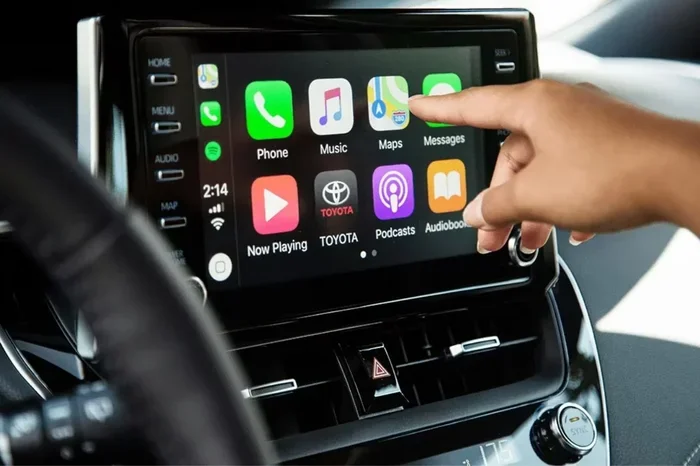
If your issue is specifically with Apple CarPlay, the problem might be in your CarPlay settings. CarPlay lets you use your iPhone features on your Toyota’s screen. When it stops working, it feels like your phone and car are strangers.
- Open Settings on your iPhone.
- Scroll down and tap General.
- Tap CarPlay.
- Select your Toyota from the list of available vehicles.
- Make sure Show CarPlay is turned on.
- If CarPlay does not appear, try connecting via USB cable first.
Some Toyota models require you to enable CarPlay in the car’s settings too. On your Toyota’s screen, go to Settings > CarPlay and make sure it is enabled. You may also need to select Wireless or USB as your connection method depending on your model.
7. Try a USB Cable Connection Instead
Wireless connections are convenient, but a USB cable can be more reliable. If Bluetooth or wireless CarPlay keeps failing, plug in your iPhone directly. This bypasses many wireless connectivity issues and gives you a stable connection every time.
- Use a Lightning or USB-C cable depending on your iPhone model.
- Plug the cable into your iPhone and then into your Toyota’s USB port.
- Your Toyota’s screen should recognize the phone automatically.
- If it does not, try a different USB port in your Toyota.
- Some Toyota models have USB ports in the center console and others in the rear.
A USB connection also charges your phone while you drive. This is a great bonus, especially on long trips. If you are having trouble with wireless iPhone Toyota integration, USB is your best backup plan.
Can You Use the Toyota App to Fix Connection Issues?
Toyota offers a mobile app that lets you control many features of your car from your phone. But can you use the Toyota App to fix connection issues? The short answer is yes, in some cases.
The Toyota App allows you to check your vehicle’s status, lock doors, and even start your engine remotely. If your Toyota app connectivity is not working, the same fixes apply. Restart the app, update it from the App Store, and make sure your phone’s location services are enabled. Some features require an active internet connection on your phone, so check your cellular data too.
You can also check if Can I Unlock My Car With The Toyota App works independently of the main connection issue. Sometimes the app unlocks your doors even when Bluetooth music or CarPlay is not working. This tells you the problem is isolated to one feature, not your entire phone-to-car connection.
The app also lets you check for software updates for your vehicle. Staying current with Toyota’s app updates ensures your phone and car stay in sync. It is a simple habit that prevents many connection headaches down the road.
How Wi-Fi in Your Toyota Affects iPhone Connectivity
Many newer Toyota models offer Wi-Fi connectivity. This feature lets your phone connect to your car’s internet hotspot. But how does Wi-Fi affect your iPhone connection, and is it free?
If you are wondering Is The Wi-Fi In My Car Free, the answer depends on your Toyota model and your plan. Some Toyotas offer a free trial period for Wi-Fi. After that, you may need a subscription. But even without a Wi-Fi plan, your iPhone can still connect to your Toyota via Bluetooth and USB.
Wi-Fi connectivity is separate from Bluetooth. If your iPhone will not connect to your Toyota’s Wi-Fi, the issue is usually with your network settings or your Toyota’s Wi-Fi hotspot configuration. Try forgetting the Wi-Fi network on your iPhone and reconnecting. You can also check if your Toyota’s Wi-Fi hotspot is turned on in the car’s settings.
Having Wi-Fi in your car is a nice bonus. It lets you stream music, update apps, and use navigation without using your cellular data. But it is not required for basic iPhone connectivity. Bluetooth and USB handle most of the everyday connection needs.
Preventing Future Connection Problems
The best fix is prevention. Once you get your iPhone connected to your Toyota, you want it to stay that way. Here are simple habits that keep your connection strong and reliable.
Keep Both Devices Updated
Software updates fix bugs and improve compatibility. Make it a habit to check for updates on both your iPhone and your Toyota every few weeks. You do not need to update every single day, but staying current prevents most connection issues.
Limit the Number of Paired Devices
Your Toyota’s Bluetooth system can only handle so many paired devices at once. If you have a full list of old phones, tablets, and devices, it is time to clean house. Delete devices you no longer use. This keeps your system fast and reduces pairing conflicts.
Restart Your System Weekly
A quick restart once a week keeps everything running smoothly. Turn off your Toyota’s infotainment system and your iPhone. Wait a few seconds. Turn them back on. This clears out temporary files and refreshes the connection. It takes less than a minute and saves you hours of frustration.
Use a Quality USB Cable
If you rely on USB connections, invest in a good cable. Cheap cables can cause intermittent connection drops and slow charging. Look for cables that are MFi certified (Made for iPhone). These cables meet Apple’s quality standards and work reliably with your Toyota’s USB ports.
Check Your Key Fob Battery
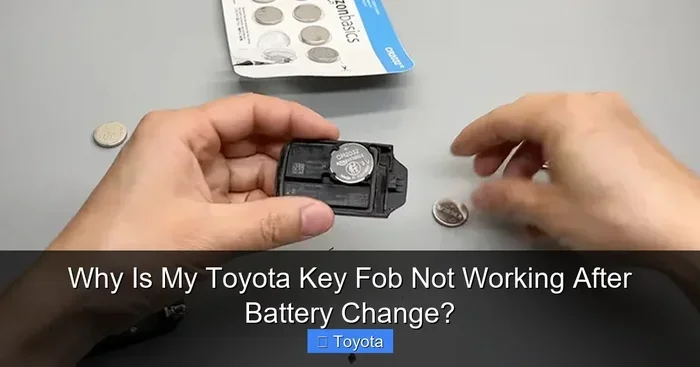
It might seem unrelated, but a low key fob battery can affect your Toyota’s overall system performance. If you notice connection issues, check How Do I Know If My Key Battery Is Low and replace it if needed. A fresh battery keeps your Toyota’s systems running at their best.
When to Visit a Toyota Dealer for Help
Most connection problems are easy to fix at home. But sometimes the issue goes deeper than a simple reset. If you have tried every fix in this guide and your iPhone still will not connect, it may be time to seek professional help.
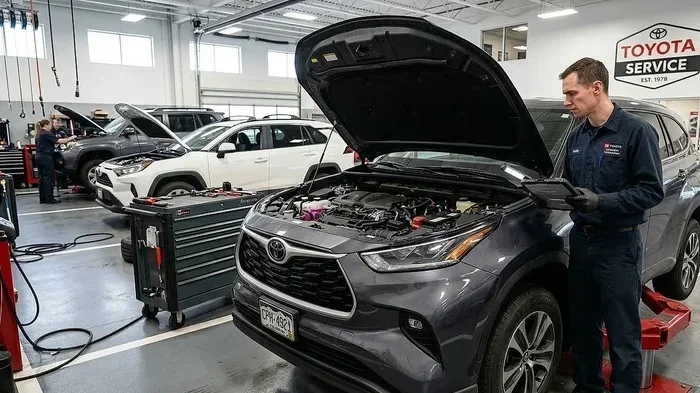
A Toyota dealer has access to specialized diagnostic tools. They can check your infotainment system for hardware issues. They can also update your car’s software to the latest version. If the problem is with your Toyota’s Bluetooth module or wiring, a dealer can identify and fix it.
You might also wonder if you can take your Toyota to any dealer for service. The answer is generally yes, especially if your car is under warranty. You can also get your Lexus serviced at a Toyota dealer if you drive a Lexus, since Toyota and Lexus share service networks.
Before you visit the dealer, write down the steps you have already tried. This saves time and helps the technician diagnose the issue faster. It also shows you have done your homework, which service advisors appreciate.
Quick Tips for Better iPhone Toyota Connectivity
- Turn off other Bluetooth devices in your car before pairing your iPhone.
- Keep your iPhone within three feet of your Toyota’s infotainment screen during pairing.
- Disable VPN apps on your iPhone before trying to connect to CarPlay.
- Make sure your iPhone screen is unlocked during the pairing process.
- Avoid using your phone for heavy tasks while pairing.
- If your Toyota has a USB hub, try a different port.
- Turn on Airplane Mode on your iPhone for 10 seconds, then turn it off, and try connecting again.
Final Thoughts
Why won’t my iPhone connect to my Toyota does not have to be a mystery. Most of the time, the fix is simple. A restart, a software update, or clearing old pairings solves the problem in minutes. The key is to work through the steps patiently and in order.
Keep your devices updated, clean up old connections, and restart your system regularly. These small habits go a long way in preventing connection issues. And when problems do arise, you now have a full toolkit of fixes to try at home.
If nothing works, your local Toyota dealer is always there to help. They have the tools and expertise to handle even the most stubborn connectivity issues. The bottom line is that your iPhone and Toyota are designed to work together. With the right approach, they will stay connected and make every drive more enjoyable.
Now you know exactly what to do when your phone and car will not talk to each other. Try these fixes today and get back to enjoying music, maps, and hands-free calls on the road.
Frequently Asked Questions
Why does my iPhone keep disconnecting from my Toyota Bluetooth?
Bluetooth disconnections usually happen when your phone or car’s software is outdated. Restarting both devices and deleting old pairings often fixes this. If the problem continues, try resetting your iPhone’s network settings to clear any corrupted Bluetooth data.
Can I use Apple CarPlay with any Toyota model?
Most Toyota models from 2018 and newer support Apple CarPlay. Some older models also have it as an optional feature. Check your Toyota’s infotainment settings to see if CarPlay is available. You can also visit your Toyota dealer to confirm compatibility.
How do I know if my Toyota’s Bluetooth is turned on?
On your Toyota’s infotainment screen, go to the Settings menu and look for Bluetooth. The Bluetooth icon should be highlighted or show as enabled. You can also check if your Toyota appears in your iPhone’s Bluetooth device list. If it does not appear, Bluetooth may be off on the car’s side.
Is it safe to reset network settings on my iPhone?
Yes, it is completely safe. Resetting network settings only clears Wi-Fi passwords, Bluetooth pairings, and cellular settings. It does not delete any photos, apps, or personal data. After the reset, you simply reconnect to your networks and devices as usual.
Why does my iPhone show no connection even after pairing with my Toyota?
This can happen if CarPlay is disabled on your iPhone or if the connection type is set incorrectly. Check your CarPlay settings and make sure it is turned on. Also try connecting via USB cable instead of wireless to see if the cable connection works while the wireless one does not.
How often should I update my Toyota’s software?
You should check for Toyota software updates at least once a month. Newer Toyota models may notify you automatically when an update is available. Keeping your software current ensures the best performance and compatibility with your iPhone and other connected devices.