How Do I Get Remote Control on My Toyota App Guide
Getting remote control on your Toyota App is simple and gives you powerful features right from your phone. You can lock, unlock, remote start, and even check your vehicle status with just a few taps. This guide walks you through setup, features, and troubleshooting so you can use your Toyota App remote control like a pro.
Have you ever wished you could start your Toyota from across the parking lot? Or unlock your car without digging through your bag for the key fob? The Toyota App makes all of this possible, and getting remote control on your Toyota App is easier than you might think.
In this guide, we will walk you through everything you need to know. From downloading the app to using advanced features, we have you covered. Whether you own a Toyota Camry, a Highlander, or a RAV4, this article will help you take full advantage of what the app offers.
The Toyota App remote control feature puts your vehicle at your fingertips. You can lock the doors, start the engine, and even check your fuel level without ever touching your key. Let us dive into how you can set this up and start using it today.
Key Takeaways
- Download and Set Up: You need to download the Toyota App, create an account, and link your vehicle to access remote features.
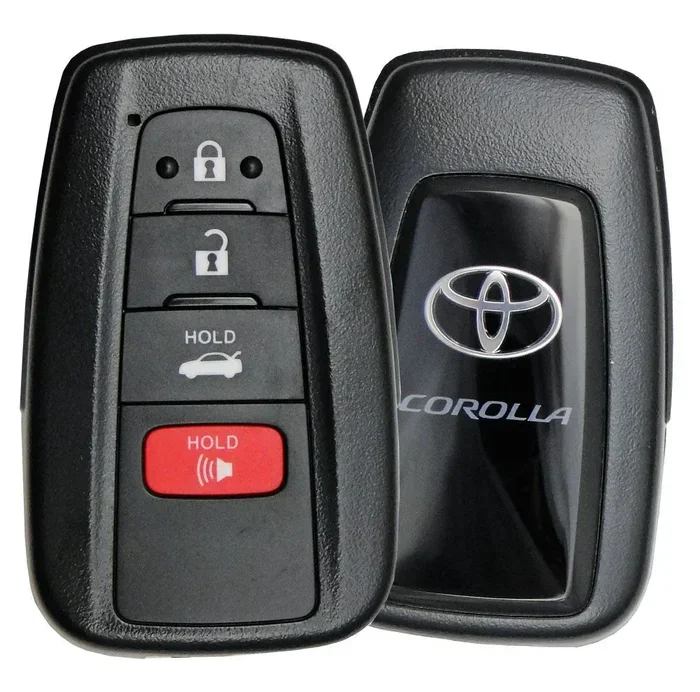
- Remote Start Works with Key Fob: You can remote start your Toyota using the key fob paired with the app for added convenience.
- Unlock Your Car from Anywhere: The app lets you unlock your car remotely, which is especially handy if you forget to lock up.
- Phone as a Key: Some Toyota models let you start your vehicle with your phone, removing the need for a physical key fob.
- Troubleshooting Is Straightforward: Most issues with the app can be fixed with simple steps like checking your connection or updating the app.
📑 Table of Contents
- What Is the Toyota App and Why Do You Need Remote Control?
- How to Set Up Remote Control on Your Toyota App
- Using Remote Start Through the Toyota App
- Locking and Unlocking Your Toyota Remotely
- Using Your Phone as a Key Fob
- Troubleshooting Common Toyota App Remote Control Issues
- Expert Tips for Getting the Most Out of Your Toyota App
- Common Mistakes to Avoid with the Toyota App
- Final Thoughts on Getting Remote Control on Your Toyota App
What Is the Toyota App and Why Do You Need Remote Control?
The Toyota App is a mobile application that connects your smartphone to your Toyota vehicle. It uses Bluetooth and cellular data to let you control various features from anywhere. Think of it as a digital key and control center all in one.
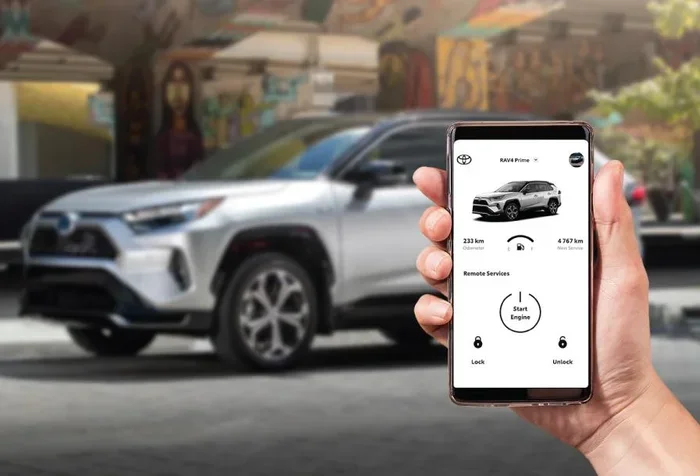
With Toyota App remote control, you gain access to several useful functions. You can start your engine, lock and unlock doors, and even adjust the climate control before you get in. These features are especially helpful during hot summers or cold winters.
But the app does more than just convenience. It also helps with vehicle health monitoring, service reminders, and locating your car in a crowded parking lot. Once you set it up, you will wonder how you ever managed without it.
Key Features of the Toyota App
- Remote Start: Start your engine from a distance using the app.
- Lock and Unlock: Secure your vehicle or let someone in without handing over a key.
- Climate Control: Pre-heat or pre-cool your car before you arrive.
- Vehicle Location: Find your car in large parking areas.
- Maintenance Alerts: Get notified when your car needs service.
- Fuel Level Check: See how much gas you have left without opening the hood.
Each of these features works through the app’s remote control dashboard. You access it from the home screen after linking your vehicle. The setup process is straightforward, and we will cover it in detail below.
How to Set Up Remote Control on Your Toyota App
Setting up remote control on the Toyota App is a process anyone can follow. You do not need to be a tech expert. Just a few simple steps, and you are good to go. Let us break it down.
Step 1: Download the Toyota App
First, go to your phone’s app store. Search for the Toyota App. It is available for both iPhone and Android devices. Download it and open the app once the installation is complete.
Make sure your phone has a stable internet connection. Both Wi-Fi and cellular data work fine. You will need the connection to communicate with your vehicle’s system.
Step 2: Create Your Account
When you open the app, you will be asked to create an account. Enter your name, email address, and a strong password. You will also need to agree to the terms of service. This account is what links your phone to your vehicle.
Use a real email address because the app will send you a verification link. Check your inbox and click the link to verify your account. This step is essential for activating remote features.
Step 3: Link Your Vehicle
After creating your account, you need to link your Toyota vehicle. Go to the settings menu and select “Add Vehicle.” You will need your Vehicle Identification Number, or VIN. You can find this on your dashboard near the windshield or on your registration papers.
Enter the VIN carefully. A single wrong digit will prevent the connection. Once entered, the app will take a moment to pair your vehicle with your account.
Step 4: Enable Remote Control Features
Once your vehicle is linked, go to the remote control section. Here, you will see all the available features. Toggle on the features you want to use, such as remote start and lock/unlock.
Some features may require your vehicle to have certain hardware installed. For example, remote start may need a factory-installed remote start system. Check your vehicle’s manual or ask your dealer if you are unsure.
Using Remote Start Through the Toyota App
Remote start is one of the most popular features of the Toyota App. It lets you start your engine from your phone. You can warm up your car in winter or cool it down in summer before you step inside.
To use remote start Toyota through the app, open the app and go to the remote control dashboard. Tap the remote start button. Your engine will start within a few seconds. You can set a timer so the engine turns off after a set period.
Keep in mind that remote start works within a certain range. You typically need to be within a few miles of your vehicle. The app uses your phone’s cellular connection to send the command to your car.
Can You Remote Start with the Key Fob?
Yes, you can remote start your Toyota with the key fob as well. The key fob and the app can both send start commands to your vehicle. Using the app is often more convenient because you do not need to carry the fob with you.
If you want to learn more about using the key fob for remote start, check out our article on Can I Remote Start My Toyota With The Key Fob. It covers the differences and similarities between the two methods.
How Far Can You Remote Start?
Most Toyota models allow remote start through the app from up to three to five miles away. However, this can vary based on your location and cellular coverage. In areas with weak signal, the range may be shorter.
The engine will run for a set amount of time, usually around 10 to 15 minutes. After that, it will shut off automatically. You can extend the time by starting the engine again through the app.
Locking and Unlocking Your Toyota Remotely
Another powerful feature of the Toyota App is the ability to lock and unlock your car remotely. This is incredibly useful if you lock your keys inside or want to let someone into your car while you are away.
To lock or unlock your vehicle, open the app and tap the corresponding button on the dashboard. The doors will respond within a few seconds. You will also get a notification confirming the action.
For more details on unlocking your car with the app, visit our guide on Can I Unlock My Car With The Toyota App. It provides step-by-step instructions and helpful tips.
Security Features of Remote Lock and Unlock
The app includes several security measures. Every lock and unlock command requires your account to be verified. You also receive instant notifications for every action taken through the app. This means you will know immediately if someone tries to access your vehicle.
You can also set up alerts for unusual activity. For example, if your car is unlocked outside of your usual hours, the app will notify you. These features add an extra layer of protection to your vehicle.
Using Your Phone as a Key Fob
Some newer Toyota models allow you to use your phone as a key fob. This means you can start your car, lock it, and unlock it without carrying a physical key. Your phone becomes the key.
To use this feature, you need to enable digital key or phone-as-a-key in the app settings. Your phone must support NFC or Bluetooth for this to work. Once enabled, simply hold your phone near the door handle to unlock and start the car.
If you are curious about driving your Toyota without a key fob, we have a detailed guide on Can I Drive My Toyota Without A Key Fob. It explores all the ways you can go keyless with your Toyota.
Which Toyota Models Support Phone-as-a-Key?
Most Toyota models from 2021 and newer support phone-as-a-key functionality. Popular models include the Camry, RAV4, Highlander, and Tacoma. Check with your dealer or the app to confirm your specific model supports this feature.
The feature works best with smartphones that have UWB, or Ultra-Wideband, technology. This allows for precise location detection and secure communication between your phone and your car.
Troubleshooting Common Toyota App Remote Control Issues
Like any technology, the Toyota App may occasionally have issues. Most problems are easy to fix. Here are some common issues and their solutions.
App Not Connecting to Your Vehicle
If the app will not connect, first check your internet connection. Make sure both your phone and your vehicle have cellular service. Restart the app and try again. If that does not work, log out and log back into your account.
You can also try updating the app to the latest version. Developers often release updates that fix connection bugs. Visit your app store to check for updates.
Remote Start Not Working
If remote start is not working, make sure the feature is enabled in your app settings. Also check that your vehicle has a compatible remote start system installed. Some older models may not support this feature.
Another common issue is a low battery in your key fob. Replace the fob battery and try again. Sometimes the fob and app can interfere with each other, so try using just the app.
Lock and Unlock Commands Not Responding
If your lock or unlock commands are not working, make sure you are within range of your vehicle. The app uses cellular data, so a weak signal can cause delays. Wait a few moments and try again.
You can also check your vehicle’s battery level. A low car battery can prevent the doors from responding to remote commands. If the battery is low, jump-start or replace it.
Notifications Not Working
If you are not receiving notifications, check your phone’s notification settings. Make sure the Toyota App is allowed to send notifications. Also ensure that Do Not Disturb mode is turned off.
Restarting your phone can also fix notification issues. Sometimes a simple reboot is all it takes to get everything working again.
Expert Tips for Getting the Most Out of Your Toyota App
Now that you know how to set up and use the app, here are some expert tips to help you get the most out of it.
Keep the App Updated
Always keep your Toyota App updated to the latest version. Updates bring new features, bug fixes, and security improvements. Set your phone to auto-update apps so you never miss an update.
Use Wi-Fi When Possible
The app uses data to communicate with your vehicle. Using Wi-Fi when available can save your cellular data and provide a more stable connection. This is especially helpful when setting up the app for the first time.
Explore the Full Dashboard
Take some time to explore every section of the app dashboard. You may discover features you did not know existed. The app offers more than just remote control, including trip tracking and maintenance scheduling.
Pair with Your Key Fob for Best Results
For the best experience, use the app alongside your key fob. They work together seamlessly. You can use the app for most tasks and keep the fob as a backup. This dual approach gives you flexibility and reliability.
Check Your Vehicle’s Compatibility
Not all Toyota models support every app feature. Before relying on a specific function, check your vehicle’s compatibility. Your owner’s manual or a quick call to your dealer can confirm this.
Common Mistakes to Avoid with the Toyota App
Avoiding common mistakes can save you a lot of frustration. Here are a few to watch out for.
- Ignoring App Updates: Outdated apps can cause connection issues and missing features.
- Using a Weak Password: Your vehicle is connected to the app. Use a strong, unique password to keep it secure.
- Not Verifying Your Email: Without email verification, you will not be able to use remote features.
- Entering the Wrong VIN: A wrong VIN will prevent your vehicle from linking to the app.
- Assuming All Models Have the Same Features: Different Toyota models support different app features.
By avoiding these mistakes, you will have a smooth experience with the Toyota App and its remote control features.
Final Thoughts on Getting Remote Control on Your Toyota App
The Toyota App gives you incredible control over your vehicle from your phone. Whether you want to remote start, lock, unlock, or just check on your car, the app delivers. Setting it up takes only a few minutes, and the benefits are well worth the effort.
Remember to keep your app updated, use a strong password, and explore all the features available to you. The more you use the app, the more you will appreciate how convenient it makes your daily routine.
If you ever run into issues, the troubleshooting tips in this guide should help you resolve them quickly. And if you want to learn more about specific features, check out our other articles for detailed guides. With the Toyota App, your vehicle is quite literally at your fingertips.
The Toyota App remote control is a game-changer for Toyota owners. It adds convenience, security, and peace of mind to your daily driving experience. Set it up today and enjoy the freedom of controlling your car from anywhere.
Frequently Asked Questions
How do I download the Toyota App?
Go to the App Store on iPhone or the Google Play Store on Android. Search for “Toyota App” and tap download. The app is free and works on most smartphones. Once installed, open it and follow the setup prompts to create your account.
Can I remote start my Toyota without the key fob?
Yes, you can remote start your Toyota using the app alone. The app sends a signal to your vehicle through cellular data. Make sure remote start is enabled in your app settings and that your vehicle supports the feature.
Is the Toyota App free to use?
The app itself is free to download and use for basic features. Some advanced features may require a subscription or a compatible vehicle package. Check the app details for your specific model to see what is included.
What should I do if the app will not connect to my car?
First, check your internet connection and make sure the app is updated. Log out and log back in to refresh the connection. If the problem persists, try restarting your phone or uninstalling and reinstalling the app.
Can I use the Toyota App on more than one phone?
Yes, you can link the app to multiple phones. Each user needs their own account and must be authorized by the primary account holder. This is useful for families who share a Toyota vehicle.
Does the Toyota App work with all Toyota models?
The app works with most Toyota models, but some features depend on your vehicle’s year and trim level. Newer models from 2021 and up generally support more features. Check with your dealer or the app to confirm your model’s compatibility.