How Do I Reset My Main Display And Get It Working Again
Resetting your main display is easier than most drivers think. Whether your car screen is frozen, unresponsive, or just acting up, a simple reset can often bring it back to life. We will walk you through every method, from a soft reboot to a full factory reset, so you can get back on the road with confidence.
Your car’s main display is the center of your entire driving experience. It controls navigation, music, climate settings, and even rearview cameras. So when that screen goes black, freezes, or starts acting strange, it can feel like your whole vehicle has stalled. The good news is that resetting your main display is something you can do at home in most cases. You do not need to be a mechanic or a tech expert. This guide will show you exactly how to reset your main display and get it working again, no matter what kind of car you drive.
We have all been there. You get in the car, turn the key, and the display just sits there blank or frozen. It is frustrating, especially when you need directions or want to play your favorite playlist. Before you panic or spend hundreds of dollars at a dealership, take a breath. Most display problems have simple solutions. A reset clears out temporary glitches, refreshes the system, and brings your screen back to normal. Let us dive into everything you need to know about resetting your car display the right way.
Key Takeaways
- A soft reset is the quickest fix for most display glitches and takes under two minutes.
- Know your vehicle model because reset steps vary between brands and years.
- A factory reset erases all settings, so back up your preferences first.
- Check for software updates before resetting, as updates often fix display bugs.
- Contact a professional if the display remains unresponsive after multiple reset attempts.
- Regular maintenance like cleaning the screen and checking cables can prevent future issues.
📑 Table of Contents
- Why Does Your Main Display Need a Reset?
- How To Reset Your Main Display: Step by Step
- Reset Methods for Popular Vehicle Brands
- What To Do After Resetting Your Display
- How To Prevent Display Problems in the Future
- When Should You See a Professional?
- Quick Tips for a Successful Display Reset
- Final Thoughts on Resetting Your Main Display
Why Does Your Main Display Need a Reset?
Car displays are essentially small computers. They run software, manage connections, and process inputs from touch screens and buttons. Just like your phone or laptop, they can slow down, freeze, or crash. Understanding why this happens helps you prevent it in the future.
Common Reasons for Display Malfunctions
- Software glitches: Sometimes the infotainment system simply gets confused after a long drive or a power surge.
- Overheating: Hot weather or direct sunlight can cause the display to slow down or shut off unexpectedly.
- Outdated software: Car manufacturers release updates that fix bugs. An outdated system is more likely to have display problems.
- Loose connections: Wires behind the dashboard can shift over time, causing intermittent screen issues.
- Memory overload: Storing too much data, like maps and music files, can slow the system to a crawl.
If your display is acting up, it does not always mean something is broken. Often, it just needs a fresh start. Think of it like restarting your computer when it gets slow. A reset clears the temporary memory and lets the system run smoothly again.
How To Reset Your Main Display: Step by Step
There are several ways to reset your main display. The method you choose depends on what kind of problem you are facing. We will cover each one so you can pick the best approach for your situation.
Method 1: The Soft Reset
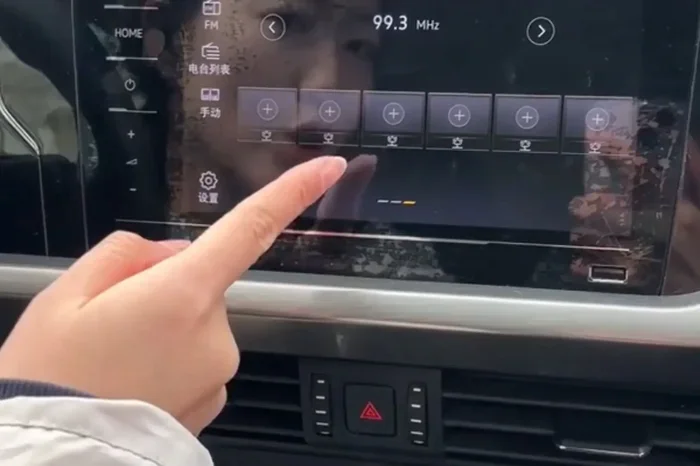
A soft reset is the easiest and fastest option. It works like restarting your phone. You do not lose any settings, saved destinations, or playlists.
Steps to perform a soft reset:
- Press and hold the power button on your display for 10 to 15 seconds.
- Wait for the screen to turn off completely.
- Wait about 30 seconds.
- Press the power button again to turn the display back on.
This method works for most minor glitches. If your screen is frozen or unresponsive, the soft reset is your first line of defense. It takes less than a minute and requires no technical knowledge.
Quick Tip: If the power button does not work, try turning off your vehicle completely, opening the driver’s door, and waiting two minutes. This cuts power to the infotainment system and acts as a soft reset.
Method 2: The Battery Disconnect Reset
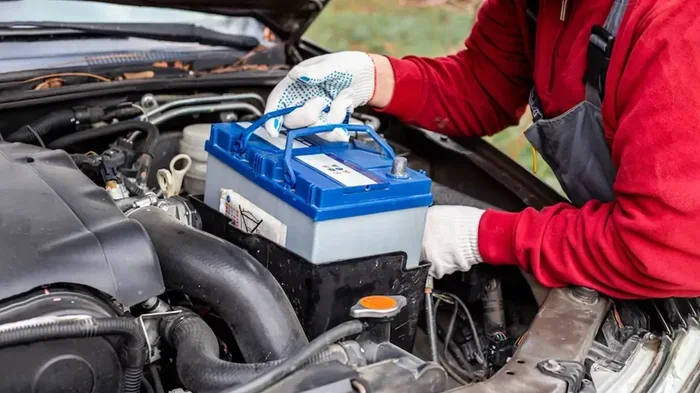
When a soft reset does not work, the next step is to disconnect the car battery. This method resets the entire electrical system, including the display.
Steps to disconnect your battery:
- Turn off your vehicle and remove the key from the ignition.
- Open the hood and locate the battery.
- Use a wrench to loosen the negative cable (the black one).
- Lift the cable off the battery terminal.
- Wait for 5 to 10 minutes.
- Reconnect the negative cable and tighten it.
- Start your vehicle and check the display.
This method is more involved but very effective. It clears all temporary data and forces the system to start fresh. If you have ever dealt with a frozen infotainment screen, this is the go-to fix.
Common Mistake: Do not disconnect the positive cable first. Always remove the negative cable to avoid short circuits. Also, some vehicles lose radio presets and clock settings after a battery disconnect, so be prepared to reset those.
Method 3: The Factory Reset
A factory reset is the most thorough option. It wipes all your settings, saved Wi-Fi networks, paired phones, and preferences back to the original factory defaults. Use this method only when the other two do not work.
Steps to perform a factory reset:
- Go to the Settings menu on your display.
- Look for System or General Settings.
- Find the Reset or Factory Reset option.
- Confirm your choice when prompted.
- Wait for the system to reboot completely.
Before you do a factory reset, write down any important settings you want to keep. Some systems let you back up your profile to a USB drive. Check your owner’s manual for specific instructions.
Reset Methods for Popular Vehicle Brands
Every car brand has its own way of handling the display system. Here are some brand-specific tips to help you reset your main display faster.
| Brand | Soft Reset Method | Factory Reset Path |
|---|---|---|
| Toyota | Hold power button for 10 seconds | Settings > System > Reset |
| Honda | Hold volume knob for 10 seconds | Settings > System > Master Reset |
| Ford | Hold power button for 15 seconds | Settings > System > Restore Defaults |
| Chevrolet | Press and hold touchscreen power | Settings > Vehicle > Reset Infotainment |
These are general guidelines. Always check your specific owner’s manual for exact steps. Some newer models also support resetting through a mobile app, which can be even more convenient.
For Toyota owners, knowing how to reset various systems in your vehicle can save time and money. If you have ever wondered about resetting other sensors or systems, you might find it helpful to learn more about resetting your TPMS sensor on your own. Many Toyota owners handle these tasks at home with basic tools.
What To Do After Resetting Your Display
Once you have successfully reset your main display, there are a few things you should do to make sure everything works properly.
Check Your Settings
After a reset, your display will look different. All your saved settings will be gone. Take a few minutes to go through the menu and set everything back up. Adjust the brightness, reconnect your phone, and set your preferred radio stations.
Update Your Software
This is a great time to check for software updates. Manufacturers often release updates that fix bugs and improve performance. Connect your car to Wi-Fi or use a USB drive to download the latest version. Keeping your system updated prevents many display issues from coming back.
Test All Functions
Make sure every feature works after the reset. Test the touch screen, buttons, Bluetooth connection, backup camera, and navigation system. If anything still does not work, you may need to troubleshoot further or visit a service center.
Expert Insight: Many drivers skip the software update step after a reset. This is a mistake. Updating your system after a reset ensures you are running the most stable version of the software, which reduces the chance of display problems returning.
How To Prevent Display Problems in the Future
Prevention is always better than fixing a problem. Here are some simple habits that keep your main display running smoothly for years.
- Keep your software updated: Check for updates at least once a month. Most vehicles now support over-the-air updates that take just a few minutes.
- Clean your screen regularly: Use a microfiber cloth to wipe the display. Avoid harsh chemicals that can damage the touch screen.
- Do not overload the system: Delete old maps and files you no longer need. A cluttered system runs slower and is more prone to glitches.
- Avoid extreme temperatures: Park in the shade when possible. Extreme heat is the enemy of electronic components.
- Turn off the display properly: Always use the power button to shut off the screen. Do not just turn off the ignition while the display is still running.
These small habits add up over time. They keep your infotainment system running like new and reduce the need for frequent resets.
When Should You See a Professional?
Most display problems go away after a reset. But sometimes, the issue is deeper than a simple software glitch. Here are signs that you need professional help.
- The display stays black after multiple reset attempts: This could indicate a hardware problem with the screen itself.
- You see flickering lines or dead pixels: These are physical damage signs that a reset cannot fix.
- The display works intermittently: If it works sometimes and not others, there may be a loose wire or faulty connection.
- You get error messages that will not go away: Persistent error messages suggest a deeper system issue.
If you notice any of these problems, take your vehicle to a trusted mechanic or dealership. They have diagnostic tools that can pinpoint the exact issue. Trying to fix hardware problems on your own can cause more damage and void your warranty.
Common Mistake: Some drivers try to open the display unit themselves to check for loose wires. This is risky. Opening the unit can damage the screen and void your warranty. Always let a professional handle hardware repairs.
It is also worth noting that if you take your vehicle in for service, you can often get the display checked at the same time. Many Toyota dealerships offer comprehensive service that includes infotainment system diagnostics. If you have questions about service coverage, you might want to check whether your Toyota warranty covers repairs at any dealership or if you need to visit a specific location.
Quick Tips for a Successful Display Reset
- Write down your settings before performing a factory reset so you can restore them easily.
- Keep your owner’s manual handy for model-specific reset instructions.
- Have your phone paired again after the reset, as Bluetooth connections are usually cleared.
- Be patient during the reboot process. Some displays take a full minute to power back on.
- Try a soft reset first before moving on to more drastic methods like a battery disconnect.
Following these tips makes the reset process smoother and less stressful. You will be back to enjoying your infotainment system in no time.
Final Thoughts on Resetting Your Main Display
Dealing with a frozen or unresponsive display is never fun, but it is almost always fixable. A simple reset can bring your main display back to life in minutes. Start with a soft reset, move to a battery disconnect if needed, and only use a factory reset as a last resort. Remember to update your software after resetting and take steps to prevent future issues.
Your car’s display is a powerful tool that makes driving safer and more enjoyable. Taking care of it with regular resets and maintenance goes a long way. If you ever feel unsure about any step, do not hesitate to consult your owner’s manual or reach out to a professional. The goal is to keep your display working so you can focus on what matters most: the road ahead.
Whether you are dealing with a glitchy screen or just want to learn more about your vehicle’s systems, understanding how to reset your main display is a valuable skill. Every driver should know these basic steps. They save time, money, and frustration. So the next time your display acts up, you will know exactly what to do.
Taking care of your car’s technology is just as important as maintaining the engine or the tires. A well-functioning display improves your driving experience every single day. Keep these tips in mind, share them with fellow car owners, and enjoy a smoother, smarter drive.
For more helpful vehicle maintenance tips and guides, explore our other articles on common car questions and DIY fixes that every driver should know.
Frequently Asked Questions
How long does it take to reset a main display?
A soft reset takes less than two minutes. A battery disconnect reset takes about 10 to 15 minutes including the waiting period. A factory reset can take 15 to 30 minutes depending on your vehicle model. The actual reset process is quick, but you will need time to restore your settings afterward.
Will I lose my saved navigation data after a reset?
Yes, a factory reset will erase all saved navigation data, Wi-Fi passwords, and paired devices. A soft reset will not delete any of your data. To be safe, write down important destinations and settings before performing a factory reset. Some vehicles allow you to back up your profile to a USB drive.
Why does my display keep freezing even after a reset?
If your display continues to freeze after multiple resets, the problem is likely hardware-related. It could be a faulty screen, a loose connection, or a failing processor. In this case, you should take your vehicle to a professional for diagnosis. Continuing to reset a hardware problem will not fix it and may cause further issues.
Can I reset my main display while driving?
No, you should never reset your display while driving. It can distract you and cause you to lose access to navigation and other important features. Always pull over to a safe location before attempting any reset. Your safety comes first. Find a parking spot or a safe resting area before you start the reset process.
Do I need special tools to reset my main display?
No, you do not need any special tools for a soft reset or factory reset. You only need a wrench for a battery disconnect reset. Most resets can be done with your hands through the touchscreen or buttons. Keep your owner’s manual nearby for model-specific instructions.
How often should I reset my main display?
You should not reset your display regularly. Only reset it when you experience problems like freezing, unresponsiveness, or glitches. Frequent resets are not necessary and can actually cause you to lose settings. If you find yourself resetting often, there may be an underlying issue that needs professional attention.