How Do I Turn Off Auto Voice Dictation On Your Phone
Auto voice dictation can be annoying, especially when it activates unexpectedly while driving or during important calls. This guide shows you exactly how to turn off auto voice dictation on your phone, whether you use an iPhone or Android device. You will also learn how to manage voice settings in your car’s infotainment system to prevent unwanted dictation.
Have you ever been driving down the road, trying to focus on the road ahead, and suddenly your phone starts typing out words you never said? That is auto voice dictation at work. It can be frustrating, distracting, and frankly, a pain to deal with. The good news is that you can turn it off.
Whether you are dealing with an iPhone, an Android phone, or an in-car infotainment system that keeps triggering voice input, this guide has you covered. We will walk through every step in simple, clear language. No tech jargon. No confusing menus. Just practical steps you can follow right now.
Auto voice dictation is a feature that listens for your voice and converts your speech into text. It is built into most smartphones today. Apple calls it Siri Dictation. Google calls it Voice Typing. Both work similarly. They use your phone’s microphone to pick up your voice and turn it into written words.
This feature is helpful in many situations. You can dictate texts while cooking. You can send emails while walking. You can jot down notes without typing a single letter. But there is a downside. Sometimes it activates when you do not want it to. Maybe your phone is in your pocket and something brushes against the microphone. Maybe a passenger in the car is talking and your phone thinks it is you. Maybe you simply do not want your phone listening all the time.
That is where this guide comes in. We will show you exactly how to turn off auto voice dictation on your phone. We will also cover how to manage voice settings when your phone connects to your car. Let us get started.
Key Takeaways
- Turn off voice dictation on iPhone: You can disable it in Settings under Keyboard or Siri & Search in just a few taps.
- Disable voice typing on Android: Go to Settings, then System, then Language & Input to manage your voice input preferences.
- Car Bluetooth voice settings matter: Your car’s infotainment system may auto-trigger dictation when your phone connects.
- Steering wheel voice buttons can cause issues: These buttons often activate dictation even when you do not want them to.
- Microphone permissions play a role: Revoking mic access for certain apps stops unwanted voice input.
- Speech recognition settings can be adjusted: Fine-tuning these settings gives you more control over when dictation activates.
- Restarting your device helps: A simple reboot can fix lingering voice dictation issues after changing settings.
📑 Table of Contents
- What Is Auto Voice Dictation and Why Does It Activate?
- How to Turn Off Auto Voice Dictation on iPhone
- How to Turn Off Auto Voice Dictation on Android
- Turning Off Voice Dictation in Car Infotainment Systems
- Common Mistakes That Keep Voice Dictation Active
- Quick Tips for Managing Voice Dictation Settings
- Expert Insights on Voice Dictation and Driving Safety
- Key Takeaways
- Frequently Asked Questions
- Conclusion
What Is Auto Voice Dictation and Why Does It Activate?
Before we dive into the steps, let us understand what we are dealing with. Auto voice dictation is a hands-free input method. It uses speech recognition technology to listen to your voice and type what you say. Most modern phones have this feature turned on by default.
Here is how it typically works. You tap on a text field. The microphone icon appears on your keyboard. You tap it and start speaking. Your phone transcribes your words into text. Some phones also offer hands-free mode. This means the phone listens without you tapping the microphone first. That is where things can go wrong.
In a car setting, voice dictation can activate through Bluetooth connection. When your phone pairs with your car’s infotainment system, certain voice features may turn on automatically. Steering wheel voice buttons can also trigger dictation. Even a loose headphone cord or a Bluetooth earpiece can accidentally activate the microphone.
Understanding this helps you know exactly what to change. You are not fighting a mystery. You are adjusting settings that control when and how your phone listens.
How to Turn Off Auto Voice Dictation on iPhone
If you use an iPhone, you have several ways to disable voice dictation. Follow these steps carefully. Each one targets a different aspect of the feature.
Disable Siri Dictation Completely
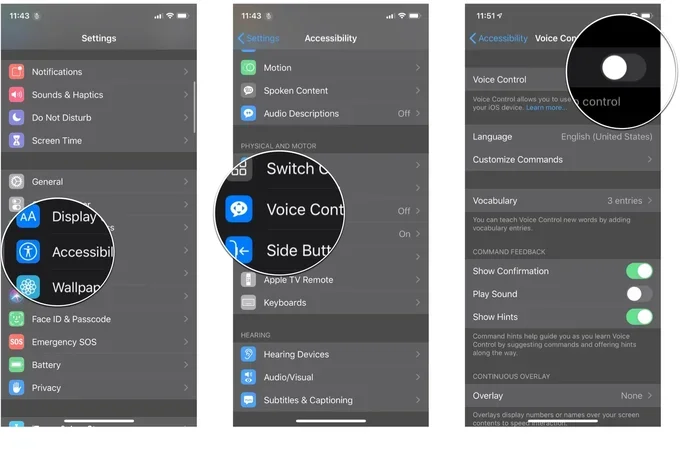
Open the Settings app on your iPhone. Scroll down and tap General. Then tap Keyboard. Look for Enable Dictation. Toggle it off. This turns off the dictation feature across all apps on your phone.
Once you do this, the microphone icon will disappear from your keyboard. Your phone will no longer listen for your voice when you are typing. This is the most direct way to stop auto voice dictation on an iPhone.
Turn Off Siri Voice Activation
Siri can also trigger dictation through voice commands. To stop this, go to Settings. Tap Siri & Search. Toggle off Listen for Hey Siri. Also toggle off Press Side Button for Siri. This prevents Siri from waking up and activating dictation on its own.
This step is especially important if your phone keeps responding to your voice when you do not ask it to. Many people do not realize Siri is listening in the background.
Adjust Microphone Permissions
You can also control which apps have access to your microphone. Go to Settings. Tap Privacy & Security. Then tap Microphone. Here, you will see a list of apps. Toggle off microphone access for any app you do not want listening. This is a great way to prevent specific apps from triggering voice input.
For example, if you do not want your social media apps to use voice dictation, simply turn off their microphone permission. This is a quick and effective fix.
How to Turn Off Auto Voice Dictation on Android
Android phones offer similar controls, but the menu names and paths can vary slightly depending on your device. Here is how to find the right settings on most Android phones.
Disable Google Voice Typing
Open your Settings app. Scroll down and tap System. Then tap Languages & Input. Look for On-screen Keyboard. Tap it, then select Google Voice Typing. Toggle it off. This disables the voice-to-text feature on your Android device.
Some Android phones also have a Voice Input button on the keyboard itself. When you tap it, the phone starts listening. Disabling Google Voice Typing removes this button from your keyboard.
Turn Off Voice Assistant Features
Google Assistant is another common source of unwanted voice activation. To turn it off, go to Settings. Tap Apps. Find Google Assistant. Tap Permissions. Then turn off Microphone access. This prevents Google Assistant from listening in the background.
You can also long-press the home button or say Hey Google to access Assistant settings. From there, you can toggle off Voice Match. This stops your phone from responding to your voice when it is locked.
Manage Keyboard Settings
Different Android phones use different keyboards. Samsung phones use Samsung Keyboard. Pixel phones use Gboard. Both have voice input features that can be turned off.
For Samsung Keyboard, go to Settings. Tap General Management. Then tap Samsung Keyboard Settings. Toggle off Voice Input. For Gboard, open the keyboard in any app. Tap the gear icon. Then toggle off Voice Typing.
These small adjustments make a big difference. You will notice immediately that your phone is no longer typing out words you never said.
Turning Off Voice Dictation in Car Infotainment Systems
This is where the automotive side of the topic really comes in. Many drivers experience auto voice dictation activating through their car’s Bluetooth connection. The phone links to the car’s system, and suddenly voice input is active everywhere.
Car infotainment systems like Apple CarPlay and Android Auto often include voice dictation features. These can be convenient when driving. But they can also be distracting if they activate at the wrong time.
Disable Voice Commands in CarPlay
If you use Apple CarPlay, you can adjust voice settings. Open the Settings app on your iPhone. Tap CarPlay. Select your car. From there, you can manage which features are active. Turn off Siri Eyes Free if you do not want your phone to respond to voice commands while driving.
You can also go to Settings. Tap Siri & Search. Toggle off Allow Siri When Locked. This adds another layer of control over when Siri activates.
Adjust Android Auto Voice Settings
For Android Auto, open the app on your phone. Tap the Settings icon. Look for Voice Commands. Toggle off the option that allows voice activation while driving. You can also adjust the Assistant settings to prevent it from listening in the background.
Some cars also have their own voice control systems built in. Check your car’s manual or settings menu. Look for Voice Recognition or Voice Command options. You can often turn these off independently from your phone settings.
Steering Wheel Voice Button Settings
Many cars have steering wheel controls that activate voice dictation. If you accidentally press one of these buttons while driving, your phone may start transcribing your voice. This can be dangerous and annoying.
Check your car’s infotainment settings for steering wheel button assignments. Some systems let you disable the voice button entirely. Others let you change its function. If your car does not offer this option, you may need to be more mindful of where your hands are on the wheel.
Common Mistakes That Keep Voice Dictation Active
Even after you follow the steps above, voice dictation might still activate. Here are common mistakes that keep it running when you do not want it to.
Forgetting to Restart Your Phone
After changing settings, your phone may not apply them right away. A simple restart can fix this. Turn your phone off completely. Wait a few seconds. Turn it back on. The new settings should take effect immediately.
Not Checking Bluetooth Settings
When your phone connects to your car via Bluetooth, it may re-enable certain voice features. Check your Bluetooth settings after connecting. Make sure voice dictation is still turned off for your car profile.
Leaving Voice Assistants Enabled
Disabling dictation on your keyboard does not always disable your voice assistant. Siri, Google Assistant, and other assistants have their own settings. You need to check each one separately. Otherwise, they may still activate when you least expect it.
Ignoring App-Specific Permissions
Some apps have their own voice input settings. Messaging apps, social media apps, and note-taking apps often include built-in dictation. Check the settings within each app to make sure voice input is turned off where you do not want it.
Not Updating Your Software
Software updates often include bug fixes for voice recognition issues. If your phone keeps activating dictation unexpectedly, check for updates. Install the latest version of your operating system. This can resolve many stubborn voice input problems.
Quick Tips for Managing Voice Dictation Settings
Here are some extra tips to help you stay in control of your phone’s voice features.
- Test your settings after making changes. Open a text message and try typing. Make sure the microphone icon is gone or that voice input does not activate on its own.
- Use Do Not Disturb mode while driving. This reduces the chances of your phone activating voice features at the wrong time.
- Keep your phone in a secure pocket or holder. Loose clothing or movement can accidentally trigger the microphone.
- Review settings monthly. Software updates can sometimes reset your preferences. Make it a habit to check your voice settings every few weeks.
- Teach passengers about your settings. If someone else is using your phone, they might accidentally turn voice dictation back on.
Expert Insights on Voice Dictation and Driving Safety
Voice dictation in cars is a topic of ongoing debate among safety experts. Many studies show that hands-free does not mean distraction-free. Even when your eyes stay on the road, your mind can wander when you are dictating a message.
The National Highway Traffic Safety Administration (NHTSA) recommends minimizing all distractions while driving. This includes voice-activated features. If you find that auto voice dictation keeps pulling your attention away, turning it off entirely is a smart move.
Experts also suggest using your car’s built-in voice system instead of your phone’s. Car-built systems are designed to integrate with driving. They often have better noise cancellation and fewer false activations. They are also less likely to distract you with unnecessary prompts.
For drivers who rely on voice input for accessibility reasons, the solution is not to avoid voice features altogether. Instead, focus on fine-tuning the settings. Adjust sensitivity levels. Set activation triggers to require a deliberate action. This way, you get the benefits without the distractions.
Key Takeaways
- Turn off voice dictation on iPhone: You can disable it in Settings under Keyboard or Siri & Search in just a few taps.
- Disable voice typing on Android: Go to Settings, then System, then Language & Input to manage your voice input preferences.
- Car Bluetooth voice settings matter: Your car’s infotainment system may auto-trigger dictation when your phone connects.
- Steering wheel voice buttons can cause issues: These buttons often activate dictation even when you do not want them to.
- Microphone permissions play a role: Revoking mic access for certain apps stops unwanted voice input.
- Speech recognition settings can be adjusted: Fine-tuning these settings gives you more control over when dictation activates.
- Restarting your device helps: A simple reboot can fix lingering voice dictation issues after changing settings.
Frequently Asked Questions
Can I turn off auto voice dictation without disabling Siri or Google Assistant?
Yes, you can. On iPhone, go to Settings, tap General, then Keyboard, and toggle off Enable Dictation. This only affects the keyboard’s voice input. On Android, go to your keyboard settings and turn off Voice Typing. Your voice assistant will still work if you want it to.
Why does my phone keep turning on voice dictation by itself?
This usually happens because of a false activation. Your phone’s microphone might pick up background noise, a conversation, or even fabric brushing against it. Bluetooth connections in the car can also trigger it. Check your microphone permissions and restart your phone to fix this issue.
Does turning off voice dictation affect hands-free calling?
No, it does not. Hands-free calling uses a different system than voice dictation. You can disable dictation and still make calls using your car’s steering wheel buttons or your phone’s speakerphone feature.
How do I stop my car’s infotainment system from triggering voice dictation?
Go to your car’s infotainment settings and look for Voice Command or Voice Recognition options. Turn off any features that activate dictation automatically. You can also adjust your phone’s Bluetooth settings to prevent it from sending voice input signals to the car.
Will I lose any other features if I turn off auto voice dictation?
You will lose the ability to dictate text using your voice. You can still type manually, use your keyboard, or send voice messages through specific apps like WhatsApp or iMessage. Other voice features like Siri or Google Assistant can remain active if you choose to keep them on.
How often should I check my voice dictation settings?
It is a good idea to check your settings once a month. Software updates can sometimes reset your preferences. Also, if you get a new phone or a new car, you will want to review your voice settings right away to make sure everything is set up the way you want it.
Conclusion
Turning off auto voice dictation on your phone is simple once you know where to look. Whether you use an iPhone or an Android device, the steps are straightforward and easy to follow. You can disable dictation on your keyboard, turn off voice assistants, and manage microphone permissions in just a few minutes.
If you drive, pay special attention to your car’s infotainment settings and Bluetooth connections. These are the most common triggers for unwanted voice input while on the road. A few small adjustments can make a big difference in your driving experience.
Remember to restart your phone after making changes. Test your settings to make sure everything works as expected. And review your settings regularly to keep them up to date.
You now have all the tools you need to take control of your phone’s voice features. No more unexpected dictation. No more distractions. Just a cleaner, calmer phone experience. Go ahead and try these steps today. Your future self will thank you every time you get behind the wheel.